Monitored Computers
The Monitored Computers tab in a User Activity monitoring plan gives you a detailed, per-host view of every monitored computer. The tab reports the health of each computer separately, so you can identify issues and view diagnostic details without leaving the interface.
To access the Monitored Computers tab:
Step 1 – In the main Netwrix Auditor menu, select Monitoring Plans.
Step 2 – Select your User Activity monitoring plan and click Edit.
Step 3 – Click Edit Data Source in the right pane, then select Monitored Computers.
Overview
When you add computers to a monitoring plan by IP range or by AD container, Netwrix Auditor resolves and tracks each host individually. The Monitored Computers tab lists all resolved computers with their current health status, so you can see which hosts are collecting data normally and which ones require your attention.
NOTE: The Monitored Computers tab doesn't display computers that you exclude from monitoring with the Exclude these objects or Exclude subranges setting in the item settings.
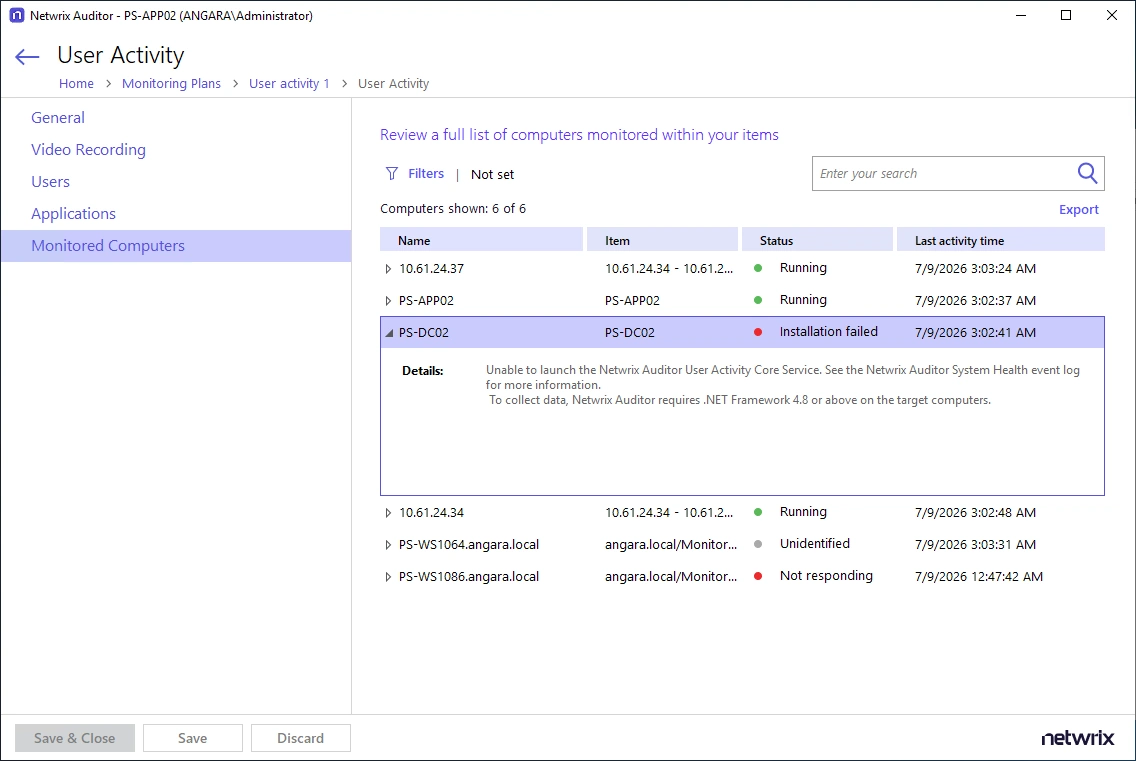
Monitored Computers Grid
The grid displays the following columns for each computer:
| Column | Description |
|---|---|
| Name | The hostname or IP address of the monitored computer. |
| Item | The source that included this computer in the plan — for example, an IP address, an IP range, or an AD container (OU). |
| Status | A consolidated status indicator for the computer. |
| Last Activity Time | The last time the service interacted with the computer. |
Filtering and Search
Search field — Enter text in the search field in the upper-right corner to filter the list of computers. The search matches entries in the Name, Item, and Status fields. It's case-insensitive and supports partial matches — for example, entering old returns computers whose Name, Item, or Status field contains that substring. Press Enter to refresh the results.
Filters — Click Filters to open the Apply Filters dialog, where you can filter by:
- Status — Select one or more statuses from the dropdown list to show only computers in those states.
- Name — Enter a partial or full computer name.
- Items — Select one or more items (IP ranges, OUs, or individual computers) from the dropdown list.
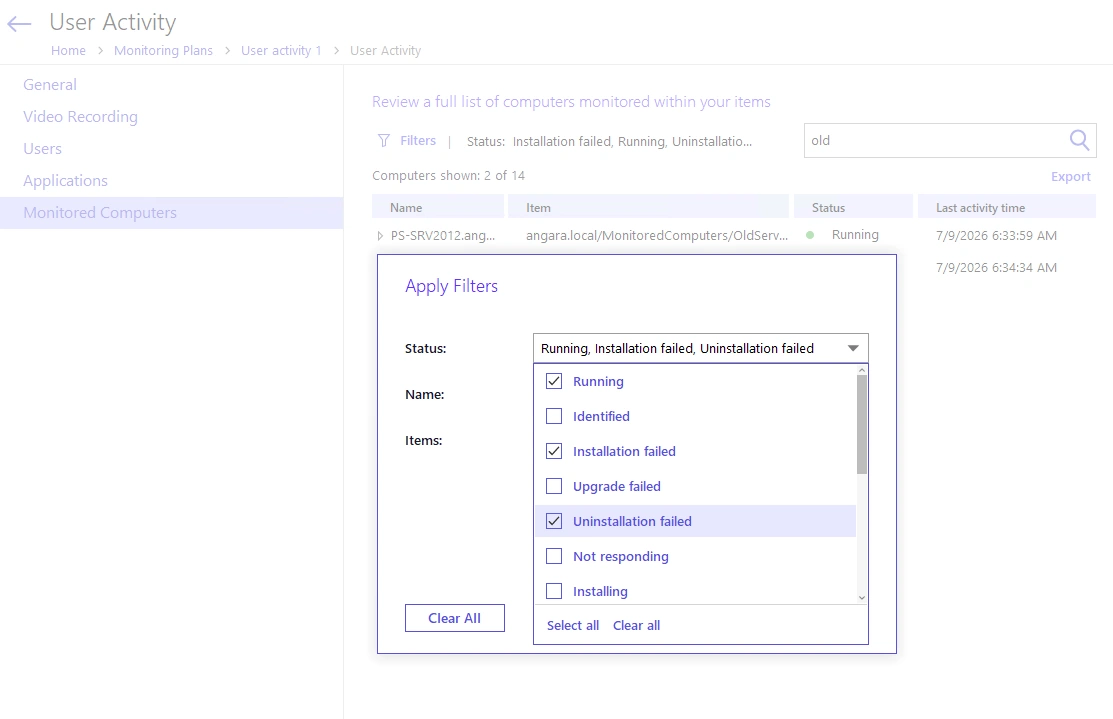
You can combine search and filters. The label next to Filters shows a summary of the active filters. To remove all active filters at once, click Clear All in the Filters dialog.
Exporting the List
Click Export above the grid to save the displayed computers to a file. The export respects any active search term and filters, and includes the following columns: Name, Item, Status, and Last Activity Time.