Investigations
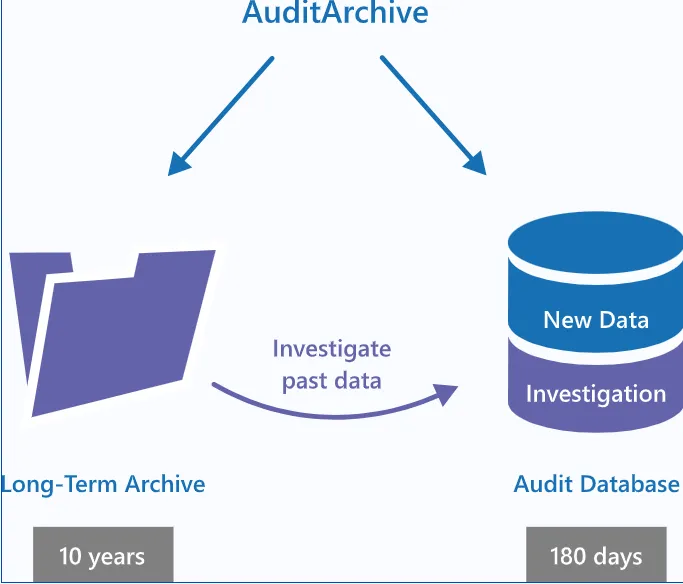
By default, the Audit Database stores data for up to 180 days. When the retention period expires, the data is deleted from the Audit Database and becomes unavailable for reporting and search.
Depending on your company requirements, you may need to investigate past incidents and review old data stored in the Long-Term Archive. Netwrix Auditor lets you import data from the Long-Term Archive to a special "investigation" database. After importing data there, you can run searches and generate reports with your historical data.
To import audit data with the Archive Data Investigation wizard
NOTE: You must be assigned the Global administrator role to import investigation data. To view investigation data, you must be assigned the Global administrator or Global reviewer role. See Assign Roles topic for more information.
-
Navigate to Settings → Investigations.
-
Complete your SQL Server settings.
Option Description SQL Server Instance Specify the name of the SQL Server instance to import your audit data to. If you want to run searches and generate reports, select the same SQL Server instance as the one specified on Settings → Audit Database page. See Audit Database topic for more information. Database Select import database name. By default, data is imported to a specially created the Netwrix_ImportDB database but you can select any other. Don't select databases that already contain data. Selecting such databases leads to data overwrites and loss. Authentication Select the authentication type you want to use to connect to the SQL Server instance: - Windows authentication - SQL Server authentication User name Specify the account to be used to connect to the SQL Server instance. This account must be granted the database owner (db_owner) role and the dbcreator server role. Password Enter a password. Clear imported data Select to delete all previously imported data. Clear imported data when it's no longer needed to prevent SQL Server from running out of space. -
Review your New investigation configuration. Click Configure to specify the import scope.
Option Description From... To... Specify the time range for which you want to import past audit data. Data sources Select data sources whose audit data you want to import to the Audit Database.
| Monitoring plans | Select monitoring plans whose audit data you want to import to the Audit Database. Netwrix Auditor lists monitoring plans that are available in the product configuration. Select All to import audit data for all monitoring plans, including those that were removed from the product (or removed and then recreated with the same name—Netwrix Auditor treats them as different monitoring plans). For example, you had a monitoring plan corp.local used for auditing Active Directory. You removed this monitoring plan, but its audit data was preserved in the Long-Term Archive. Then, you created a new monitoring plan for auditing Exchange and named it corp.local again. Its data is also stored in the Long-Term Archive. Netwrix Auditor treats both corp.local monitoring plans—the removed and the current—as different. If you select corp.local in the monitoring plans list, only Exchange data will be imported to Audit Database (as it corresponds to the current monitoring plan configuration). To import Active Directory data from the removed monitoring plan, select All monitoring plans. |
- Click Run.