Confirm Ownership Wizard
The Confirm Ownership wizard is opened with the Request Confirmation button in the Resource Owners interface. It can be opened for one or multiple resources.
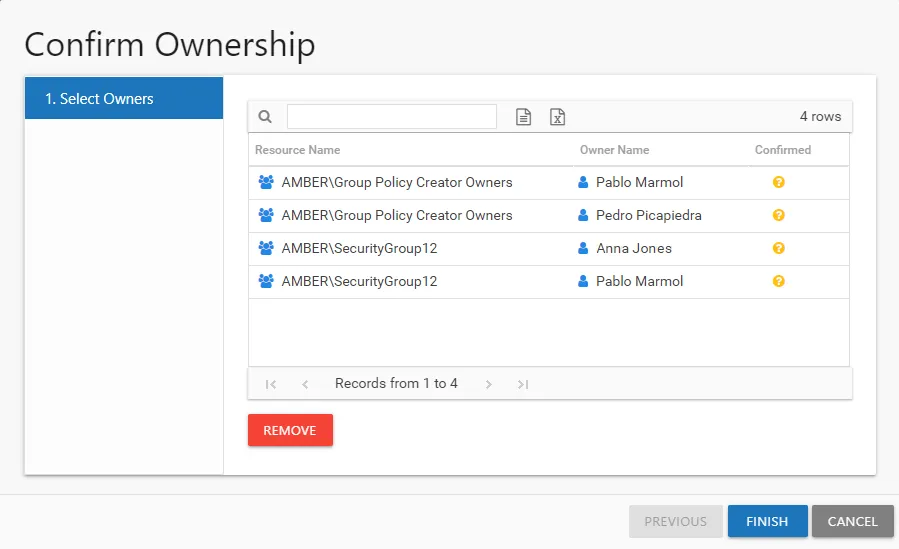
It contains one page:
-
- Select Owners — Lists the current owners for each selected resource and confirmation status
Request Ownership Confirmation
To request ownership confirmation:
Step 1 – In the Resource Owners interface, select the resource or resources you want to request confirmation for and click Request Confirmation. The Confirm Ownership wizard opens.
Step 2 – On the Select Owners page, you can optionally remove owners you don't want or need ownership confirmation from. Select those owners and click Remove. Those owners will not receive the confirmation email. When the list is set as you want, click Finish. The Access Reviews application begins to send the confirmation email. The table provides the following information:
- Resource Name — The icon indicates the type of resource. The resource name includes its location, such as the UNC path for a file system resource, the URL for SharePoint resource, or Group name (e.g., [Domain][Group]).
- Owner Name — Name of the assigned owner
- Confirmed — Indicates whether the assigned owner has confirmed ownership of that resource. Tool-tips display when hovering over the icons indicating whether the resource ownership has been confirmed, declined, pending response, or that a confirmation has not been requested.

Step 3 – The action status displays on the page. When the owner confirmation notification has completed (100%), click Close. The Confirm Ownership wizard closes.
The selected owners receive an email from the Access Reviews application asking if they are the owner of the assigned resource. See the Ownership Confirmation Request Email topic for additional information.