Requirements for SQL Server to Store Audit Data
If you plan to generate reports, use alerts and run search queries in Netwrix Auditor, consider that your deployment must include Microsoft SQL Server to store audit data. For report generation, Reporting Services (or Advanced Services) are also required.
The following table lists the supported SQL Server versions and editions.
Because of its limited database size, use Express Edition (with Reporting Services) only for evaluation, PoC, or small environments. For production environments, use Standard or Enterprise Edition.
| Version | Edition |
|---|---|
| SQl Server 2022 | - Standard or Enterprise Edition - Express Edition with Reporting Services (for evaluation, PoC, and small environments) |
| SQL Server 2019 (on-premises Windows version) cumulative update 10 and above | - Standard or Enterprise Edition - Express Edition with Reporting Services (for evaluation, PoC, and small environments) |
| SQL Server 2017 | - Standard or Enterprise Edition - Express Edition with Reporting Services (for evaluation, PoC, and small environments) |
| SQL Server 2016 | - Standard or Enterprise Edition - Express Edition with Advanced Services (SP2) (for evaluation, PoC, and small environments) |
| SQL Server 2014 | - Standard or Enterprise Edition - Express Edition with Advanced Services (for evaluation, PoC, and small environments) |
| SQL Server 2012 | - Standard or Enterprise Edition - Express Edition with Advanced Services (for evaluation, PoC, and small environments) |
NOTE: SQL express is only supported for small environments. It might cause performance issues on the medium and large environments.
You can also use SQL Server AlwaysOn Availability Group to host Netwrix Auditor audit databases. For that, after specifying audit database settings in Netwrix Auditor, manually add the created database to a properly configured AlwaysOn Availability Group. Take these steps each time you create a new audit database in Netwrix Auditor.
See the Add a database to an Always On availability group with the 'Availability Group Wizard' Microsoft article for details on adding a database to AlwaysOn Availability Group.
You can configure Netwrix Auditor to use an existing SQL Server instance, or deploy a new instance.
If your deployment planning reveals that SQL Server Express Edition is suitable for your production environment, then you can install, for example, SQL Server 2016 SP2 Express with Advanced Services using the Audit Database Settings wizard or by manually downloading it from Microsoft web site. See the Install Microsoft SQL Server and Reporting Services section for additional information.
SQL Server and Databases
Netwrix Auditor uses SQL Server databases as operational storages that keep audit data for analysis, search, and reporting purposes. Supported versions are SQL Server 2012 and later (Reporting Services versions should be 2012 R2 or later).
- Netwrix Auditor prompts you to configure the default SQL Server instance when you create the first monitoring plan; also, you can specify it in Netwrix Auditor settings.
- You can configure Netwrix Auditor to use an existing instance of SQL Server, or deploy a new instance, as described in the Create a New Monitoring Plan topic.
For evaluation and PoC projects you can deploy Microsoft SQL Server 2016 SP2 Express Edition with Advanced Services (sufficient for report generation).
For production deployment in bigger environments, use Microsoft SQL Server Standard Edition or higher because of the limited database size and other limitations of Express Edition.
Make your choice based on the size of the environment you are going to monitor, the number of users and other factors. This refers, for example, to Netwrix Auditor for Network Devices: if you need to audit successful logons to these devices, consider that these devices produce a large number of activity records, so plan for SQL Server Standard or Enterprise edition (Express edition doesn't fit).
Netwrix Auditor supports automated size calculation for all its databases in total, displaying the result, in particular, in the Database Statistics of the Health Status dashboard. This feature, however, is supported only for SQL Server 2012 SP3 and later.
Databases
To store data from the data sources included in the monitoring plan, the Monitoring Plan Wizard
creates an Audit Database. Default database name is Netwrix_Auditor_<monitoring_plan_name>.
Netwrix strongly recommends targeting each monitoring plan at a separate database.
Netwrix Auditor also creates several dedicated databases automatically on the default SQL Server instance. The following table lists the data these databases store.
| Database name | Description |
|---|---|
Netwrix_AlertsDB | Stores alerts. |
Netwrix_Auditor_API | Stores activity records collected using Integration API. |
Netwrix_Auditor_EventLog | Stores internal event records. |
Netwrix_CategoriesDB | Intended for integration with Netwrix Data Classification. This database is always created but is involved in the workflow only if the DDC Provider is enabled. See for more information. |
Netwrix_CommonDB | Stores views to provide cross-database reporting. |
Netwrix_ImportDB | Stores data imported from Long-Term Archive. |
Netwrix_OverviewReportsDB | Stores data required for overview reports. |
Netwrix_Self_Audit | Stores data collected by Netwrix Auditor self-audit (optional, created if the corresponding feature is enabled). |
These databases usually don't appear in the UI; they are only listed in the Database statistics widget of the Health Status dashboard. If you need to modify their settings via SQL Server Management Studio, contact your database administrator. For example, you may need to change logging and recovery model (by default, simple for all these databases, as well as for the Audit databases).
Install Microsoft SQL Server and Reporting Services
Netwrix Auditor uses Microsoft SQL Server database as short-term data storage and uses SQL Server Reporting Services engine for report generation. You can either use your existing SQL Server for these purposes, or deploy a new server instance. The corresponding section of this guide lists the system requirements for SQL Server.
Consider the following:
- Supported versions are 2012 and later.
- Reporting Services supports only English operating systems.
- Supported editions are Enterprise, Standard, and Express with Advanced Services (it includes Reporting Services).
- If downloading SQL Server Express Edition with Advanced Services from Microsoft site, ensure you download the file whose name contains SQLEXPRADV. Otherwise, the installer doesn't deploy Reporting Services, and you can't analyze and report on collected data.
This section provides instructions on how to:
For detailed information on installing other versions/editions, refer to Microsoft website.
Maximum database size provided in SQL Server Express editions may be insufficient for storing data in bigger infrastructures. Thus, when planning for SQL Server, consider maximum database capacity in different editions, considering the size of the audited environment.
SQL Server
When planning for SQL Server that will host Auditor databases, consider the following:
- For PoC, evaluation scenario or small environment SQL Server can run on the same computer where Netwrix Auditor Server will be installed, or on the remote machine accessible by Netwrix Auditor. Remember to check connection settings and access rights.
- In large and extra-large infrastructures, install SQL Server on a separate server or cluster. Netwrix doesn't recommend installing Netwrix Auditor and SQL Server on the same server in such environments.
- If you plan to have Netwrix Auditor and SQL Server running on different machines, establish fast and reliable connection between them (100 Mbps or higher).
- Netwrix Auditor supports both standalone servers and SQL Server clusters, as well as AlwaysOn Availability Groups.
- You can configure Netwrix Auditor to use an existing SQL Server instance, or create a new one. As an option, you can install SQL Server 2016 Express Edition, using the Audit Database Settings wizard or manually downloading it from Microsoft web site (see Install Microsoft SQL Server and Reporting Services).
CAUTION: Don't install Netwrix Auditor databases to a production SQL Server instance. Such instances may have a lot of maintenance plans or scripts running that may affect data uploaded by the product. The product databases are designed for reporting and searching and don't require maintenance or backup. For the long-term data storage, Netwrix Auditor uses Long-Term Archive. See File-Based Repository for Long-Term Archive for additional information.
If you select to set up a new SQL Server instance, Netwrix Auditor assigns the sysadmin server role for it to the current user account (this should be a member of the local Administrators group).
You must also provide a path for storing the SQL Server databases. Netwrix recommends specifying the data drive for that purpose (by default, Netwrix Auditor uses the system drive).
-
If you plan to have more than one Netwrix Auditor Servers in your network, ensure to configure them to use different SQL Server instances. You can't use the same SQL Server instance to store audit data collected by several Netwrix Auditor Servers.
-
Consider that the account that writes data to the audit databases hosted on the default SQL Server requires sufficient access rights. This account should have the following roles:
- Database owner (db_owner) database-level role
- dbcreator server-level role
You can specify this account when you configure the Audit Database settings.
Database Sizing
For database sizing, estimate the following:
- Size of the environment you are going to monitor
- Amount of activity records produced by the audited system
- Retention policy for the audit databases
- Maximum database size supported by different SQL Server versions
To estimate the number of activity records your data sources produce and Auditor collects and saves during the week, you can use the Activity records by date widget of the Health Status dashboard. See the Activity Records Statistics topic for additional information.
Auditor supports automated size calculation for all its databases in total, displaying the result, in particular, in the Database Statistics widget of the Health Status dashboard. To estimate current capacity and daily growth for each database, you can click View details and examine information in the table. See the Database Statistics topic for additional information.
This feature is supported only for SQL Server 2012 SP3 and later.
Remember that database size in SQL Server Express editions may be insufficient. For example, Microsoft SQL Server 2012 SP3 Express Edition has the following limitations which may affect performance:
- Each instance uses only up to 1 GB of RAM
- Each instance uses only up to 4 cores of the first CPU
- Database size can't exceed 10 GB
Database Settings
You can specify settings of a certain Audit database, including hosting SQL Server, when you create a monitoring plan and configure data collection for an audited system. Consider the following:
- To store data from the data sources included in the monitoring plan, you can configure the Audit database on the default SQL Server (recommended), or select another server.
- By default, the database name is
Netwrix_Auditor_<monitoring_plan_name>; you can name the database as you need, for example,Active_Directory_Audit_Data.
To avoid syntax errors, for instance, in the PowerShell cmdlets, use the
underscore character (_) instead of the space character in database names.
If the database doesn't yet exist on the specified SQL Server instance, Netwrix Auditor creates it there. For this operation to succeed, ensure that Netwrix Auditor service account has sufficient rights on that SQL Server.
You can't modify settings of other Auditor databases.
Example
As a database administrator, you can have SQL Server cluster of 2 servers, and 2 Oracle servers. If so, you can create 2 monitoring plans:
- First monitoring plan for collecting data from SQL Servers, targeted at
Netwrix_Auditor_SQL_Monitoringdatabase. - Second monitoring plan for collecting data from Oracle servers, targeted at
Netwrix_Auditor_Oracle_Monitoringdatabase.
Database Retention
Consider that retention is a global setting that applies to all Audit databases you configure for your monitoring plans.
To change database retention after product deployment, complete the following steps:
Step 1 – In the Auditor main screen, select Settings > Audit Database.
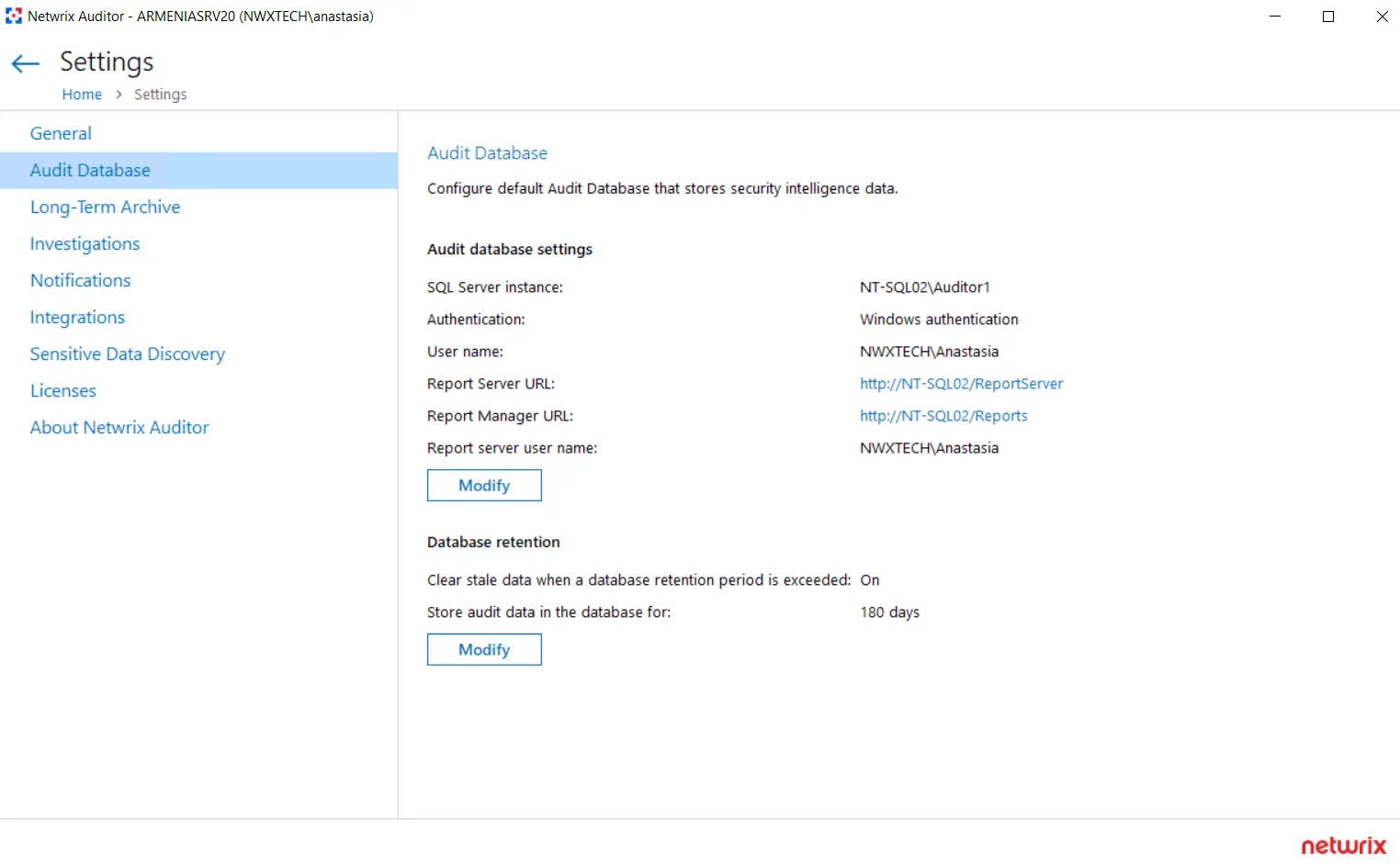
Step 2 – In the dialog displayed, ensure the Clear stale data when a database retention period is exceeded: is set to ON, then click Modify to specify the required retention period (in days).
This setting also applies to the Netwrix_Auditor_API database.
Configure Audit Database Account
This is the account that Auditor uses to write the collected audit data to the audit databases. Starting with version 9.96, you can use Group Managed Service Account (gMSA) for that purpose.
Remember, you can't use a gMSA to access SSRS. Use a standard account for that. See the SQL Server Reporting Services topic for additional information.
This account must have the Database owner (db_owner) role and the dbcreator server
role on the SQL Server instance hosting your audit databases.
To assign the dbcreator and db_owner roles, complete the following steps:
Step 3 – On the computer where SQL Server instance with the Audit Database resides, navigate to Start > All Programs > Microsoft SQL Server > SQL Server Management Studio.
Step 4 – Connect to the server.
Step 5 – In the left pane, expand the Security node. Right-click the Logins node and select New Login from the pop-up menu.
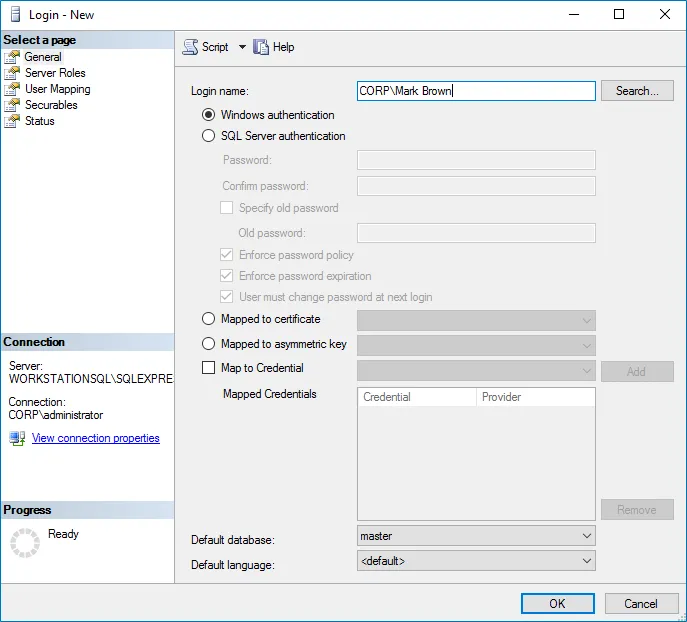
Step 6 – Click Search next to Login Name and specify the user that you want to assign
the db_owner role to.
Step 7 – Select Server roles on the left and assign the dbcreator role to the new login.
Step 8 – Select the User Mapping tab. Select all databases used by Auditor to store audit
data in the upper pane and check db_owner in the lower pane.
NOTE: This step is only required when changing the existing Audit Database Account to a new one.
Step 9 – If the account that you want to assign the db_owner role to has been already
added to SQL Server Logins, expand the Security > Logins node, right-click the account,
select Properties from the pop-up menu, and edit its roles.
If you need to migrate the Audit Database, see the How to Migrate Netwrix Auditor Databases to Another SQL Server Instance knowledge base article.