Customization Examples
Here are several examples of why and how you might customize the Netwrix Auditor main page.
View Report and Add to Favorites
View Report and Add to Favorites
-
On the main Auditor page, click the Reports tile in the upper left corner.
-
Open a report you are interested in; for example, Account Permissions in Active Directory:
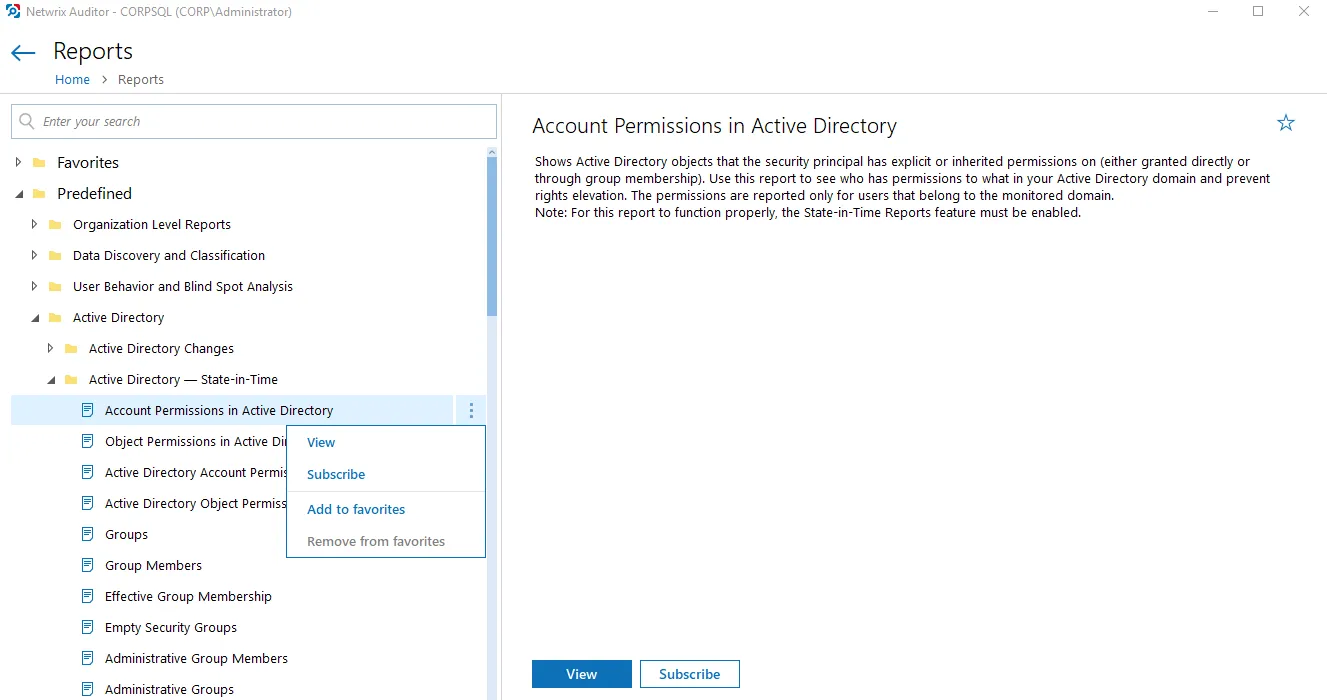
- Click the report menu (three dots) to the right and select Add to favorites. (Alternatively, click the star icon in the upper right corner of the report description.)
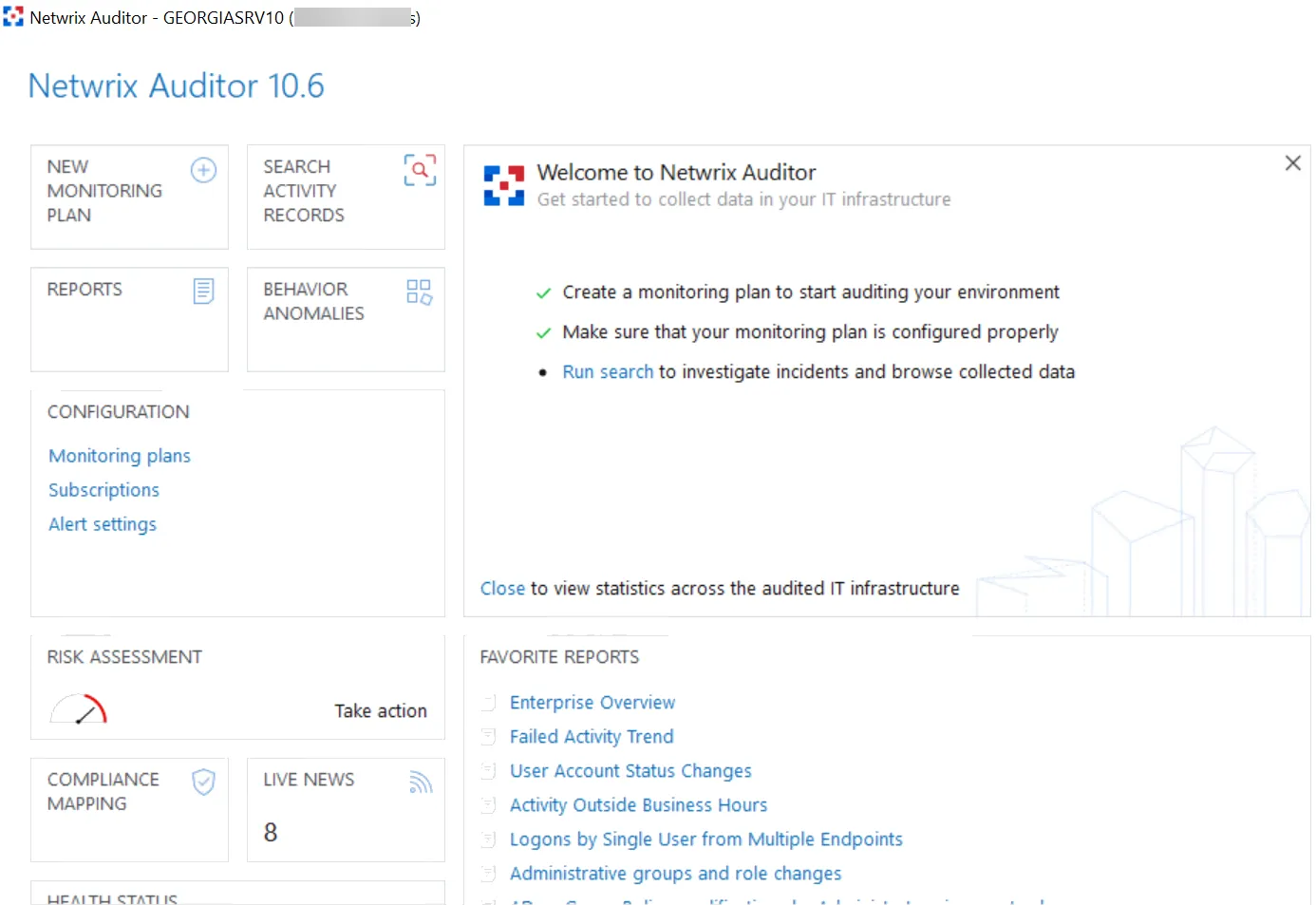
The report is added to the Favorite reports section on the home page and you can run it instantly.
Run Search and Create Alert
Run Search and Create Alert
-
On the main Auditor page, click the Search Activity Records tile.
-
Specify search filters to narrow your search results. See the Use Filters in Simple Mode topic for additional information.
-
Click Search.
-
Review your search results.
-
Navigate to Tools and click Create alert to get instant email or SMS notifications on suspicious activity that matches your current search criteria.
-
Specify a name for the new alert. See the Create Alertstopic for additional information.
Now, whenever there is activity that matches your search criteria, the appropriate people will receive a notification. You can also review the list of triggered alerts by clicking the Alerts tile on the home page, which opens the Alerts overview dashboard.
Review and Pin Risks
Review and Pin Risks
-
On the main Auditor page, click the Risk Assessment tile.
-
Review the Risk Assessment Overview dashbord and select the risk you are interested in, such as "User Accounts with administrative permissions". See the IT Risk Assessment Overview topic for additional information.
-
To access this risk quickly, pin it to the home page, as follows:
-
On the main product page, click Customize.
-
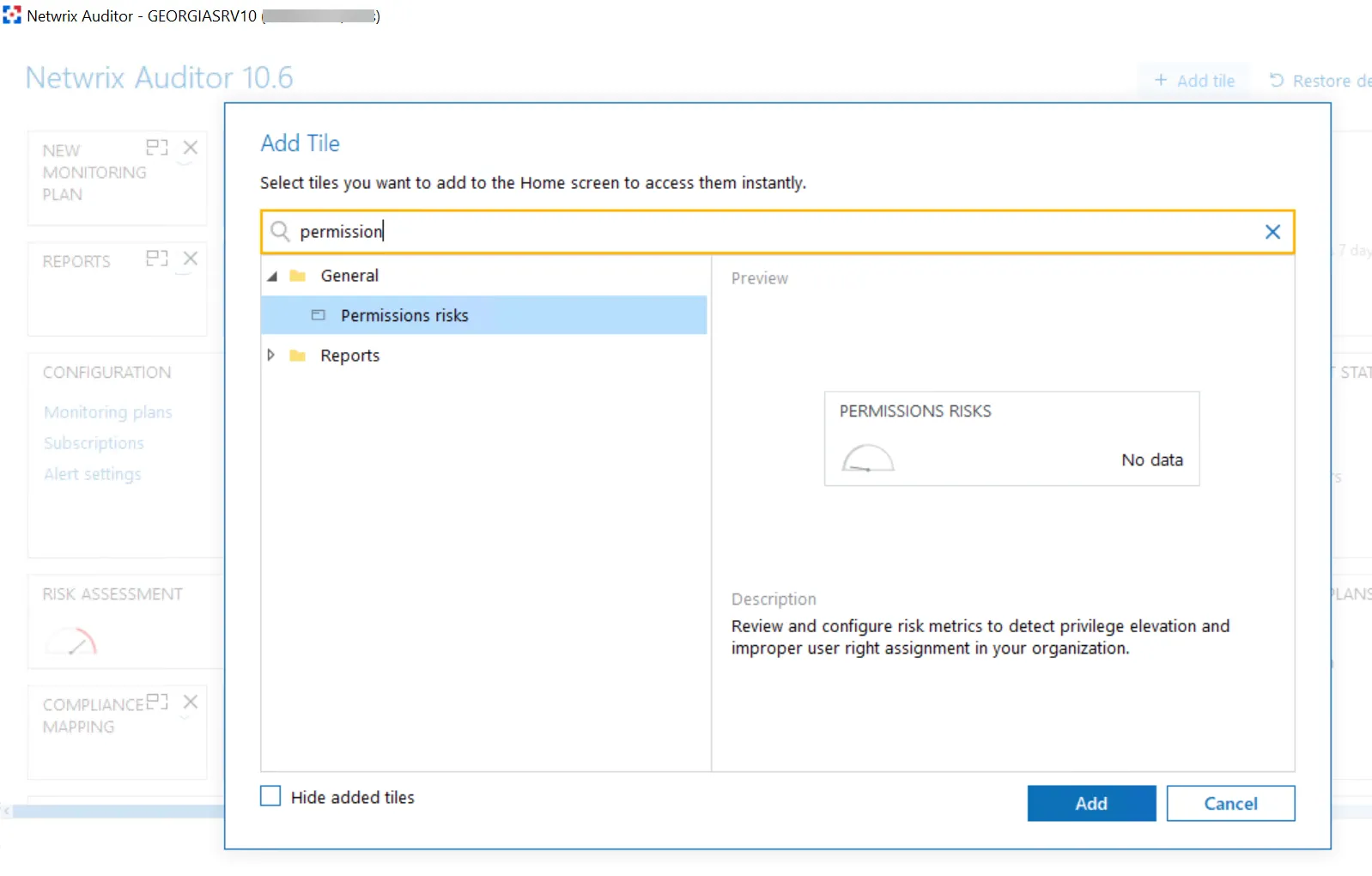
Click Add tile.
-
Search the group of risks you want to pin to the home page (in this case, the "Permissions" risks group):
-
Click Add.
The selected risks group is added to the home screen.
Personalize the Home Screen
Personalize the home page of the product depending on your business needs. Review the customization settings and collect only required tiles for quick access on the Auditor home page. See the Customize Home Screen topic for additional information.