Changes Tab
The Changes tab for AD Monitoring Configuration window provides additional options to monitor changes made to the domain.
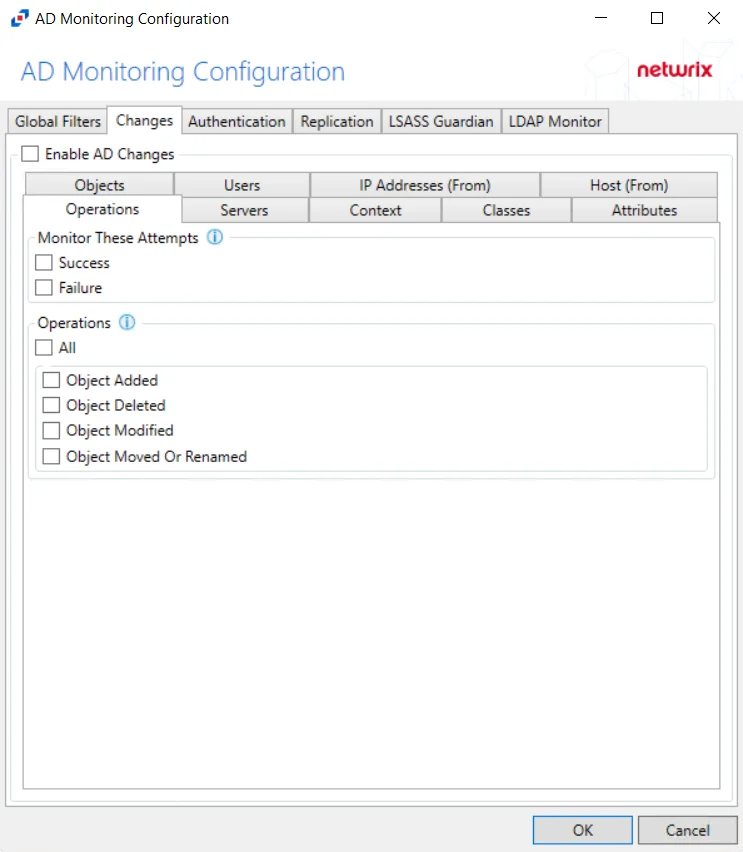
After checking the Enable AD Changes box, you can modify the following event filters on the sub-tabs:
- Attributes
- Classes
- Context
- Host (From)
- IP Addresses (From)
- Objects
- Operations
- Servers
- Users
Attributes
Use the Attributes Tab to scope monitoring to include events with specific attributes within Active Directory. Further scoping of attributes can enable monitoring to only capture events based on the new value.
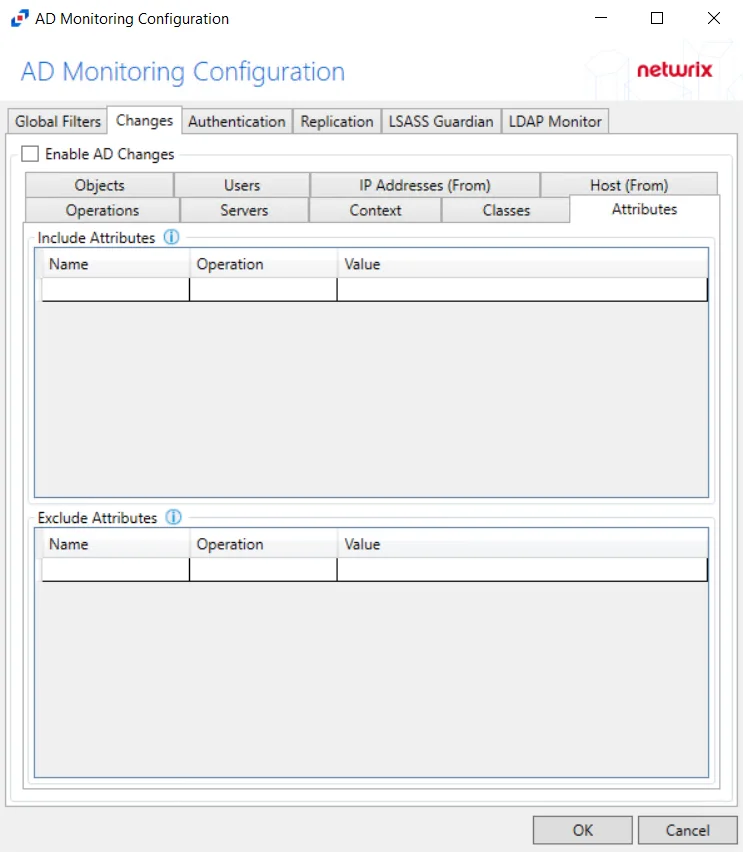
Double-click the text box beneath Name to enter the attribute you want to include or exclude. Double-click the text box beneath Value to enter the attribute value you want to reference. Choose the Operation to relate the Name and Value with. Press the Enter or Tab key to add another textbox.
Name field must contain Active Directory attribute name.
Scoping the filter captures events when the new value matches with the supplied value. To scope the filter based on the new value of the attribute, use the Operation dropdown menu.
- AnyValue – No scoping applied for this attribute
- EmptyValue – Blank attribute values
- Equal – Attribute values that are identical to the Value field
- NotEqual – Attribute values that don't match the Value field
- LessThan – Attribute values below the supplied numeric value or before alphabetically
- GreaterThan – Attribute values above the supplied numeric value or after alphabetically
- Contains – Attribute values includes the user supplied string (numbers are treated as strings)
- NotContain – Attribute values don't include the user supplied string (numbers are treated as strings)
- Startswith – Attribute values start with the user supplied string
Classes
Use the Classes Tab to scope the policy to monitor only specific classes within Active Directory or to exclude specific classes from monitoring.
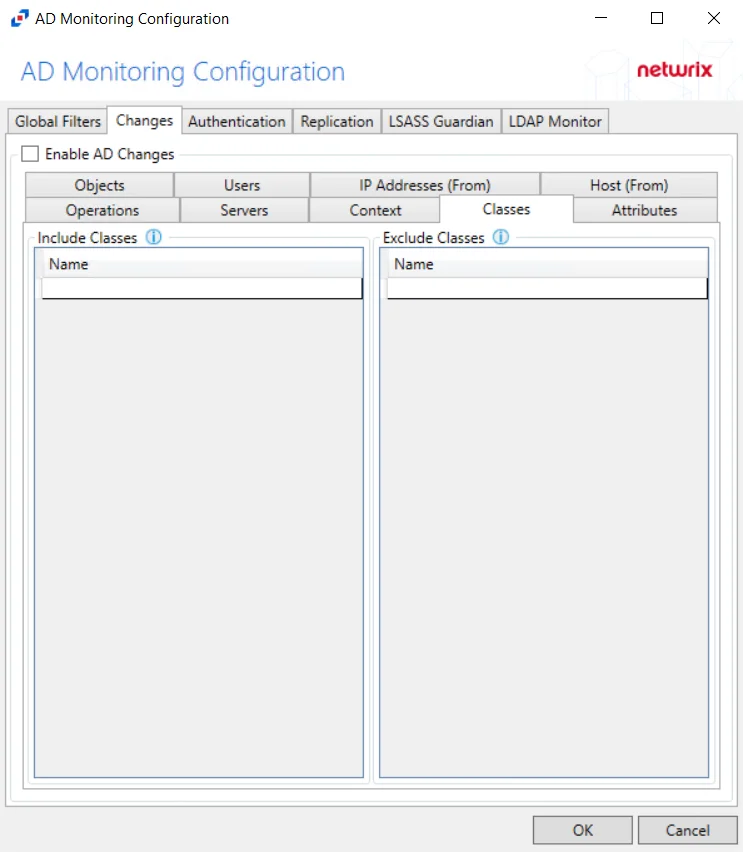
Double-click the text box beneath Name to enter the classes you want to include or exclude. Press the Enter or Tab key to add another text box.
Class must be specified in the form of objectClass attribute syntax but must contain
only last value of this multi-valued attribute. For example, for
top; person; organizationalPerson; user it must have 'user' value.
Context
Use the Context Tab to scope the policy to monitor only specific contexts (e.g. Containers and Organizational Units) within Active Directory or to exclude specific contexts from monitoring.
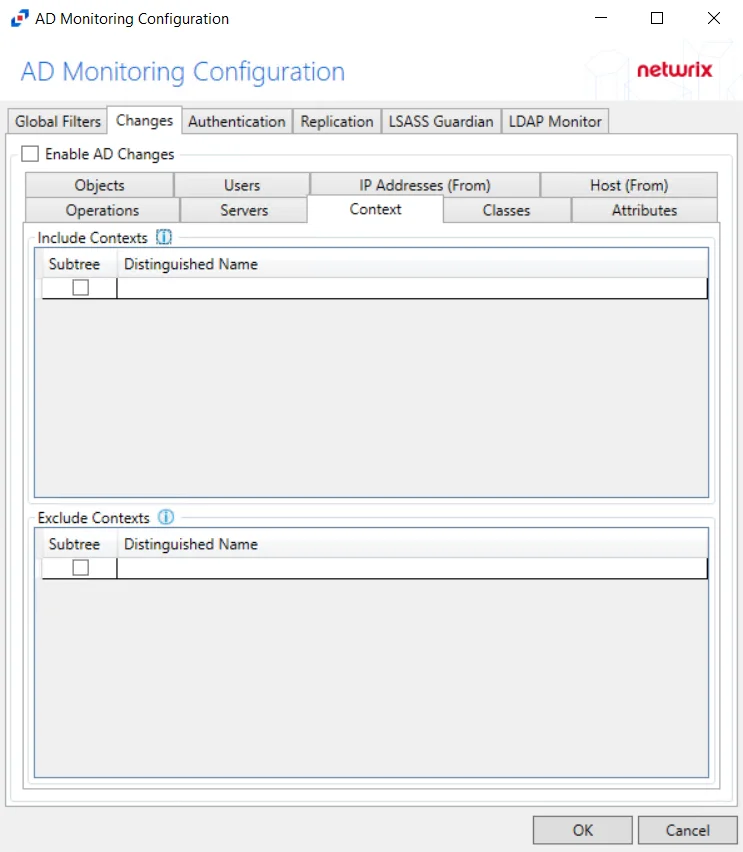
Underneath each section, there are additional Context details:
- Subtree – If checked, the filter is applied to the parent and all child contexts. If unchecked, the filter is only applied to the listed context.
- Distinguished Name – Field must be specified in the form of
distinguishedNameattribute syntax, e.g.CN=Users,DC=Domain,DC=com
Double-click the text box beneath Distinguished Name to enter the context you want to include or exclude. Press the Enter or Tab key to add another text box. Check the box under Subtree to include or exclude child contexts.
Host (From)
Use the Hosts (from) Tab to scope the policy to monitor only specific hosts as originators of an authentication event or to exclude specific hosts from authentication event monitoring.
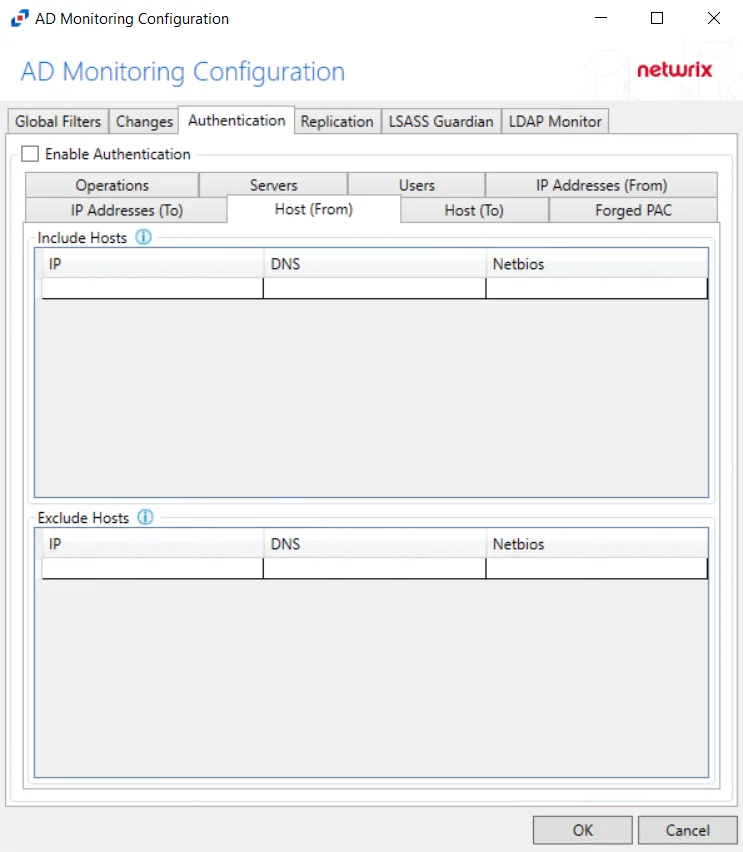
Underneath each section, there are additional Host details.
- IP – Field must contain IP address, e.g. 123.456.7.890
- DNS – Field must contain a fully qualified domain name of the host, e.g. ex01.nwxtech.com
- Netbios – Field must contain NetBIOS name of the host, e.g. ex01
Double-click the text boxes within the column, then enter all three methods of identification for a host (IP Address, NETBIOS host name, or DNS host name) to include or exclude the originating host from change event collection.
IP Addresses (From)
Use the IP Addresses (from) Tab to scope the policy to monitor only specific IP Addresses as originators of an authentication event or to exclude specific IP Addresses from authentication event monitoring.
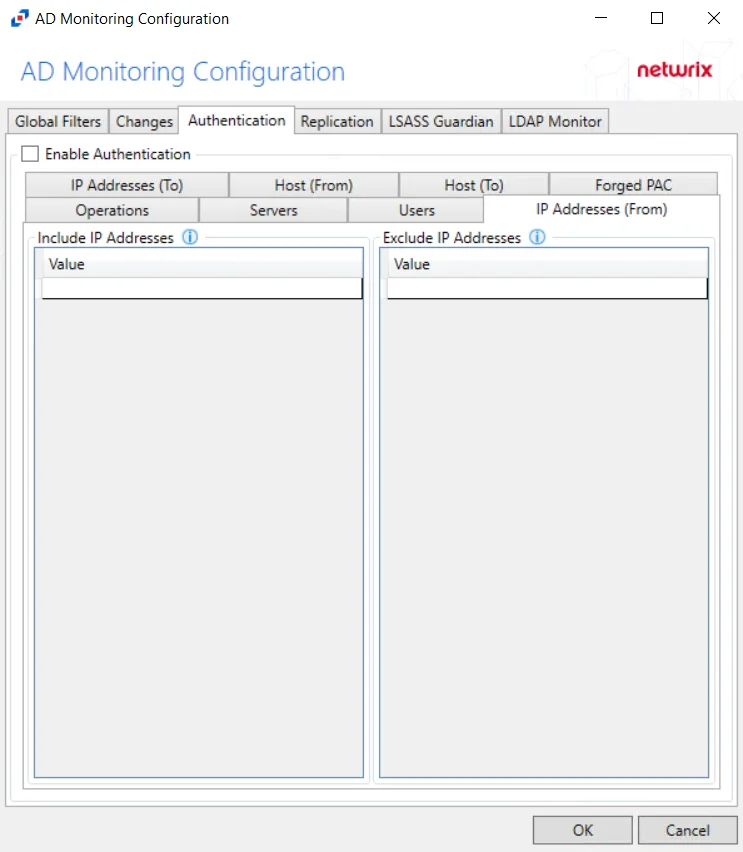
Underneath each section, there is an additional Address detail.
- Value – Must be provided in IP address format
Double-click the text box beneath Value to enter the IP addresses you want to include or exclude. Press Enter or Tab key to add another text box.
Objects
Use the Objects Tab to scope the policy to monitor only specific objects within Active Directory or to exclude specific objects from monitoring.
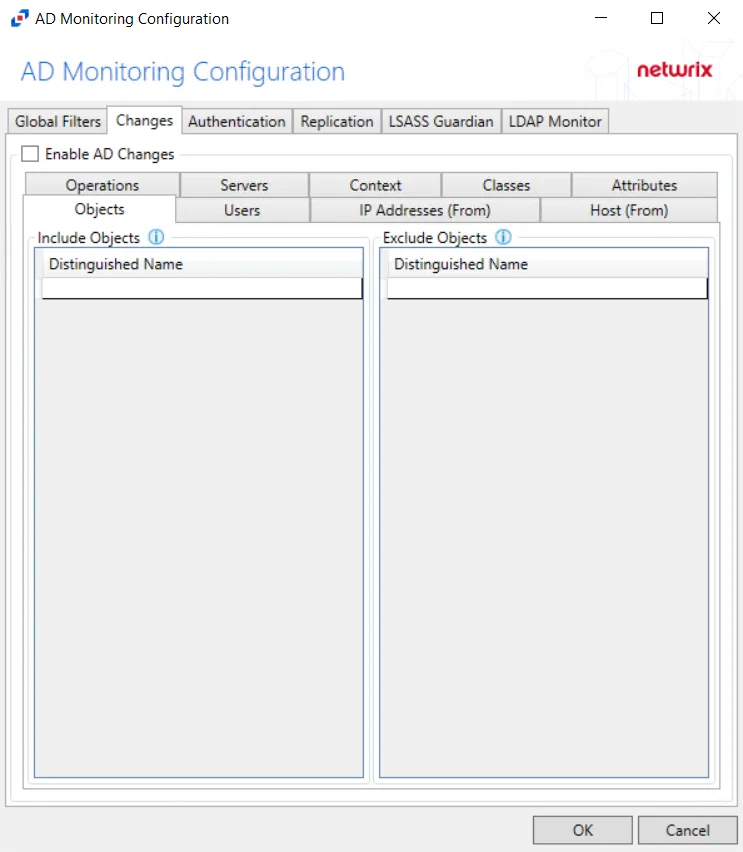
Underneath each section, there is an additional Object detail.
- Distinguished Name – Field must be specified in the form of
distinguishedNameattribute syntax, e.g.CN=Users,DC=Domain,DC=com
Double-click the text box beneath Distinguished Name to enter the objects you want to include or exclude. Press the Enter or Tab key to add another text box.
Operations
The Operations Tab provides additional configuration filters for AD event collection.
Monitor These Attempts – Filter for successful events, failed events, or both can be selected.
- Success – Monitors successful events
- Failure – Monitors failed events
Operations – Filter for Active Directory events to be monitored.
- Object Added – Monitors for objects being added to Active Directory
- Object Deleted – Monitors for objects being deleted from Active Directory
- Object Modified – Monitors for objects being modified within Active Directory
- Object Moved or Renamed – Monitors for objects being moved or renamed within Active Directory
Servers
The Servers Tab targets servers to be included or excluded when filtering for changes.
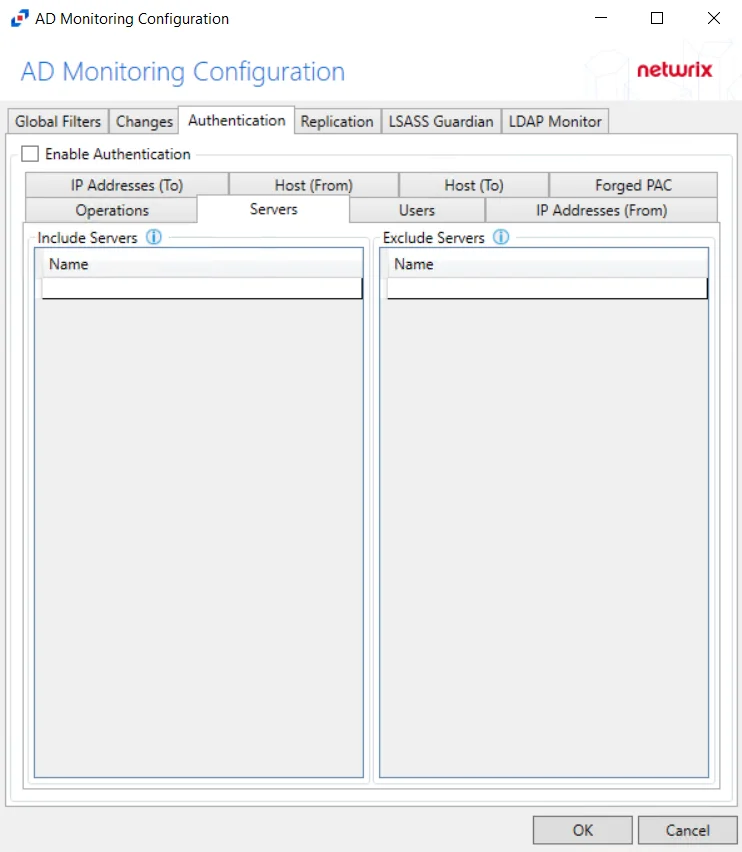
In both sections, servers must be specified in the form 'DOMAIN\SERVER', where DOMAIN is NetBIOS Domain name and SERVER is NetBIOS server name.
Double-click the text box beneath Name to enter the servers you want to include or exclude. Press the Enter or Tab key to add another text box.
Users
Use the Users Tab to scope the policy to monitor only specific security principals committing changes within Active Directory or to exclude specific users committing changes.
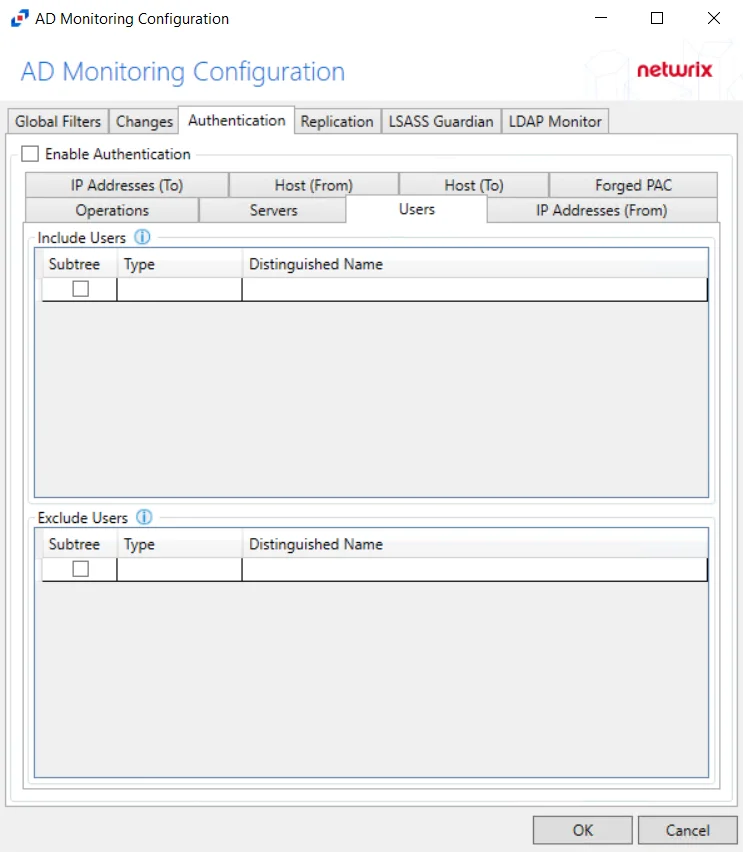
The following details appear beneath both sections.
-
Subtree – If checked, the filter is applied to the parent and all child contexts. If unchecked, the filter is only applied to the listed context.
-
Type – Field must describe the type of the select Active Directory object and can have the following values:
- user – Indicates that selected object is user
- group – Indicates that selected object is group
- context – Indicates that selected object is container
- sidType – Indicates that selected object is well-known SID type
-
Distinguished Name – Field must be specified in the form of
distinguishedNameattribute syntax, e.g.CN=Users,DC=Domain,DC=com. However, for objects withsidTypetype, it must be in the form of WellKnownSidType Enum, e.g.AnonymousSidorLocalSid.
Double-click the text box beneath Distinguished Name to enter the group types you want to include or exclude. Double-click the text box beneath Type to enter the AD object you want to include or exclude. Press the Enter or Tab key to add another text box. Check the box under Subtree to include or exclude child contexts.