Output for Monitored Hosts/Services
After you start monitoring a host, you can send its event stream to multiple outputs.
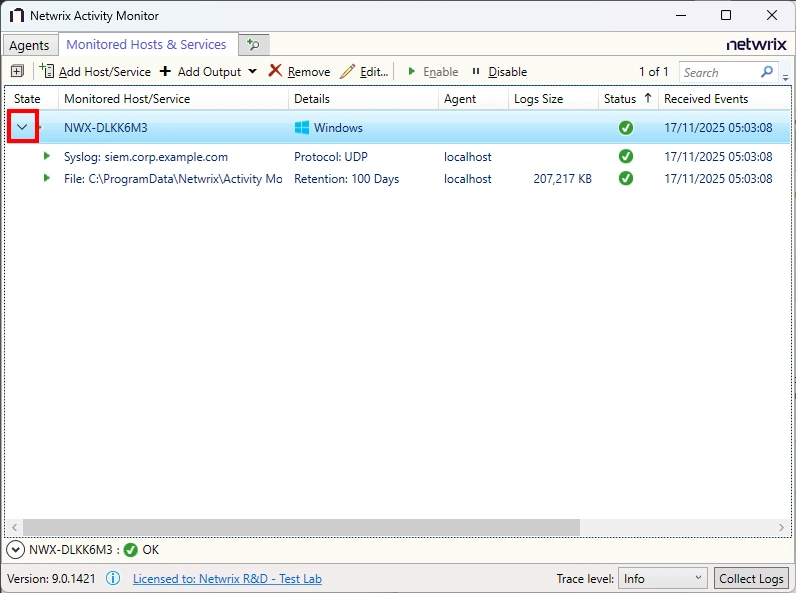
Activity Monitor groups configured outputs under the host. You can have multiple outputs configured for a host. The host event outputs are:
- Access Analyzer 26 – Sends activity events to Netwrix Access Analyzer 26.
- File – Creates an activity log as a TSV or JSON file for every day of activity
- Syslog – Sends activity events to the configured SIEM server or Netwrix Threat Manager, where supported
Add Access Analyzer 26 Output
The Access Analyzer 26 output supports only File System, SharePoint Online, and Microsoft 365 Copilot events.
Generate an Enrollment Token in Access Analyzer 26
An enrollment token from Netwrix Access Analyzer 26 authenticates the connection between the applications.
Step 1 – Open the Netwrix Access Analyzer.
Step 2 – Go to Configuration > Application Settings.
Step 3 – Scroll to the Activity Monitor section.
Step 4 – Under Enrollment Token, click Generate Token.
Step 5 – Copy the token using the clipboard icon.
Tokens expire after 1 hour. Generating a new token immediately invalidates any previously issued token. A single token can enroll multiple agents and outputs simultaneously — plan your enrollment session and generate the token immediately before you begin.
See the Netwrix Access Analyzer 26 Documentation for additional information.
Add the Output in Netwrix Activity Monitor
Step 1 – Open the Netwrix Activity Monitor console.
Step 2 – On the Monitored Hosts & Services tab, select the host or service you want and click Add Output.
You can add an output in bulk by selecting multiple hosts or services and clicking Add Output.
Step 3 – Select Access Analyzer 26 from the dropdown menu. The Add New Output window opens.
Step 4 – Enter the hostname or IP address of your Access Analyzer 26 server and the port (default: 4504).
Step 5 – Enter the enrollment token and click Enroll. Ensure the connection is successful.
The Activity Monitor agent connects to the server, compares the server's certificate to the expected one embedded in the enrollment token, and sends the token to Access Analyzer. If Access Analyzer confirms the enrollment, both products store the peer certificate's Subject Public Key Info (SPKI) SHA-256 hash and use mTLS with SPKI hash pinning for mutual authentication. You no longer need the enrollment token after this step.
If a certificate changes so that its SPKI hash changes — for example, when the agent generates a new key pair — you must re-enroll. Generate a new token and click Enroll again.
Step 6 – Click Add Output to save your settings. The Add New Output window closes.
The new output displays in the table. Click the Edit button to open the Output properties window to modify these settings. See the Output Types topic for additional information.
Add File Output
Step 1 – On the Monitored Hosts & Services tab, select the host you want and click Add Output.
Step 2 – Select File from the dropdown menu. The Add New Output window opens.
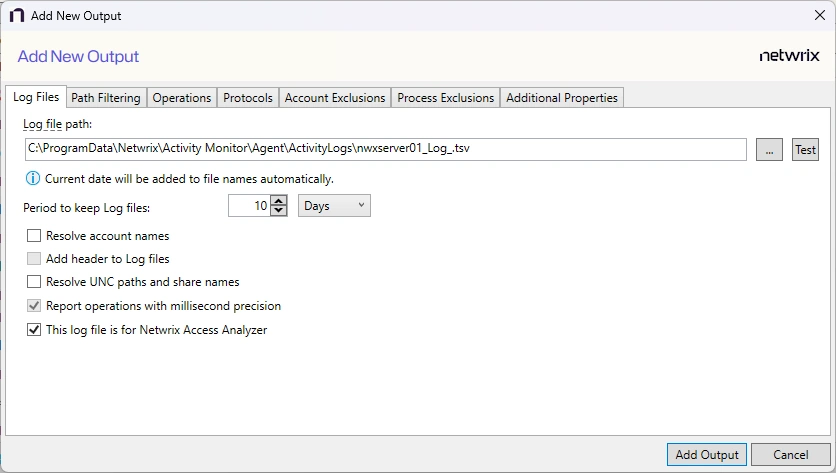
Step 3 – Configure the tabs as needed.
Step 4 – Click Add Output to save your settings. The Add New Output window closes.
The new output displays in the table. Click the Edit button to open the Output properties window to modify these settings. See the Output Types topic for additional information.
Add Syslog Output
Step 1 – On the Monitored Hosts & Services tab, select the host you want and click Add Output.
Step 2 – Select Syslog from the dropdown menu. The Add New Output window opens.
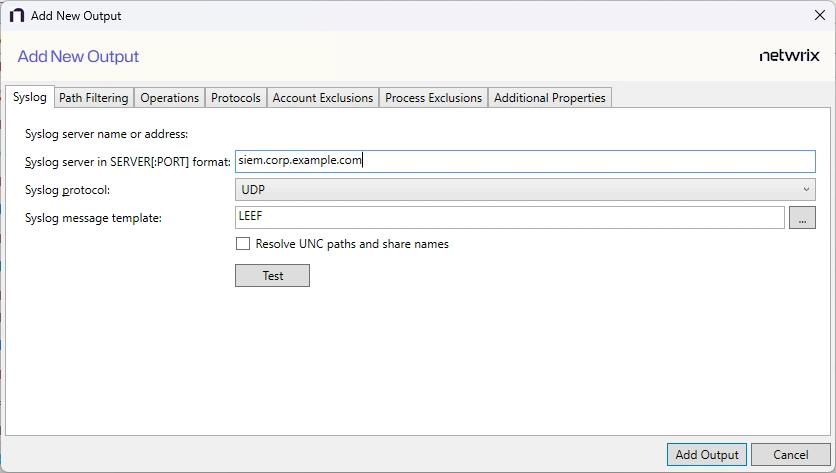
Step 3 – Configure the tabs as needed.
Step 4 – Click Add Output to save your settings. The Add New Output window closes.
The new output displays in the table. Click the Edit button to open the Output properties window to modify these settings. See the Output Types topic for additional information.