SMB File Servers
A File Server source points Access Analyzer at one SMB file server: a Windows file server, NetApp, Dell PowerScale (formerly Isilon), or Nutanix Files. Access scans walk its shares and record who can reach which folders and files; Sensitive data scans open the files and look for sensitive data patterns. Connections use SMB 2 or 3; Access Analyzer doesn't support SMB 1.
Add one source per server, using the server's own hostname or IP address. Access Analyzer doesn't follow Distributed File System (DFS) namespaces; when a DFS link points at a share it can't reach, the scan records an error on that object and continues.
For an end-to-end walkthrough from source to first report, see Scan SMB file servers.
Prerequisites
Service Account
File Server sources use a Username and password service account. Enter the username as DOMAIN\username; the username@domain form works for Access scans but not for Sensitive data scans. For a server that isn't domain-joined, use the server's workgroup name in place of the domain, for example WORKGROUP\username, or enter it in the source's Domain field.
Required Rights
Grant the account the following four rights on the file server. Together they let both Access scans and Sensitive data scans cover every share without making the account an administrator.
| # | Grant | Where | Why it's needed |
|---|---|---|---|
| 1 | Read share permission | Every share to scan | Opens the share over SMB. Windows checks the share permission before any file system permission, so without at least Read the scan can't open the share at all. |
| 2 | Read & execute NTFS permission, applied to This folder, subfolders and files | The root folder of every share to scan | Lets Access scans list folders and files and read each object's access control list (ACL), and lets Sensitive data scans read file contents. Read & execute includes Read permissions, which the scans need to read ACLs; a custom permission that grants only Read data isn't enough. |
| 3 | Membership in the local Access Control Assistance Operators group (Windows Server only) | The file server | Lets the scan list every share on the server, with its local path, and read each share's share-level permissions. Without it, a scan that doesn't name its shares under Include shares finds no shares, and no scan records share-level permissions. |
| 4 | Membership in the local Backup Operators group, for a domain account | The file server | Lets Access scans open folders and files whose ACL has no entry for the account, such as folders with broken inheritance. Without it, the scan records those objects without their owner or permissions, logs a warning, and skips their contents. |
The account doesn't need write rights, administrator rights, or the right to sign in interactively. The scans only read.
For example, the following PowerShell commands, run as an administrator on a Windows file server, grant all four rights to the account CORP\svc-aa-scan on every non-system share:
$account = 'CORP\svc-aa-scan'

# Groups are added by security identifier (SID), so the commands also work
# on non-English Windows, where the group names are translated.
Add-LocalGroupMember -SID 'S-1-5-32-579' -Member $account   # Access Control Assistance Operators
Add-LocalGroupMember -SID 'S-1-5-32-551' -Member $account   # Backup Operators

foreach ($share in Get-SmbShare -Special $false) {
    Grant-SmbShareAccess -Name $share.Name -AccountName $account -AccessRight Read -Force
    icacls $share.Path /grant "${account}:(OI)(CI)RX"
}
On a domain controller, both groups are domain groups in the Builtin container; manage their membership in Active Directory Users and Computers.
Considerations
- Access Control Assistance Operators doesn't grant access to any share. It only lets the account list the shares and read their share-level permissions. Every share still needs rights 1 and 2. The scan skips a share it lists but can't open: it records the share's share-level permissions, scans the other shares, and finishes with the status Completed with errors. To get a clean result, grant the account access to the share or add it to Exclude shares.
- Grant access to new shares as you add them. Rights 1 and 2 are per share, so scans skip a share created after setup until the account has access to it.
- Access through a group counts. Rights 1 and 2 describe the access the account ends up with, so access it already has through a group such as Everyone, Users, or Authenticated Users is enough. Explicit grants are more reliable, because they don't depend on group settings that can change.
- Backup Operators works only for a domain account. For a local account, Windows removes the Back up files and directories right from network sign-ins, so the membership has no effect on a standalone server. Backup Operators also doesn't replace rights 1 through 3: no Windows right overrides a share permission, and Backup Operators can't list shares.
- Sensitive data scans need right 2 on every file they read. Sensitive data scans don't open files in backup mode, so Backup Operators doesn't extend them. A folder the Access scan reached only through Backup Operators appears in Access scan results, but the Sensitive data scan can't read its files. To classify those files, give the account Read & execute on them.
- Check the result of a Sensitive data scan that finds nothing. When the account can't read any of the files, the scan still reports Completed and records an error for each file.
- Other groups don't let the account list shares. On Windows Server 2025, membership in Backup Operators or Power Users doesn't let the account list shares or read share-level permissions. Membership in Administrators does, along with everything else here, but it grants far more access than the scans need.
- Keep the default user rights. The scans rely on the Access this computer from the network and Bypass traverse checking user rights, which Windows grants to Everyone by default. If your server's security policy removes Everyone from either right, grant it to the account.
- NetApp, Dell PowerScale, and Nutanix Files handle share listing their own way. Rights 3 and 4 are Windows groups. On other platforms, grant rights 1 and 2. If a scan finds no shares, list the shares to scan under Include shares.
Network
The agent that runs the scan connects to the file server over Transmission Control Protocol (TCP) port 445, or the port you enter in Port. Access scans, Sensitive data scans, and Test connection all use that port. Connections use SMB 2.0.2 through 3.1.1 and always require message signing. When the server or a share requires SMB encryption, Access Analyzer encrypts the traffic.
Access Analyzer signs in with NT LAN Manager version 2 (NTLMv2) and doesn't use Kerberos, so the file server must accept NTLM authentication for the service account.
You select the agent on the scan, not on the source; see Agents.
Add a File Server Source
- Go to Configuration > Sources.
- Click Add source.
- In Source type, select File Server.
- Under Details, enter a Name.
- Add a Description and Labels if you want them; see Labels.
- Under Connection, fill in the fields in the following table.
- Under Access, in Service account, select the account you set up for this server.
- Click Test connection. A Connection successful message confirms the account can reach the server and sign in.
- Click Add source.
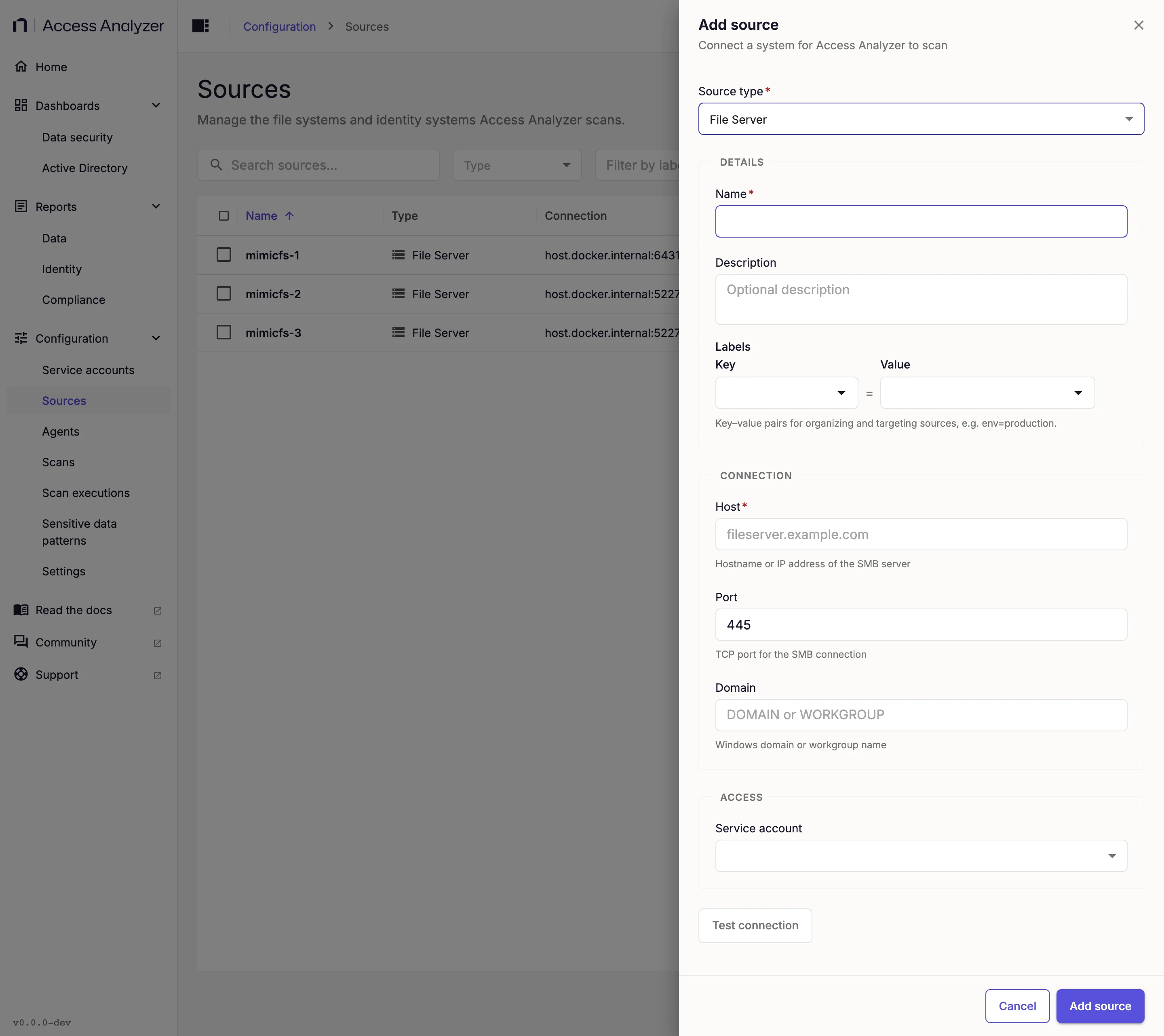
| Field | Required | What to enter | Default |
|---|---|---|---|
| Host | Yes | The hostname or IPv4 address of the SMB server, for example fileserver.example.com. | None |
| Port | No | The TCP port for the SMB connection, 1 to 65535. Leave the default unless the server listens elsewhere. | 445 |
| Domain | No | The Windows domain or workgroup name, for example CORP, for a username that doesn't include one. Leave it empty when the username includes the domain. | None |
Test Connection
Test connection opens an SMB session on the host and port and signs in with the service account's credentials. It then tries to list the server's shares, but the result doesn't affect the outcome: a successful test confirms that the account can sign in, not that it can list or open shares. The button becomes available after you fill in Host and select a service account.
A successful test shows the message Connection successful. A failed test shows Connection failed with the error and, for common causes, a hint:
| Hint | What to check |
|---|---|
| Connection timed out | The host is reachable and the port is open |
| Hostname does not resolve | The name in Host is spelled correctly and resolves in DNS from the agent |
| Authentication failed | The username, password, and domain are correct |
| Connection refused | An SMB service is listening on the port you entered |
| Network unreachable | The network path and firewall rules between the agent and the server |
| Permission denied | The account has the SMB access rights it needs on the server |
| SMB protocol version not supported by server or client | The server allows SMB 2 or 3; Access Analyzer doesn't support SMB 1 |
A Port value outside 1 to 65535 fails with Invalid port number.
Access Scans
Access scans list the server's shares, then walk each share's folders down to the configured depth. They record each share, folder, and file with its attributes, owner, and permission entries; Collected attributes lists every value they store. A folder gets its own permission entries only when it has explicit entries or blocks inheritance; every other folder points to the nearest folder above it whose entries apply. Files get their owner and permission entries only when you turn on Enable File-Level Permission Scanning in the scan's settings; otherwise each file points to its folder's entries. Reports use the permission entries to flag conditions such as access granted to Everyone or Authenticated Users, explicit deny entries, and folders where inheritance is broken.
Access scans always skip the IPC$ share and shares that expose no file system, such as printer shares. By default they also skip system shares: ADMIN$, PRINT$, FAX$, SYSVOL, NETLOGON, and drive-letter shares such as C$. Other shares whose names end in $, such as Finance$, are hidden shares, which Access scans include unless you turn on Exclude hidden shares. Exclude shares matches share names exactly, including case, and doesn't support wildcards.
When Include shares lists shares, the scan doesn't list the server's shares. It scans only the shares you name and ignores Exclude shares, Exclude system shares, and Exclude hidden shares. The scan records an error for a named share that doesn't exist. To scan a system share, either clear Exclude system shares or list the share under Include shares. See Scan types for every File Server scan option.
Maximum scan depth counts folder levels below the share root. At the default of 50, the scan records objects up to 50 levels down; at 1, it records the folders and files directly in each share but doesn't open those folders.
Access scans record symbolic links as objects but don't follow them. They skip files whose names start with ~$, such as the temporary files Microsoft Office creates while a document is open.
Access scans record each trustee (the account or group named in a permission entry or as an owner) as a SID. Well-known SIDs get their standard names, such as Everyone or BUILTIN\Administrators. Add an Active Directory source for the same domain and run an Identity sync on it so that reports show names for domain accounts and groups instead. Server-local accounts and groups stay as SIDs.
Sensitive Data Scans
Sensitive data scans read the contents of the files a completed Access scan inventoried and match them against the enabled sensitive data patterns. Run an Access scan on the source first. The scan skips empty files, and the File server scanning card in Application settings decides which other files it reads. It skips files larger than Maximum file size (MB) (10 MB by default). While Use include list is on, the default, it reads only files whose extension is on Include list; with the switch off, or with an empty include list, it skips files whose extension is on Exclude list. Sensitive data scans match Include shares and Exclude shares without regard to case. With Differential scan turned on, the scan reads only files that are new, or whose last-modified time changed, since the same scan last classified them.
The collected data drives the Data security dashboard and the file system Data reports.
Collected Attributes
This section is a reference list of what an Access scan reads from a file server and stores. The Attribute column shows the name Access Analyzer stores the value under, and Source shows where on the file server the value comes from.
Each record also carries identifiers, links between each object and its parent folder, and timestamps that Access Analyzer uses to track records across scans; this section doesn't list them. Sensitive data scans add no file server attributes: they locate each file by its sourceSystemId and store their matches with the sensitive data results.
Shares
One record per scanned share. The share's owner and its share-level and root folder permissions are in Owners, Permission Sets, and Permissions.
| Attribute | Source | Description |
|---|---|---|
name | Share name from NetShareEnum, or as entered in Include shares | The share name, for example Finance. |
sourceSystemId | Host and share name | The share's UNC path, \\<host>\<share>, with the host in lowercase, for example \\fs01.corp.example.com\Finance. |
sharePath | NetShareEnum level 2 share path | The folder on the server that the share exposes, for example D:\Shares\Finance. Missing when Include shares names the shares, and when the server doesn't return share paths to the account. |
permissionSourceId | Share | Always the share itself: a share's root folder carries its own permission entries. |
Folders and Files
One record per folder and per file. Shares don't have the timestamp, size, or attribute values in this table.
| Attribute | Source | Description |
|---|---|---|
name | Directory listing FileName | The folder or file name, for example Budget.xlsx. |
sourceSystemId | Share UNC path and the folder path below it | The object's full UNC path, for example \\fs01.corp.example.com\Finance\Reports\Budget.xlsx. |
createdDate | CreationTime | When the object was created, in UTC. Empty when the server reports a time outside the range Access Analyzer can store. |
modifiedDate | LastWriteTime | When the object's content last changed, in UTC. Differential Sensitive data scans compare this value to decide whether to read a file again. |
lastAccessedDate | LastAccessTime | When the object was last opened, in UTC. Depending on the volume's settings, Windows might not update this value on every access. |
sizeBytes | EndOfFile | Files only: the file size in bytes. Empty for folders. |
extension | File name | Files only: the part of the name from the last dot, including the dot and in its original case, for example .docx. Empty when the name has no dot. |
readOnly | FileAttributes read-only bit (0x1) | true when the object has the Read-only attribute. |
hidden | FileAttributes hidden bit (0x2) | true when the object has the Hidden attribute. |
isSystem | FileAttributes system bit (0x4) | true when the object has the System attribute. |
encrypted | FileAttributes encrypted bit (0x4000) | true when the object is encrypted with the Encrypting File System (EFS). |
ntfsFileId | Directory listing FileId | The NTFS file ID, a number unique within the volume. It stays the same when someone renames or moves the object within the volume, so Access Analyzer uses it to recognize the object across scans. |
isSymlink | Reparse point tag | true when the object is a symbolic link; absent otherwise. The scan doesn't follow links. |
permissionSourceId | Security descriptors of the object and the folders above it | The share, folder, or file whose permission entries apply to this object: the object itself when it has explicit entries, blocks inheritance, or has no discretionary access control list (DACL); otherwise the nearest folder above it that does. Empty when the scan couldn't read a security descriptor the value depends on. |
permissionSourceDepth | Folder hierarchy | The number of levels between the object and its permission source: 0 when the object carries its own entries, 1 when they come from its parent folder, and so on. Empty when permissionSourceId is empty. |
Permission Sets
One record for each access control list (ACL) the scan stores: the share-level permissions of each share, the NTFS permissions of each share's root folder, and the NTFS permissions of every folder that has explicit entries or blocks inheritance. With Enable File-Level Permission Scanning on, files that have explicit entries or block inheritance get a record too. Each record covers the whole ACL, inherited entries included.
| Attribute | Source | Description |
|---|---|---|
targetEntityId | Object the ACL belongs to | The share, folder, or file the permission set applies to. |
permissionGrantId | Where the ACL comes from | smb-share for share-level permissions, read with NetShareGetInfo level 502; empty for NTFS permissions. |
inheritsPermissions | Security descriptor control flags | false when the object blocks inheritance from its parent or has no DACL; true otherwise. |
isProtected | SE_DACL_PROTECTED control flag | true when the object blocks inheritance from its parent folder, also called broken inheritance. |
isNullDacl | Security descriptor DACL offset | true when the security descriptor has no DACL at all. Windows then grants everyone full access to the object. |
accessRights | Access masks of the ACL's allow entries | A summary of what the allow entries grant, across all trustees: FullControl when any allow entry includes the Take ownership right, otherwise the matching subset of Read, Write, Delete, Modify, and List. Modify here means the right to change permissions (WRITE_DAC), not the NTFS Modify permission level. The summary ignores deny entries. |
inheritanceFlags | Access control entry (ACE) flags | Which child objects the entries can pass to, combined across all entries: ContainerInherit (subfolders), ObjectInherit (files), ContainerInherit,ObjectInherit, or None. |
Permissions
One record for each access control entry (ACE) in a stored permission set. An object without its own permission set has no records here; its permissionSourceId points to the object whose entries apply to it.
| Attribute | Source | Description |
|---|---|---|
targetEntityId | Object the ACE belongs to | The share, folder, or file the entry is on. |
principalId | ACE SID | The trustee the entry applies to, as a link to the trustee record for the SID in the entry. |
permissionGrantId | Where the ACE comes from | smb-share for a share-level entry; empty for an NTFS entry. |
aceType | ACE type | Allow or Deny. |
accessMask | ACE access mask | The raw Windows access mask as a signed 32-bit integer, for example 2032127 (0x1F01FF, Full control). Masks that include GENERIC_READ (0x80000000) appear as negative numbers. |
listAllowed | Mask bit 0x1 on a folder or share | true when the entry lets the trustee list a folder's or share's contents. Always false for files. |
readAllowed | Mask bit 0x1 on a file or share; READ_CONTROL (0x20000), WRITE_OWNER (0x80000), GENERIC_ALL (0x10000000), GENERIC_EXECUTE (0x20000000), or GENERIC_READ (0x80000000) | true when the entry lets the trustee read the object's contents or permissions. |
writeAllowed | Mask bits 0x2 or 0x4; WRITE_OWNER, GENERIC_ALL, or GENERIC_WRITE (0x40000000) | true when the entry lets the trustee write or append data, or create files and folders. |
deleteAllowed | DELETE (0x10000) or mask bit 0x40; WRITE_OWNER or GENERIC_ALL | true when the entry lets the trustee delete the object or the subfolders and files in it. |
manageAllowed | WRITE_DAC (0x40000) or WRITE_OWNER | true when the entry lets the trustee change the object's permissions. |
adminAllowed | WRITE_OWNER (0x80000) | true when the entry lets the trustee take ownership of the object. Full control includes this right. |
inheritFlags | ACE flags | Comma-separated flags: I when the object inherits the entry from its parent folder, OI when files inherit it, and CI when subfolders inherit it, for example I,OI,CI. None when no flag is set. |
propagationFlags | ACE flags | InheritOnly when the entry applies only to child objects and not to the object itself, NoPropagateInherit when it passes only to immediate children, both, or None. |
aceOrdinal | ACL order | The entry's position in its ACL, starting at 0. Windows evaluates entries in this order. |
aceKey | ACE header | The entry's type, access mask, and flags in hexadecimal, as <type>:<mask>:<flags>, for example 00:001f01ff:13. It tells apart several entries for the same trustee on one object. |
isConditional | ACE type 0x09 or 0x0A | true for a conditional (callback) entry, such as one Dynamic Access Control uses. The scan doesn't record the condition itself. |
Owners
One record for each object whose security descriptor the scan reads: every share (the owner of its root folder) and every folder, plus every file when Enable File-Level Permission Scanning is on.
| Attribute | Source | Description |
|---|---|---|
entityId | Object the security descriptor belongs to | The share, folder, or file. |
ownerId | Security descriptor owner SID | The account or group that owns the object, as a link to the trustee record for the owner's SID. |
Trustees
One record for each distinct SID that appears as an owner or in a permission entry. Access Analyzer records well-known SIDs as users or groups and every other SID as an unmanaged user. These are placeholder records: when an Identity sync of an Active Directory source covers the same SID, the user or group record from that sync takes their place.
| Attribute | Source | Description |
|---|---|---|
sourceSystemId | Owner or ACE SID | The SID in text form, for example S-1-5-21-1004336348-1177238915-682003330-1104. |
name | SID | The standard name of a well-known SID, such as Everyone, BUILTIN\Administrators, or NT AUTHORITY\SYSTEM; for any other SID, the SID itself. |
displayName | SID | The same value as name. |