Entra ID
An Entra ID source points Access Analyzer at one Microsoft Entra ID tenant. Identity syncs sign in to the tenant as an app registration and read its users, groups, group owners, directory roles, role assignments, and memberships through Microsoft Graph. The sync is read-only.
Besides feeding the identity reports, an Entra ID source completes your SharePoint Online data. After a SharePoint Online scan, Access Analyzer expands Entra ID group memberships using the most recent completed Entra ID sync of the same tenant. Without one, the reports can't show names for Entra ID users and groups or expand Entra ID group membership. See Microsoft 365.
This source collects directory data for reports. It's unrelated to signing in to Access Analyzer with Microsoft Entra ID, which you configure separately; see Single sign-on. The two can use different app registrations.
For an end-to-end walkthrough, see Scan Entra ID.
Prerequisites
App Registration
The sync uses the OAuth 2.0 client credentials flow, so no user signs in. In the Microsoft Entra admin center:
-
Register an application in the tenant you want to scan.
-
On the app's Overview page, copy the Application (client) ID and the Directory (tenant) ID.
-
Under Certificates & secrets, create a client secret.
-
Copy the secret value before you leave the page.
-
Under API permissions, add all four of the following Microsoft Graph application permissions:
Permission Description Directory.Read.AllRead directory data: users, groups with their members and owners, directory roles and role assignments, the organization, and the tenant's domains Policy.Read.AllRead your organization's policies, such as Conditional Access and authentication method policies InformationProtectionPolicy.Read.AllRead your organization's information protection policies, such as published sensitivity labels AuditLog.Read.AllRead your organization's audit logs, including each user's sign-in activity. Microsoft Graph returns sign-in activity only for tenants with a Microsoft Entra ID P1 or P2 license. -
Grant admin consent for the permissions. A tenant administrator must approve the consent.
The sync reads data with Directory.Read.All and AuditLog.Read.All. Access Analyzer reserves Policy.Read.All and InformationProtectionPolicy.Read.All for upcoming features that read the tenant's policies and sensitivity labels. Granting them now means the app registration won't need new permissions and another admin consent when those features arrive.
Registering the application and granting admin consent requires a user account with the Global Administrator, Application Administrator, or Cloud Application Administrator role.
Service Account
Entra ID sources use a Client ID and secret service account. Enter the app registration's Client (application) ID and the Client secret value. The tenant ID isn't part of this service account type; it goes on the source.
Network
The agent that runs the sync needs outbound HTTPS access to Microsoft's sign-in service and to Microsoft Graph for the cloud you select in Azure cloud:
| Azure cloud | Sign-in service | Microsoft Graph |
|---|---|---|
| Azure (Commercial) | login.microsoftonline.com | graph.microsoft.com |
| Azure Government (GCC) | login.microsoftonline.com | graph.microsoft.com |
| Azure Government (GCC High) | login.microsoftonline.us | graph.microsoft.us |
| Azure Government (DoD) | login.microsoftonline.us | dod-graph.microsoft.us |
| Azure China (21Vianet) | login.chinacloudapi.cn | microsoftgraph.chinacloudapi.cn |
You choose the agent on the scan, not on the source; see Agents.
Add an Entra ID Source
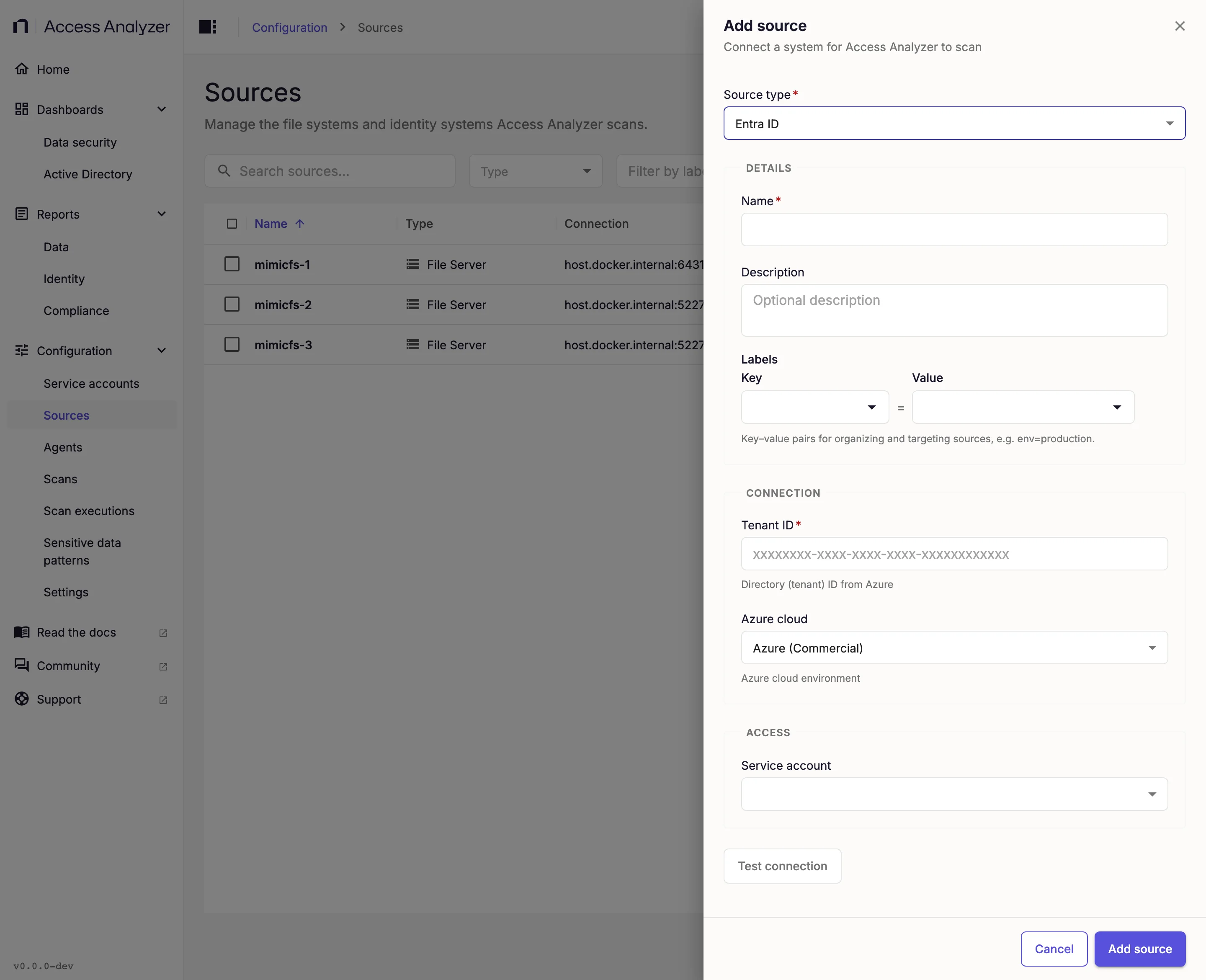
- Go to Configuration > Sources.
- Click Add source.
- In Source type, select Entra ID.
- Under Details, enter a Name.
- Add a Description and Labels if you want them; see Labels.
- Under Connection, fill in the fields described in the following table.
- Under Access, in Service account, select the Client ID/secret account you set up for this app registration.
- Click Test connection and wait for Connection successful.
- Click Add source.
| Field | Required | What to enter | Default |
|---|---|---|---|
| Tenant ID | Yes | The Directory (tenant) ID of the tenant, a globally unique identifier (GUID) such as xxxxxxxx-xxxx-xxxx-xxxx-xxxxxxxxxxxx. | None |
| Azure cloud | No | The cloud that hosts the tenant: Azure (Commercial), Azure Government (GCC), Azure Government (GCC High), Azure Government (DoD), or Azure China (21Vianet). | Azure (Commercial) |
Changing Tenant ID on an existing source shows the warning Existing scan data won't follow this change: data already synced stays with the old tenant. If you only want a different display name, change Name instead.
What Test Connection Checks
Test connection signs in to the selected cloud with the service account's client ID and secret, checks that the app registration holds the Graph application permissions the sync needs, and reads the tenant's organization details. The button becomes available after you enter a Tenant ID and select a service account.
Success shows a Connection successful notification. Failure shows a Connection failed alert with the reason. Two failures are common:
| Reason begins with | What to check |
|---|---|
Authentication failed: | The tenant ID, client ID, and secret are correct, the secret hasn't expired, and Azure cloud matches the cloud that hosts the tenant. |
The app registration is missing Graph application permissions for: | The message names each missing area: users, groups and members, directory roles, organization, or domains. Add Directory.Read.All, then grant admin consent. |
If Access Analyzer has no specific reason to report, the alert shows Please check your connection parameters.
Test connection doesn't check Policy.Read.All, InformationProtectionPolicy.Read.All, or AuditLog.Read.All, so a successful test doesn't confirm that the app registration has them. Grant all four permissions in App registration regardless.
Sync Options
An Identity sync reads the whole tenant on every run; there's no differential mode for this source type. It has one option:
| Option | Default | Effect |
|---|---|---|
| Workers | 8 | Concurrent workers, from 1 to 16. The users, groups, and roles collections run as separate work items, so values above 3 don't add more parallel collections. The value also caps the Microsoft Graph requests in flight at 4 times the worker count, with a minimum of 16. All requests share the tenant's Microsoft Graph throttling limits. |
Collected Attributes
The sync reads users whose user type is Member or Guest and skips any other account, recording the count in the scan logs. It reads active role assignments, not eligible Privileged Identity Management (PIM) assignments. It also reads the tenant's organization details and initial domain to decide whether sign-in activity is available and to calculate password expiry dates, but it doesn't store them as records.
The sync doesn't collect multi-factor authentication (MFA) status, account lock state, or the principal types you can assign a directory role to, so report columns for them stay empty.
After each sync, a follow-up step refreshes the report tables. The synced data drives the Identity reports.
The following tables are a reference list of what an Identity sync reads from the tenant and stores. The Attribute column shows the name Access Analyzer stores the value under, and Source shows the Microsoft Graph property it comes from. An attribute is empty when the tenant has no value for it.
Each record also carries identifiers and timestamps that Access Analyzer uses to track which source and sync wrote it and when; they aren't listed.
Users
| Attribute | Source | Description |
|---|---|---|
sourceSystemId | id | The user's object ID in Entra ID, a GUID. |
name, displayName | displayName | The user's display name. |
azureAdUserPrincipalName, pathSegment | userPrincipalName | The user principal name (UPN), the user's sign-in name, for example jsmith@contoso.com. |
signInNames | identities.issuerAssignedId | Every sign-in name the user has, such as a UPN, an email address, or a federated user name. Access Analyzer includes only identities that have an issuer, a sign-in type, and a value. |
emailAddress | mail | The user's primary email address. |
firstName | givenName | The user's first name. |
lastName | surname | The user's last name. |
jobTitle | jobTitle | The user's job title. |
department | department | The department the user works in. |
company | companyName | The company the user works for. |
office | officeLocation | The user's office location. |
managerEntityId | manager | A link to the record of the user's manager. Empty when the user has no manager. |
streetAddress | streetAddress | The street address of the user's place of business. |
city | city | The city of the user's place of business. |
stateOrProvince | state | The state or province of the user's place of business. |
postCode | postalCode | The postal code of the user's place of business. |
country | country | The country or region of the user's place of business. |
primaryContactNumber | mobilePhone | The user's mobile phone number. |
otherContactNumbers | businessPhones | The user's business phone numbers, as a list. |
disabled | Derived from accountEnabled | true when the account is disabled and can't sign in. |
azureAdUserType | userType | Member for a user in the organization, or Guest for an external user. |
azureAdCreationType | Derived from creationType | How the account was created: Standard for a regular account, Invitation for an invited external user, Local Account, Email Verified, or Self Service Sign Up. Access Analyzer splits other values into words. |
createdDate | createdDateTime | When the account was created. |
lastActive | signInActivity.lastSignInDateTime | When the user last signed in interactively. Access Analyzer collects it only when the tenant has a Microsoft Entra ID P1 or P2 license and the app registration has AuditLog.Read.All. |
passwordLastChanged | lastPasswordChangeDateTime | When the user last changed or reset their password. |
passwordExpiry | Derived from lastPasswordChangeDateTime, passwordPolicies, and the initial domain's passwordValidityPeriodInDays | When the password expires: the last password change plus the password validity period of the tenant's initial domain. Empty when the user's password policies include DisablePasswordExpiration or when the domain's passwords never expire. |
forcePasswordChange | Derived from passwordProfile.forceChangePasswordNextSignIn and passwordProfile.forceChangePasswordNextSignInWithMfa | true when the user must change their password at the next sign-in. |
changePasswordOnNextSigninWithMfa | passwordProfile.forceChangePasswordNextSignInWithMfa | true when the user must complete multi-factor authentication before changing their password at the next sign-in. |
strongPasswordRequired | Derived from passwordPolicies | true unless the user's password policies include DisableStrongPassword. |
azureAdLicenses | assignedLicenses.skuId | The product names of the licenses assigned to the user, for example MICROSOFT 365 E3. A license that Access Analyzer doesn't recognize appears as its SKU ID in lowercase. |
onPremisesSyncEnabled | onPremisesSyncEnabled | true when the account is synchronized from an on-premises directory. |
syncedSourceObjectId | Derived from onPremisesDomainName and onPremisesSecurityIdentifier | For a synchronized account, the on-premises domain name and the account's SID separated by |, for example corp.contoso.com|S-1-5-21-1004336348-1177238915-682003330-1104. |
syncedSourceRealmId | Derived from onPremisesSecurityIdentifier | For a synchronized account, the SID of its on-premises domain: the account's SID without the final number, for example S-1-5-21-1004336348-1177238915-682003330. |
lastDirSyncTime | onPremisesLastSyncDateTime | When the account was last synchronized from the on-premises directory. |
Groups
| Attribute | Source | Description |
|---|---|---|
sourceSystemId | id | The group's object ID in Entra ID, a GUID. |
name, displayName, pathSegment | displayName | The group's display name. |
description | description | The group's description. |
emailAddress | mail | The group's email address. |
azureAdGroupType | Derived from groupTypes, securityEnabled, and mailEnabled | Microsoft365 for a Microsoft 365 group, Security for a security group without email, MailEnabledSecurity for a mail-enabled security group, or Distribution for a distribution group. |
isSecurityEnabled | securityEnabled | true when the group is a security group that you can grant access to. |
isMailEnabled | mailEnabled | true when the group can receive email. |
dynamicMembershipEnabled | Derived from groupTypes, membershipRuleProcessingState, and membershipRule | true when the group has dynamic membership, its rule processing is on, and it has a rule. |
dynamicMembershipRule | membershipRule | The rule that decides a dynamic group's members, for example user.department -eq "Sales". Access Analyzer stores it only when dynamicMembershipEnabled is true. |
memberCount | Derived from members | The number of direct members. The count excludes owners and nested members. |
onPremisesSyncEnabled | onPremisesSyncEnabled | true when the group is synchronized from an on-premises directory. |
syncedSourceObjectId | Derived from onPremisesDomainName and onPremisesSecurityIdentifier | For a synchronized group, the on-premises domain name and the group's SID separated by |. |
syncedSourceRealmId | Derived from onPremisesSecurityIdentifier | For a synchronized group, the SID of its on-premises domain. |
lastDirSyncTime | onPremisesLastSyncDateTime | When the group was last synchronized from the on-premises directory. |
Directory Roles
| Attribute | Source | Description |
|---|---|---|
sourceSystemId | id | The role definition's ID. |
name, displayName, pathSegment | displayName | The role's name, for example Global Administrator. |
description | description | What the role allows. |
azureRoleTemplateId | templateId | The ID of the template the role is based on. Built-in roles have the same template ID in every tenant. |
azureRoleVersion | version | The role definition's version. |
isBuiltIn | isBuiltIn | true for a role Microsoft provides, or false for a custom role. |
isEnabled | isEnabled | true when you can assign the role. |
isPrivileged | isPrivileged | true when Microsoft classifies the role as privileged. |
Memberships
Each membership record links a user or group to a group or directory role.
| Attribute | Source | Description |
|---|---|---|
memberId | id of the group member, group owner, or role assignment principal | The user, group, or other directory object that belongs to the group or holds the role. |
groupId | id of the group or role definition | The group or directory role. |
groupType | Derived from the collection | Whether groupId is a group or a directory role. |
membershipSource | Derived from the membership path | Direct for a direct member, owner, or role assignment. Nested for a member reached through a member group, or a member of a group that holds a role. |
expandedFromGroupId | Derived from the membership path | For a nested membership, the direct member group the member was reached through, or the group that holds the role. When several direct member groups lead to the same member, Access Analyzer records the first one Microsoft Graph lists. |
role | Derived from members or owners | Member for group members and role holders, or Owner for group owners. Access Analyzer records only users as owners. |