Active Directory
An Active Directory source points Access Analyzer at one Active Directory domain. Identity syncs read the domain's users, groups, and direct group memberships over the Lightweight Directory Access Protocol (LDAP), along with the organizational unit each object sits in, and store them for the Identity reports and the Active Directory dashboard.
An Active Directory source also completes your file server data. Access scans of File Server sources record who has access as security identifiers (SIDs); syncing the domain those accounts belong to turns the SIDs into names in the reports. See SMB file servers.
One source covers one domain. Access Analyzer reads the domain partition of the domain controller you point it at; it doesn't follow trusts or query the Global Catalog. For a forest with several domains, add one source per domain.
For an end-to-end walkthrough, see Scan Active Directory.
Prerequisites
Service Account
Active Directory sources use a Username and password service account.
| Right | Why |
|---|---|
| Read access to the directory tree (the default access Active Directory grants Authenticated Users) | Identity syncs walk the domain's organizational units and containers and read user and group objects and their attributes over LDAP. |
| List Contents and Read Property on the Deleted Objects container | Differential syncs read the Deleted Objects container to find users and groups deleted since the previous sync. Without these rights, a differential sync logs a warning and doesn't detect deletions; the next full sync still removes deleted objects from the data. Syncs with Differential Scan turned off don't need these rights. |
The sync only reads, so a regular domain user needs no additional delegation. Don't add the account to Domain Admins or another privileged group.
Active Directory hides the Deleted Objects container and denies read access to it by default. A domain administrator grants the two rights with dsacls, for example dsacls "CN=Deleted Objects,DC=corp,DC=example,DC=com" /G CORP\svc-access-analyzer:LCRP. See the Microsoft Searching for Deleted Objects article and Dsacls reference for the full procedure.
When you create the service account, enter the plain username without a domain prefix, for example svc-access-analyzer. The domain goes in the source's Domain field; Access Analyzer combines the two in the form the domain controller expects for the sign-in method it uses. If the username includes a domain, as in CORP\svc-access-analyzer or svc-access-analyzer@corp.example.com, Access Analyzer uses that domain instead of the source's Domain field when it signs in.
Network
The agent that runs the sync connects to the domain controller on the port you enter in Port:
| Port | Protocol | What happens |
|---|---|---|
| 389 | LDAP | Access Analyzer tries three sign-in methods in order and uses the first one that succeeds. First, StartTLS: it upgrades the connection to Transport Layer Security (TLS) 1.2 or later and performs a simple bind inside it. Second, DIGEST-MD5 with signing, which satisfies domain controllers that require LDAP signing. DIGEST-MD5 needs the domain controller's fully qualified domain name (FQDN) in Host and doesn't work with an IP address. Third, a simple bind without encryption. |
| 636 | LDAP over SSL (LDAPS) | Access Analyzer opens a TLS 1.2 or later connection and performs a simple bind inside it. |
Access Analyzer also treats port 3269, the Global Catalog's LDAPS port, as LDAPS. It treats every other port as plain LDAP and uses the 389 behavior.
Access Analyzer validates the domain controller's certificate on LDAPS and StartTLS connections only when you select Enforce strict SSL validation on the source. With it selected, the certificate must validate against a certificate authority the agent trusts. On port 389, a StartTLS connection whose certificate fails validation moves on to DIGEST-MD5.
On port 389, when StartTLS and DIGEST-MD5 both fail, Access Analyzer falls back to a simple bind without encryption. The service account's password and the directory data then cross the network in cleartext. To rule out the fallback, connect on port 636.
You choose the agent that runs the sync when you create the scan; see Agents.
Add an Active Directory Source
- Go to Configuration > Sources.
- Click Add source.
- In Source type, select Active Directory.
- Under Details, enter a Name and, optionally, a Description and Labels; see Labels.
- Under Connection, fill in the fields in the following table.
- Under Access, in Service account, select the account you set up for this domain.
- Click Test connection and wait for Connection successful.
- Click Add source.
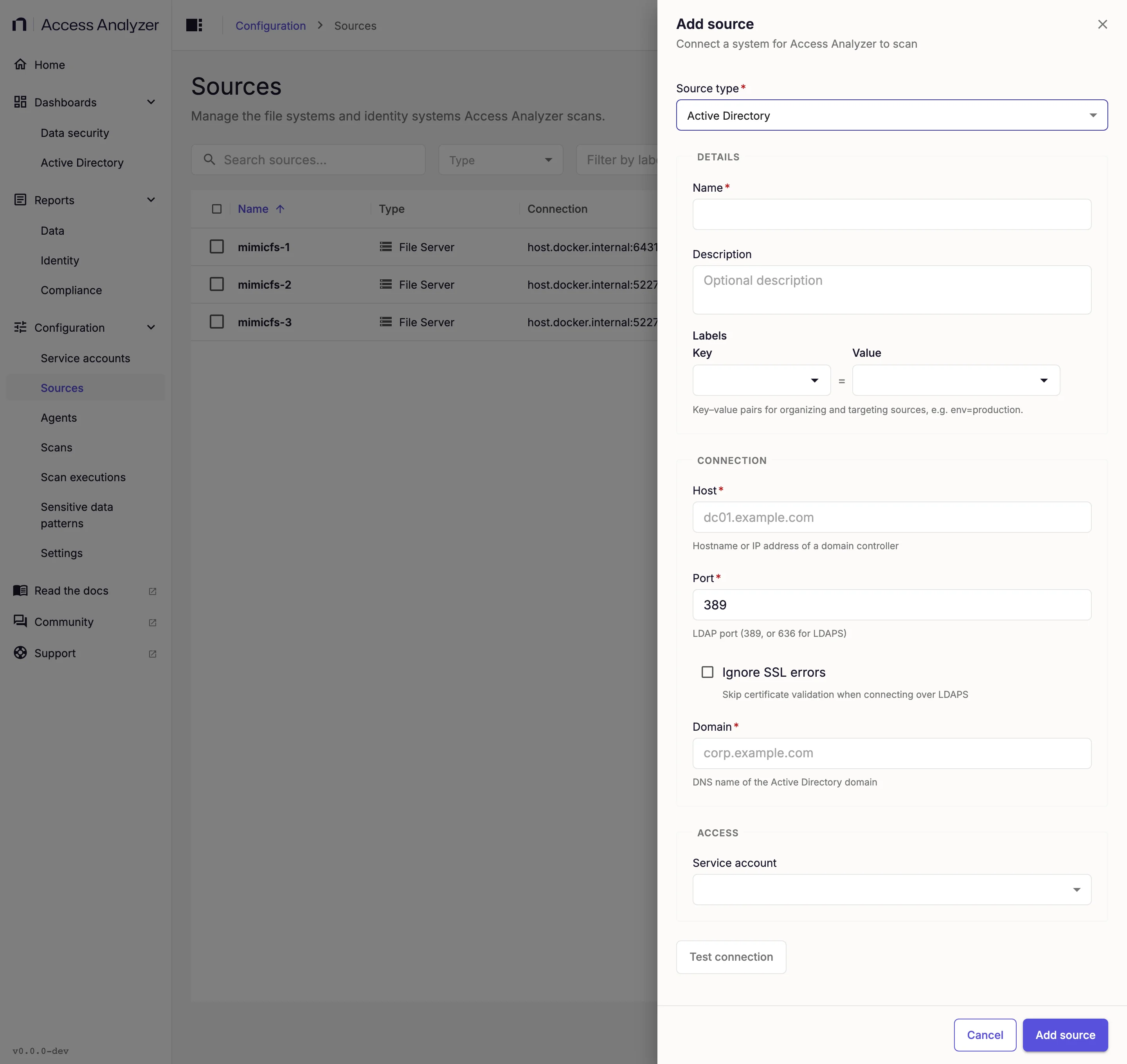
| Field | Required | What to enter | Default |
|---|---|---|---|
| Host | Yes | The hostname or IP address of a domain controller, for example dc01.example.com. Use the FQDN when connecting on port 389. | None |
| Port | Yes | The LDAP port, 1 to 65535: 389 for LDAP, or 636 for LDAPS. | 389 |
| Domain | Yes | The DNS name of the Active Directory domain, for example corp.example.com. Access Analyzer uses it to sign in when the username doesn't include a domain, and to build the search base if the domain controller doesn't report one. | None |
| Enforce strict SSL validation | No | Select to validate the domain controller's certificate on LDAPS and StartTLS connections. Leave clear to accept any certificate, such as a self-signed one. | Clear |
Changing Host or Domain on an existing source shows the warning Existing scan data won't follow this change. Data already synced stays with the previous host and domain. To rename the source, change Name instead.
What Test Connection Checks
Test connection connects to the domain controller on the selected port and binds with the service account's credentials, using the same sequence of sign-in methods as a real sync. It doesn't read any users or groups, so a successful test doesn't confirm the account's read access or its rights on the Deleted Objects container. The button becomes available after you've entered Host, Port, and Domain and selected a service account.
Success shows the message Connection successful. Failure shows Connection failed with the reason. These failures are common:
- On port 389 with an IP address in Host, sign-in can fail; the message then starts with
DIGEST-MD5 and SIMPLE authentication failedand asks you to use an FQDN instead of an IP address. - On port 636, a message that starts with
LDAPS/TLS handshakemeans the TLS connection failed before sign-in. If it says the server responded but not with TLS, the port isn't an LDAPS port. If it says the handshake didn't complete, the connection reset during the handshake: a TLS-inspecting proxy or endpoint security agent between the agent and the domain controller can cause this, as can a domain controller that doesn't offer LDAPS or, with Enforce strict SSL validation selected, a certificate that doesn't validate. Exempt the domain controller from TLS inspection, check that it offers LDAPS on 636 with a valid certificate, clear Enforce strict SSL validation, or connect on port 389 instead. - On port 636, a message that starts with
Authentication failedmeans the domain controller rejected the credentials. Check the service account's username and password.
Sync Options
| Option | Default | Effect |
|---|---|---|
| Differential Scan | On | Reads only the users, groups, and organizational units that changed since the previous sync. Turn it off to read the whole domain on every run. |
| Workers | 16 | The number of concurrent workers, from 1 to 16. Each worker opens its own LDAP connection to the domain controller. Lower the value to reduce the load on the domain controller. |
See Scan types for how these options appear when you create a scan.
Differential and Full Syncs
With Differential Scan turned on, the first sync reads the whole domain and saves the domain controller's highest committed update sequence number (USN). Each later sync reads only the users, groups, and organizational units whose USN changed since the previous sync. When an organizational unit changes, for example because someone renamed or moved it, the sync reads every user and group under it again so that their paths stay current.
A sync reads the whole domain even with Differential Scan turned on in these cases:
- No earlier sync of the source saved its state, as on the first sync.
- A different domain controller answers than on the previous sync, for example after you change Host to another domain controller.
- The domain controller's highest committed USN is lower than the saved one, for example after you restore the domain controller from a backup.
- The domain controller doesn't report its highest committed USN.
When a sync finishes with errors, Access Analyzer keeps the previous USN, so the next differential sync reads the same changes again.
A differential sync marks users and groups as deleted when it can read the Deleted Objects container; see Service account. It doesn't remove memberships that ended since the previous sync. Ended memberships, and objects whose deletion a differential sync couldn't see, stay in the data until the next full sync that completes without errors. To run a full sync, turn off Differential Scan on the scan.
Collected Attributes
The sync finds users and groups by walking the domain's organizational units and containers. It doesn't store organizational units as separate objects; instead, each user and group records the path of the organizational unit or container that holds it. The sync reads user accounts, meaning objects of the user class in the person category. It doesn't read computers, managed service accounts, contacts, Group Policy objects, or password hashes.
Each sync records direct group memberships only, read from each group's member attribute, including groups with more members than one LDAP response returns. Membership in a user's primary group, usually Domain Users, isn't part of that attribute, so the sync records it only as the user's primaryGroupId. After each sync, a Refresh CDM report tables step rebuilds the report tables and expands nested groups into effective memberships. CDM stands for common data model, the shared format Access Analyzer stores every source's data in.
The following tables are a reference list of what an Identity sync reads from Active Directory and stores. The Attribute column shows the name Access Analyzer stores the value under, and Source shows the LDAP attribute it comes from. Access Analyzer stores times in Coordinated Universal Time (UTC) and leaves an attribute empty when Active Directory has no value for it. Access Analyzer stores some values as JavaScript Object Notation (JSON) list text, for example ["HTTP/web01", "HTTP/web01.corp.example.com"]; their descriptions say JSON list.
Each record also carries identifiers and timestamps that Access Analyzer uses to track which source and sync wrote it and whether the object was deleted; they aren't listed.
Users and Groups
| Attribute | Source | Description |
|---|---|---|
name | displayName for users, name for groups, falling back to sAMAccountName | The name reports show for the account or group. |
sourceSystemId | objectSid | The security identifier (SID), for example S-1-5-21-1004336348-1177238915-682003330-1104. File Server scans record permissions by SID, and reports match the two to show names. When an object has no readable SID, Access Analyzer stores its distinguished name instead. |
objectGuid | objectGUID | The object's GUID, which stays the same when someone renames or moves the object. |
adSamAccountName | sAMAccountName | The pre-Windows 2000 logon name, for example jane.roe. For a user without one, Access Analyzer stores the common name. |
description | description | The object's description. |
emailAddress | mail | The email address, in lowercase. |
adDistinguishedName | distinguishedName | The distinguished name (DN), for example CN=Jane Roe,OU=Staff,DC=corp,DC=example,DC=com. |
cn | Derived from the distinguished name | The common name: the first CN= component of the distinguished name, for example Jane Roe. |
adCanonicalName | canonicalName | The canonical name, for example corp.example.com/Staff/Jane Roe. |
adOuPath | Derived from canonicalName | The canonical name without the object's own name: the path of the organizational unit or container that holds the object, for example corp.example.com/Staff. |
adDomain | Derived from the domain's nETBIOSName | The NetBIOS name of the domain, in uppercase, for example CORP. |
domainCanonicalName | Derived from the domain's canonicalName | The DNS name of the domain, in lowercase, for example corp.example.com. |
createdDate | whenCreated | When the object was created. |
modifiedDate | whenChanged | When the object last changed. |
adminCount | adminCount | 1 when the object is, or once was, a member of a protected administrative group such as Domain Admins. Active Directory doesn't reset it when the object leaves the group. |
primaryGroupId | primaryGroupID | The relative identifier (RID) of the object's primary group, for example 513 for Domain Users. Active Directory usually sets it only on users. |
Users
| Attribute | Source | Description |
|---|---|---|
displayName | displayName | The display name, for example Jane Roe. When it's empty, Access Analyzer stores the sAMAccountName. |
userPrincipalName | userPrincipalName | The user principal name (UPN), in lowercase, for example jane.roe@corp.example.com. |
firstName | givenName | The first name. |
lastName | sn | The last name. |
jobTitle | title | The job title. |
department | department | The department. |
company | company | The company. |
office | physicalDeliveryOfficeName | The office location. |
streetAddress | streetAddress | The street address. |
city | l | The city. |
stateOrProvince | st | The state or province. |
postCode | postalCode | The postal code. |
country | c | The two-letter country code, for example US. |
primaryContactNumber | telephoneNumber | The main telephone number. |
otherContactNumbers | mobile | The mobile phone number. |
employeeId | employeeID | The employee ID. |
managerDn | manager | The distinguished name of the user's manager. |
legacyExchangeDn | legacyExchangeDN | The legacy Exchange address of the mailbox, for example /o=Corp/ou=Exchange/cn=Recipients/cn=jroe. |
extensionAttribute1 through extensionAttribute15 | extensionAttribute1 through extensionAttribute15 | The 15 custom attributes that Exchange and many directory tools use for organization-specific data. Access Analyzer stores each one that holds a value other than blank space. |
userAccountControl | userAccountControl | The account control flags as a number, for example 512 for a normal enabled account. The next four attributes decode individual flags. |
disabled | Derived from userAccountControl | true when the account is disabled (flag 0x2). |
passwordRequired | Derived from userAccountControl | false when the account doesn't require a password (flag 0x20), so it can have an empty password. |
accountCannotBeDelegated | Derived from userAccountControl | true when Account is sensitive and cannot be delegated is set (flag 0x100000). |
smartcardRequired | Derived from userAccountControl | true when the user must sign in with a smart card (flag 0x40000). |
msDsUserAccountControlComputed | msDS-User-Account-Control-Computed | Account flags that Active Directory calculates when queried, as a number, such as locked out (16) and password expired (8388608). Access Analyzer stores it only when at least one flag is set. |
passwordLastChanged | pwdLastSet | When the password last changed. |
forcePasswordChange | Derived from pwdLastSet | true when the user must change the password at next sign-in. |
accountExpires | accountExpires | When the account expires. Empty when the account never expires. |
isLocked | Derived from lockoutTime | true when lockoutTime holds a lockout time. Active Directory can leave lockoutTime set after the lockout period ends, so msDsUserAccountControlComputed is the more precise lockout indicator. |
lockedDateTime | lockoutTime | When the account was locked out. |
badPwdCount | badPwdCount | The number of failed password attempts, as counted by the domain controller the source points at. |
badPasswordTime | badPasswordTime | When the last failed password attempt happened on the domain controller the source points at. |
lastActive | lastLogonTimestamp, or lastLogon when that's empty | The user's last sign-in, used for the user's last activity in reports. Active Directory replicates lastLogonTimestamp to every domain controller but updates it only periodically, so by default it can trail the most recent logon by up to 14 days. |
lastLogon | lastLogon | The last sign-in that the domain controller the source points at processed. |
lastLogoff | lastLogoff | The last sign-out. Most domains don't maintain this attribute, so it's usually empty. |
workingHours | logonHours | The hours the user is allowed to sign in, as a hexadecimal string of the 21-byte logon hours bitmap: one bit for each hour of the week, in UTC. Empty when sign-in isn't restricted. |
logonWorkstations | userWorkstations | The computers the user is allowed to sign in to, as a JSON list. Empty when sign-in isn't restricted to specific computers. |
servicePrincipalName | servicePrincipalName | The service principal names (SPNs) registered on the account, as a JSON list. An account with SPNs runs a service and is a target for Kerberoasting, an attack in which any domain user requests a service ticket for the account and tries to crack the account's password offline. |
msDsAllowedToDelegateTo | msDS-AllowedToDelegateTo | The services the account can act on behalf of other users to, for Kerberos constrained delegation, as a JSON list of SPNs. |
msDsAllowedToActOnBehalfOf | msDS-AllowedToActOnBehalfOfOtherIdentity | The accounts allowed to act on behalf of other users to this account, for resource-based constrained delegation. Access Analyzer stores it without decoding, as a JSON list that holds the raw security descriptor bytes. |
msDsSupportedEncryptionTypes | msDS-SupportedEncryptionTypes | The Kerberos encryption types the account supports, as a number, for example 24 for AES128 and AES256. |
Groups
| Attribute | Source | Description |
|---|---|---|
displayName | name, or sAMAccountName when that's empty | The group's name. |
adGroupScope | Derived from groupType | The group scope: Global, DomainLocal, or Universal. |
isSecurityEnabled | Derived from groupType | true for a security group, false for a distribution group. |
isMailEnabled | Derived from mail | true when the group has an email address. |
memberCount | Derived from member | The number of direct members. |
Group Memberships
Each membership record links one group to one of its direct members.
| Attribute | Source | Description |
|---|---|---|
groupId | Derived from the group's objectSid | Identifies the group. |
memberId | Derived from the member value | Identifies the member by its SID, or by its GUID or distinguished name when the member has no SID. Access Analyzer identifies a member from another domain or forest by its own SID, so an Active Directory source for that domain resolves it. |