Single Sign-on
Ways to Sign In
Access Analyzer supports three kinds of sign-in. Local sign-in always stays available, and you can connect one directory provider alongside it:
- Local accounts hold a password inside Access Analyzer. The first Admin created by the installer is a local account.
- Active Directory (AD) lets people sign in with their domain username and password. Access Analyzer checks them against a domain controller over Lightweight Directory Access Protocol (LDAP) secured with TLS, known as LDAPS.
- Entra ID lets people sign in with their Microsoft work account through a Sign in with Microsoft button.
Connecting a directory is what the product calls single sign-on (SSO), and users who sign in that way are Federated (SSO) accounts in Users and roles. You connect one provider, once, through the setup flow. After that, Settings > System > Single sign-on is where you rotate the AD service account password.
Before You Begin
Whichever provider you connect, you need an Access Analyzer account with the Admin or User admin role. The flow signs you out when it finishes.
For Active Directory, gather:
- The fully qualified domain name of your AD forest. The Access Analyzer server must be able to reach the domain controller on port 636, and the domain controller must have LDAPS enabled.
- The certificate of the certificate authority (CA) that issued the domain controller's LDAPS certificate, as a PEM, CRT, or CER file of at most 1 MB. Access Analyzer trusts the domain controller only through this CA.
- A read-only service account and its password. The account must be able to bind over LDAPS, read the directory root, and read user objects with their
mail,userPrincipalName,sAMAccountName,objectGUID,givenName,sn,displayName, andtitleattributes. Access Analyzer never writes to your directory.
For Entra ID, gather:
- Your tenant's ID as a globally unique identifier (GUID), from Overview in the Entra admin center.
- An app registration in that tenant with a client secret. Access Analyzer doesn't support certificate credentials. Note its Application (client) ID.
- Two redirect Uniform Resource Identifiers (URIs) added to the registration under Authentication > Redirect URIs before you start, both using your Access Analyzer hostname:
https://<your-access-analyzer-host>/setup/entra-consent-callbackandhttps://<your-access-analyzer-host>/idps/callback. - Someone with the Global Administrator or Privileged Role Administrator role in the tenant to approve admin consent during setup.
Open the Setup Flow
The setup flow opens automatically for an Admin who signs in before anyone connects an identity provider, until someone completes it or clicks Set up later; see Sign in for the first time. To reach it from Settings:
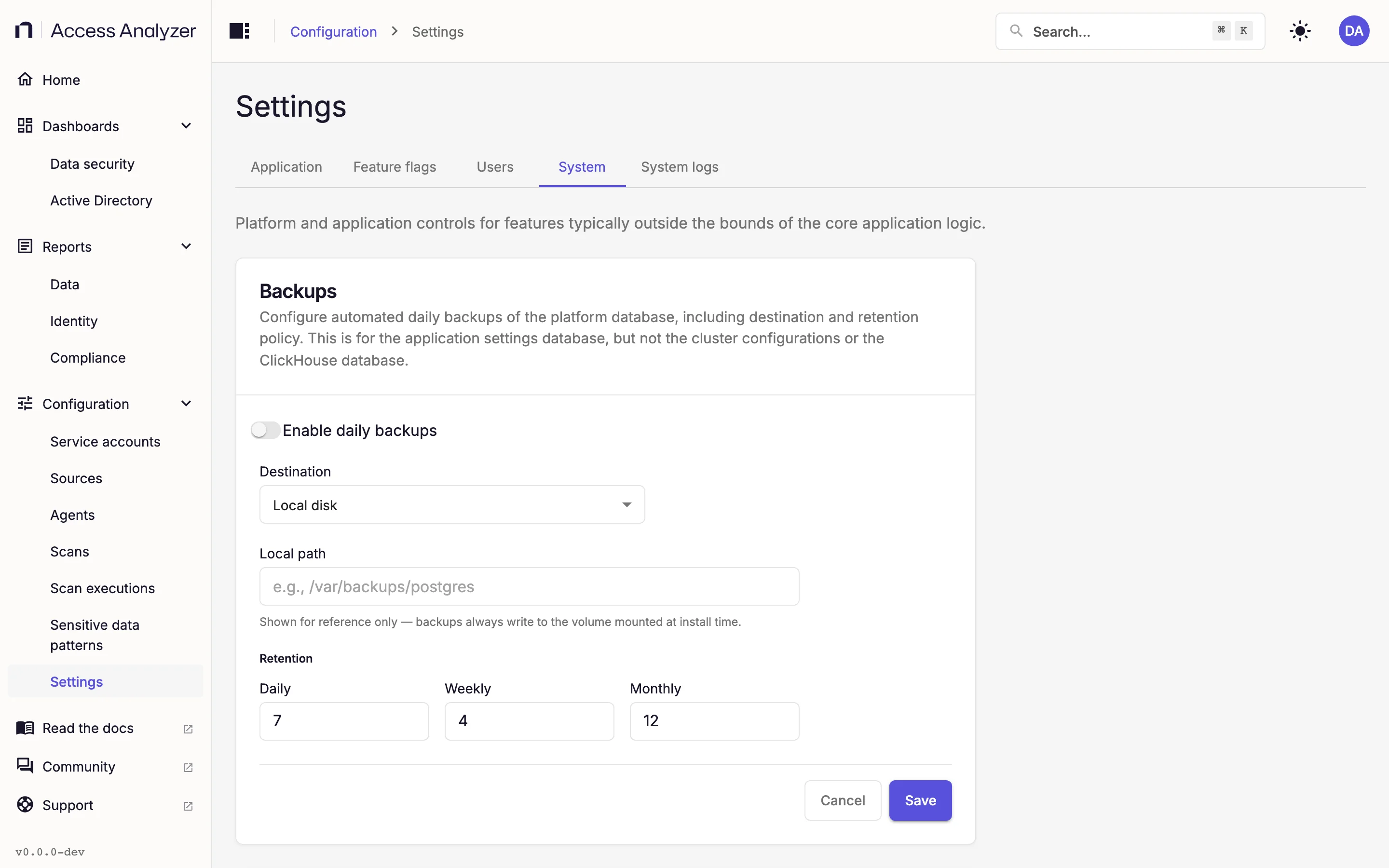
- Go to Settings > System.
- On the Single sign-on card, click Go to set up. Before you connect a provider, the card reads "No external authentication providers are connected. Connect a service first."
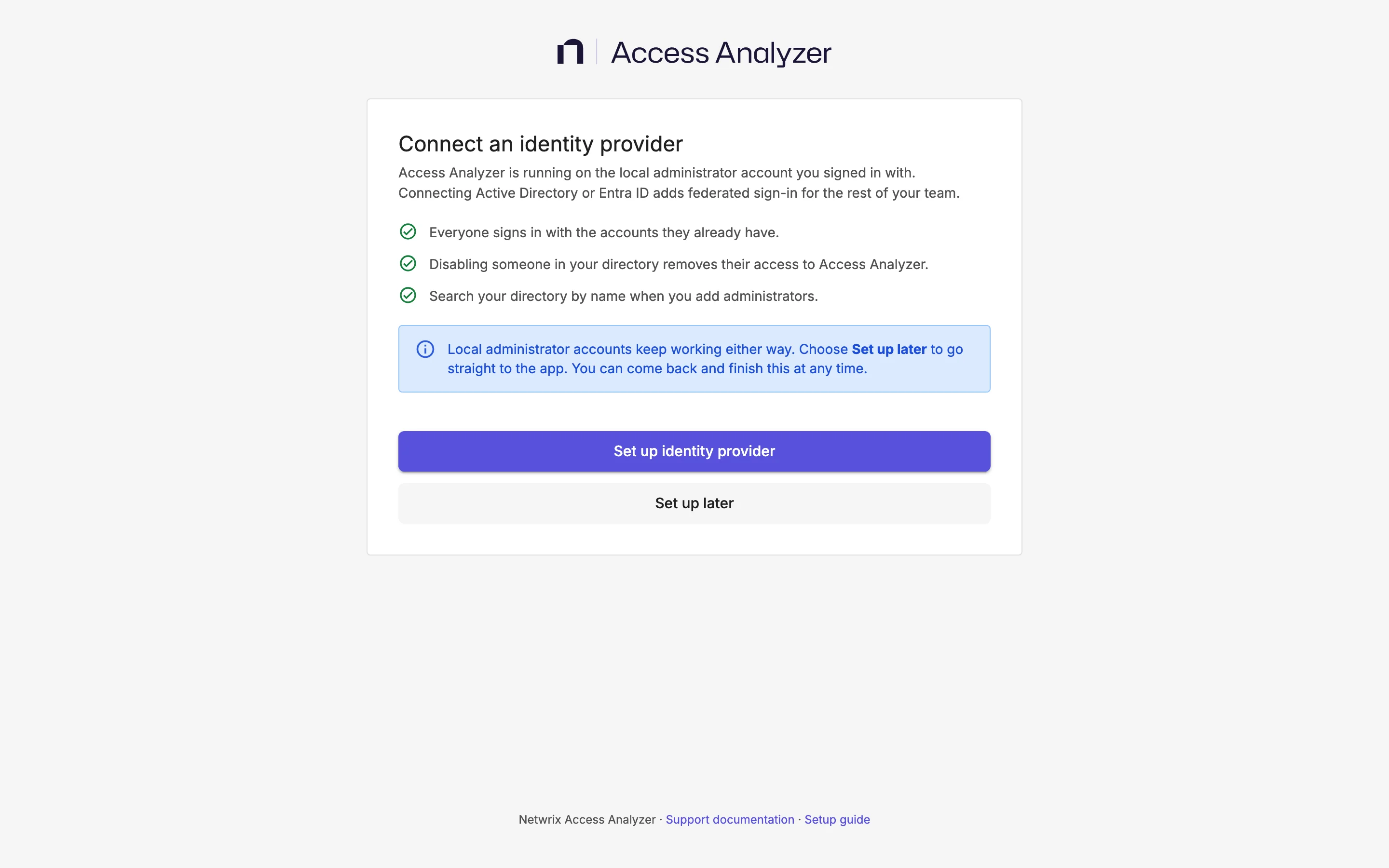
- On the Connect an identity provider page, click Set up identity provider.
The steps that follow have Back, a button that continues to the next step, and Set up later, which takes you into the app; Go to set up brings you back whenever you're ready.
Choose the Identity Provider
The Connect Access Analyzer to your directory step offers two cards. The Active Directory card reads "On-prem AD over LDAPS. Recommended for most existing deployments."
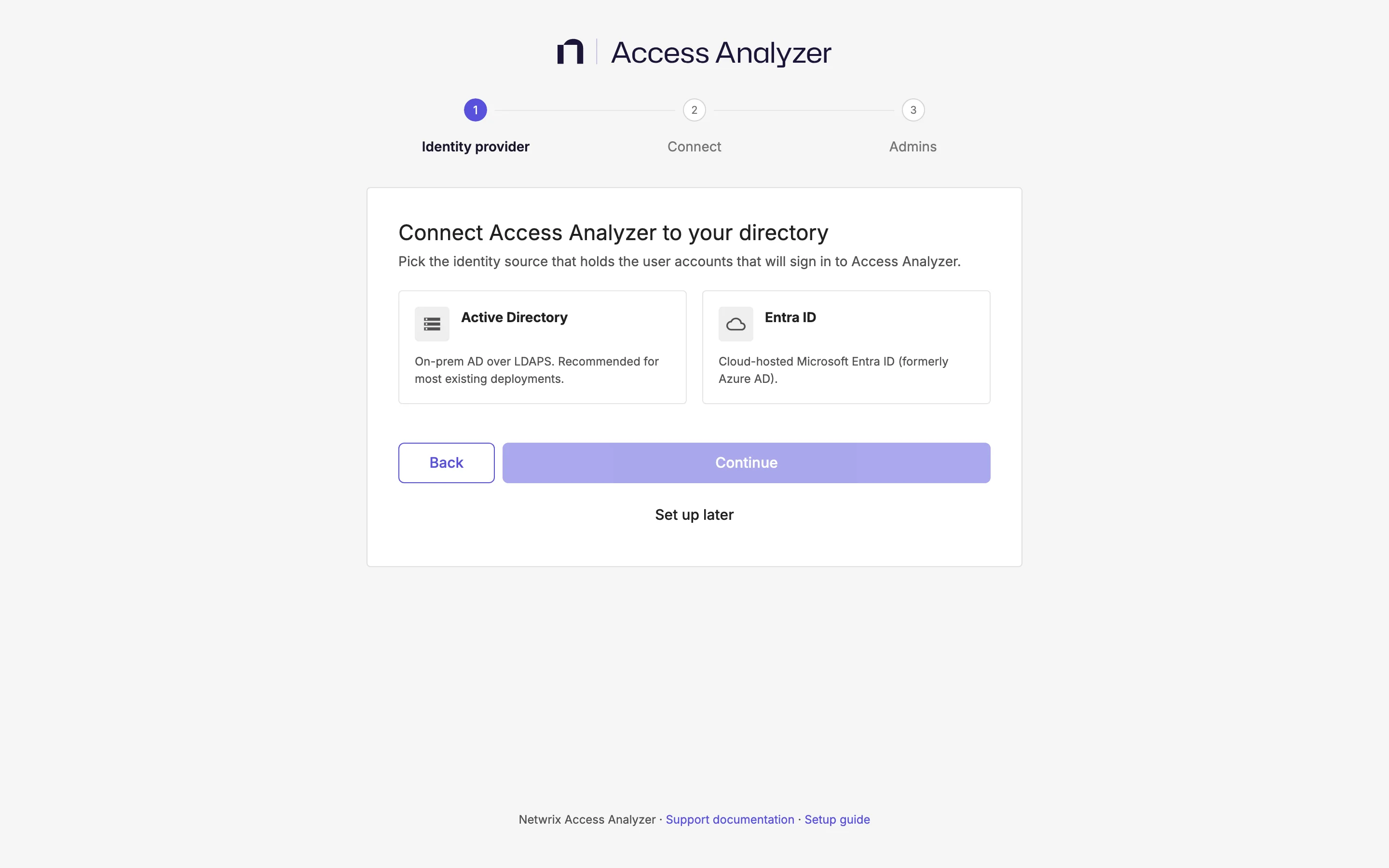
- Select Active Directory or Entra ID.
- Click Continue.
Connect the Provider
- Active Directory
- Entra ID
The Connect your AD server step asks for your AD domain name, read-only service-account credentials, and the CA certificate that issued the domain controller's LDAPS certificate.
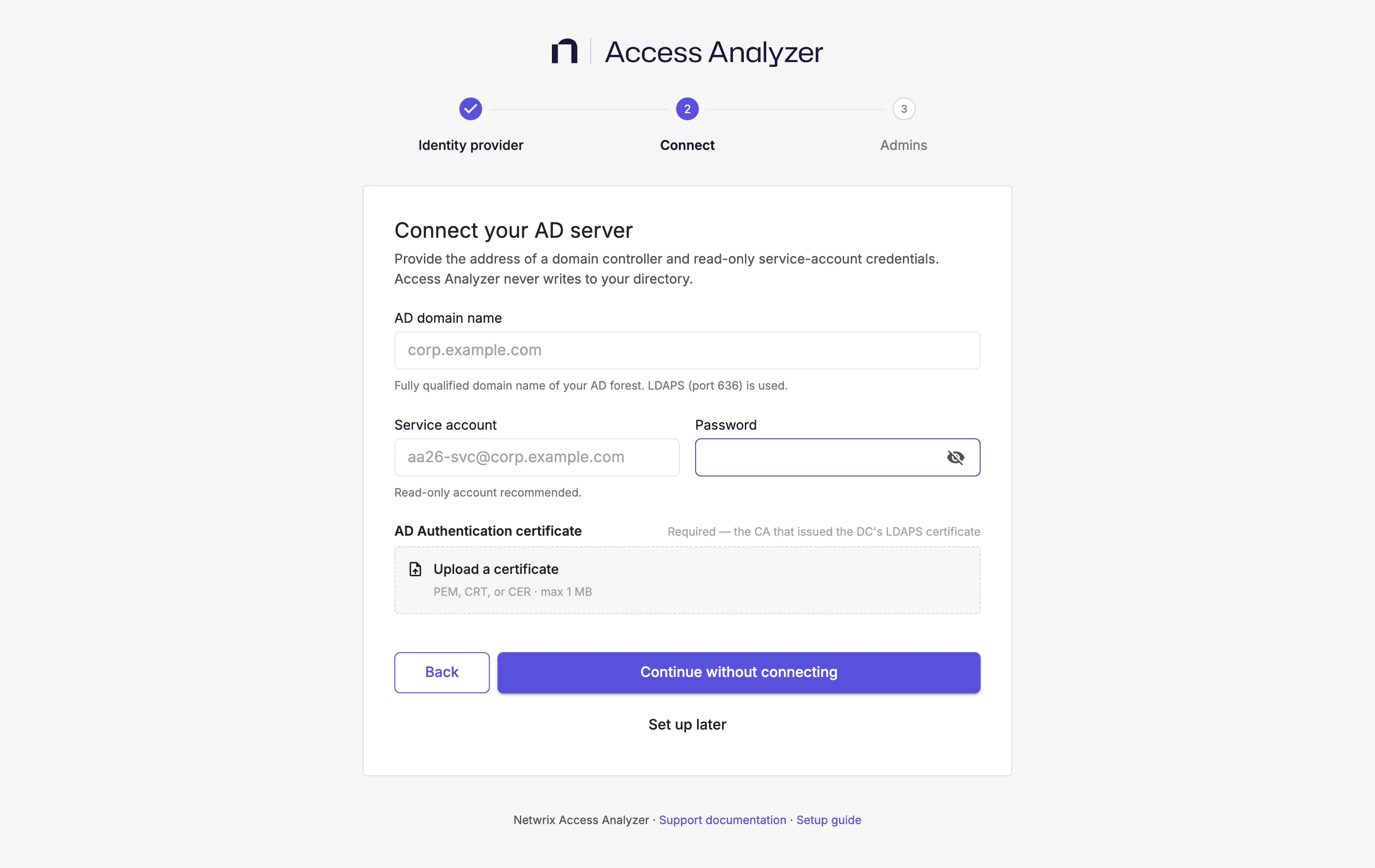
- In AD domain name, enter the fully qualified domain name of your AD forest, for example
corp.example.com. Access Analyzer connects on port 636; the form takes one name. - In Service account, enter the account to bind with, for example
aa26-svc@corp.example.com. - In Password, enter the service account's password.
- Under AD Authentication certificate, upload the CA certificate that issued the domain controller's LDAPS certificate.
- Click Test connection and continue. The button stays disabled until all four fields have a value.
The button changes to Testing connection… and a checklist runs through Resolve hostname, TCP reachability on port 636, TLS handshake, and LDAP bind with service account. When the header reads Connected to domain controller and the button reads Connection verified, the flow moves to the next step on its own.
The test also fills in two settings for you. Access Analyzer reads the base distinguished name (DN) from the directory root, so you never enter it. It detects the sign-in attribute by sampling user objects: it picks mail or userPrincipalName, whichever more users have populated, and uses that attribute to match directory users to Access Analyzer accounts by email. Users can then sign in with either their sAMAccountName or that email attribute.
If the header reads Connection failed, or Access Analyzer couldn't save the certificate after a successful test, the button changes to Try again. The message tells you where it stopped.
| Message | What to check |
|---|---|
| Couldn't reach the domain controller on port 636. Check the address is correct, resolvable from the cluster, and that LDAPS is open. | DNS for the domain name from the Access Analyzer server, and the firewall path to port 636. |
| The TLS handshake failed — the domain controller's certificate isn't trusted by the certificate you supplied. Upload the CA that issued the DC's LDAPS certificate and test again. | That the uploaded file is the CA that issued the domain controller's LDAPS certificate. |
The domain controller rejected the credentials. Check the service account (for example aa26-svc@corp.example.com) and its password. | The service account name or password. |
| The bind succeeded but the directory didn't return a base DN. Check the service account can read the directory root. | The service account's read permission on the directory root. |
| The connection succeeded, but saving the certificate failed. Try again. | Nothing on your side; Access Analyzer couldn't save the CA file after a passing test. Click Try again. |
The Authorize Access Analyzer step asks you to sign in once as a tenant administrator to grant Access Analyzer read access to your directory. The fields sit under the heading Microsoft Entra ID tenant.
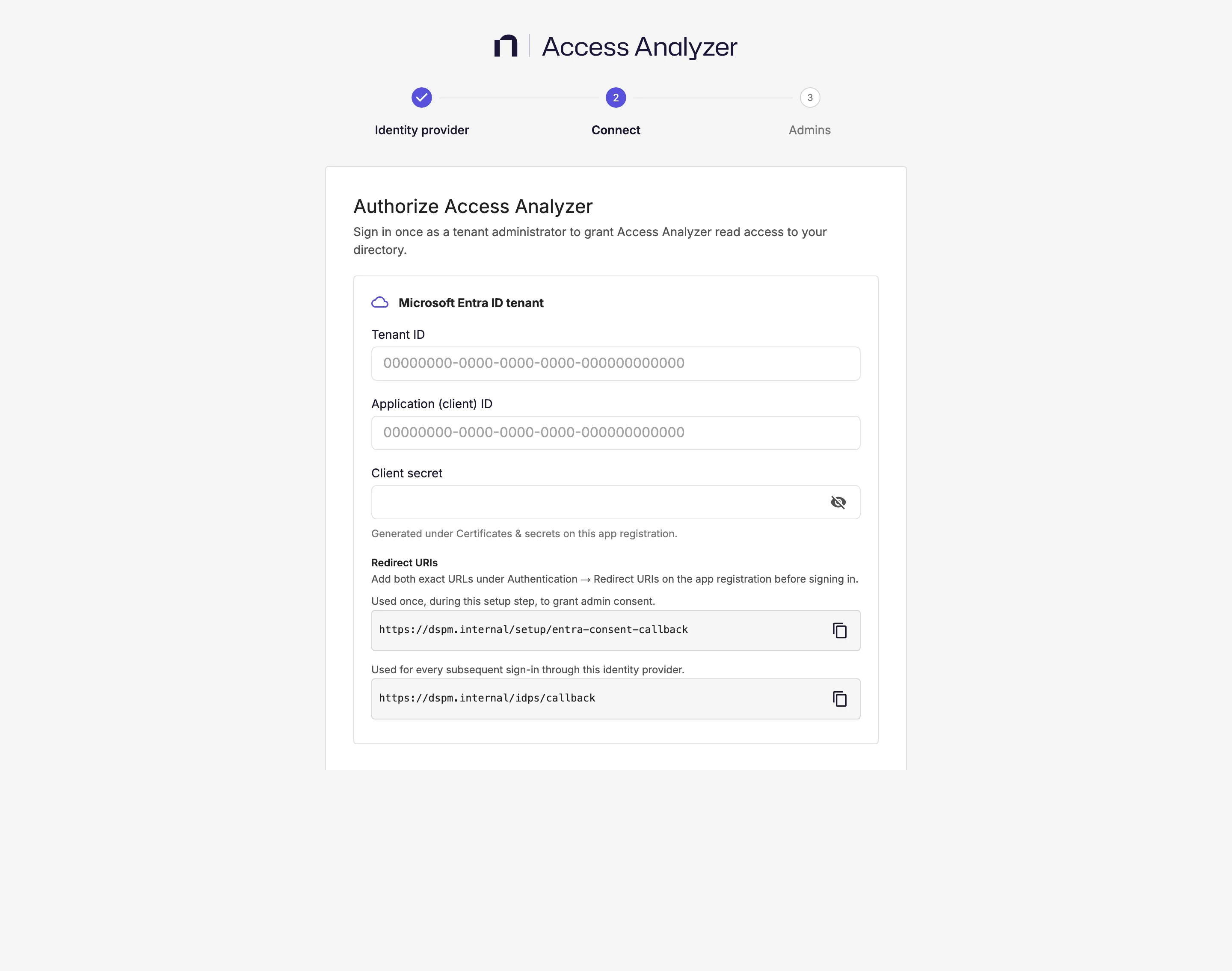
- In Tenant ID, enter your tenant's GUID. Entering the primary domain instead shows the error "Enter the tenant's GUID, not its primary domain — find it in the Entra admin center under Overview."
- In Application (client) ID, enter the app registration's client ID.
- In Client secret, enter a secret generated under Certificates & secrets on the app registration.
- Confirm that both URIs in the Redirect URIs block exist under Authentication > Redirect URIs on the app registration. Each URI has a copy button.
- Click Sign in with Microsoft and continue. A Microsoft window opens for admin consent, and the button reads Waiting for Microsoft… until it closes.
- In the Microsoft window, sign in as a Global Administrator or Privileged Role Administrator.
- Approve the consent request.
Access Analyzer uses the first URI, ending in /setup/entra-consent-callback, only during this step to obtain admin consent. It uses the second, ending in /idps/callback, for every later sign-in through this identity provider.
When Microsoft grants consent, the flow moves to the next step on its own. If it doesn't, one of these messages appears:
| Message | What to do |
|---|---|
| Consent was denied. A Global Administrator or Privileged Role Administrator must approve this app. | Ask someone with one of those roles to sign in when the Microsoft window opens. |
| Microsoft didn't grant consent. try again. | Click the button again. |
| Your browser blocked the sign-in popup. Allow popups for this site and try again. | Allow popups for your Access Analyzer hostname and click the button again. |
| The sign-in window was closed before consent finished. try again. | Click the button again and leave the Microsoft window open until consent finishes. |
Add Administrators
The Add Access Analyzer admins step creates or promotes Admin accounts so that at least one person can sign in through the new provider with full rights. People listed here can manage settings, integrations, and other administrators, and you can add or remove admins later from Settings.
The field under Admin accounts depends on the provider. With Active Directory, Search your directory matches name, username, or the detected sign-in attribute after you type at least three characters, and it also accepts an email address typed directly. With Entra ID, Enter an email address takes the address only.
- Under Admin accounts, enter each administrator.
- Press Enter or comma to confirm each entry.
- Click Finish setup. If you leave the list empty, the button reads Continue without admins instead.
Each address becomes an Access Analyzer user with the Admin role and Active status. If a user with that email exists, Access Analyzer promotes them to Admin and reactivates them. With Active Directory, the step reminds you which attribute sign-in uses, so the address you add must be the value of that attribute on the user's directory object.
Finish
The Applying configuration page works through Configuring identity provider, Adding administrators, and then either Restarting the authentication service (Active Directory) or Verifying configuration (Entra ID). For Active Directory, the sign-in service restarts so it trusts your domain controller; this usually takes under a minute, so keep the page open.
When it's done, the You are all set page shows a Setup summary with the Identity provider, AD Authentication certificate, and Administrators rows, plus AD domain for Active Directory. Click log in to Access Analyzer. This signs you out; sign in again with your local account, or with a directory account you added as an administrator.
If a step fails, the page says which one: "We couldn't configure the identity provider. Check the connection details and try again." or "We couldn't add the administrators. Check the addresses and try again." An Edit connection, Edit identity provider, or Edit administrators link takes you back to the relevant step. If the restart takes longer than expected, the page shows "The sign-in service didn't finish restarting in time. It may still be starting — keep checking, or try again."
How Federated Users Sign In
Access Analyzer never creates a user on its own. Before a directory user can sign in, an Admin or User admin must add them in Settings > Users as a Federated (SSO) account with the email address the directory reports for them, or list them in Add administrators during setup. At sign-in, Access Analyzer matches the directory identity to that row by email, ignoring case. The row must be Active.
The user's role is the one on the row, Viewer by default. Access Analyzer doesn't map directory groups to roles. Once a federated user has signed in, Access Analyzer locks their name and email; only their role and status stay editable.
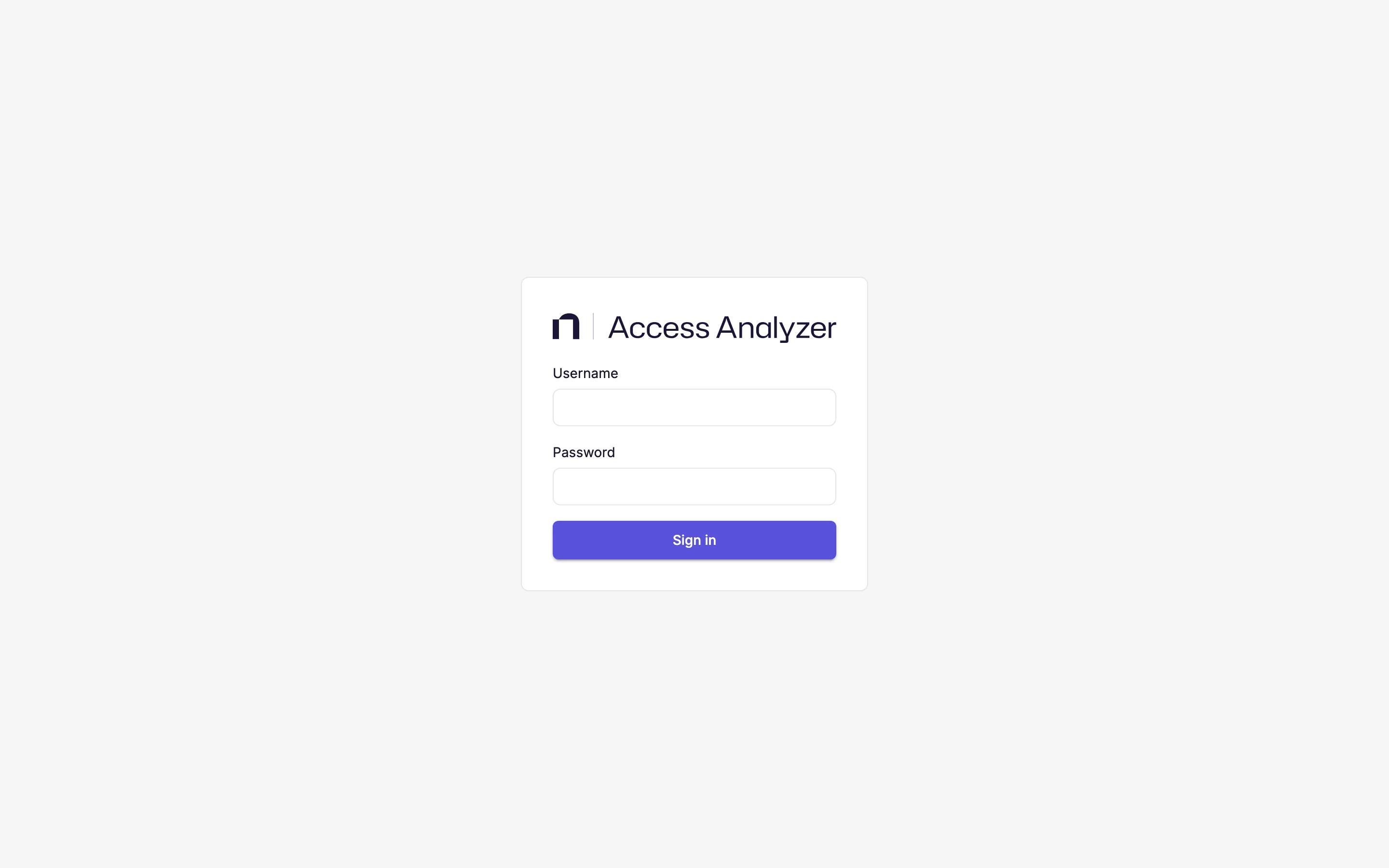
- Active Directory users type their
sAMAccountNameor their email attribute into Username, and their domain password into Password, on the same form local users use. There is no separate Active Directory button. After two failed directory sign-in attempts for the same username within 30 minutes, Access Analyzer refuses further attempts with the message "Too many sign-in attempts. Wait a few minutes and try again, or contact your administrator." A successful sign-in clears the count. - Entra ID users click Sign in with Microsoft, which appears below an or divider under the password form after you connect Entra ID. If Microsoft sends them back before sign-in completes, the form shows "Microsoft sign-in didn't complete. try again."
A directory user with no matching row sees Access denied and "Your account isn't authorized to access this application. contact your administrator." A user whose row is Inactive sees "Your account is inactive. contact your administrator."
Disabling someone in your directory stops them from signing in to Access Analyzer; their Access Analyzer row stays until you deactivate or delete it. Deleting a federated user in Access Analyzer removes only the Access Analyzer account. The password length rule in Users and roles applies to local accounts only; the directory governs its own passwords.
Rotate the Directory Service Account Password
When your Active Directory service account's password changes, update it on the Single sign-on card. Directory hosts and Bind DN show the connection from setup; you can't edit them. Nothing restarts.
- Go to Settings > System.
- In Service account password, replace the masked value with the new password.
- Click Test connection. The button reads Testing… while Access Analyzer binds to the directory with the new password. On success, the page shows "Connection test passed — ready to apply."
- Click Apply. The button stays disabled until a test passes, and editing the password again requires a new test. It reads Applying…, then the message "Service account password updated" confirms the change.
The card manages only an Active Directory connection. If you connected Entra ID, the card still shows the not-connected message, and you can't update the Entra ID client secret from the web app.
What You Can't Do From the Web App
After you connect a provider, you can't reopen the setup flow, and Settings has no control to disconnect the provider, replace it with a different one, connect a second provider, change the AD domain name, or upload a new CA certificate. If you need any of those, keep a record of your current configuration and contact Netwrix support.