SSH Username and Key
An SSH username/key account is a Linux username and an SSH private key. Access Analyzer uses it for one purpose: deploying agents. When you deploy an agent, Access Analyzer signs in to the target machine over SSH with this account, runs the preflight checks, and installs the agent software. Scans never use SSH accounts. Agent deployment authenticates with a key only; the Service account list in the Deploy agent panel shows SSH username/key accounts and nothing else.
Requirements on the Target Machine
The user must be able to sign in over SSH with the key you paste and run sudo without a password prompt, because the deployment installs system software. The preflight checks also expect bash and curl on the machine. For the full host requirements, see Deploy an agent.
Key Formats
The form accepts a PEM-framed private key: the text must start with -----BEGIN and contain an -----END line. If it doesn't, the form shows SSH key must be in PEM or OpenSSH format. Three common formats meet this rule.
| Format | First line |
|---|---|
| OpenSSH | -----BEGIN OPENSSH PRIVATE KEY----- |
| Public-Key Cryptography Standards (PKCS) #1 | -----BEGIN RSA PRIVATE KEY----- |
| PKCS #8 | -----BEGIN PRIVATE KEY----- |
Access Analyzer doesn't support passphrase-protected keys. There's no field for a passphrase, and deployment rejects an encrypted key with the message passphrase-protected SSH private keys aren't supported; provide an unencrypted key. Create a key without a passphrase and dedicate it to agent deployment.
SSH Host Key
The service account identifies Access Analyzer to the machine. The machine's own identity, its SSH host key, isn't part of the account. You enter it per agent, in the SSH host key field of the Deploy agent panel, next to SSH host and SSH port. One account can therefore deploy any number of agents. Deploy an agent explains how to collect the host key from the machine.

Create an SSH Username/Key Service Account
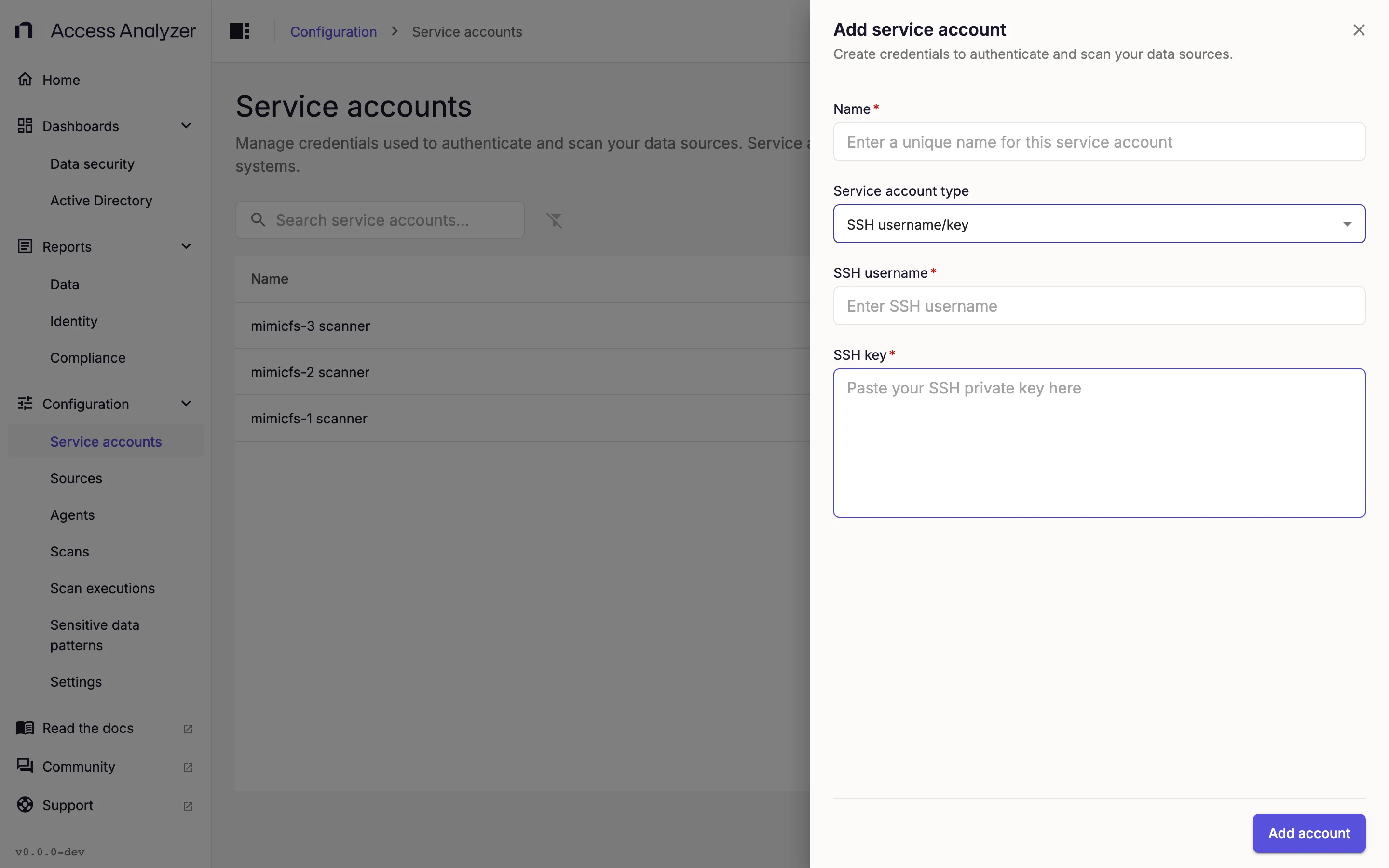
- Go to Configuration > Service accounts.
- Click Add service account.
- In Name, enter a name, for example
agent-deploy. - In Service account type, select SSH username/key.
- In SSH username, enter the Linux username.
- In SSH key, paste the private key.
- Click Add account.
Create the Account While Deploying an Agent
You can also create the account from the Deploy agent panel.
- Next to Service account, click the Add new service account icon. The Add service account panel opens with the type fixed to SSH username/key and the description Add SSH credentials for agent deployment.
- In Name, enter a name.
- In SSH username, enter the Linux username.
- In SSH key, paste the private key.
- Click Add account. The new account appears in the Service account list.
To change a selected account without leaving the panel, click the Edit credentials icon next to it. The same panel opens in edit mode, titled Edit service account.
Replace the Key
- In the account's Actions menu, click Edit.
- In SSH key, paste the new private key.
- Click Save changes.
The SSH key field opens empty. To change other fields without replacing the key, leave it empty.
Replacing the key doesn't affect agents that are already deployed. Access Analyzer uses the key only while it deploys an agent.
Fields
| Field | Required | Notes |
|---|---|---|
| Name | Yes | The name shown in the list and in the Deploy agent panel. |
| Service account type | Yes | Select SSH username/key. |
| SSH username | Yes | The Linux username, for example deploy. |
| SSH key | Yes | The private key, pasted in full including its -----BEGIN and -----END lines. The field is a multi-line text box. |