Service Accounts
A service account is a saved credential that Access Analyzer uses on your behalf: a Windows account that can read a file server, an app registration that can query Entra ID or SharePoint Online, or an SSH username and key. You create the account once, attach it to the sources that need it, and every scan of those sources authenticates with it. Rotate a password in one place and every source that uses it picks up the change.
Service accounts that read a source need read-only permissions. Access Analyzer collects metadata and permissions from your systems; it doesn't need to change anything there. The exception is the SSH username/key account used to deploy an agent: Access Analyzer signs in with it to install the agent software, so that user needs passwordless sudo on the target machine. See Deploy an agent.
Manage them at Configuration > Service accounts.
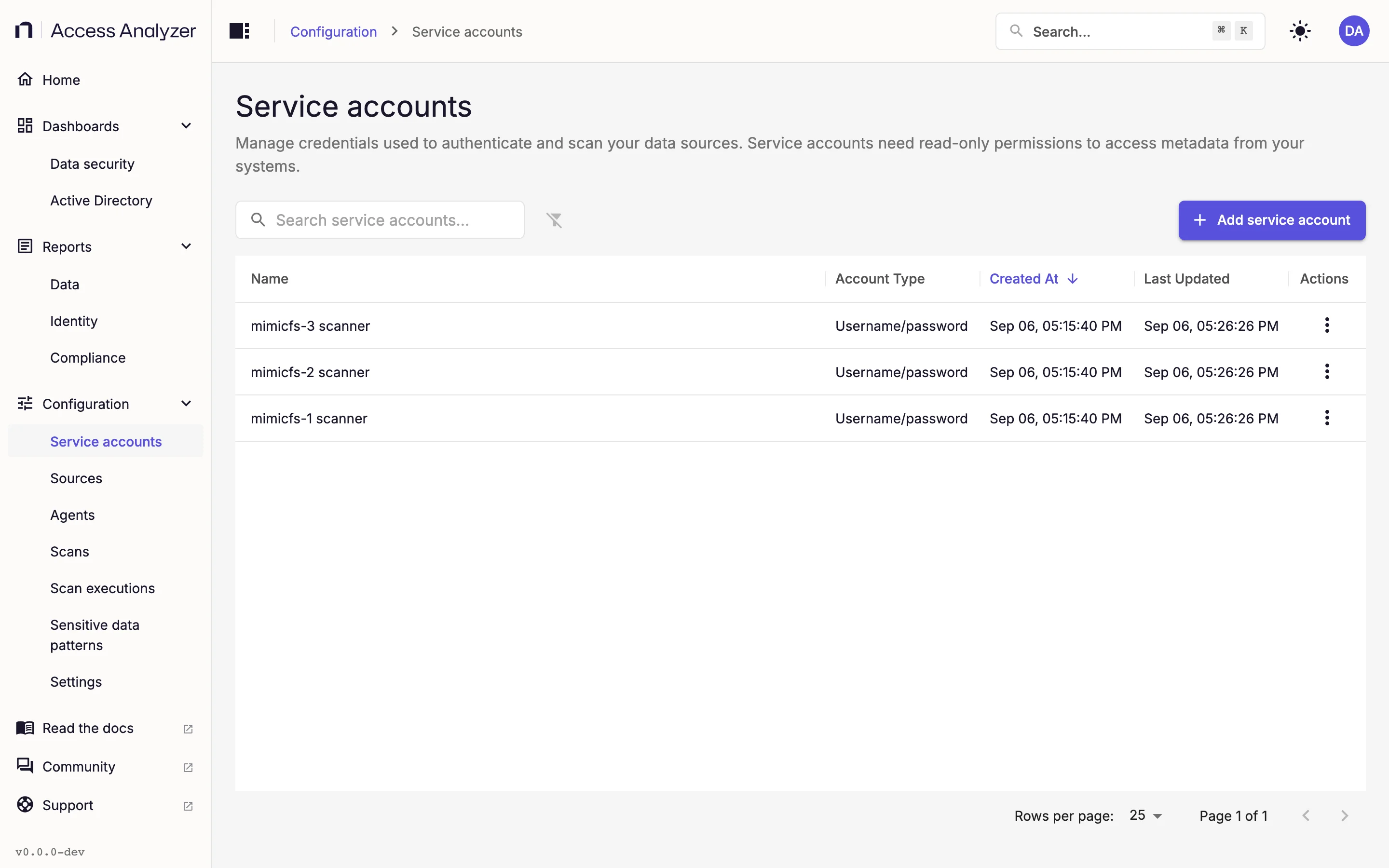
The Service Accounts Page
The page lists every account in a table. Enter text in Search service accounts… to filter the list, and click Clear filters next to it to reset. Add service account opens the form.
| Column | What it shows |
|---|---|
| Name | The name you gave the account. Sources and the CSV import refer to accounts by this name. |
| Account Type | One of the four types; see Service account types. |
| Created At | When you created the account. The list sorts by this column, newest first, until you click another header. |
| Last Updated | When you last saved the account. |
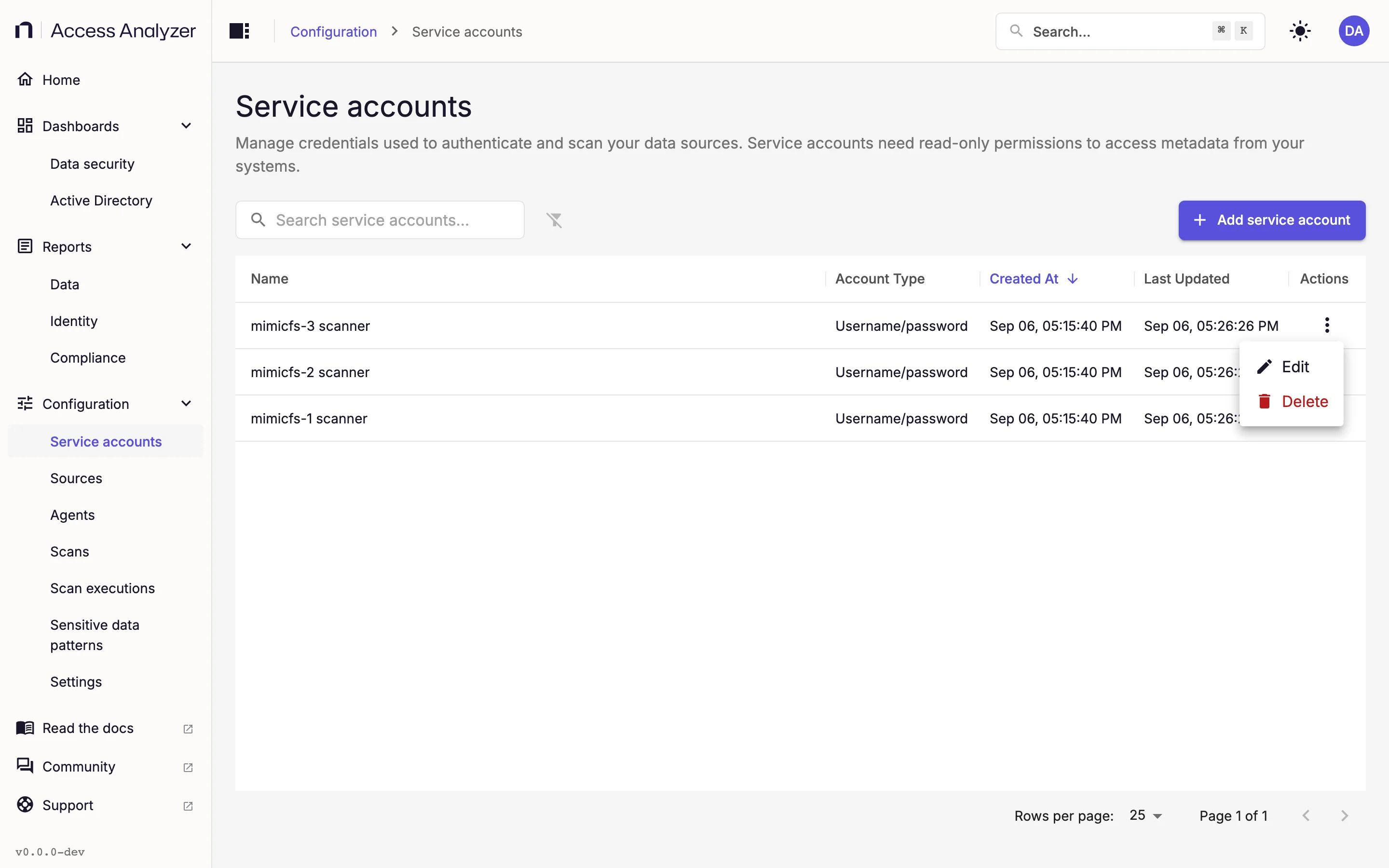
| Actions | A menu with Edit and Delete. |
Rows per page offers 10, 25, 50, or 100 rows. Before you add anything, the page reads No service accounts yet; if a search matches nothing, it reads No service accounts match your filters.
Service Account Types
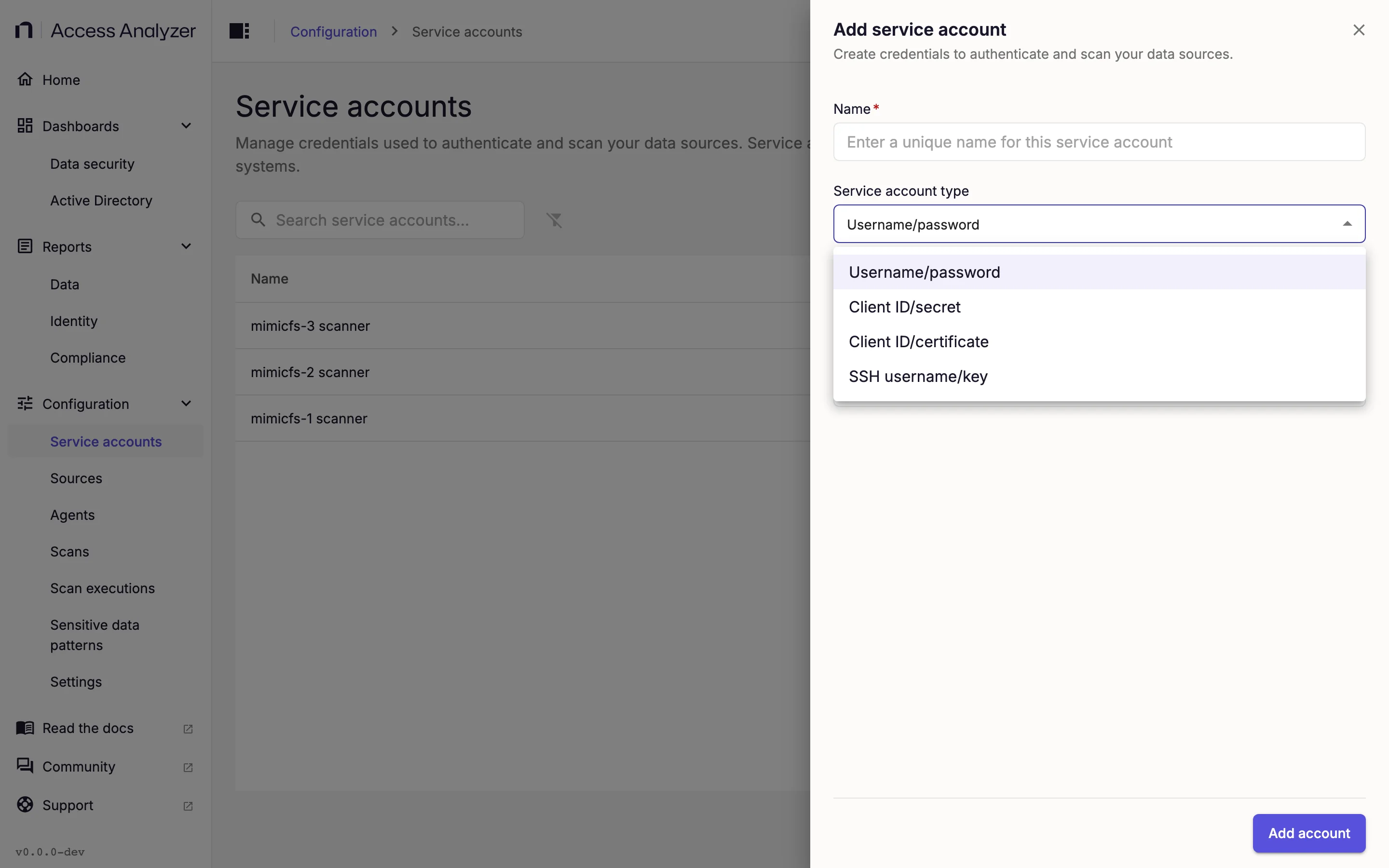
Each account has one type. You choose it when you create the account, and it stays fixed from then on. The type decides which fields the form asks for and which systems the account can authenticate to.
| Type (as shown in the form) | Use it for | Details |
|---|---|---|
| Username/password | File Server sources and Active Directory sources | Username and password |
| Client ID/secret | Entra ID sources | Client ID and secret |
| Client ID/certificate | SharePoint Online sources | Client ID and certificate |
| SSH username/key | A Linux username and an SSH private key. Agent deployment doesn't use it. | SSH username and key |
For example, a File Server source pointing at fs01.corp.example.com needs a Username/password account for a domain user that can read the shares you want to scan. A SharePoint Online source needs a Client ID/certificate account for an app registration in the same tenant.
The Service account list on a source shows every account, whatever its type. Use the type from the preceding table for the source you're configuring. Access Analyzer doesn't reject a mismatched account when you save the source; the scan fails when it runs.
Secret Handling
Access Analyzer treats passwords, client secrets, SSH private keys, and certificate private keys as write-only. After you save an account, Access Analyzer never displays the value again, in the list or in the edit form. When you edit an account, the secret fields are empty. Leave a field empty to keep the stored value, or enter a new value to replace it.
Access Analyzer keeps secret values in a secret store on the server, separate from the product database, which holds only a reference to each one. Scans receive the reference and resolve it when they run. For certificate accounts, you can download only the public certificate, never the private key.
If you bulk-add sources with a CSV file, the file names the service account to attach and never contains credentials. See Import sources from a CSV file.
Add a Service Account
-
Go to Configuration > Service accounts.
-
Click Add service account. The Add service account form opens.
-
In Name, enter a name that tells you what the account is for, such as
corp-file-servers. -
In Service account type, select a type. The form preselects Username/password.
-
Fill in the fields for that type, as described in Username and password, Client ID and secret, Client ID and certificate, or SSH username and key.
-
Click Add account.
If you change the type after you've started filling in fields, the Confirm service account type change dialog warns that the change clears the values you entered. After you save the account, you can't change its type; create a new account instead.
Edit a Service Account
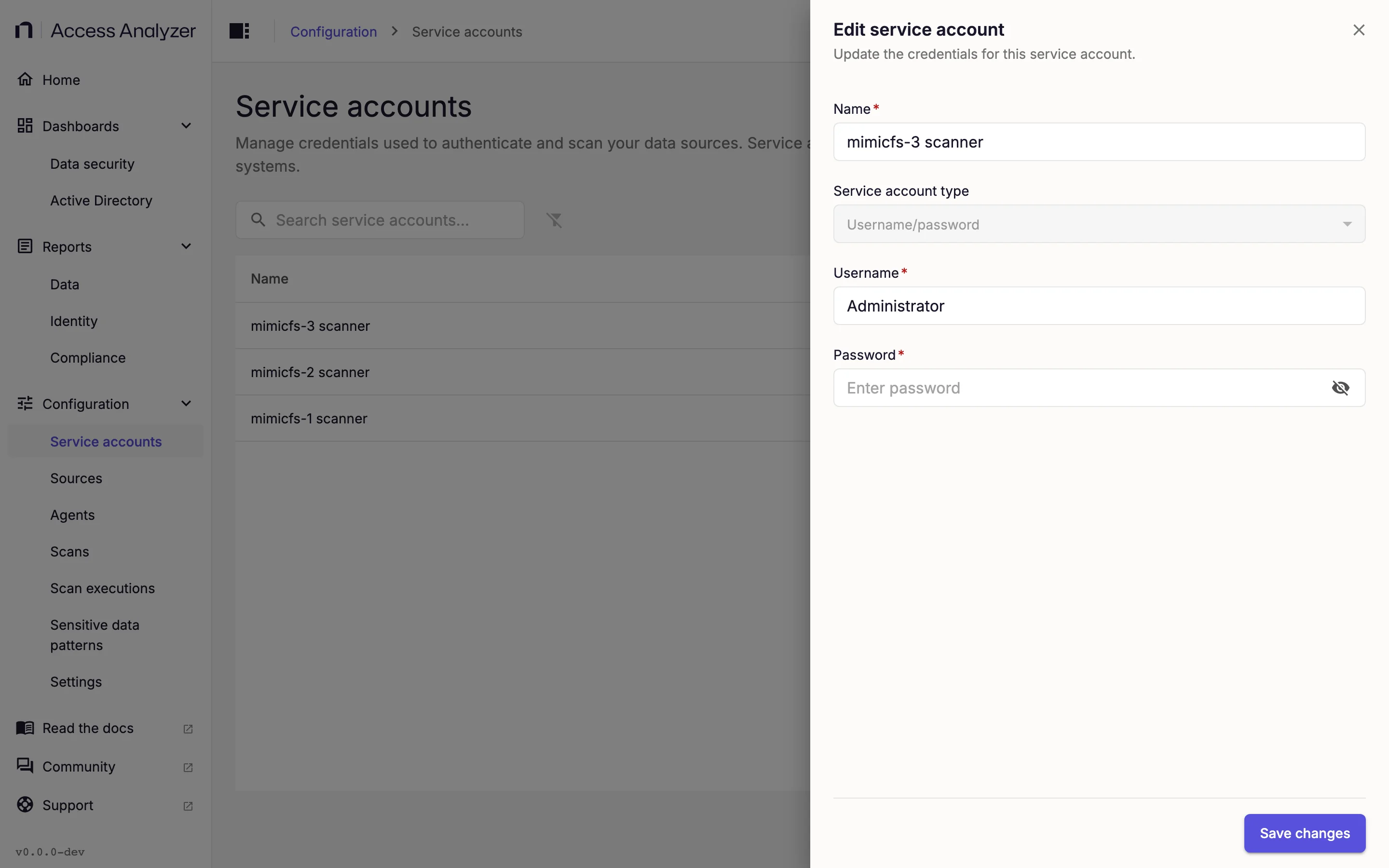
- In the account's Actions menu, click Edit.
- Change the name or the non-secret fields as needed.
- To rotate a secret, enter the new value in the empty field. Leave it empty to keep the current one.
- Click Save changes.
The Confirm Service Account Update Dialog
If any scan or Identity sync uses the account, the Confirm service account update dialog opens before Access Analyzer saves the change. It lists the affected scans and syncs by name (the first five, with a count of the rest) and spells out what happens when you continue:
- Access Analyzer stops any running executions of those scans and syncs.
- It reconfigures the scans and syncs with the new credentials.
- It restarts the stopped executions. A scheduled execution restarts right away and then continues on its normal schedule. A manually started execution restarts once; after that, you run it manually as before.
Click Yes, update service account to continue, or Cancel to leave the account as it was. To follow the restarted executions, see Scan executions.
Delete a Service Account
- In the account's Actions menu, click Delete.
- In the Delete Service account dialog, confirm that it names the account you mean to delete.
- Click Delete Service account.
The message Service account deleted confirms the removal.
Why a Delete Can Fail
You can't delete an account that's attached to a source. Access Analyzer refuses the request and shows Failed to delete service account with a message that sources are using the account. Nothing warns you in advance: the list has no in-use column, and Delete stays available in the menu.
To remove such an account:
- Go to Configuration > Sources. The Service account column shows which account each source uses.
- For each source that uses the account, change Service account to another account or to None. See Sources.
- Delete the account.