Pattern Groups
A pattern group is a named set of sensitive data patterns. Groups are the unit a Sensitive data scan works with: when you configure a scan, you pick groups, and the scan keeps findings only for the patterns in those groups. The scan records each finding under both the pattern name and the group name, and the Sensitive Data Overview report lets you filter on either.
Access Analyzer ships 11 built-in groups, from PCI DSS (Payment Card Industry Data Security Standard) and HIPAA (Health Insurance Portability and Accountability Act) to Credentials and PII (personally identifiable information). They're listed with their patterns in Built-in patterns. You can create your own groups for anything the built-in set doesn't capture, such as a group per business unit or per project, and fill them with custom patterns.
You manage groups in the Pattern Groups panel on Configuration > Sensitive data patterns. The page needs the Admin role.
View the Patterns in a Group
Click a group in the Pattern Groups panel. The patterns table filters to that group's patterns and shows Showing patterns in group together with the group name. Search and the Confidence filter keep working within the group.
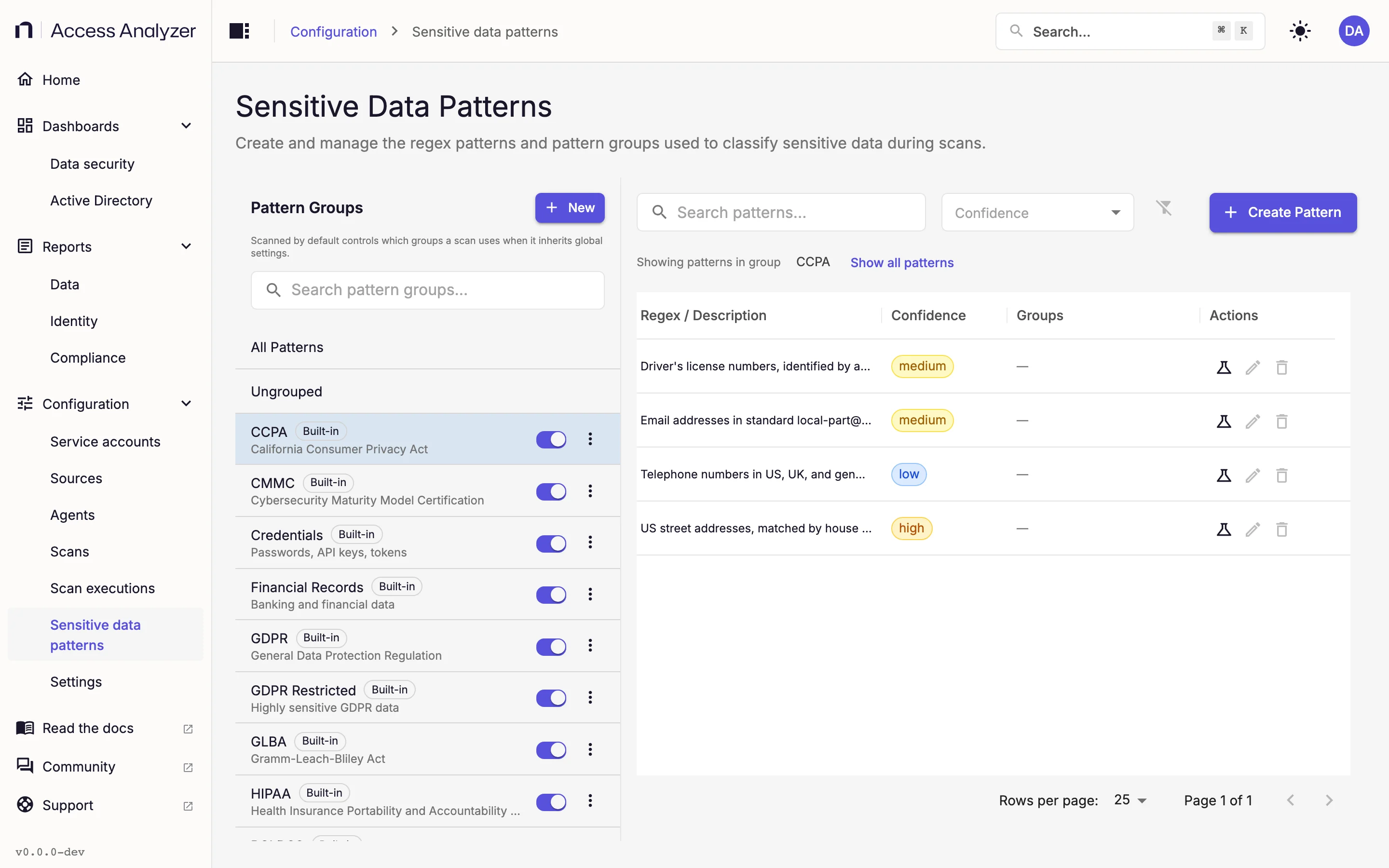
Click Show all patterns to return to the full list. The Ungrouped row works the same way for patterns that belong to no group.
Create a Pattern Group
- Go to Configuration > Sensitive data patterns.
- In the Pattern Groups panel, click New.
- In Name, enter a name for the group.
- In Description, describe what the group is for.
- In Tags, add any tags you want to attach to the group.
- Click Create Group.
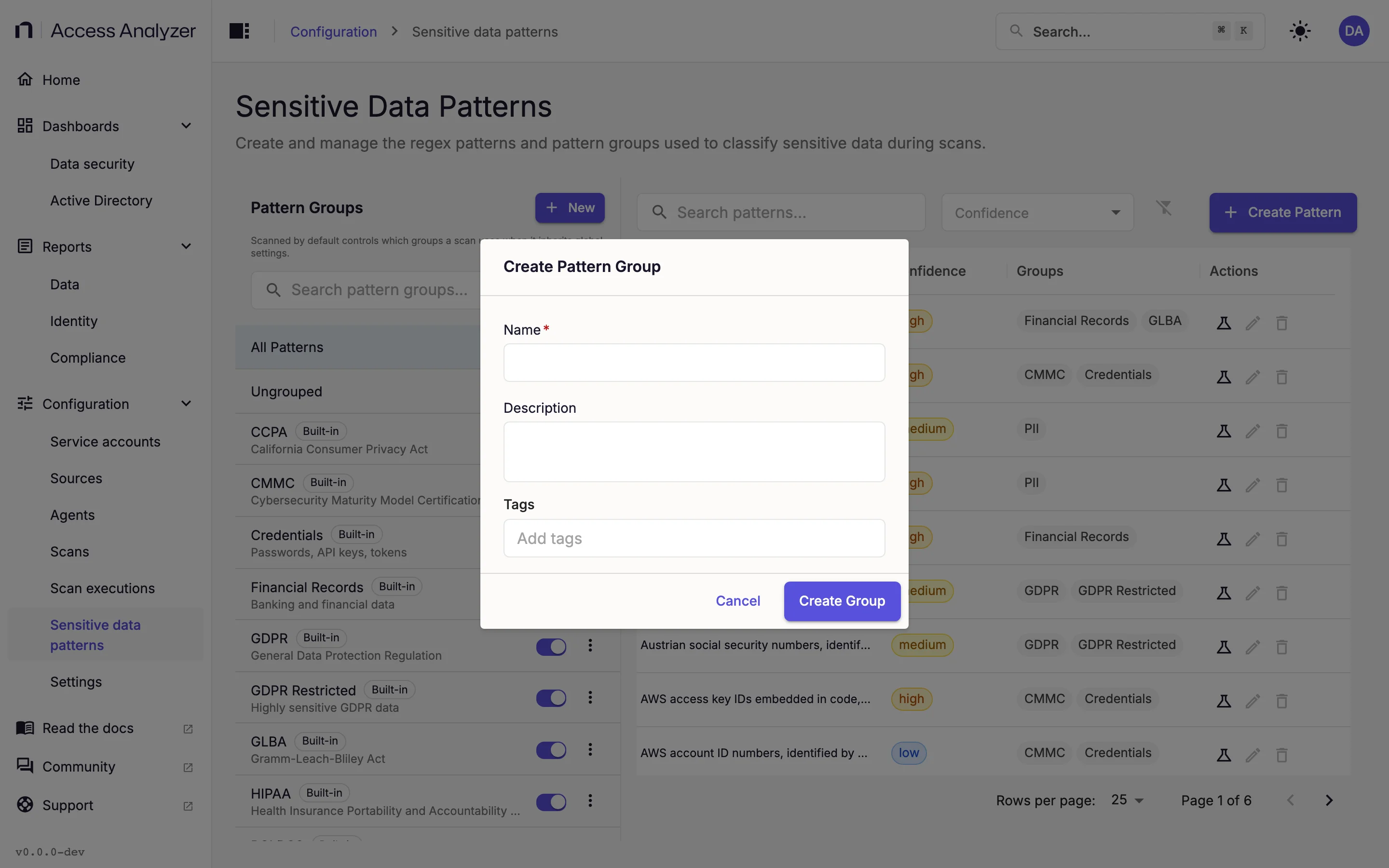
The group appears in the panel without a Built-in badge, and a message confirms the save: Pattern group "<name>" created successfully.
| Field | Required | Details |
|---|---|---|
| Name | Yes | 1 to 255 characters. Group names are unique regardless of case, so hr data can't coexist with HR Data. |
| Description | No | Up to 2,000 characters. Shown under the group name in the panel and in the scan's group picker. |
| Tags | No | Free-text keywords attached to the group. |
A new group is empty. Add patterns to it with Manage patterns, or set the group in a pattern's Groups field when you create or edit the pattern.
Edit a Pattern Group
- In the Pattern Groups panel, open the group's actions menu.
- Click Edit.
- Change Name, Description, or Tags.
- Click Save Changes.
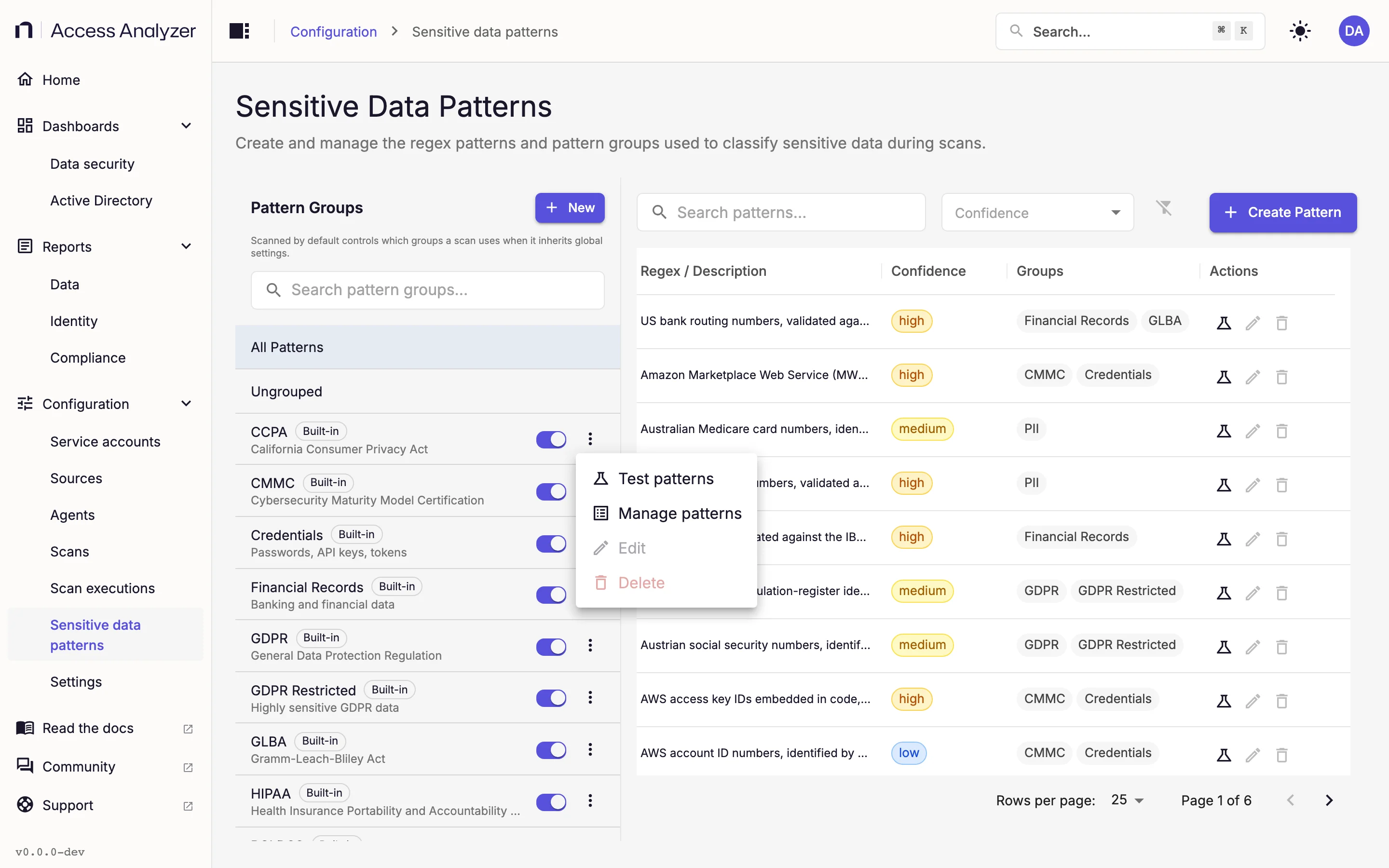
You can't edit or delete built-in groups. Scans and the default set refer to groups by name. After you rename a custom group, reselect it in any scan that picks its own groups, and check its Scanned by default switch.
Manage the Patterns in a Group
- In the Pattern Groups panel, open the group's actions menu.
- Click Manage patterns.
- Under Add existing patterns, select one or more patterns in Select patterns to add.
- Click Add Selected.
- To remove a pattern, click the remove icon next to it under Current patterns.
- Click Close.
A message confirms each change: Patterns added to the group. or Pattern removed from the group. Changes apply immediately; there is no separate save.
Manage patterns works on custom patterns only, in built-in and custom groups alike. Built-in patterns keep the memberships they ship with, so in a built-in group you can add your own patterns but can't change the built-in ones. A group with nothing added yet shows No patterns in this group yet.
If a custom pattern you expect isn't offered in Select patterns to add, open the pattern with Edit pattern and add the group in its Groups field instead. Both paths produce the same membership.
Test a Group's Patterns
- In the Pattern Groups panel, open the group's actions menu.
- Click Test patterns.
- Select Line by line or Multiline.
- In Sample text, paste text that should trigger the group's patterns.
- Click Test.
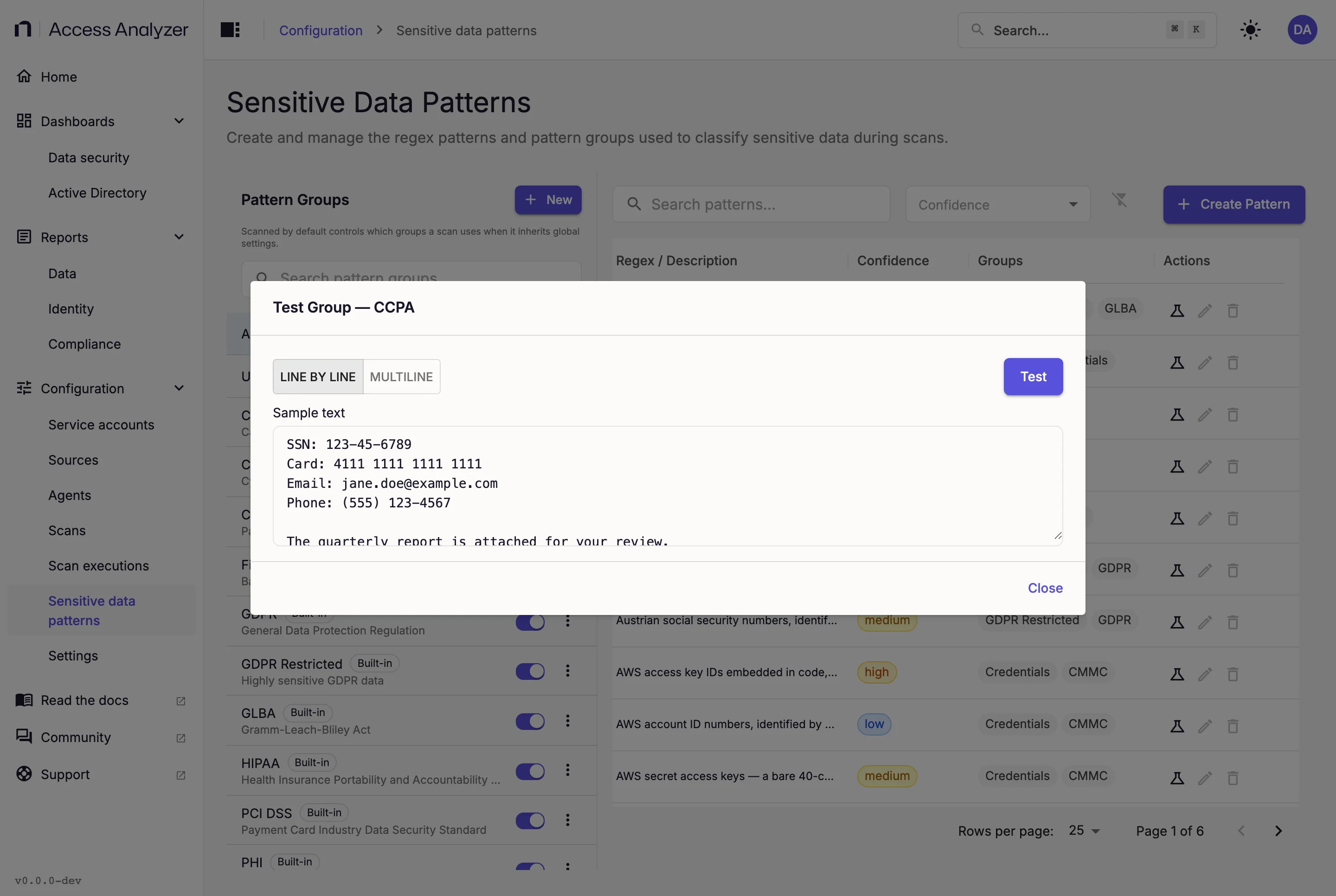
The Test Group — <name> dialog shows one highlighted section per pattern in the group, headed by the pattern name, so you can see which patterns fired on which parts of the text. A pattern that fails to compile shows its error in red inside its own section, and the other patterns still run.
A group test shares a single 2-second limit across every pattern in the group, so keep samples short for large groups such as GDPR (General Data Protection Regulation). See Test patterns for the modes and result formats.
Scanned by Default
Every group row has a Scanned by default switch. Together, the groups with the switch on form the global default set: the groups a Sensitive data scan classifies against when it inherits the global configuration rather than choosing its own.
The switch saves as soon as you turn it on or off, for built-in and custom groups alike. If the save fails, a message reports it: Failed to update the default scan setting for "<name>".
Turning every switch off doesn't stop classification. A scan that inherits an empty default set classifies against all groups; see How a scan picks its groups.
How a Scan Picks Its Groups
On a Sensitive data scan's Configure step, the Sensitive data classification section has two cards. Configuration source holds the Inherit from global configuration switch, on for new scans. While it's on, the alert Using global configuration with <N> pattern groups enabled. tells you how many groups the default set holds. Turn it off to pick groups for this scan alone in Sensitive Data Pattern Groups to Classify, where you can search, select individual groups, or click Select All.
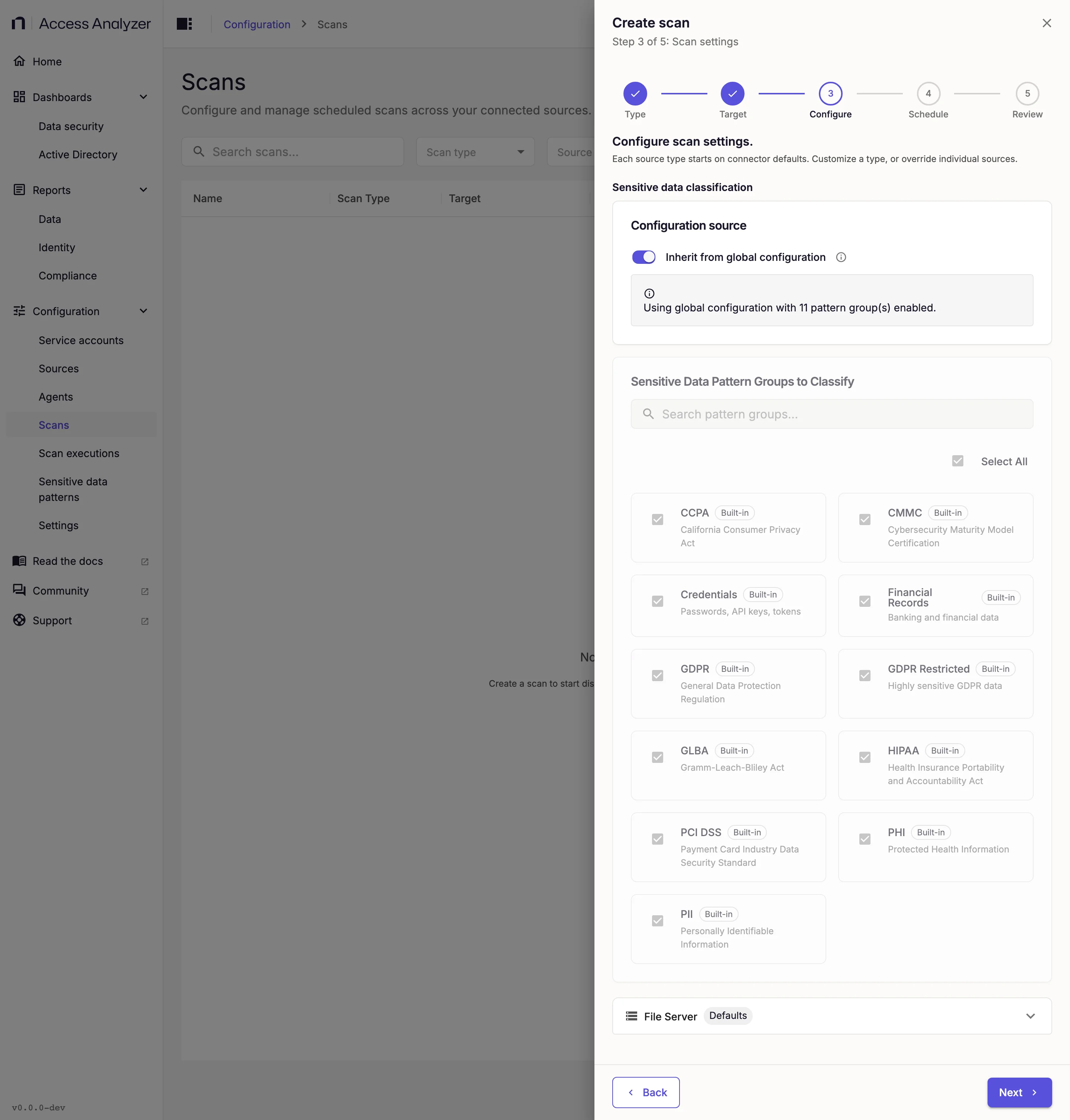
When the scan runs, it resolves its groups like this:
Two things follow from this:
- An empty set means everything, not nothing. If no group is scanned by default and a scan inherits, or a scan overrides with no groups selected, the scan classifies against all groups, built-in and custom.
- The scan matches groups by name. When the set isn't empty, it keeps findings only for patterns in groups with those names, so a scan that names a deleted group records nothing for it.
For the other Configure settings and their defaults, see Scan types; for creating, editing, and running a scan, see Scans.
Delete a Pattern Group
- In the Pattern Groups panel, open the group's actions menu.
- Click Delete.
- Confirm the deletion.
A message confirms the deletion: Pattern group "<name>" was deleted successfully. Deleting a group doesn't delete its patterns: they keep their other memberships, and a pattern with no other group moves to Ungrouped. You can't delete built-in groups.
You can delete a group even when scans select it or its Scanned by default switch is on. A scan whose own selection still names the deleted group records no findings for that name, and if that was its only group, the scan records no findings at all until you edit its group selection.