Scan Types
Every scan has exactly one type. You choose it on the first step of Create a scan, and it stays fixed from then on. The type decides what the scan collects, which sources it can target, and which settings the Configure step offers.
| Scan type | What it collects | Source types |
|---|---|---|
| Access | Shares, folders, files, sites, and the permissions on them | File Server, SharePoint Online |
| Sensitive data | Sensitive data patterns found inside file content | File Server, SharePoint Online |
| Identity sync | Users, groups, and group memberships from a directory, plus directory roles from Entra ID | Active Directory, Entra ID |
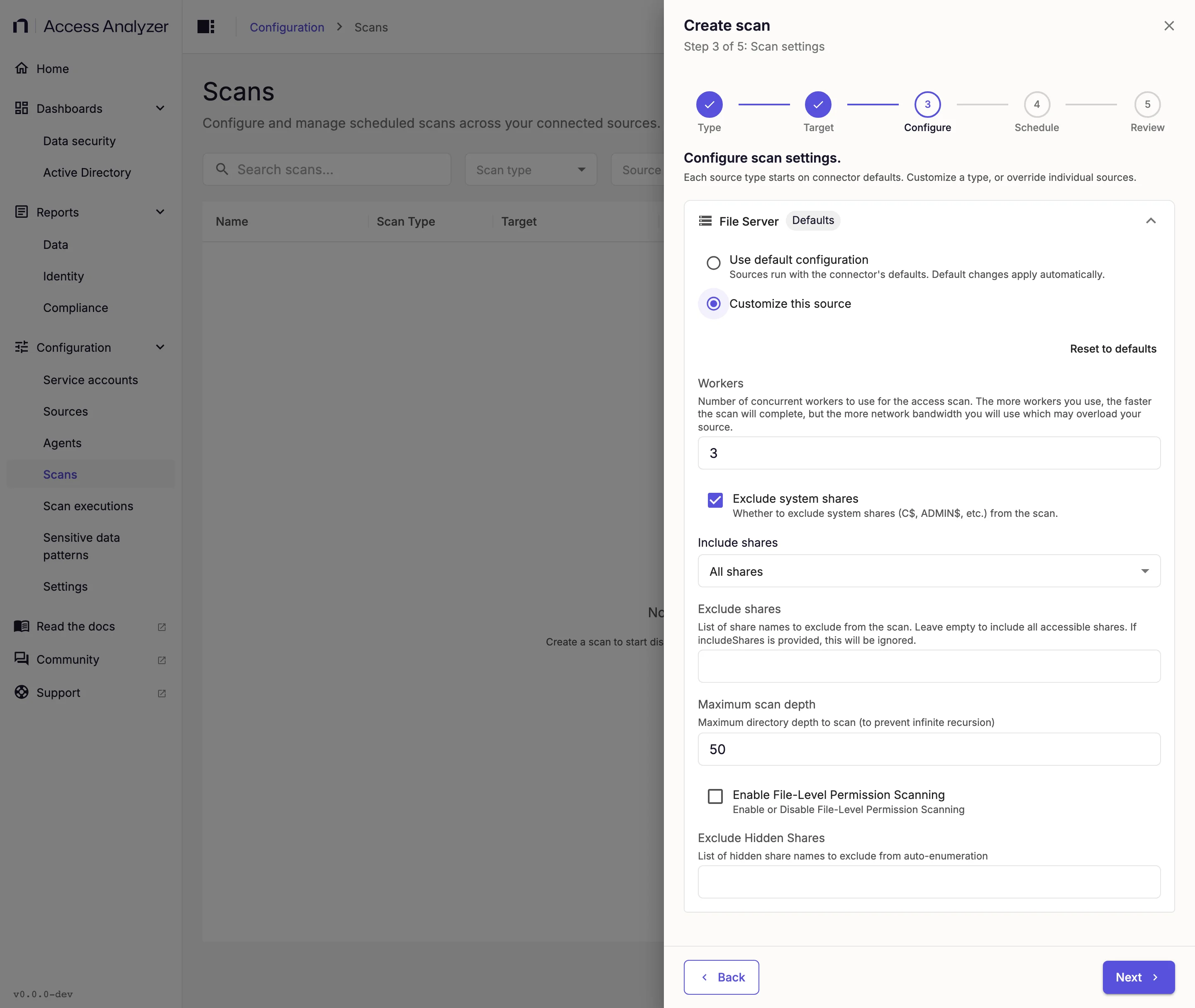
On the Configure step, each source type in the target starts on Use default configuration. To change the values in the following tables for every source of that type, select Customize for all File Server sources; the label names the source type, and it reads Customize this source when the target is a single source. To change them for one source only, add a Source overrides entry. Settings you don't touch keep their defaults.
Access Scan
An Access scan builds the inventory of what exists and who can reach it. On a File Server source that means the shares, the folders and files beneath them, and the permissions on shares and folders, with file-level permissions as an option. On a SharePoint Online source it means site collections, sites, lists, folders, and documents, plus the users and groups that hold permissions on them. When Collect OneDrive is on, it also covers users' OneDrive personal drives.
The inventory is also what a Sensitive data scan works from, so run an Access scan before you schedule a Sensitive data scan on the same source.
File Server Settings
| Setting | Default | Meaning |
|---|---|---|
| Workers | 32 | Concurrent workers, from 1 to 64. Each worker opens its own SMB connection to the file server. More workers finish sooner but open more connections and use more network bandwidth, which can overload the file server. Lower the value for smaller file servers. |
| Exclude system shares | On | Skips Windows administrative and system shares: ADMIN$, PRINT$, FAX$, SYSVOL, NETLOGON, and drive-letter shares such as C$. The scan always skips IPC$. |
| Exclude hidden shares | Off | Skips hidden shares: shares whose names end in $ but that aren't system shares, such as Finance$. |
| Include shares | Empty | Share names to scan. When the list has entries, the scan skips share discovery, scans only the shares you name, and ignores Exclude shares, Exclude system shares, and Exclude hidden shares. Leave it empty to scan every share the account can reach. |
| Exclude shares | Empty | Share names to skip, matched exactly, including case. The list doesn't accept wildcards. The scan ignores this list when Include shares lists shares. |
| Maximum scan depth | 50 | How many folder levels below the share root to record, 1 or more. This guards against endless recursion. At 1, the scan records the folders and files directly in each share but doesn't open those folders. |
| Enable File-Level Permission Scanning | Off | Collects the owner and permissions of individual files as well as folders. |
Enter a share name and press Enter, or enter a comma, to add it to a share list. You can also paste several names separated by commas or line breaks. A list skips a name it already holds, ignoring case. The share settings take share names only; there is no setting for individual folder paths. See SMB file servers for how Access scans treat each kind of share.
SharePoint Online Settings
| Setting | Default | Meaning |
|---|---|---|
| Workers | 3, or 24 with service prioritization | Concurrent workers, from 1 to 64. Each worker sends its own SharePoint requests, so more workers finish sooner but use up the app's SharePoint request budget faster. When SharePoint throttles a request, every worker pauses. Keep 3 for an app registration with the regular SharePoint Online request limits. When the app registration has service prioritization in SharePoint enabled, set it to 24 yourself, because the form always fills in 3. Beyond those values, raise it only while scans run without throttling. |
| Include site collections | Scan all URLs | Switch to Include specific site collections and enter exact site collection URLs, such as https://contoso.sharepoint.com/sites/marketing, to scan only those. This field doesn't accept wildcards. Matching ignores case and a trailing slash. |
| Exclude site collections | Empty | Site collections to skip. Supports the * wildcard, for example *.sharepoint.com/sites/archive*. |
| Exclude URLs | Empty | URL patterns for subsites, lists, libraries, folders, documents, and list items to skip inside the scanned site collections. Supports the * wildcard. |
| Collect OneDrive | On | Includes users' OneDrive personal sites when Include site collections is set to Scan all URLs. When you list specific site collections, the scan covers exactly those, and this setting has no effect. |
Exclude rules always take precedence over include rules. A pattern in Exclude URLs matches the whole URL, ignoring case, so a pattern without a wildcard matches only the object at exactly that URL. To exclude a library, folder, or site and everything in it, end the pattern with /*, as in *.sharepoint.com/sites/archive/*. See Microsoft 365 for the content Access scans always skip.
Reports Fed by Access Scans
Access scans feed the reports in the Permissions category on Reports > Data: for File Server, Broken Inheritance, High Risk ACLs, Open Access, and Share Audit; for SharePoint Online, Shared Links, High-Risk ACLs, and Open Access. Both feed the Data security dashboard, and Data reports describes each report.
Sensitive Data Scan
A Sensitive data scan opens files, reads their content, and matches it against sensitive data patterns. For each file it records which pattern groups and patterns matched and how many times; it doesn't store the matched text itself.
Prerequisites
The scan needs a completed Access scan on the same source, because it picks its files from the inventory that scan built. A Sensitive data scan on a source that has never had an Access scan finds nothing to classify.
The scan doesn't read every inventoried file. The File server scanning and SharePoint scanning cards on Settings > Application, described in Application settings, decide which files qualify. Each card has the same four settings:
| Setting | Default | Meaning |
|---|---|---|
| Use include list | On | Classify only the file types on Include list. Turn it off to classify everything except the file types on Exclude list. |
| Include list | 134 extensions | Documents, spreadsheets, presentations, email, text, source code, configuration, credential, certificate, key, database, and archive files, such as .docx, .xlsx, .pdf, .msg, .txt, and .zip. If the list is empty, the scan uses Exclude list. |
| Exclude list | 69 extensions (File server), 74 (SharePoint) | File types skipped while Use include list is off: media, images, fonts, disk images, and executables such as .mp4, .jpg, .iso, and .exe. The SharePoint list adds web files such as .aspx and .css. |
| Maximum file size (MB) | 10 | Largest file to classify, from 1 to 100 MB. The scan also skips empty files. |
Changes to these settings reach the scanning service within five minutes and apply to scans that start after that. Scans already running keep the values they started with.
File Server Settings for Sensitive Data Scans
| Setting | Default | Meaning |
|---|---|---|
| Workers | 3 | Concurrent workers reading file content, from 1 to 20. Leave it at 3 and the scan uses Classification workers on the Classification card of Settings > Application (default 15). Set any other value to use that number for this scan. |
| Include shares | Empty | Share names to classify, matched ignoring case. When the list has entries, the scan classifies only those shares and ignores the other share settings. Leave it empty to classify every share the Access scan collected. |
| Exclude shares | Empty | Share names to skip, matched ignoring case. The scan ignores this list when Include shares lists shares. |
| Exclude system shares | On | Skips the same system shares as the Access scan setting, such as ADMIN$ and C$. The scan ignores this setting when Include shares lists shares. |
| Exclude hidden shares | Off | Skips hidden shares, such as Finance$. The scan ignores this setting when Include shares lists shares. |
| Differential scan | Off | Reads only files that are new, or whose last-modified time changed, since this scan last classified them. |
Turn on Differential scan for a recurring scan after the first full pass finishes. The first run still reads everything, because the scan hasn't classified anything yet; later runs then touch only what changed. Each scan keeps its own record of what it classified, so a new scan reads every file again on its first run.
SharePoint Online Settings for Sensitive Data Scans
| Setting | Default | Meaning |
|---|---|---|
| Include site collections | Empty | Site collection URLs whose documents to classify. Supports the * wildcard. A pattern can name the site collection itself or the documents under it. Leave it empty to classify documents from every site collection the Access scan collected. |
| Exclude site collections | Empty | Site collections whose documents to skip. Supports the * wildcard and matches the same way as Include site collections. |
| Exclude object URLs | Empty | Document URL patterns to skip. Supports the * wildcard; a pattern without a wildcard matches only the document at exactly that URL. |
| Differential scan | Off | Reads only documents whose content changed since this scan last classified them, based on the content hash SharePoint keeps for each file. |
SharePoint Online Sensitive data scans have no Workers setting; they use Classification workers on the Classification card of Settings > Application.
Pattern Groups
Under Sensitive data classification, the Configuration source card holds the Inherit from global configuration switch, which is on by default. While it's on, the scan classifies against the pattern groups marked Scanned by default on the Sensitive data patterns page, and the card reports how many groups that is. Changing the global set later changes what this scan looks for on its next run.
Turn the switch off to select groups for this scan alone. Sensitive Data Pattern Groups to Classify lists the pattern groups and marks built-in ones with a Built-in badge. Type in Search pattern groups to filter the list, or click Select All to choose every group. Pattern groups describes the groups themselves.
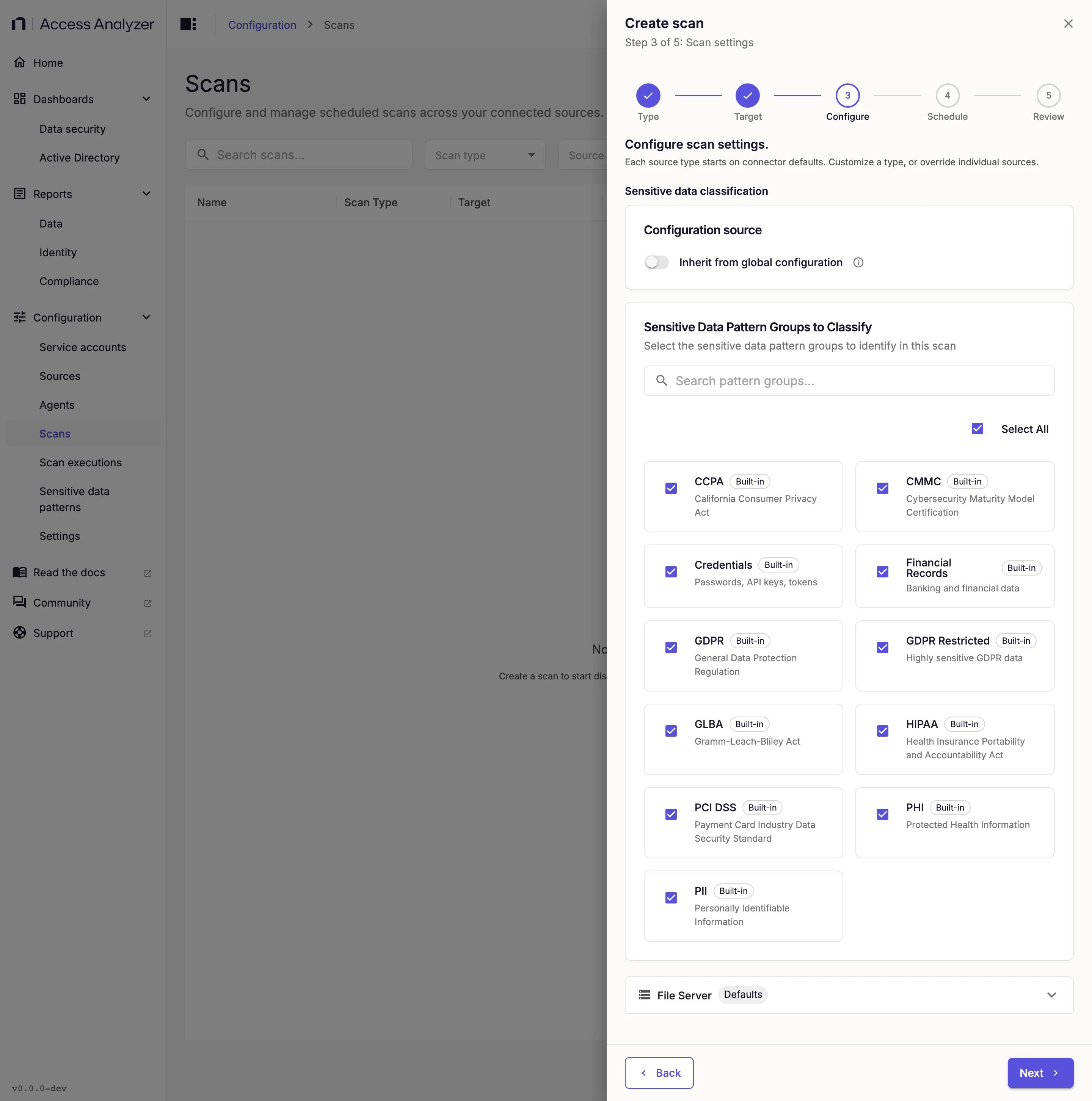
An empty selection doesn't mean "classify nothing". If the scan inherits the global configuration and no group carries Scanned by default, or if you turn inheritance off and select no groups, the scan classifies against every pattern group, built-in and custom alike. To narrow a scan, select the groups you want.
Reports Fed by Sensitive Data Scans
Sensitive data scans feed both Sensitive Data Overview reports, one for file systems and one for SharePoint, and the sensitive-data variant of Share Audit, all listed in Data reports. Findings also appear on the Data security dashboard.
Identity Sync
An Identity sync collects the accounts and groups of a directory. From Active Directory it collects users, groups, direct group memberships, and custom user attributes. From Entra ID it collects users, groups, directory roles, group memberships and owners, and role assignments. Each source type's page lists every attribute it stores: Active Directory and Entra ID.
Active Directory Settings
| Setting | Default | Meaning |
|---|---|---|
| Differential Scan | On | Collects only objects that changed since the last sync, based on the domain controller's update sequence number (USN). The sync reads the whole domain anyway when it has no saved state or a different domain controller answers. Ended memberships, and deletions the sync can't see, clear only on a full sync, so turn it off to force a full collection. See Differential and full syncs. |
| Workers | 16 | Concurrent workers, from 1 to 16. Each worker opens its own LDAP connection to the domain controller. Lower the value to reduce the load on the domain controller. |
Entra ID Settings
| Setting | Default | Meaning |
|---|---|---|
| Workers | 8 | Concurrent workers, from 1 to 16. The users, groups, and roles collections run as separate work items and share the tenant's Microsoft Graph throttling limits. Values above 3 don't add parallel collections, but the value also caps the Microsoft Graph requests in flight at 4 times the worker count, with a minimum of 16. Entra ID has no differential mode: every sync reads the whole tenant. |
Reports Fed by Identity Sync
Active Directory syncs feed the AD Users report and the Active Directory dashboard. Entra ID syncs feed the Entra Users and Entra Groups reports. Identity reports describes all three.