Agent Labels and Scan Routing
Labels are how you tell a scan where to run. Each deployed agent carries one or more key=value labels. A scan names a label, and its executions run on an agent that carries it. Leave the label out and the scan runs on the System agent.
Agent labels are separate from the labels you put on sources. Source labels group sources and pick scan targets; agent labels pick the machine that does the scanning. They don't interact, and they follow different rules. Labels describes source labels.
Agent Labels
You add labels when you deploy an agent and change them later with Edit. A deployed agent must have at least one label. The System agent has no labels you can edit, so its Labels column on the Agents page is empty.
The Labels field's hint reads "Keys and values are lowercased; spaces become hyphens." Access Analyzer trims surrounding spaces, lowercases the key and the value, and turns each run of spaces inside them into a single hyphen. Enter Data Center as the key and US East as the value, and the stored label is data-center=us-east.
After that clean-up, the key and the value must fit these rules.
| Part | Must start with | Can contain | Maximum length |
|---|---|---|---|
| Key | A letter or number | Letters, numbers, and hyphens | 53 characters |
| Value | A letter or number | Letters, numbers, hyphens, underscores, and dots | 63 characters |
Avoid two keys. Access Analyzer reserves name, and default marks the System agent internally. Common choices are region, environment, and network, but any keys that make sense for you are fine.
Pick labels around how you'll route scans, not around how the hosts are built. region=us-east and network=dmz describe what a scan needs; cpu=16 doesn't. The Search agents… field on the Agents page finds agents by label key, label value, or key:value, so a consistent scheme helps there too.
Agent Selection
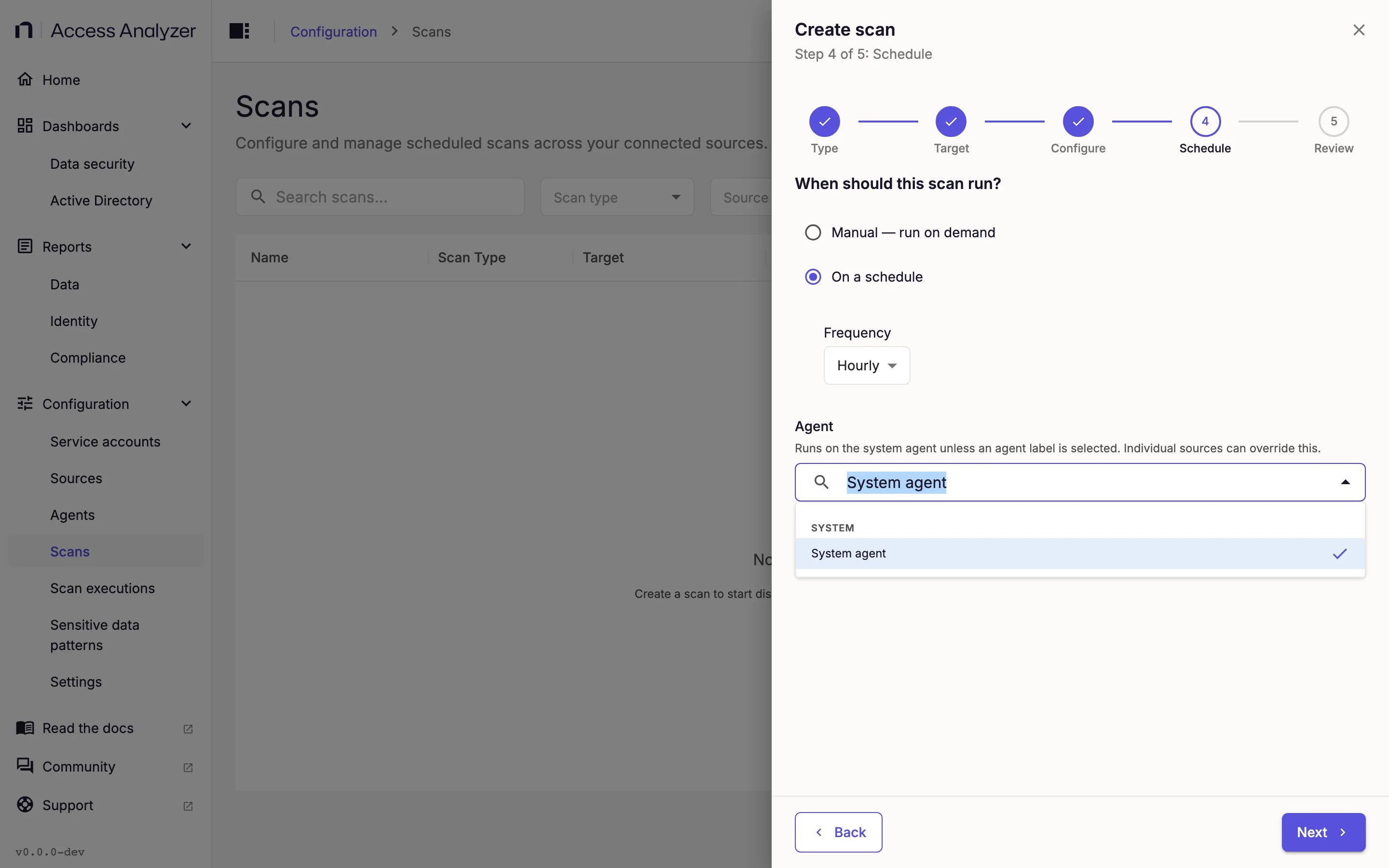
You select a scan's agent when you create it, in the Agent field on the Schedule step. The dropdown has two groups: System, holding the single option System agent, and Agent labels, listing every key=value your agents carry. Select one label. Any agent that carries it can run the scan.
A scan with several sources can send one of them elsewhere. On the Configure step:
- Expand the source type's section (for example File Server).
- Click Add source override.
- In Source to override, select the source.
- In the override's Agent field, select a label.
Click Remove override to undo it. The override applies to that source only; the scan's other sources keep the scan-level choice.
When an execution starts, Access Analyzer picks the agent for each source in this order:
Two details matter here. First, matching is exact: the agent must carry both the key and the value of the label you picked. An agent labeled region=us-west doesn't qualify for region=us-east, and an agent with only env=production doesn't either. Second, an agent that shows Offline on the Agents page can't run scans, so a match on labels alone isn't enough; the agent must be online.
Access Analyzer decides routing each time an execution starts, not when you save the scan. Relabeling an agent, or changing a scan's Agent field, takes effect from the next execution.
The Agent column on the Scans page shows where each scan runs: System for scans with no label, otherwise the label.
Executions With No Matching Agent
The Agent dropdown only offers labels that agents carry, but nothing checks again later. If you delete or relabel the only agent with a scan's label, the scan keeps that label and its schedule fires as normal. Access Analyzer creates the execution, but no scanning happens and the execution doesn't fail immediately. It waits for an agent that carries the label to come online: a new agent you deploy, an offline agent that comes back, or an existing agent you relabel. If no matching agent comes online within about two hours, Access Analyzer marks the execution Failed, and the scan's next scheduled execution tries again.
The same wait happens when the only matching agent goes offline.
If an execution shows Running but makes no progress:
- Go to Configuration > Agents.
- Check for a Healthy agent whose Labels include the scan's label.
- If there isn't one, deploy an agent with that label, bring the offline agent back online, or edit the scan and select a label that an online agent carries.
Editing the scan fixes its next execution only; the execution that's already waiting still needs a matching agent to come online. The Home page's Needs attention panel lists offline agents with a Check agents link, the quickest way to spot an agent that has gone offline. Scan executions lists every execution and its status.
Example
Suppose you run the Access Analyzer server in your main data center and have two more agents deployed.
| Agent | Labels |
|---|---|
| Default Agent (the System agent) | none |
agent-east | env=production, region=us-east |
agent-west | env=production, region=us-west |
You configure four scans.
| Scan | Agent field | Override | Where it runs |
|---|---|---|---|
| HR shares | System agent | none | On the server, because you set no label |
| East finance shares | region=us-east | none | On agent-east, the only agent with that label |
| All production shares | env=production | none | On either agent-east or agent-west, since both carry the label |
| Regional archives | region=us-east | fs-west-01 set to region=us-west | On agent-east for every source except fs-west-01, which runs on agent-west |
If agent-west goes offline, "All production shares" keeps running on agent-east, while the fs-west-01 override in "Regional archives" waits for agent-west to report Healthy again, or fails after about two hours.
Later you delete agent-east to rebuild it. "East finance shares" and the region=us-east sources of "Regional archives" keep their label, so their next executions wait, while "All production shares" continues on agent-west. The waiting executions start as soon as you deploy the rebuilt agent with region=us-east again; if that takes longer than about two hours, Access Analyzer marks them Failed and the next scheduled executions try again.