Validate Setup
After you configure the Activity Monitor agent to monitor the Dell device, validate the automated configuration to ensure it's monitoring events.
Validate Dell CEE Registry Key Settings
After you configure the Activity Monitor activity agent to monitor the Dell device, the agent automatically configures Dell CEE if it's installed on the same server. In rare cases, if you install Dell CEE on a different server than the Windows proxy servers where the activity agent is deployed, you need to set this manually.
If the monitoring agent isn't registering events, validate that the EndPoint is accurately set. Open the Registry Editor (run regedit). For the synchronous real-time delivery mode (AUDIT), use the following steps.
Step 1 – Navigate to the following windows registry key:
HKEY_LOCAL_MACHINE\SOFTWARE\EMC\CEE\CEPP\Audit\Configuration
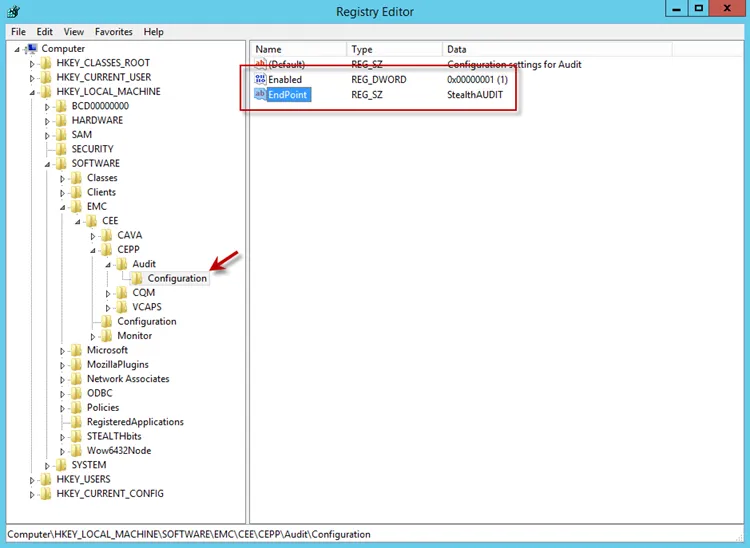
Step 2 – Ensure that the Enabled parameter is set to 1.
Step 3 – Ensure that the EndPoint parameter contains an address string for the Activity Monitor agent in the following formats:
-
For the RPC protocol,
StealthAUDIT@'ip-address-of-the-agent' -
For the HTTP protocol,
StealthAUDIT@http://'ip-address-of-the-agent':'port'
All protocol strings are case sensitive. The EndPoint parameter may also contain values for other applications, separated with semicolons.
Step 4 – If you changed any of the settings, restart the CEE Monitor service.
For Asynchronous Bulk Delivery Mode
For the asynchronous bulk delivery mode with a cadence based on a time period or a number of events (VCAPS), use the following steps.
Step 1 – Navigate to the following windows registry key:
HKEY_LOCAL_MACHINE\SOFTWARE\EMC\CEE\CEPP\VCAPS\Configuration
Step 2 – Ensure that the Enabled parameter is set to 1.
Step 3 – Ensure that the EndPoint parameter contains an address string for the Activity Monitor agent in the following formats:
- For the RPC protocol,
StealthVCAPS@'ip-address-of-the-agent' - For the HTTP protocol,
StealthVCAPS@http://'ip-address-of-the-agent':'port'
All protocol strings are case sensitive. The EndPoint parameter may also contain values for other applications, separated with semicolons.
Step 4 – Ensure that the FeedInterval parameter is set to a value between 60 and 600; the MaxEventsPerFeed - between 10 and 10000.
Step 5 – If you changed any of the settings, restart the CEE Monitor service.
Set the following values under the Data column:
- Enabled – 1
- EndPoint – StealthAUDIT
If this is configured correctly, validate that the Dell CEE services are running. See the Validate Dell CEE Services are Running topic for additional information.
Validate Dell CEE Services are Running
After you configure the Activity Monitor Activity Agent to monitor the Dell device, the Dell
CEE services should be running. If the Activity Agent isn't registering events and the EndPoint is
set accurately, validate that the Dell CEE services are running. Open the Services (run
services.msc).
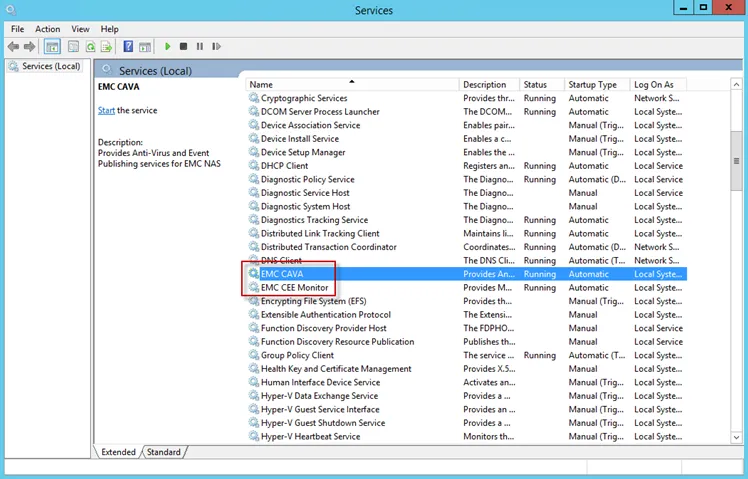
The following services installed by the Dell CEE installer should show Running as their status:
- Dell CAVA
- Dell CEE Monitor
Dell CEE Debug Logs
If an issue arises with communication between the Dell CEE and the Activity Monitor, enable the debug logs for troubleshooting. Follow the steps.
Step 6 – In the Activity Monitor Console, change the Trace level value in the lower right corner to Trace.
Step 7 – In the Activity Monitor Console, select all Dell hosts from the Monitored Hosts list and Disable monitoring.
Step 8 – Download and install the Debug View tool from Microsoft on the CEE server:
> http://docs.microsoft.com/en-us/sysinternals/downloads/debugview
Step 9 – Open the Registry Editor (run regedit). Navigate to following location:
HKEY_LOCAL_MACHINE\SOFTWARE\EMC\CEE\Configuration
Step 10 – Right-click Debug and select Modify. The Edit DWORD Value window opens. In the Value data field, enter the value of 3F. Click OK, and the Edit DWORD Value window closes.
If the Debug DWORD Value doesn't exist, add it.
Step 11 – Right-click Verbose and select Modify. The Edit DWORD Value window opens. In the Value data field, enter the value of 3F. Click OK, and the Edit DWORD Value window closes.
If the Verbose DWORD Value doesn't exist, add it.
Step 12 – Run the Debug View tool (from Microsoft). In the Capture menu, select the following:
- Capture Win32
- Capture Global Win32
- Capture Events
Step 13 – In the Activity Monitor Console, select all Dell hosts from the Monitored Hosts list and Enable monitoring.
Step 14 – Generate some file activity on the Dell device. Save the Debug View Log to a file.
Step 15 – Send the following logs to Netwrix Support:
- Debug View Log (from Dell Debug View tool)
- Use the Collect Logs button to collect debug logs from the activity agent
After you gather the logs and send them to Netwrix Support, reset these configurations.
Linux CEE Debug Log
The debug log is stored in /opt/CEEPack/emc_cee_svc.log file. To enable verbose logging set Debug
and Verbose parameters under Configuration to 255 and restart the CEE.
Only use debug logs for troubleshooting. Disable debug logs by default.
...
<CEEConfig>
<Configuration>
<CacheSize>100</CacheSize>
<Debug>255</Debug>
<HeartBeatIntervalSecs>10</HeartBeatIntervalSecs>
<InstrIntervalSecs>10</InstrIntervalSecs>
<NumberOfThreads>20</NumberOfThreads>
<Verbose>255</Verbose>
<HttpPort>12228</HttpPort>
<WatchDog>
<RestartCount>2</RestartCount>
<RestartDelay>5</RestartDelay>
<ResetRestartCountAfter>86400</ResetRestartCountAfter>
</WatchDog>
<LogFile>
<Path>/opt/CEEPack/</Path>
<MaxSize>100</MaxSize>
</LogFile>
</Configuration>
</CEEConfig>

__NOTE:__ All protocol strings are case sensitive.