Update License Key
Install a new license key for an existing Access Analyzer installation for the following reasons:
- To renew a Access Analyzer license that is due to expire
- To grant access to additional Solutions
- To enable Sensitive Data Discovery
In these situations, you can update the license file without going through the full installation process.
Install a New License File
Update the Access Analyzer license key without installing a new version of the Access Analyzer Console:
Step 1 – Store the new StealthAUDIT.lic license file locally on the Access Analyzer
Console server so the installer can reference it during the installation process.
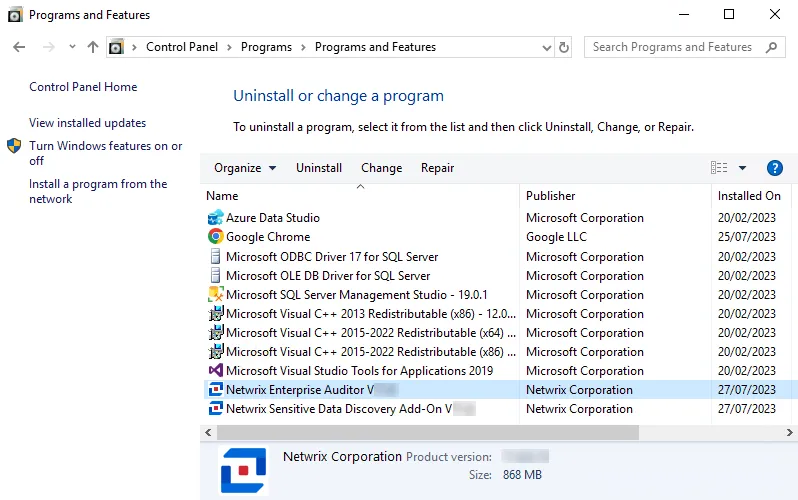
Step 2 – From Programs and Features (Control Panel > Programs > Programs and Features), select the Access Analyzer application and click Change.
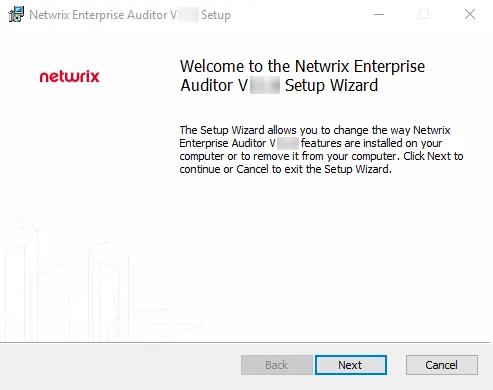
Step 3 – On the Welcome page, click Next.
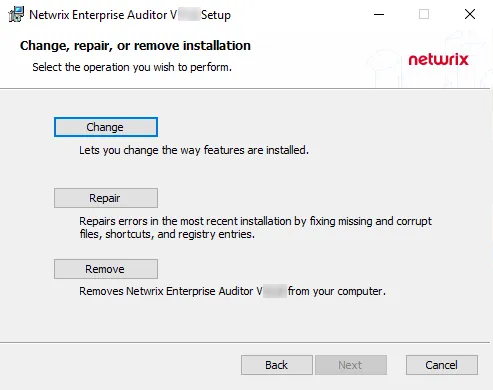
Step 4 – On the Change, Repair, or Remove Installation page, click Change.
 |  |
|---|---|
| Default License File Page | Mapped License File |
Step 5 – On the License File page, click Browse and navigate to the StealthAUDIT.lic file. It must be stored on the Access Analyzer Console server before the installation begins. When the path to the file is visible in the text box, click Next. The installer imports the license.
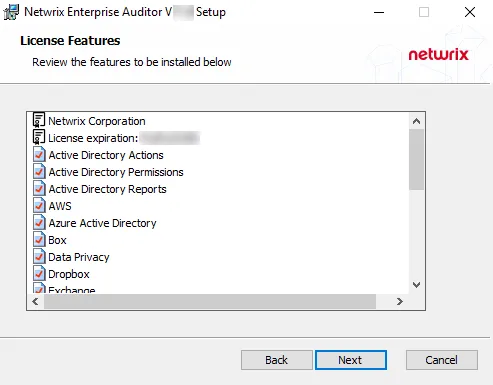
Step 6 – The License Features page displays a list of all features covered by the imported license. It also displays the name of the organization which owns the license, the expiration date, and the host limit. These are the features the installer will install. Click Next.
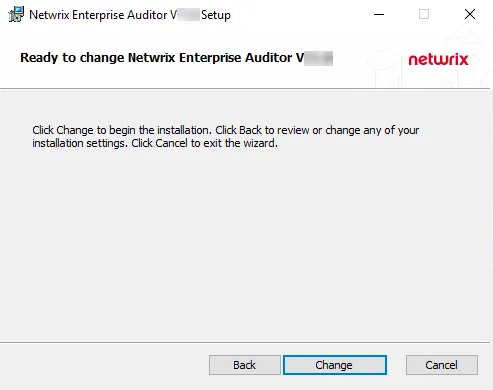
Step 7 – On the Ready to Change Access Analyzer page, click Change to begin the update.

Step 8 – When the installation has completed, click Finish to exit the wizard.
You have now imported the new license file. If the license granted access to any additional solutions, they are now accessible from within the Access Analyzer Console. If the new license added Sensitive Data Discovery, Access Analyzer has now installed the necessary components for Sensitive Data Discovery.