Reports via the Web Console
The Web Console is where you can view any published reports outside of the Access Analyzer Console. This is also known as the Published Reports site.
- Web Console – This console uses an embedded website for published reports. It provides a consolidated logon feature for viewing published reports, and accessing the Netwrix Access Information Center (when installed) and other Netwrix products.
The Access Analyzer installer places a Web folder at the root of the Access Analyzer directory. This folder contains the Access Analyzer Web Server (WebServer.exe) that runs on the Access Analyzer Console upon installation.
The Access Analyzer Web Server service must run as an account that has access to the Access Analyzer database. This may be a different account than the one you use to connect Access Analyzer to the database. If the Access Analyzer Vault service is running, the account running the Web Server service must be an Access Analyzer Administrator. See the Vault topic for additional information.
The Web folder that the Access Analyzer installer places at the root of the Access Analyzer
directory also contains a WebServer.exe.config file. This file contains configurable parameters.
If you configure encryption methods for Kerberos on the Access Analyzer server but not on the service account running the Access Analyzer Web Server service, users will not be able to log-in to the Web Console and will receive an error message. See the Manage Kerberos Encryption Warning for the Web Console topic for additional information on configuring security polices to allow Kerberos encryption.
Log into the Web Console
To log into the Web Console, the user’s account must have a populated User Principal
Name (UPN) attribute within Active Directory. Then the user can login using domain
credentials. If the organization uses multiple domains,
the username needs to be in the domain\username format when logging into the Published Reports site.
You can manage access to reports in the Web Console through the Role Based Access feature of Access Analyzer (Settings > Access). The Web Administrator role and the Report Viewer role grant access to the published reports. See the Role Based Access topic for addition information.
You can configure the address to the Web Console within the Access Analyzer Console (Settings >
Reporting). The default address is http://[hostname.domain.com]:8082. From the Access Analyzer
Console server, you can access it at http://localhost/ with any standard browser. To access the
Web Console from another machine in or connected to the environment, replace localhost with the name
of the Access Analyzer Console. See the Update Website URLs topic
for additional information.
Any browser used to access the Web Console must have JavaScript allowed for the site. See the Configure JavaScript Settings for the Web Console topic for additional information.
To log in to the Web Console:
Step 1 – To open the Web Console page, use one of the following methods:
-
From the Access Analyzer Console server – Click the Published Reports desktop icon (
http://localhost:8082) -
For remote access – Enter one of the following URLs into a web browser:
-
http://[machinename]:8082 -
https://[machinename]:8082
-
You may need to add the URL to the browser’s list of trusted sites.

Step 2 – Enter your User Name and Password. Click Login.
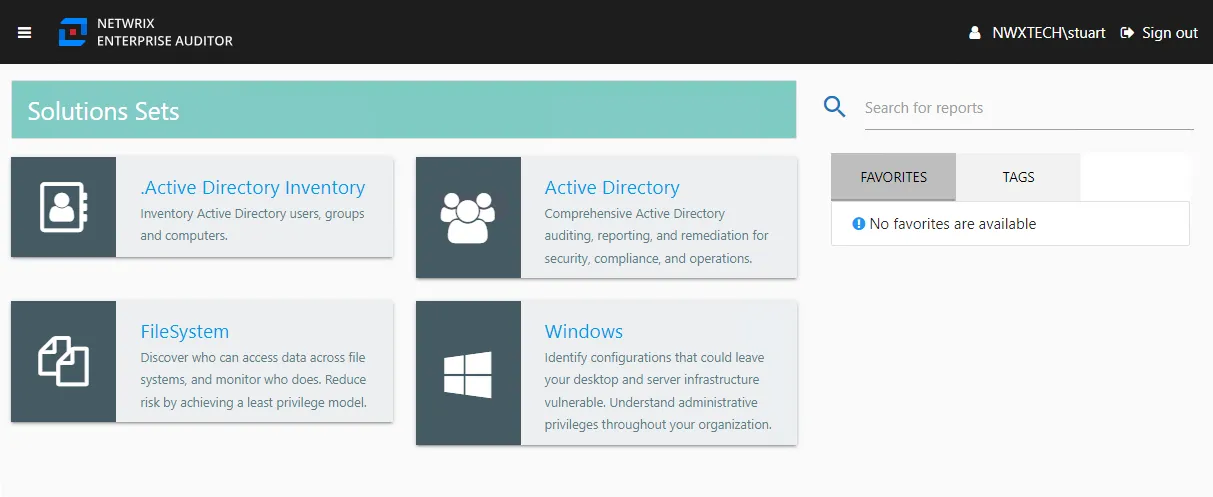
The home page shows the solutions with published reports available. See the Web Console topic for information on using the Web Console.