Schedule
The Schedule node contains objects referred to as Schedule Service Accounts. Use a Schedule Service Account to run scheduled tasks on the Access Analyzer Console server.
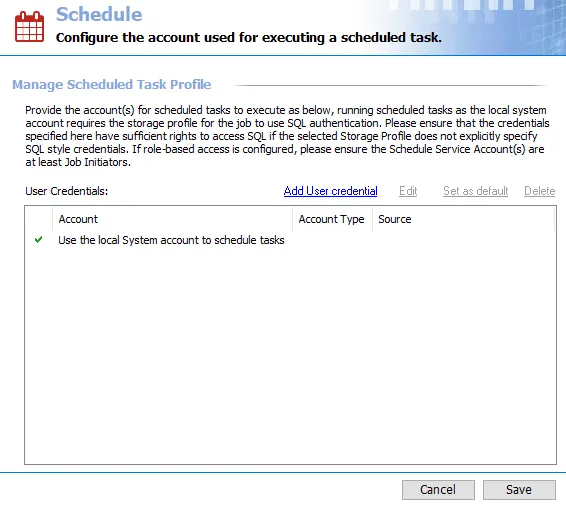
You can execute jobs manually, or schedule them to execute at designated times. For example, you could schedule a job to run during hours when the office is closed and network traffic is low. Windows uses the Schedule Service Account to access the task folders when launching scheduled tasks. Configure Schedule Service Accounts at the global level. Use this account to schedule jobs in the Schedule Wizard. See the Schedules topic for additional information.
On Windows 2016 servers, you can't sign the Schedule Service Account into an active session when the time comes for a scheduled task to start. Windows blocks scheduled tasks from starting or running when they use an account that's logged in to the server.
Password Storage Options
You can store the password for the provided credential in the Access Analyzer application or the Access Analyzer Vault.
Choosing between the Access Analyzer application and Access Analyzer Vault is a global setting configured in the Settings > Application node. See the Application topic for additional information.
Permissions
Regardless of the account type, any account used to schedule tasks must have credentials with at least the following to meet Least Privileged specifications:
-
Create Files/Write Data rights on the following Task folders:
- Windows Task folder
- System 32 Task folder
- Member of Log on as a Batch Job local policy
Otherwise, credentials must have local Administrator privileges on the Access Analyzer Console server.
-
The following NTFS permissions for Subfolders and Files Only in the Access Analyzer Directory:
- Create Files/Write Data
- Create Folders/Append Data
- Write Attributes
- Write Extended Attributes
-
To configure Least Privilege Model Schedule Service Accounts when you enable Role Based Access, see the Role Based Access topic for additional information
-
If using Windows authentication for the Storage Profile, the Schedule Service Account must have a sufficient level of rights to connect to and interact with the Access Analyzer database. See the Storage topic for additional information.
The Cancel and Save buttons are in the lower-right corner of the Schedule view. These buttons become enabled when you modify the Schedule global settings. Whenever you make changes at the global level, click Save and then OK to confirm the changes. Otherwise, click Cancel if you didn't intend to make changes.
The Access Analyzer vault provides enhanced security through enhanced encryption to various credentials stored by the Access Analyzer application. See the Vault topic for additional information.
Schedule Service Account Types
Two types of accounts are available for the Schedule Service Account.
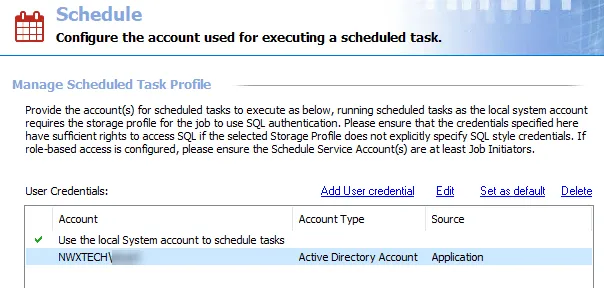
Use one of the following options for the Schedule Service Account:
-
Use the local system account to schedule tasks – This option applies the credentials logged into the Access Analyzer Console server
- Credentials must have privileges sufficient for scheduling tasks on the Access Analyzer Console server. If not, scheduled tasks fail to start.
- You can't edit or delete this option
-
User-supplied credentials – Provide credentials for a specific account with sufficient rights to schedule tasks on the Access Analyzer Console server
- The account can be either a domain account or a local Windows account
- A local Windows account is a specific account and not the default local system account
Remember, on an Access Analyzer Console server running Windows 2016, you can't sign the Schedule Service Account into an active session when the time comes for a scheduled task to start.
Create a Schedule Service Account
Remember, on an Access Analyzer Console server running Windows 2016, you can't sign the Schedule Service Account into an active session when the time comes for a scheduled task to start.
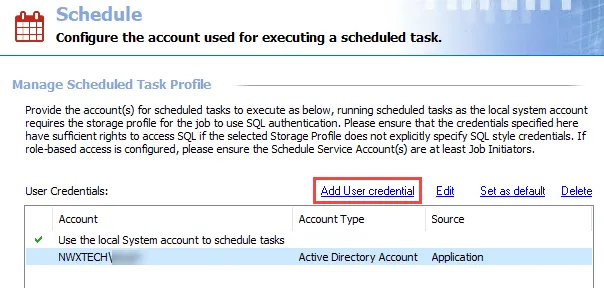
Step 1 – Click Add User credential at the top of the Schedule view. The User Credentials window opens.

Step 2 – The window options change according to the value for the Selected Account Type field. Select the appropriate account type and then provide the required information. The account types are:
-
Active Directory Account – Use this option to specify a domain account
-
Domain – Auto-filled with the domain where the Access Analyzer Console server resides, change by typing the domain name in the textbox or select a domain from the menu
-
User name – Provide a domain account user name
-
Password Storage – Choose the option for credential password storage:
- Application – Uses Access Analyzer’s configured Profile Security setting as selected at the Settings > Application node
- Managed Service Account – Use previously configured MSA and gMSAs for authentication. The password fields aren't applicable when you select this option. See the Group Managed Service Accounts (gMSA) Configuration topic for additional information.
-
Password – Enter the password
-
Confirm – Re-enter the password
-
-
Local Account – Use this option to specify a local account for the Access Analyzer Console server
-
User name – Provide the local account user name
-
Password Storage – Choose the option for credential password storage:
- Application – Uses Access Analyzer’s configured Profile Security setting as selected at the Settings > Application node
-
Password – Enter the password
-
Confirm – Re-enter the password
-
Step 3 – Click OK. Access Analyzer verifies the credentials. If there are no problems with the provided credentials, the User Credentials window closes. Otherwise, one of the following error messages might appear:
-
Passwords Don't Match Error

- This error indicates the two password entries don't match. Click OK and reenter the passwords.
-
Bad User Name or Password Error

- This error indicates either the user account doesn't exist or the username and password do not match. Click OK and reenter the information.
-
Insufficient Rights Error

- This error indicates the account supplied doesn't have sufficient rights to create and run scheduled tasks. Click OK and provide credentials with sufficient rights.
-
GPO Network Security Error

- This error indicates that the GPO Network Security settings block storage of passwords and credentials for network authentication. Click OK. Disable the domain’s GPO Network Security settings or exempt the Access Analyzer Server from GPO.
- This error will also appear when trying to schedule a task using the domain’s Schedule Service Account where the GPO Network Security setting blocks storage of passwords and credentials for network authentication
Step 4 – The credential information appears in the User Credentials table. Click Save and then OK to confirm the changes. To ensure these credentials take effect, exit and restart the Access Analyzer application before scheduling any tasks.
Access Analyzer can now schedule tasks with this Scheduled Service Account.
Edit a Schedule Service Account
Remember, on an Access Analyzer Console server running Windows 2016, you can't sign the Schedule Service Account into an active session when the time comes for a scheduled task to start.
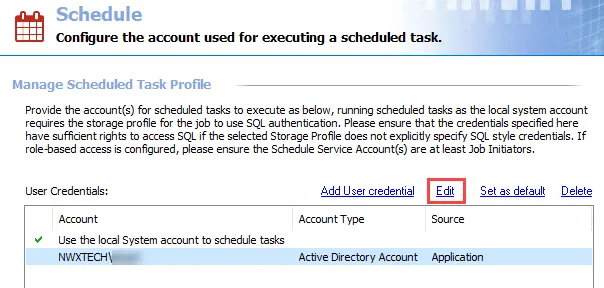
Step 1 – Select a credential from the User Credentials list and click Edit. The User Credentials window opens.
Step 2 – Modify the credential information as needed. See Step 2 of the Create a Schedule Service Account topic for additional information.
Step 3 – Click OK. Access Analyzer verifies the credentials. If there are no problems with the provided credentials, the User Credentials window closes.
Access Analyzer can now schedule tasks with this Scheduled Service Account.
Delete a Schedule Service Account
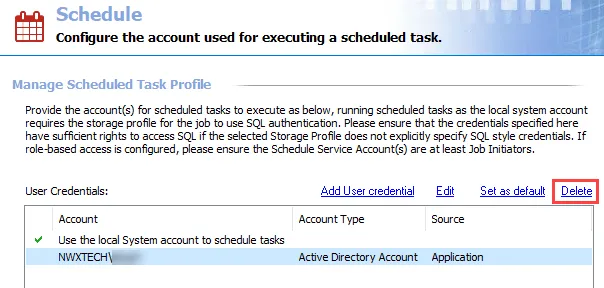
Step 1 – Select the credential from the User Credentials list and click Delete. The Delete Credentials confirmation window appears.

Step 2 – Click OK to confirm the deletion or Cancel to exit the deletion process.
Step 3 – The User Credentials list now reflects the absence of the deleted Schedule Service Account. Click Save and then OK to confirm the changes. To ensure these changes take effect, exit and restart the Access Analyzer application.
If you remove all Schedule Service Accounts and only the local System account remains, Access Analyzer can't create or run scheduled tasks unless the local system account has adequate permissions.