Notification
The Notification node is where you configure email notifications. You can send emails from the Access Analyzer Console for a variety of purposes: reports on collected data, change detection alerts, conformance analysis notification, and more.
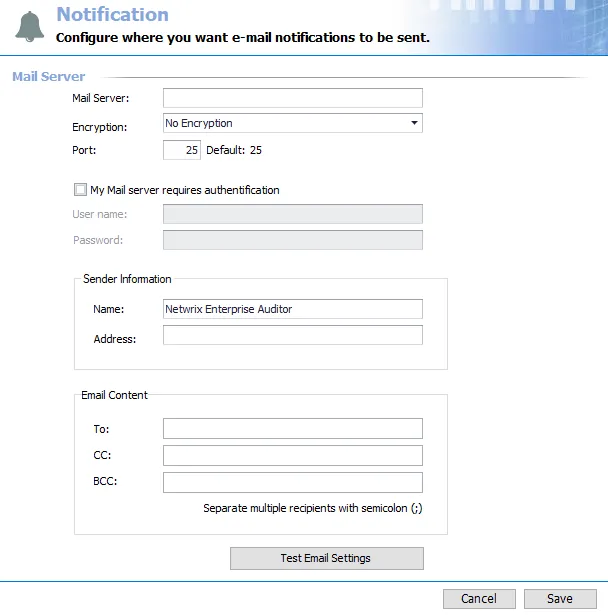
To enable notifications from the Access Analyzer Console, configure a mail server for Access Analyzer to employ for sending emails.
Access Analyzer supports authentication and encryption when sending email notifications. You can configure notifications based on the requirements of an organizations mail environment.
Enable Access Analyzer notifications by configuring the Mail Server and Sender Information. Send a test email to yourself after initial configuration to ensure proper settings. See the Test Notification Settings topic for additional information.
The Cancel and Save buttons are in the lower-right corner of the Notification view. These buttons become enabled when you modify the Notification global setting. Whenever you make changes at the global level, click Save and then OK to confirm the changes. Otherwise, click Cancel if you didn't intend to make changes.
Configure SMTP Server Information
The Mail Server section at the top of the page is where you provide an organization’s SMTP Server information.
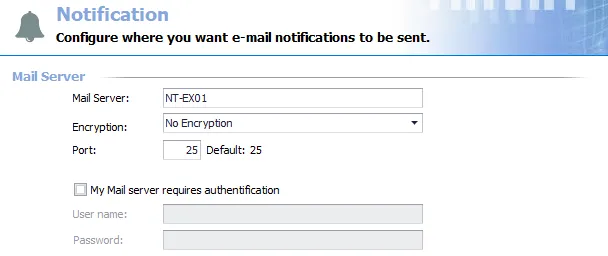
Provide the following information to enable notifications from Access Analyzer.
Check with your Messaging Team if you are unsure of this information.
- Mail Server – Enter the organization’s SMTP Server name
- Encryption – Allows Access Analyzer users to enable notification encryption according to the
supported protocol on the configured SMTP Server. The default setting is No Encryption. Select
an encryption method:
- No Encryption
- Encryption
- Encryption, Ignore Certificate Error
- Port – Enter the SMTP Server port number. The default port setting changes based on the selected
Encryption Option:
- For the No Encryption option, the default port is 25, since this is common for most SMTP Servers
- For the Encryption and Encryption, Ignore Certificate Error options, the default port is 587
Notification Authentication Credentials
If the SMTP Server requires authentication, select the My Mail Server requires authentication checkbox and provide the necessary credentials in the User name and Password boxes.
Update Notification Authentication Credentials
Step 1 – In the My Mail server requires authentication section, enter a new Password for the account.
Step 2 – Click Save.
Access Analyzer updates and commits the credentials for the Mail Server authentication account to the Console.
Sender Information
The Sender Information section is where you provide the sender information.

Configure the sender information for all Access Analyzer notifications. Since this is a global settings, any recipients configured at this level receive all notifications sent from Access Analyzer, and are sent to this recipient list unless you break inheritance at the job group or job level.
- Sender Name – Name displayed in the sent from field of the email
- Sender Address – Sender’s email address. This doesn't have to be a real email address, unless
required by the organization. It can be something as simple as
accessanalyzer@yourdomain.com.
Email Content
The Email Content section is where you provide the recipient information.

- To / CC / BCC – Enter the email addresses for the recipients of the email notifications. Use a
semicolon (;) to separate multiple recipients.
- Recipients listed at this global level receive all email notifications sent by Access Analyzer unless you break inheritance at the job group or job levels
Test Notification Settings
After you configure the global Notification settings, send a test email to ensure proper configuration. This verifies all settings are correct and that you receive the email as expected.

The Test Email Settings button sends a test email to the recipient list. Test by sending an email to yourself. After you configure all Notification settings, click the Test Email Settings button.

A message displays stating that the test e-mail was sent successfully.

If any problems occur with the information, an error message appears during the Test Email settings process. Correct the Notification settings until Access Analyzer sends the test email successfully.
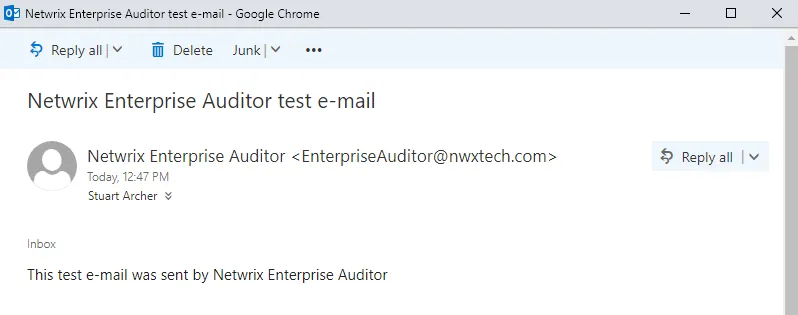
Access Analyzer sends this email to all recipients when you click the Test Email settings link. When you configure the Notification settings, click Save and then Ok to complete the configuration.