Connection
The Connection node contains objects referred to as Connection Profiles. A Connection Profile houses the information Access Analyzer uses to connect to the target hosts during job execution.
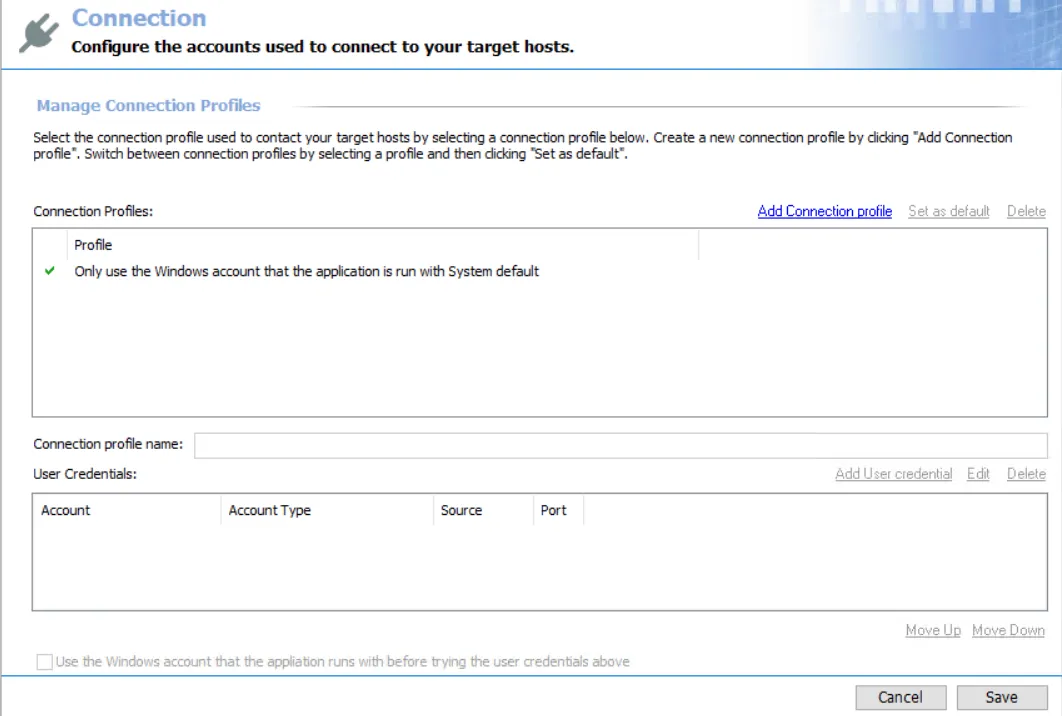
You can authenticate to a targeted host using one of two methods:
- Use Local Login Credentials
- Use a Connection Profile
Use Local Login Credentials
You traditionally assign this method through the Only use the Windows account that the application is run with System default option. It is generally referred to as the System Default or trusted method. When used, Access Analyzer authenticates to the target hosts during host inventory or job execution with the Windows account used to launch Access Analyzer. This can be:
- Account used to log on to the Access Analyzer Console server and start the application
- Account used to launch the Access Analyzer application through the run-as security context
- Account used to provision a Windows scheduled task when running a job group or job via a scheduled task
Use a Connection Profile
Use this method to define a Connection Profile which houses one or several sets of credentials for authentication on the target hosts during host inventory or job execution. The credentials specified in a Connection Profile could be any of the following:
- Local machine account
- Active Directory account
- Unix account
- SQL account
- Microsoft Entra ID (formerly, Azure Active Directory) key
- Dropbox access token
- Web service JWT
- Oracle account
For the majority of auditing scenarios, use domain-based accounts unless the auditing task requires otherwise. The credentials must have the permissions required by the data collector being used.
Password Storage Options
You can store the password for the credential provided in the Access Analyzer application or Access Analyzer Vault. You can store certain types of credentials in CyberArk®.
You configure whether to store passwords in the Access Analyzer application or the Access Analyzer Vault as a global setting in the Settings > Application node. See the Application topic for additional information.
The Access Analyzer vault provides enhanced security through enhanced encryption to various credentials the Access Analyzer application stores. See the Vault topic for additional information.
CyberArk integration stores supported credentials in the CyberArk Enterprise Password Vault. CyberArk Privileged Account Security Solution offers components designed to discover, secure, rotate, and control access to privileged account passwords used to access systems through the enterprise IT environment. See the CyberArk Integration topic for additional information.

The Cancel and Save buttons are in the lower-right corner of the Connection view. These buttons become enabled when you modify the Connection global setting.

Whenever you make changes at the global level, click Save and then OK to confirm the changes. Otherwise, click Cancel if you didn't intend to make changes.