Create a Connection Profile
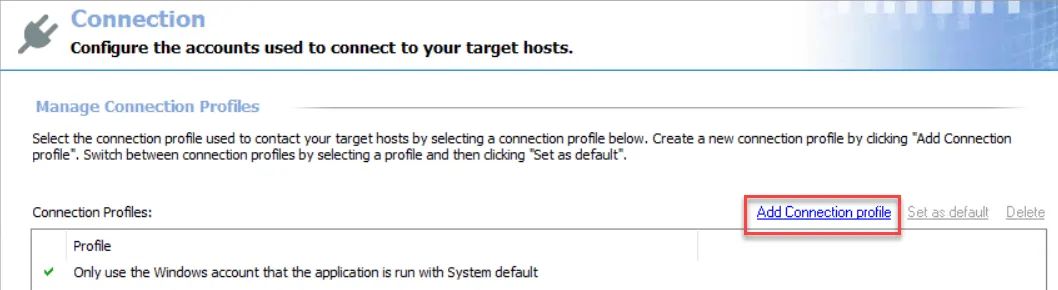
Step 1 – Click Add Connection profile at the top of the Connection view.
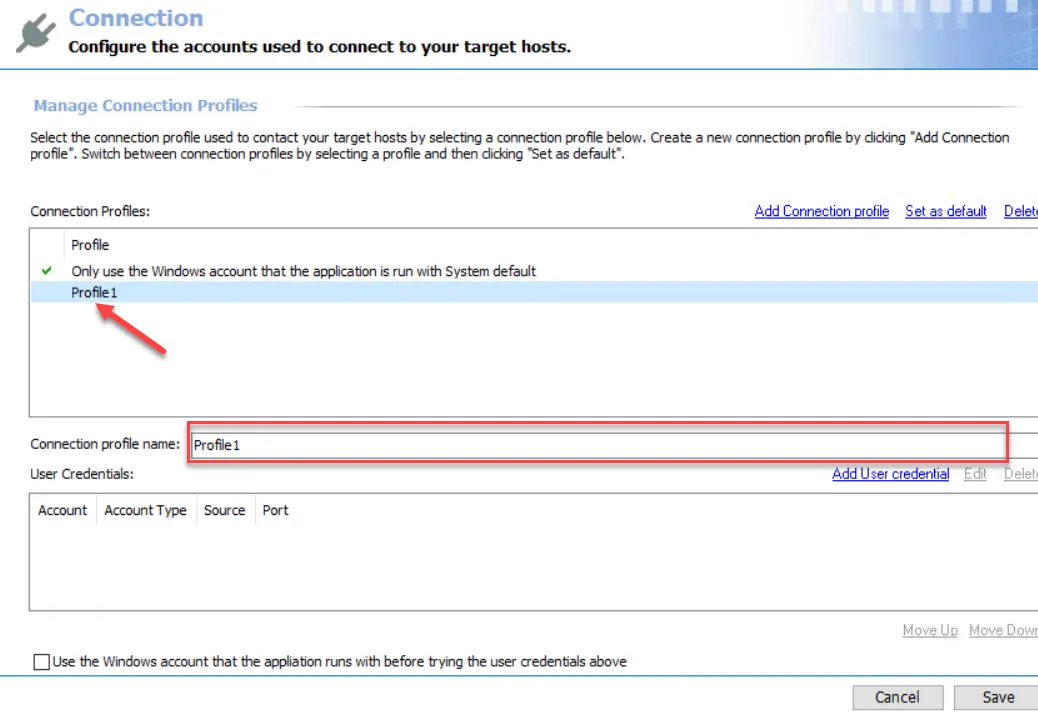
Step 2 – A new profile displays in the list with a generic name. Provide a unique, descriptive name in the Connection profile name textbox.
Choose a good profile name so that you don't need to change it later. If you change the profile name after applying it to job groups or jobs, you must go back through all of those job groups or jobs and reapply the Connection Profile.
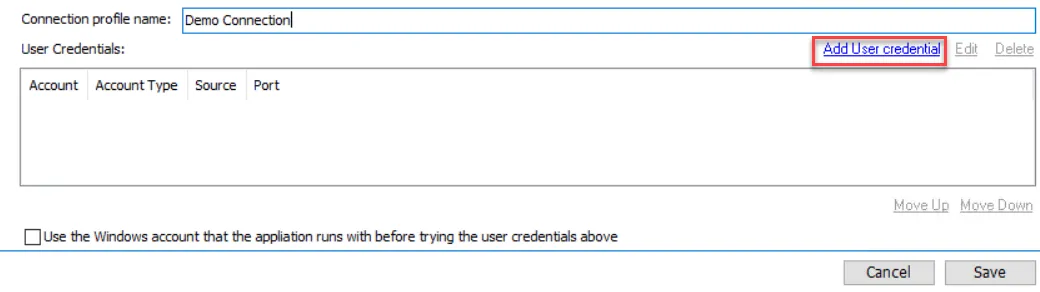
Step 3 – Add credentials to this profile. Click Add User credential and the User Credentials window opens.
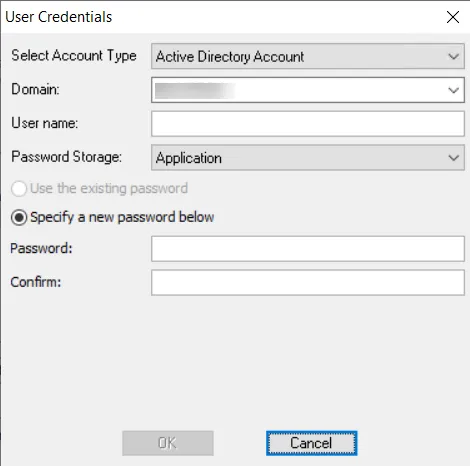
Step 4 – The window options change according to the value for the Selected Account Type field. Select the appropriate account type and then provide the required information. The account types are:
- Active Directory Account for User Credentials
- Local Windows Account for User Credentials
- Unix Account for User Credentials
- SQL Authentication for User Credentials
- Task for User Credentials
- Azure Active Directory for User Credentials
- Dropbox for User Credentials
- Web Services (JWT) for User Credentials
- Oracle for User Credentials
- Exchange Modern Authentication for User Credentials
See the individual account type sections for information on the fields. Then click OK.

If the entered passwords aren't the same, an error message pops up after you click OK on the User Credentials window. Click OK on the error message and re-enter the passwords.
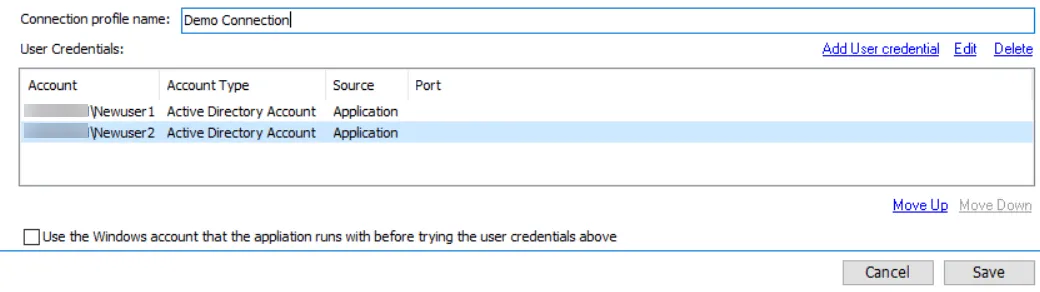
Step 5 – Repeat Steps 3-4 until the User Credentials list for this profile is complete.
When Access Analyzer authenticates to a target host, it looks at the value of the WindowsDomain field in the Host Inventory for the target host. It then matches the first credential in the Connection Profile which matches that domain. If authentication fails, it moves consecutively through the User Credentials list. It will first match to all credentials listed for target host’s domain, and then proceed through all other credentials until authentication is successful or there are no more credentials to try.
Limit the User Credentials list to a minimal number per profile, especially when considering that a successful authentication doesn't automatically mean that particular credential has the appropriate level of permissions for the data collection to occur.

Use the Move Up and Move Down buttons to arrange priority within the User Credentials list.

Step 6 – (Optional): At the bottom of the Connection view, is the Use the Windows account that Access Analyzer runs with before trying the user credentials above option. This option is per Connection Profile. If checked, Access Analyzer applies the local login credentials before any of the credentials saved to the Connection Profile.
If a data collector uses an applet, uncheck this option.
Step 7 – After you add and order the user credentials, click Save and then OK to confirm the changes to the Connection Profile.
The new Connection Profile is now visible in the Profile list and available for use at the job group or job level.
Edit User Credentials within a Connection Profile
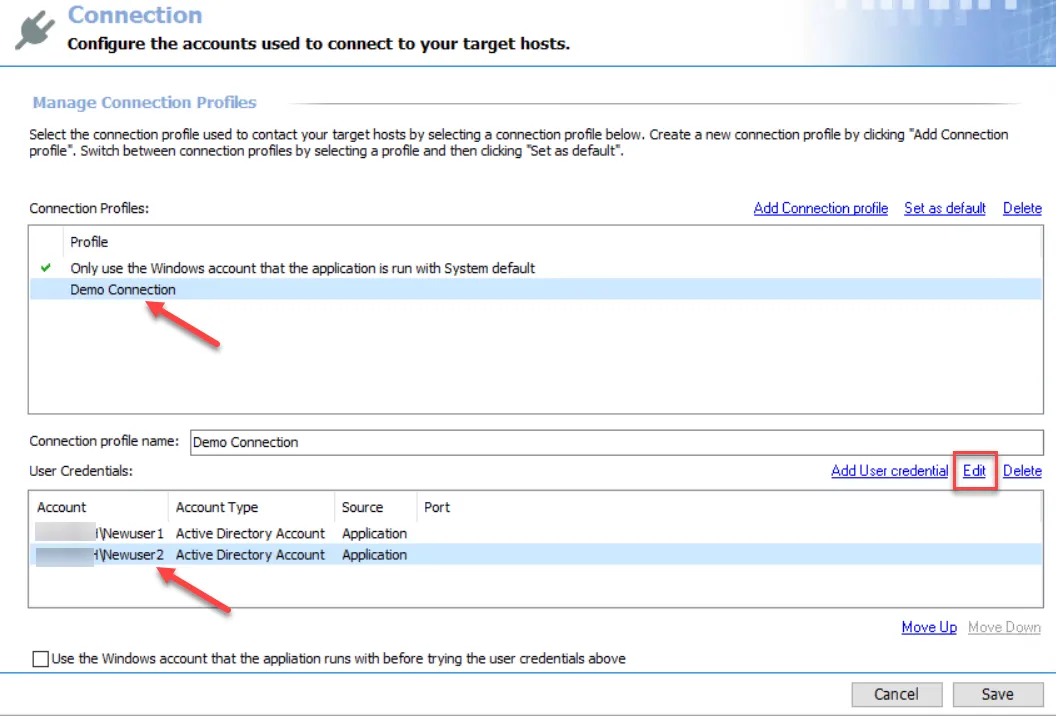
Step 1 – Select the Connection Profile you want to modify from the Profile list. Remember, changing the Connection Profile name results in breaking job groups or jobs assigned this profile.
Step 2 – Select the user credential you want to edit from the User Credentials list. Click Edit.
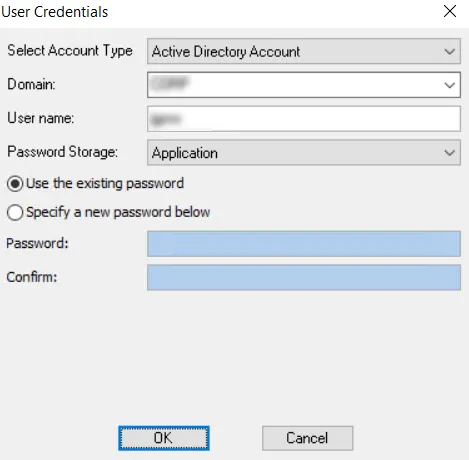
Step 3 – Modify the information in the User Credentials window. For the password, choose between the Use the existing password option or the Specify a new password below option. Click OK.
Step 4 – After you edit the Connection Profile’s user credentials as desired, click Save and then OK to confirm the changes to the Connection Profile.
Access Analyzer now uses the edited user credentials for authentication to target hosts for this Connection Profile.
Delete a User Credential from a Connection Profile
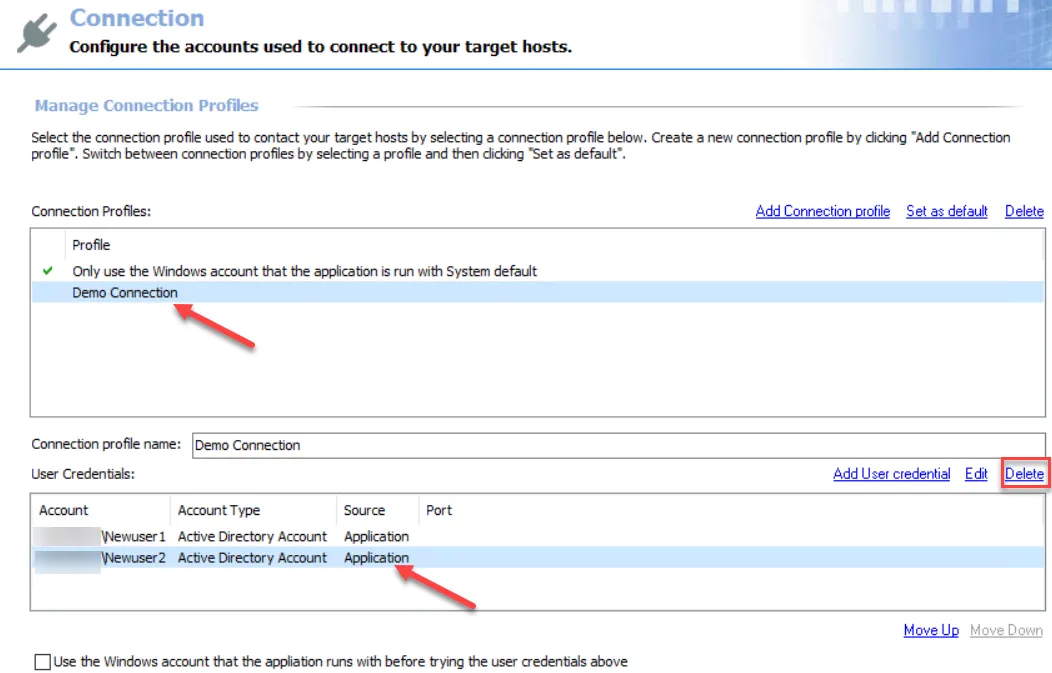
Step 1 – Select the Connection Profile you want to modify from the Profile list. Remember, changing the Connection Profile name results in breaking job groups or jobs assigned this profile.
Step 2 – Select the user credential you want to delete from the User Credentials list. Click Delete.

Step 3 – Click OK to confirm the deletion.
Step 4 – The selected credential is no longer visible in the User Credentials list. Click Save and then OK to confirm the changes to the Connection Profile.
The deleted user credentials are no longer available for authentication to target hosts for this Connection Profile.
Set a Default Connection Profile
The default profile is marked with the green checkmark.

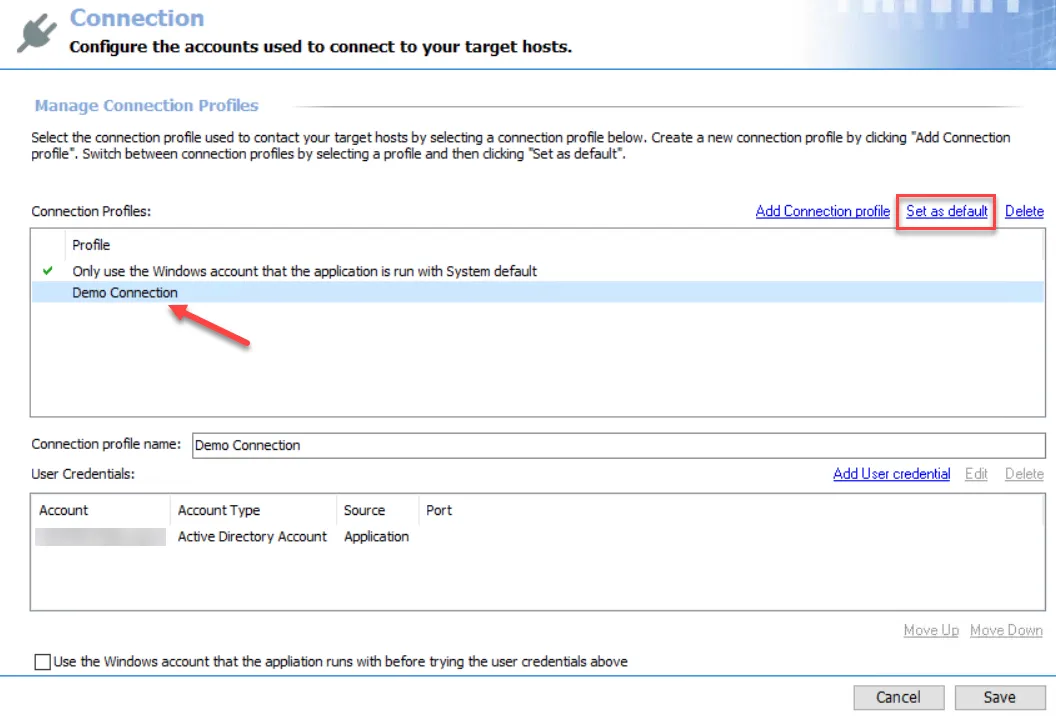
Step 1 – Select the profile in the Connection Profile list and click Set as default.
Step 2 – The green checkmark moves. Click Save and then OK to confirm the changes.
Access Analyzer now uses this Connection Profile as the default Connection Profile.
Delete a Connection Profile
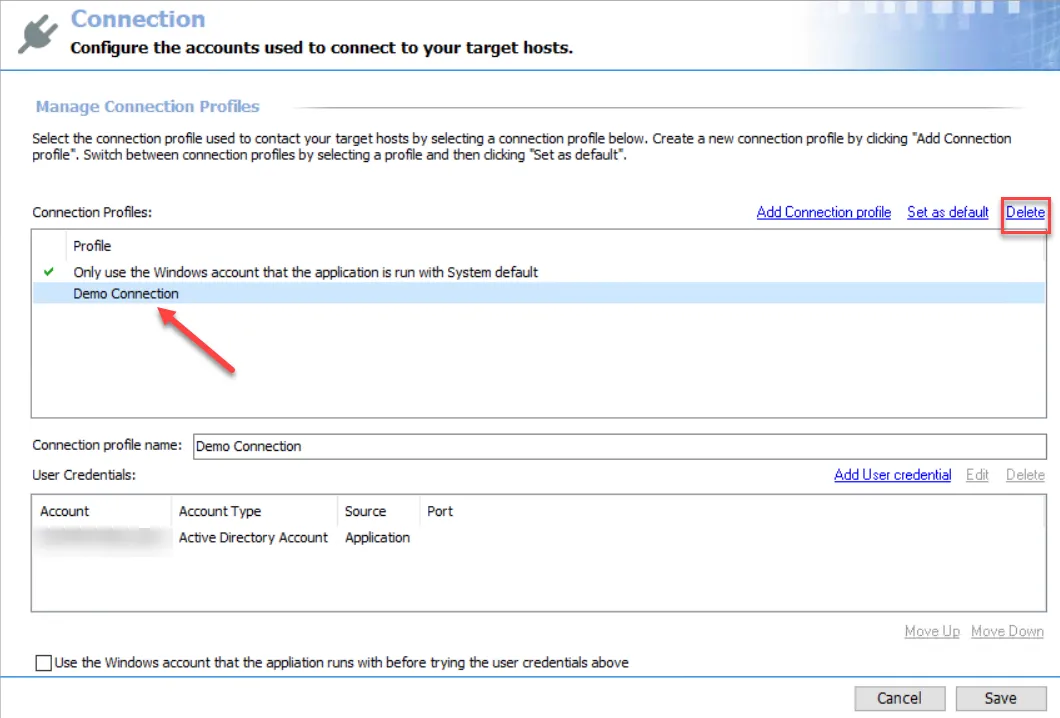
Step 1 – Select the profile from the Connection Profile list and click Delete.

Step 2 – Click OK to confirm the deletion.
Step 3 – The selected profile is no longer visible in the Connection Profiles list. Click Save and then OK to confirm the changes.
The deleted Connection Profile is no longer available for authentication to target hosts.