Workflow with Role Based Access Enabled
The following workflow summarizes the necessary steps involved to deploy a job after you enable Role Based Access and assign roles.
Step 1 – The Job Builder creates and configures a Access Analyzer job
Step 2 – The Job Approver reviews a new or edited job’s configuration, and either approves or rejects it

- If the Job Approver approves a job, apply a lock by right-clicking the job title in the Jobs tree and selecting Lock Job
- If the Job Approver rejects a job, the job remains unlocked
- If the Lock Job option is visible, the Job Approver hasn't approved the job yet
- If the Lock Job option isn't visible, the Job Approver has approved the job

Step 3 – The Job Initiator can choose to run the job directly through the Access Analyzer Console or schedule it to run with the Schedule Service Account. The grayed-out Unlock Job option in the right-click menu tells this user the job was approved.
-
Job Initiator/Job Initiator (No Actions) – The Job Initiator can only execute locked job.
- For the Job Initiator (No Actions) role, the user is unable to execute a job which contains configured actions, even if it is approved and locked
- Both roles can enable and disable job groups and jobs regardless of whether they are locked. Disabled jobs are grayed out with a red x next to them, and Access Analyzer doesn't execute them with the job group. When you disable a job group, Access Analyzer also disables all nested jobs, and they don't run. However, Access Analyzer enables any new job added to that group by default.
noteThe Job initiator can also publish the reports already generated by the job.
-
Publish – To publish reports the job has already generated to the Web Console
- See the Report Settings Tab topic for additional information
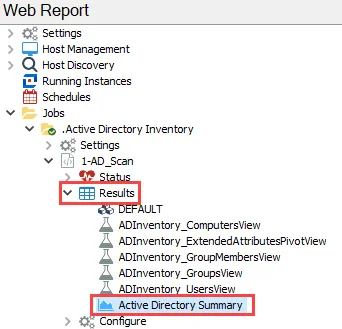
Step 4 – After a job runs successfully, the Job Viewer can now view the results of the job under the job’s Status and Results node, or in the Web Console. See the Viewing Generated Reports topic for additional information.
The Job Builder, Job Approver, and Job Initiator may also view these results within the Access Analyzer Console. Additionally, users with these roles can view reports within the Web Console.
Other Console Roles
The corresponding administrator role (Global Options Administrator, Access Administrator, or Host Management Administrator) must make any modifications needed in the Settings or Host Management nodes. You can use these roles in conjunction with any other role (for example, a user can be a Job Builder and Global Options Administrator to build jobs and manage corresponding Connection Profiles).
Web Administrator
The Web Administrator can view all reports within the Web Console.
In addition to viewing report content, Web Administrators can view tags and report permissions.
Remember, a user with only the Web Administrator role is unable to access the Access Analyzer Console.
Report Viewer
The Report Viewer can view reports within the Web Console according to where you assigned the user’s role: global, job group, job, or report configuration.
Remember, a user with only the Report Viewer role is unable to access the Access Analyzer Console.