Securing Published Reports Only
To secure published reports through the Web Console, enable Role Based Access within the Access Analyzer Console. If that is the only reason you're enabling the Role Based Access feature, ensure you meet the following requirements:
-
Administrator role assigned to all Access Analyzer Console users
- Anyone without an Administrator role can't access the Access Analyzer Console after you enable Role Based Access
-
Web Administrator role assigned to individuals who should have access to all reports, tags, and report permissions but not the Access Analyzer Console
-
Report Viewer assigned to individuals who should have access to reports and tags but not report permissions or the Access Analyzer Console
- Global Level Assignment – Access to all reports
- Job Group Level Assignment – Access to reports published by jobs within the job group
- Job Level Assignment – Access to reports published by the job
- Report Configuration Level Assignment – Access to the specific report
Assign roles at the global level as follows.
Step 1 – Navigate to the Settings > Access node.

Step 2 – On the Access page, click Add Access. The Access Type wizard opens.
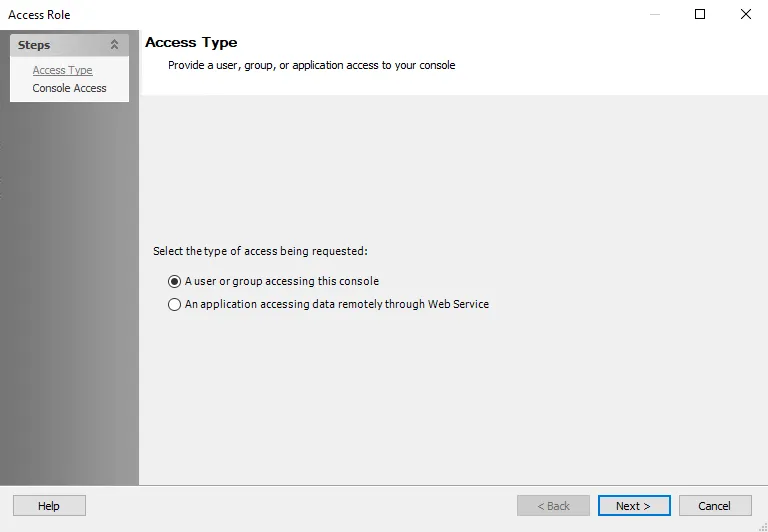
Step 3 – Select the A user or group accessing this console option. Click Next.
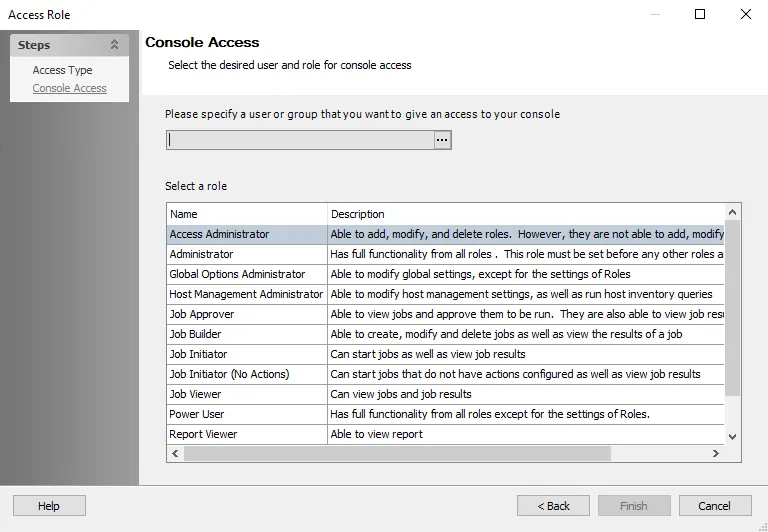
Step 4 – On the Console Access page, specify a group or user in the Name field. Use the ellipsis (…) to browse for accounts with the Select User or Group window.
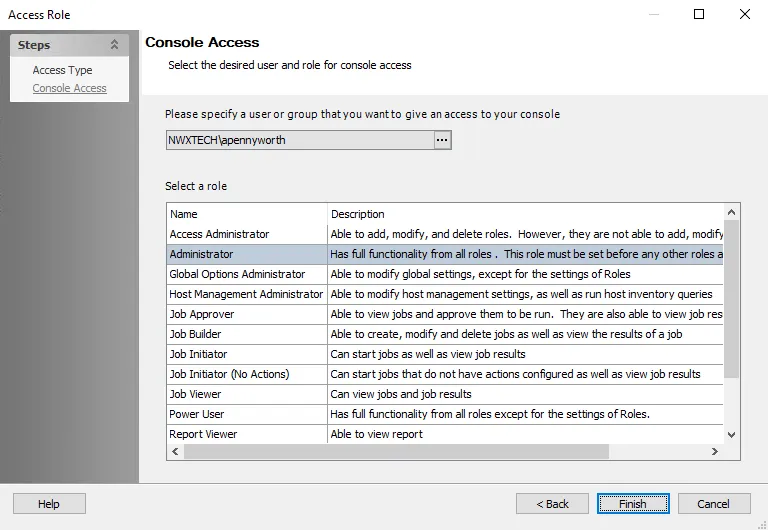
Step 5 – Select a role for the group or user from the Role list. Click Finish. Access Analyzer adds the group or user and role to the Role Membership list in the Roles view.
The first role or set of roles saved must include the Administrator role. Clicking Save for the first role or set or roles without including the Administrator generates an error message in the Access Analyzer Console.
Step 6 – Repeat Steps 2-4 to assign the Administrator, Web Administrator, and Report Viewer roles to other groups or users.
Step 7 – Click Save and then OK to confirm the changes. You lose all applied roles if you don't save them.
Access Analyzer enables Role Based Access when you assign the first role.

The first role or set of roles saved must include the Administrator role. Clicking Save for the first role or set or roles without including the Administrator generates an error message in the Access Analyzer Console.
When you first enable Role Based Access, restart the Access Analyzer application to ensure all roles are properly active. You can assign the Report Viewer role at the job group, job, and report configuration levels. See the Reporting Node, Report Roles Tab, and Publish Security Page topics for additional information.