Import Hosts Option
On the Manual Host Entry page of the Host List Wizard, the Import option allows hosts to be imported from either a CSV file or a database into the host list being created.
To import hosts:
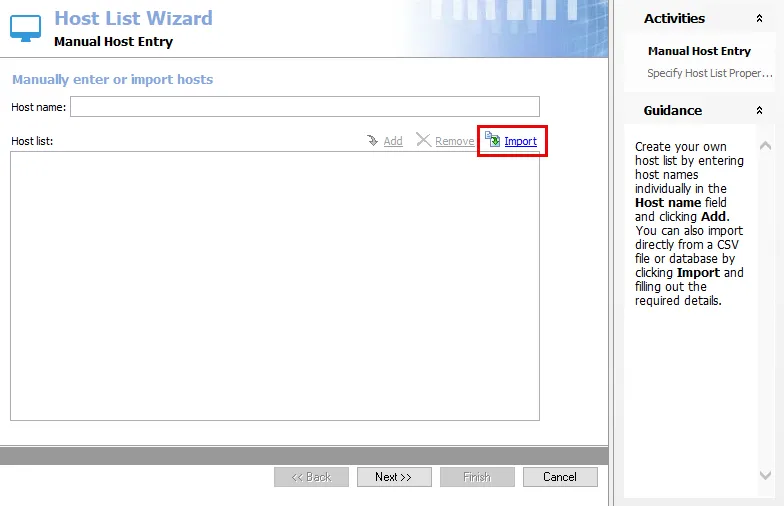
Step 1 – On the Manual Host Entry page of the Host List Wizard, click Import. The Import Hosts window opens.

Step 2 – On the Import Hosts window, use the Import from dropdown to select the source as either CSV File or Database.
Step 3 – Configure the source file. The necessary fields depend on the selection in the previous step.
-
CSV File
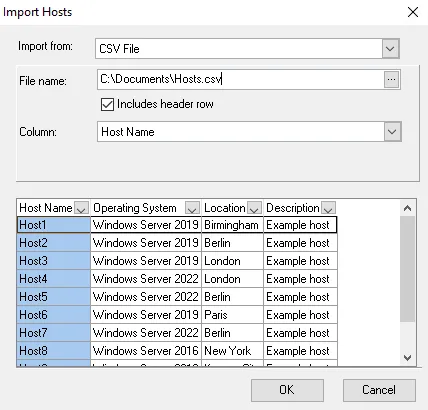
- File Name – Click the ellipsis (…) to open a browser window and select the CSV file. You must store this file on the Access Analyzer Console server. After you select the file, Access Analyzer shows a preview in the preview box.
- Includes header row – Select this checkbox if the file contains a header row. Otherwise, Access Analyzer includes the header row in the import (visible within the preview box).
-
Database
-
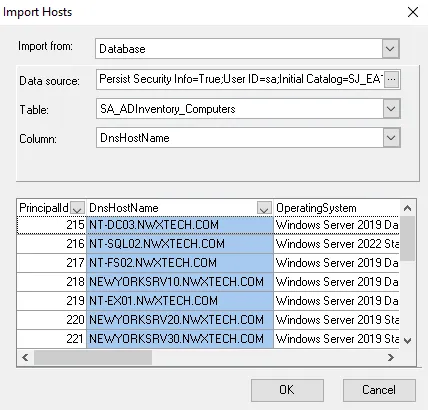
Data source – Identify the database. Click the ellipsis (…) to open the Data Link Properties window. Provide the required information on the Connection tab of the Data Link Properties window, and then click OK. See the Import From a Database topic for additional information.
noteDon't modify the Provider, Advanced, and All tabs of the Data Link Properties window.
-
Table – Use the dropdown to select the table that contains the hosts to import. Access Analyzer displays a preview of the selected table in the preview box.
-
Step 4 – Use either the dropdown menu or click the column in the preview box to select the column containing the host names. The selected column is highlighted in the preview box.
Step 5 – Click OK to complete the import.
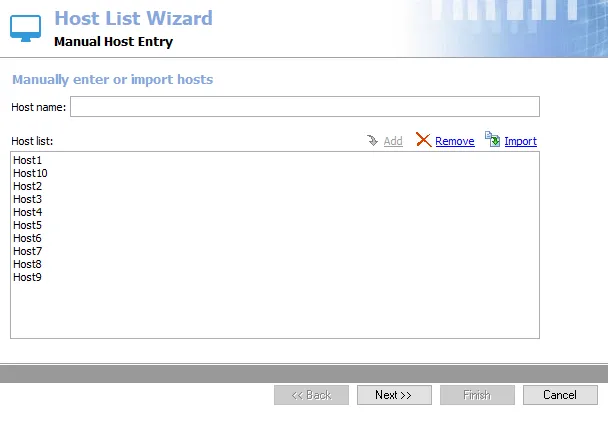
The Import Hosts window closes, and the imported list of host names is added in the Host list box on the Manual Host Entry page of the Host List Wizard. Click Next to proceed with configuring the host list. See the Add Hosts topic for additional information on the Host List Wizard.