SPAA: Scan Scoping Options
The Scan Scoping Options page provides scoping options to specify the list of URLs to scan. It is a wizard page for the categories of:
- Scan SharePoint Access
- Scan For Sensitive Content
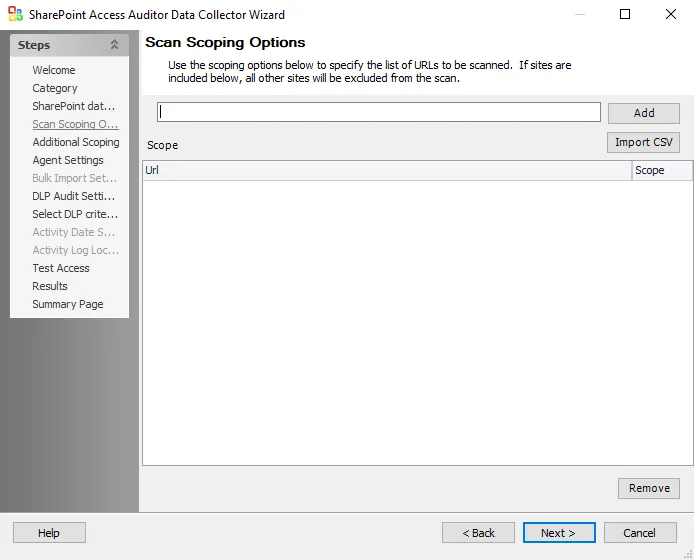
The options on the Scan Scoping Options page are:
-
Add – Entering a URL in the text box adds it to the Scope box
- To scope for a SharePoint Host Named Site Collections, use the text box to enter the URL for both the Web App and the HNSC with custom non-existent URL extensions added. See the Scoping to SharePoint Host Named Site Collections topic for additional information.
noteIf you include sites in the Scope box, Access Analyzer excludes all other sites from the scan.
-
Import CSV – Opens a file explorer to browse for a CSV file
-
Scope box – Lists all added URLs
-
Scope dropdown list – Select include to include a URL in the scan. Select exclude to exclude a URL from the scan.
-
Remove – Removes the selected URL from the Scope box
Scoping to SharePoint Host Named Site Collections
to scope to objects within host named site collections, add a scope line which includes the
URL of the web application containing the host named site collection. To scope the host named site
collection URL http://sample.com/documents/ for a host named site collection that exists under the
web application URL http://example.com, follow the steps:
Step 1 – Navigate to the Scan Scoping Options page.
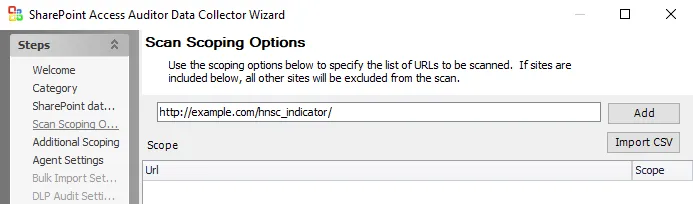
Step 2 – In the text box, enter an invalid URL prefixed with the Web App URL which contains the HNSCs. Click Add.
- In the example the invalid Web App URL is:
http://example.com/hnsc_indicator/
Step 3 – In the text box, enter the HNSC URL to scope for. Click Add.
- In the example, the HNSC URL entered to filter for is:
http://sample.com/documents/
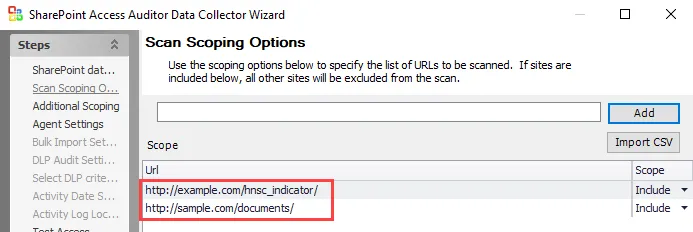
Step 4 – The Web App URL must appear above the HNSC URL, as depicted in the preceding example.
Step 5 – You have now configured the SharePoint Access Auditor Data Collector Wizard to filter for the URL inside the SharePoint Host Named Site Collections.
Virtual Hosts
To decrease the scan time in large SharePoint Online environments, break Site Collections for a single host down into subsets, or Virtual Hosts, that Access Analyzer treats as separate hosts. With virtual hosts, you can run multiple scans of a single host concurrently. To configure this:

Step 1 – Create a new CSV file. Add rows containing the host and site collection URL
information you want to scan, using the format HOSTNAME#DESIGNATOR;URL.
- Access Analyzer treats each unique
DESIGNATORas a separate host comprised of the specified URLs.

Step 2 – Configure the Host List for SPAA or SPSEEK scans to target these Virtual Hosts using
the format HOSTNAME#DESIGNATOR.
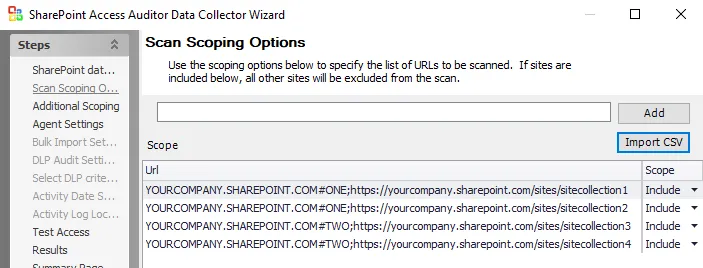
Step 3 – On the Scan Scoping Options page of the SharePoint Access Auditor Data Collector Wizard, use the Import CSV button to import the information from the CSV file created in Step 1.
Step 4 – Click Next to continue through the other pages of the SharePoint Access Auditor Data Collector Wizard. Then click Finish on the Summary Page.
You have now configured Access Analyzer to scan multiple site collections for the same host concurrently.
Access Analyzer creates a new host folder for each Virtual Host in
Jobs/SA_CommonData/SHAREPOINTACCESS. You will also see a separate line on the Running Instances
tab for each Virtual Host included in the scan.
You should configure the Host List for Bulk Import to contain each Virtual Host included in the
preceding scan, using the HOSTNAME#DESIGNATOR format. After Bulk Import, the data contained in
Tier 1 Database tables and views will resemble a scan run against multiple hosts.