SMARTLog: Criteria
Use the Criteria page to specify the search criteria. You can run a test query with the sample host you entered on the Sample Host page to confirm the results the query will return. This wizard page applies to all log types.
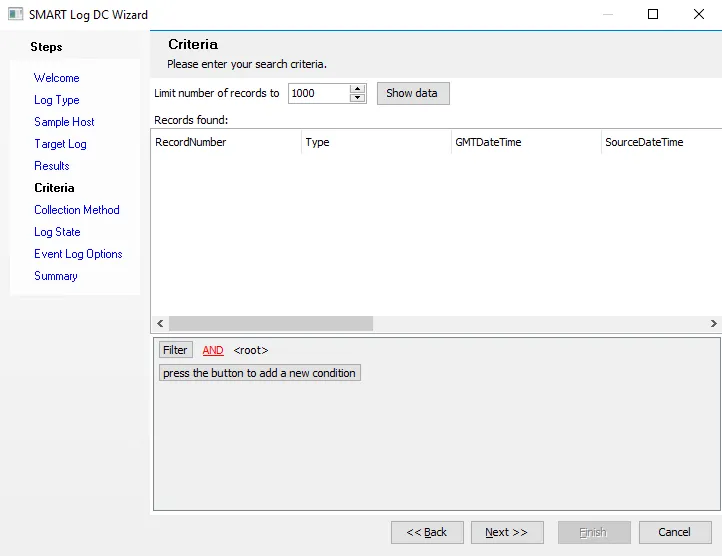
The Limit number of records to setting has a default of 1000.
To configure the search criteria:

Step 1 – Click Filter to add a condition or a group to the root of the query.
- Click the ellipsis (…) to add a new condition or group under an existing group

Step 2 – Click RecordNumber to configure the search to look for specific events or a range of events.
Step 3 – Click equals and <empty> to further configure the condition as required.
Step 4 – (Optional) At the root or group level, click AND to change the logical operator for that level. The available options are AND, OR, NOT AND, and NOT OR.
Step 5 – Repeat steps 1 to 4 to configure all necessary criteria.
- To remove a row (condition or group), click the ellipsis (…) on the row and select Remove Row
- To remove all configured criteria, click Filter and select Clear All
Step 6 – Click Show data to run a test query and sample the data that the query returns from the target log based on the configured criteria. The Records found table displays the data.
You have now configured the search criteria and tested the results it returns. Configure the criteria further if the returned results aren't as expected, or click Next to continue to the next wizard page.