FSAA: Scoping Options
Use the Scoping Options page to configure scan settings, file details, and file properties settings for a specified resource in the targeted environment. It is a wizard page for the following categories:
- File System Access/Permission Auditing Scan
- Sensitive Data
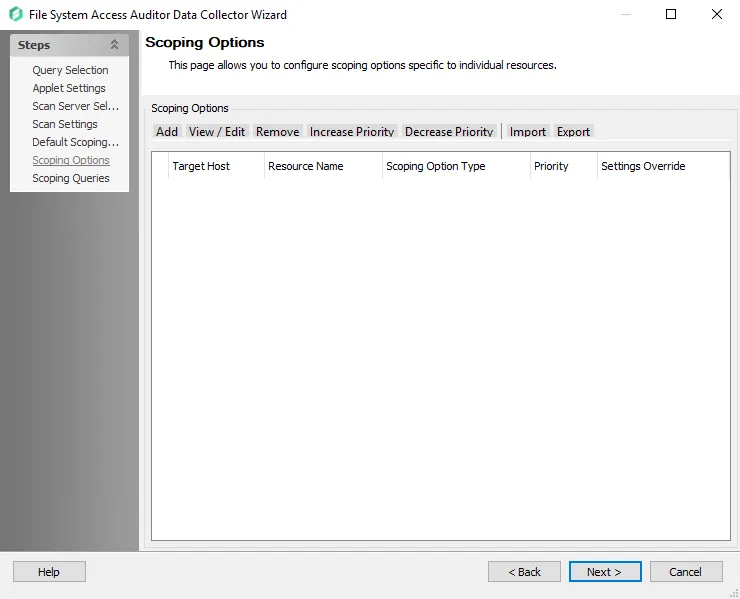
The Scoping Options buttons have the following:
-
Add – Add a resource to be included or excluded in the scan. Opens the Scoping Configuration window.
-
View/Edit – Make changes to a previously added resource. Opens the Scoping Configuration window.
-
Remove – Deletes the resource from the table and therefore the scan
-
Increase Priority – Sets a lower numerical value to the resource, which sets a higher priority when conflicting settings occur with one resource
-
Decrease Priority – Sets a higher value to the resource, which sets a lower priority when conflicting settings occur with one resource
-
Import – Import scoping options from a
.fsaascopefile.- If a conflict arises between an existing configured scoping option and the option being imported, the system prompts you to resolve the conflict by keeping the existing configuration or importing the new one, which overwrites the scoping option.
-
Export – Take the configured scoping options in the job and export it to a
.fsaascopefile
By default, priority follows the order in which you add items to the table. You can also manually assign priority with the Increase Priority and Decrease Priority buttons or in the Scoping Configuration Window. If there is a conflict between an inclusion scoping option and an exclusion scoping option with the same priority, the inclusion takes precedence.
See the Common Scoping Scenarios section for example configurations of scoping options and the expected results.
Scoping Configuration Window
Use the Scoping Configuration Window to include or exclude a specific share or folder from the scan. Only included resources require additional scoping. Remember, these settings override the default scoping settings for the selected resource.
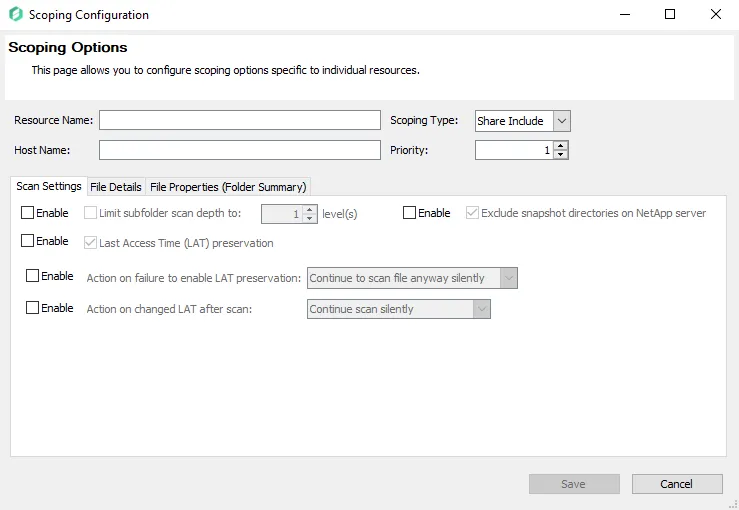
Set the Resource Name and Host Name:
- Resource Name – Specify a local path or individual share to the target folder or the share name
- Host Name – Apply scoping options to a specific target host. If a host name isn't supplied, all hosts targeted by the job have the scoping options applied.
Both the Resource Name and Host Name textboxes support regular expressions and pattern matching.
-
For wildcards – Use the
?or*as the share or folder name. Example of Wildcard Support: You have three shares namedShare1,Share2, andMyShare. You want to includeShare1andShare2. You can enter into this field:share*share?Share*SHARE?
-
For regular expressions – Use the prefix
RE:and escape the backslash characters. Example of Regular Expression: To provide an expression that would include all shares or files that start with the letterA:noteThis option is case sensitive.
RE:\\\\[^\\[+\\A
Then set Scoping Type and Priority:
-
Scoping Type – Choose from the dropdown menu the type of resource to scan:
- Share Include – Provided share name is included in the scan. All scoping options must match or it is excluded.
- Share Exclude – Provided share is excluded from the scan
- Folder Include – Provided folder name is included in the scan. All scoping options must match or the scan ignores the resource.
- Folder Exclude – Provided folder is excluded from the scan. All scoping options must match or it is excluded.
noteAny included files or folders inherit all options previously checked in the FSAA: Default Scoping Options page. Manually apply new options if the default ones aren't desired in this scan.
-
Priority – Numerical value that determines which options are used in the case of more than one scoping option overlaps for a particular resource. Lower numerical values have a higher priority for this scan. When multiple scoping options are added to a single resource, and there is no conflict, the scoping options are merged. However, in some instances, the settings conflict. The following are some known conflicts and their results:
- Conflict between two options for a single resource – Higher priority takes precedence
- Folder scoping option conflicts with a share scoping option – Folder takes precedence
- Conflict between two scoping options with the same priority – Path determines which option is used. The scoping option with the child takes precedence over the parent.
-
Enable Button – Adds the scoping option to the scan criteria
See the Scan Settings Tab, File Details Tab, and File Properties (Folder Summary) Tab tabs for more detail on these scoping options.
Common Scoping Scenarios
The following examples show some common configurations of scoping options and the expected results.
Scenario 1
Scan for all shares except one.

All shares included except for the ProbableOwner share.
Scenario 2
Scan for one share and exclude all others.

The ProbableOwner Share is included. All other shares are excluded. Share Inclusion must have a priority that is greater than or equal to the Share Exclusion.
Scenario 3
Scan all folders except one.

All Shares are scanned and all folders are included except for C:\ProbableOwner\DifferentOwner.
Scenario 4
Scan one folder and exclude all others.
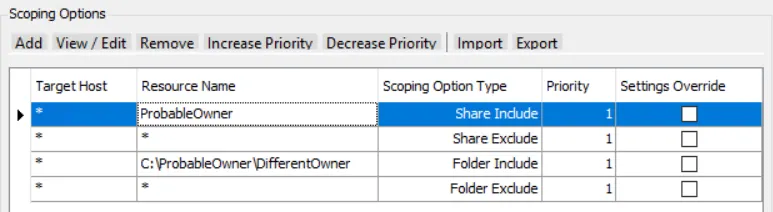
The ProbableOwner Share is included and all other shares are excluded. Within the ProbableOwner Share, Folder path C:\ProbableOwner\DifferentOwner is included. All other folder paths are excluded.
Scenario 5
Scan one folder and all of its children and exclude all others.
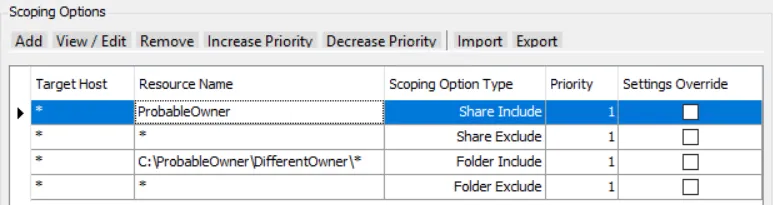
The ProbableOwner Share is included and all other shares are excluded. Within the ProbableOwner Share, Folder path C:\ProbableOwner\DifferentOwner is included along with all of its children (Notice the \* at the end of folder include path). All other folder paths are excluded.
Scenario 6
Scan for all content within a folder except one sub-folder.
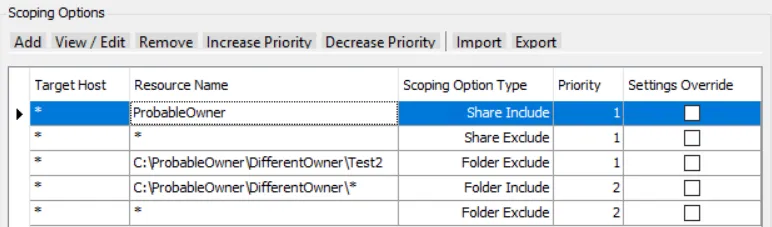
The ProbableOwner Share is included and all other shares are excluded. Within the ProbableOwner Share, Folder path C:\ProbableOwner\DifferentOwner is included along with all of its children (Notice the \* at the end of folder include path). Within the DifferentOwner folder the path C:\ProbableOwner\DifferentOwner\Test2 is excluded (Notice the higher priority for the exclusion). All other folder paths are excluded.
Additional Considerations
Use the scoping options described in Scoping Configuration Window to scope for SMB shares and NFS exports, but NFS exports are enumerated differently. The include/exclude logic described earlier in this section should be the same for both, but when scoping for NFS exports the Resource Name should be the full path to the export.
For example, in the following scenario, the NFS export named NFS_Export is included. All other exports are excluded. Within the NFS_Export export, folder path \ifs\NFS_Export\Test_Folder is included. All other folder paths are excluded.
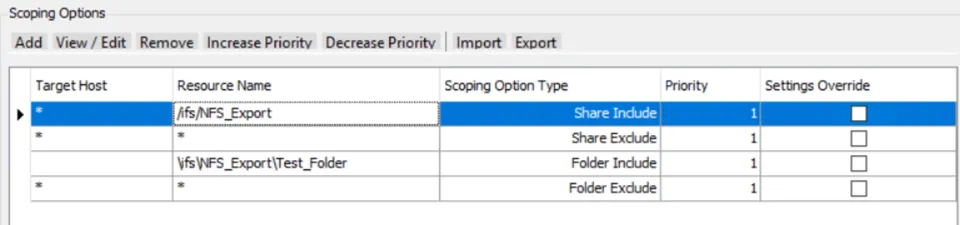
Note the different slash types for exports compared to folders.