File Properties (Folder Summary) Tab
Use the File Properties (Folder Summary) tab to configure file property collection settings for the scan.
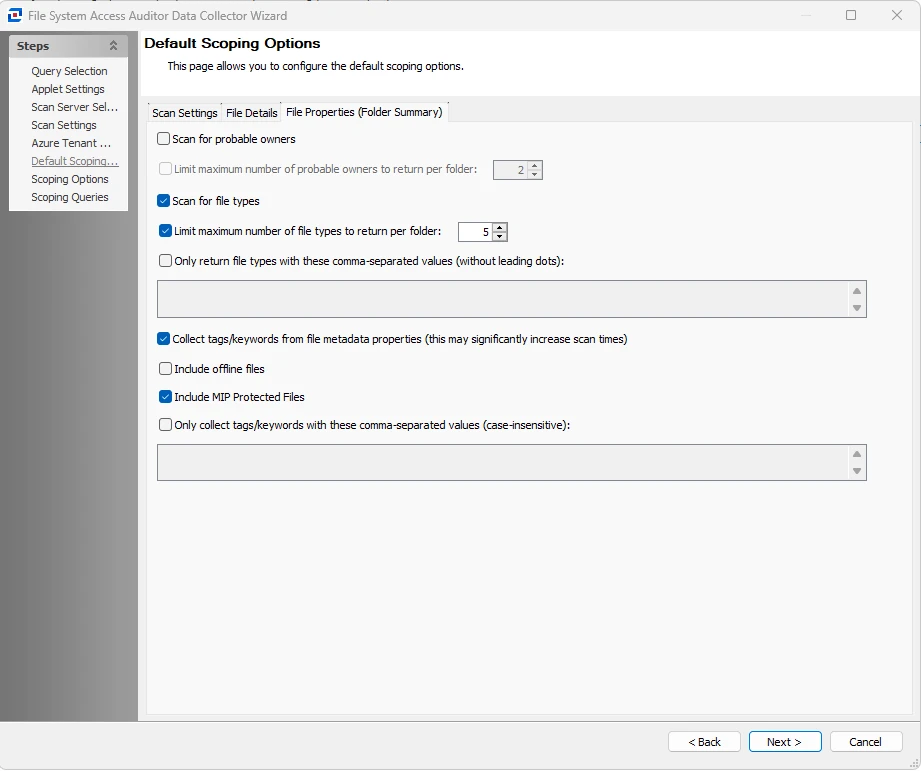
- Scan for probable owners – Gathers file ownership information to determine the most probable owner
of every resource
- Limit maximum number of probable owners to return per folder [number] – Stops the collection of probable owners when it reaches the number provided
- Scan for File Types – Gathers file type information within the audited folders
- Limit maximum number of file types to return per folder [number] – Stops the collection of file types when it reaches the number provided per folder
- Only return file types with these comma-separated values (without leading dots) – Enter the file types for the scan to return. The scan ignores any types not provided.
- Collect tags/keywords from file metadata properties (this may significantly increase scan times) –
Scans the files and collects metadata tags from Microsoft Office files
- Include offline files – Scans network files that have the offline files feature enabled
- Include MIP Protected Files – Scans for files protected by Microsoft Information Protection
(MIP) that have sensitivity labels
- This option is only available when you select the Enable scanning of files protected by Microsoft Information Protection checkbox on the Scan Settings page
- Only collect tags/keywords with these comma-separated values (case-insensitive) – Limits the scan to the tags listed as comma-separated values
The FSAA scan collects the tags from the files and stores the information at the folder level, which provides a count for the number of occurrences of each tag.