FSAA: Activity Settings
Use the File System Activity Auditor Scan Filter Settings page to configure activity scan filter settings. It is a wizard page for the category of File System Activity Scan.
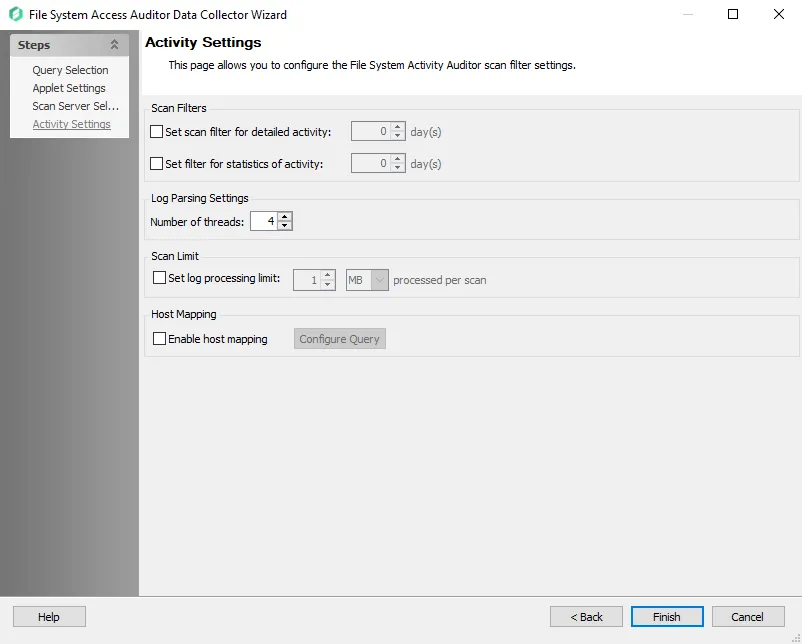
In the Scan Filters section, choose from the following options:
- Set Scan Filter for Detailed Activity – Enables the Days number box. Select the number of past days to collect activity details.
- Set Filter for Statistics of Activity – Enables the Days number box. Select the number of past days to collect activity statistics.
In the Log Parsing Limits section, choose from the following option:
- Number of Threads – Number of parsing threads FSAC can use at any given time. The default is four threads.
In the Scan Limit section, configure the following:
- Set Log Processing Limit – Stops the scan after the set number of MB or GB of log files are processed and the threshold number is reached
These filters affect what data the scan collects from the activity logs. However, enabling these filters also causes the corresponding bulk import query to purge the database of selected activity information older than the time filter specified here.
If you leave either deselected, the scan collects and stores all available log files, which directly affects both scan time and database size.
Remember, the file activity options require you to deploy and configure the Activity Monitor and run its services.
In the Host Mapping section, configure the following:
- Host Mapping – Provides a mapping between the target host and the hosts where activity logs reside. Select Configure Query to open the File System Activity Scan Host Mapping page. This feature requires advanced SQL scripting knowledge to build the query. See the Host Mapping topic for additional information.
Host Mapping
If desired, enable the host mapping feature and select Configure Query to open the Host Mapping Query window.
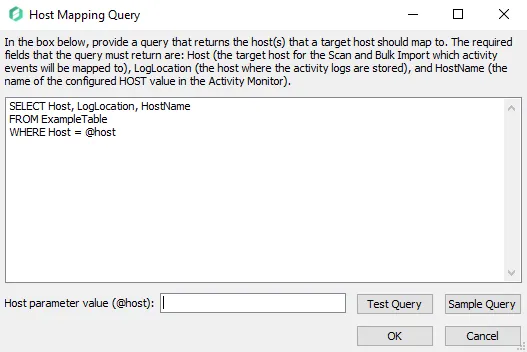
Selecting the Enable host mapping checkbox enables the query textbox. The SQL query provided by a user should return a set of log locations, target hosts, and host names of the Monitored Hosts in the Activity Monitor. The target tables must reside within the Access Analyzer database and contain at least the following columns:
-
LogLocation – Name of the hosts where activity logs reside. The required column name is case sensitive and must be exactly
LogLocation. -
HostName – Name of the configured HOST value in the Activity Monitor. The required column name is case sensitive and must be exactly
HostName.- Format must match exactly how the host is known to the Activity Monitor, on the Monitored Host tab
-
Host – Name of the host being targeted in the FSAC scan and Bulk Import which the activity events will be mapped to
Enter the SQL query by clicking Sample Query then replacing the sample text in the textbox, as shown in the Host Mapping Query window. The SQL query must target tables that have the required columns populated with the host mapping.
(Optional) Enter a host in the Host parameter value (@host) textbox to test the query to retrieve the data for that host.
Select Test Query to open a preview of the results in the Query Results window. Ensure the query retrieves the expected data. Selecting this option runs the data collector against the target table.
Host-Agent Mapping
You can configure Access Analyzer via the Host Mapping feature to support the use of Multiple Activity Monitor Agents for a single targeted Host. See the following examples:
Single-Host Single-Agent Example:

Single-Host Multiple-Agent Example:

For multiple-agent setup, the configured Host Mapping table must have the same value for HostName and Host, as shown in the Single-Host Multiple-Agent example.