File: Target Files
The Target Files page provides filters to scope the data collection. This can provide better search results for the specific folder or file. It is a wizard page for all of the categories.
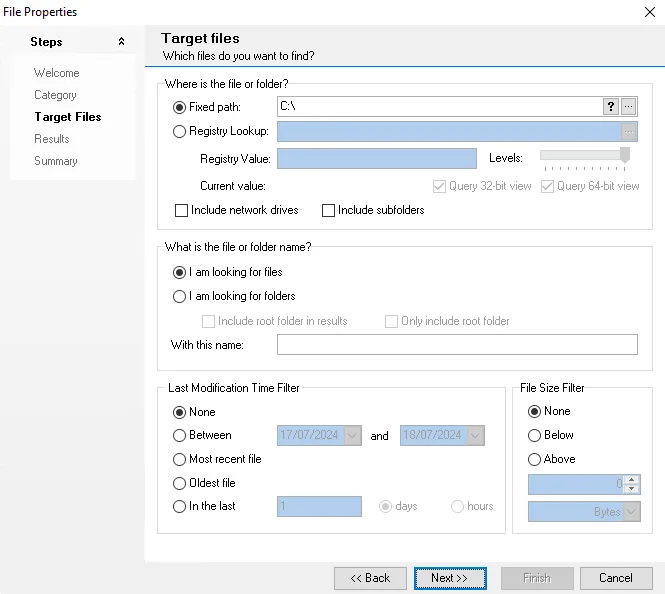
Within the Target files configuration page, select the method you want to use to refine the query.
Some options are grayed out depending on the option selected.
Where is the file or folder?
This section supplies options for using a fixed path (wildcards and system variables) or registry lookup values that the data collector supports. This header is available for all Category selections.
For either option, enter the path in the text box or click the browse button (…) to select from the popup windows.
When selecting a Fixed path, avoid using file paths from network drives or from the
network neighborhoods which begin with \\.
-
Fixed path – Specify a path to the target files. Use the following format:
drive\filepath(for example,C:\WINNT\System32). The browse button (…) opens the Remote Folder Explorer window.noteClick the tooltip button (?) for more information about the Fixed path option.
-
System environment variables – Supply a traditional system root or previously defined variable that maps to a physical path within the file system. You typically use this option when the system root is installed on a secondary volume. You can enter the following variables at the beginning of the file path:
%SYSTEMROOT%\Temp– Expands toC:\WINNT\Tempon some target hosts%WibnDir%\System32– Expands toC:\WINDOWS\System32on some target hosts%ProgramFiles%– Expands toC:\Program Fileson some target hosts
-
Registry Lookup – Find registry keys and values that exist on a target host in the environment. Click the browse button (…) to open the Access Analyzer Registry Browser window.
-
Access Analyzer Registry – Connect to a host, then select a registry key and path for the query to use in the lookup
-
Registry Value – This value is automatically populated from the registry key
-
Levels – After you select a registry path, use the Levels slider to truncate the path for the key value in the Adjust Path dialog box
-
Current Value – Displays the type of data each registry value contains
-
Query 32-bit View – Select this checkbox to query a 32-bit view
-
Query 64-bit View – Select this checkbox to query a 64-bit view
When you map a Fixed path or Registry Lookup, select options to better refine the search. Select one, none, or both.
-
-
-
Include network drives – Includes all mapped shared drives in the network in the query
warningIncluding subfolders may return hundreds of thousands of files, depending on the targeted environment.
-
Include subfolders – Searches all subfolders within the environment
What is the file or folder name?
The options in this section limit the search to folders or files with a specified name against the targeted host. Selecting the I am looking for folders option makes more options available for further refinement.
Selecting the Calculate Group Size (Files Only) category makes the I am looking for folders option and its associated options unavailable (grayed out).
-
I am looking for files – Identifies files that exist on the target location and returning property information on these files
-
I am looking for folders – Identifies folders that exist on the target location and returning property information on these folders
- Include root folder in results – Returns all information within the root folder
- Only include root folder – Returns information only for the root folder. Selecting the Include root folder in results checkbox enables this checkbox.
-
With this name – Specific name of a file or folder. Use a wildcard to match any file or folder to a specific naming convention. When searching for multiple objects, use a semicolon (
;) to separate the objects in the list.
Last Modification Time Filter
Last Modification Time Filter is an additional filtration clause. It filters the information provided in the Where is the file or folder and What is the file or folder name criteria by a specific time frames. The following options are available:
- None – No time filter is applied. This option is selected by default.
- Between – Manually enter start and end dates in the following format (
MM/DD/YYYY) or use the dropdown calendar to set the date. By default, the date range is set for the current day. Select Today to set the filter to the current date or Clear to reset the dates to a blank box. - Most recent file – Filter the selected criteria by the most recent files since last modification
- Oldest file – Filter the With this name and selected fixed path or registry value by the oldest files available
- In the last – Filter the selected criteria for the specified number of desired days or hours
File Size Filter
Selecting the Calculate Group Size (Files Only) category makes the File Size Filter option available. Select an option to activate the filter and narrow the query.
-
None – No file size filter is applied. This option is selected by default.
-
Below – Filter to files smaller than the specified values
- Enter the number in the first text box and then select the size (Bytes, Kb, Mb, or Gb) from the dropdown menu
-
Above – Filter to files larger than the specified values
- Enter the number in the first text box and then select the size (Bytes, Kb, Mb, or Gb) from the dropdown menu