ExchangePublicFolder: Scope
Use the Scope page to define which folders this query searches. It is a wizard page for all of the categories.
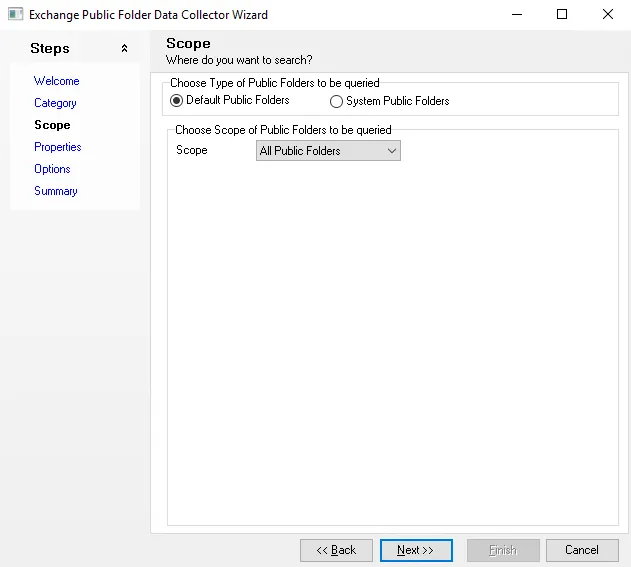
In the Choose Type of Public Folders to be queried section, select either:
- Default Public Folders – User can access these folders directly with client applications such as Microsoft Outlook. In its default configuration, Exchange System Manager displays these folders when a public folder tree is expanded.
- System Public Folders – Users can't access these folders directly. Client applications, such as Microsoft Outlook, use these folders to store information such as free and busy data, offline address lists, and organizational forms. Other folders hold configuration information that is used by custom applications or by Exchange itself. The Public Folders tree contains extra system folders, such as the EFORMS REGISTRY folder, that don't exist in general-purpose public folder trees.
In the Choose Scope of Public Folders to be queried section, select one of the following options:
-
All Public Folders – Returns all public folders within the targeted environment
-
Selected Public Folders – Returns only those public folders specified on the Scope page of the query
- See the Scope to the Selected Public Folders topic for additional information
-
Selected Table – Returns only those public folders within the table and field name specified on the Scope page of the query
- See the Scope to Selected Table topic for additional information.
Scope to the Selected Public Folders
Selecting Selected Public Folders on the Scope page enables the options to specify the desired folders.
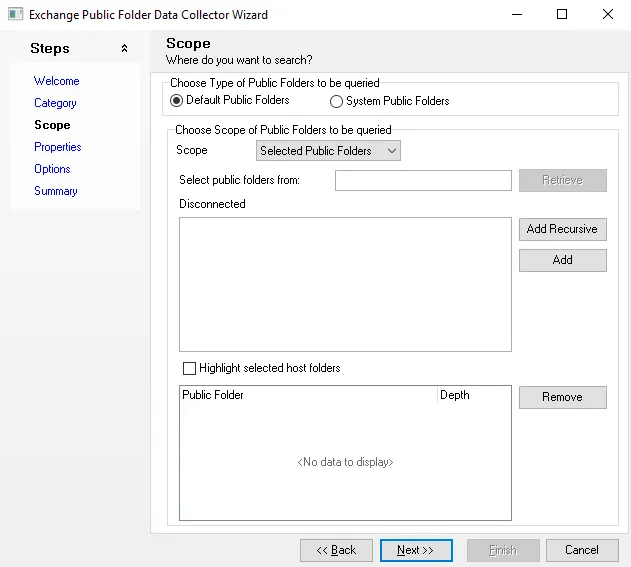
Configure the scope of the selected public folders to be queried:
- Select public folders from – Enter the name of the server hosting the public folders and click Retrieve. The box will populate with available public folders.
- Add – Adds the selected folders
- Add Recursive – Adds the selected folders and all child folders. Not adding recursive folders will add only the selected folder without its child folders.
- Highlight selected host folders – Highlights all the folders that are physically housed on the selected host. If enabled, physically housed folders show in bold text in the list that is returned after clicking Retrieve.
The table at the bottom lists the selected public folders. Click Remove to delete a selected word from the filter list.
Scope to Selected Table
When Scope to Selected Table is selected on the Scope page, the options to specify the desired tables are enabled.
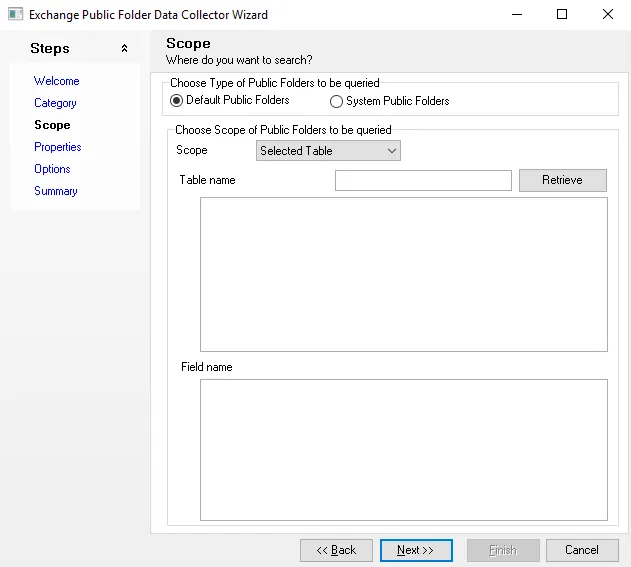
Configure the selected tables to be queried:
-
Table Name – retrieves the list of selected public folders from a Access Analyzer database table. Click Retrieve to populate the Table name box with all available tables within the database.
- Filter the Table name box by entering a name in the textbox and clicking Retrieve
-
Field name – Select the table and the available fields will populate the Field names box. Select the field containing the public folder names.