ExchangePublicFolder Data Collector
The ExchangePublicFolder Data Collector audits an Exchange Public Folder, including contents, permissions, ownership, and replicas. This is a MAPI-based data collector which requires the Settings > Exchange node, which you must enable and configure. See the Exchange topic for additional information.
The Exchange Solution preconfigures the ExchangePublicFolder Data Collector. Both this data collector and the solution are available with a special Access Analyzer license. See the Exchange Solution topic for additional information.
Protocols
- MAPI
- RPC
Ports
- TCP 135
- Randomly allocated high TCP ports
Permissions
- Member of the Exchange Administrator group
- Organization Management
Sensitive Data Discovery Considerations
If you run Sensitive Data Discovery (SDD) scans, you must increase the minimum amount of RAM. Each thread requires a minimum of 2 additional GB of RAM per host. For example, a job configured to scan 8 hosts at a time requires an extra 16 GB of RAM (8x2=16).
ExchangePublicFolder Query Configuration
You configure the ExchangePublicFolder Data Collector through the Exchange Public Folder Data Collector Wizard, which contains the following wizard pages:
- Welcome
- ExchangePublicFolder: Category
- ExchangePublicFolder: Scope
- ExchangePublicFolder: Properties
- ExchangePublicFolder: Options
- ExchangePublicFolder: Probable Owner
- ExchangePublicFolder: Summary
The query requires special permissions to connect to target Exchange servers. Configure these permissions on the Welcome page.
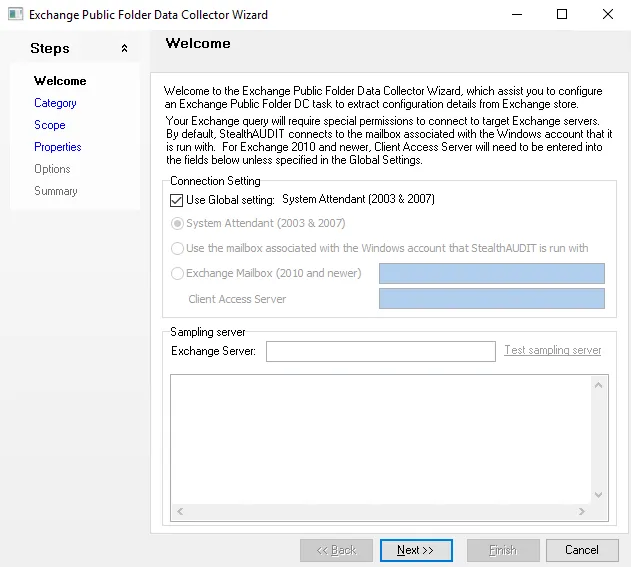
In the Connection Setting section, choose to either maintain the global inheritance, or configure query specific settings.
The Use Global setting option specifies which setting the query inherits. Clear this option to break inheritance, and then select one of the following options:
- System Attendant (2003 & 2007)
- Use the maibox associated with the Windows account that Access Analyzer is run with
- Exchange Mailbox (2010 and newer) – Enter the Exchange mailbox
- Client Access Server – Enter the CAS
See the Exchange topic for additional information.
In the Sampling server section, enter the Exchange server that Access Analyzer will use to test the connection settings. Click Test sampling server to ensure there is access to the server. The box at the bottom of the page displays information regarding the test connection in progress.