DiskInfo: Target Disks
The Target Disks page lists the storage devices you can select to return data from the target host after a query.
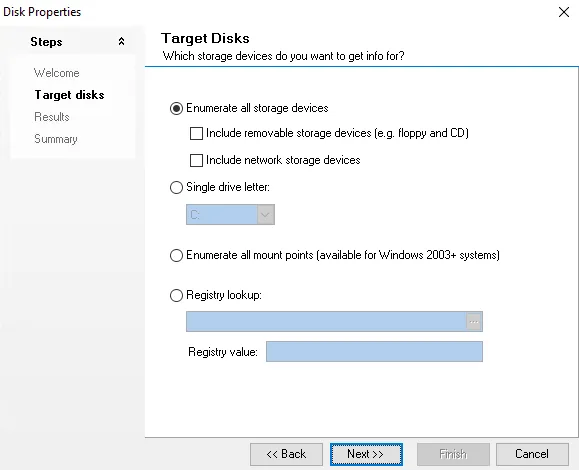
Use the options to select the target disk you want.
-
Enumerate all storage devices – Scans all internal drives. To expand the scan, include either or both of the following sub-options, or neither.
- Include removable storage devices – Scans removable devices that are plugged into the target host
- Include network storage devices – Scans mapped drives that exist through a connected network
-
Single drive letter – Collects information from a single drive (
A:throughZ:) during a single query. This option includes both operating system drives and removable disks. -
Enumerate all mount points (available for Windows 2003+ systems) – Targets any drive letter on the target host that points to a mapped share drive
-
Registry lookup – Provides the path of connection to gather information from the Access Analyzer Registry Browser. By default, Access Analyzer targets the local host unless you change it. The Registry value are instructions for the data found within the subfolders of the registry.
- The browse button (…) under the Registry lookup option opens the Access Analyzer Registry Browser window. Use the registry browser to find registry keys and values that are on a target host in the environment. See the DiskInfo: Registry Browser topic for additional information.
DiskInfo: Registry Browser
Clicking the browse button on the Target Disks wizard page opens the Access Analyzer Registry Browser. Use this page to find registry keys and values that exist on a target host in the environment.
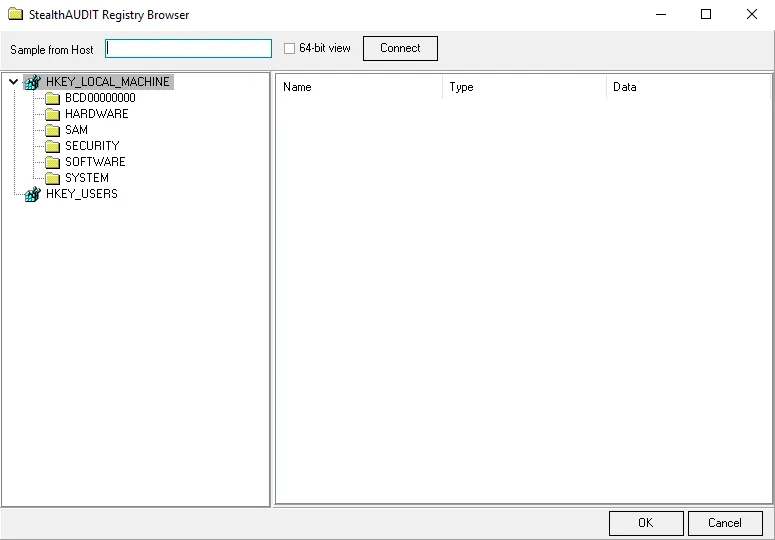
The configurable options on the Registry Browser are:
-
Sample from Host – Host that Access Analyzer browses for registry information. If you leave this box blank, Access Analyzer uses the Registry on the local host.
-
64-bit view – Default view is 32-bit. Select the 64-bit checkbox to switch to a 64-bit view.
-
Connect – Click Connect to browse the Registry
-
Table Columns – Select the Registry from the navigation pane to view keys in the table
- Name – Registry key value
- Type – Key value type
- Data – Key value path