SQLscripting Analysis Module
Use the SQLscripting analysis module to apply SQL scripting to the selected job.
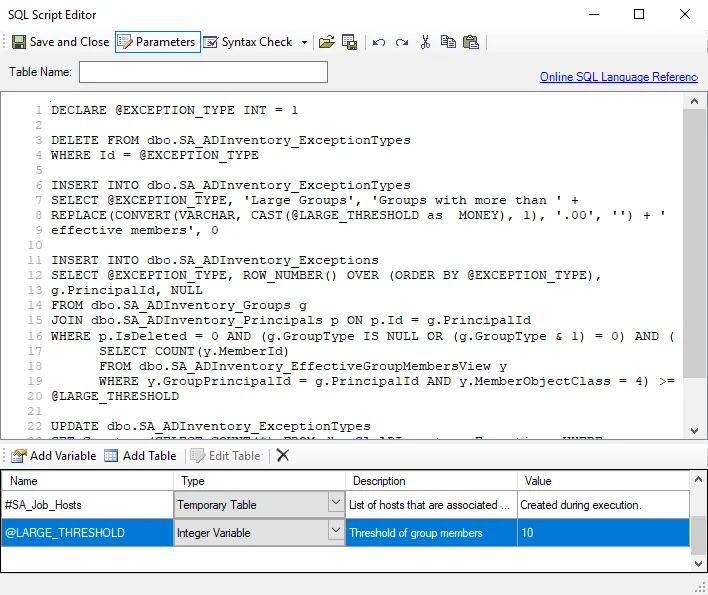
The SQLscripting analysis module evaluates the Access Analyzer user’s permission level to determine whether to allow the connected user to run the scripted command. Since this evaluation is based on specific SQL database permissions and isn't always under Access Analyzer’s control, some scripts with correct syntax may fail due to insufficient permissions.
The SQL Script Editor window has the following options:
-
Save and Close – Saves script and closes window
-
Parameters – Establishes parameters for SQL scripts in the editor
- Clicking Parameters opens the Parameters interface. See the Parameters topic for additional information.
-
Syntax Check – Checks SQL script syntax
- Syntax Check doesn't identify logic errors, only instances where syntax is incorrect. Click Syntax Check to open the Script Errors window which identifies syntax errors.
- Syntax Check reports syntax errors starting from the beginning of the script to the end. Syntax Check doesn't return a list of errors.
-
Load file – Opens a File Explorer to navigate to a SQL file
-
Save to File – Saves the configured script into a SQL file
-
Undo – Undo the previous changes made to script (Ctrl+Z)
-
Redo – Redo the previous changes made to script (Ctrl+Y)
-
Cut – Cuts the highlighted script from the SQL script editor (Ctrl+X)
-
Copy – Copies the highlighted script into the SQL script editor (Ctrl+C)
-
Paste – Pastes cut or copied script into the SQL script editor (Ctrl+V)
-
Online SQL Language Reference – Opens the Microsoft Transact-SQL Reference article
Click Save and Close to return to the Analysis Properties page. If you didn't make or intend any changes, click Cancel to close the SQL Script Editor wizard so you don't save accidental changes.
Parameters
Use the Parameters window to add, edit, and delete temporary variables and tables defined by SQLscripting and users. The window only displays when Parameters is clicked.

not modify any parameters where the Value states Created during execution.
The Parameters window has the following options:
-
Add Variable – Adds a new variable
- Double-click in the Name, Description, and Value fields to enter custom labels
- Select the variable Type from the dropdown menu
- Variable names must begin with the
@sign
-
Add Table – Adds a new table
-
Edit Table – Opens the Edit Table window. See the Edit Table topic for additional information.
-
Delete – Deletes the selected variable or table
The parameters have the following properties:
-
Name – Name of the variable or table
-
Type – Type of variable or table
- String variables use a text string input
- Integers and floats can handle invalid inputs
- Boolean variables only take True/False input, in SQL they are 1/0
- Percentages only take whole numbers 0-100, converted to 0.0 to 1.0 in SQL
- Temporary and Variable Tables
-
Description – Description of the variable or table. See the Edit Table topic for additional information.
-
Value – Input value
Edit Table
Click Edit Table to open the Edit Table window to modify parameters for the selected table.

The Edit table window has the following options:
-
Name – Use the Parameters window to edit the table name.
-
If the name begins with a
#it is a temporary table -
If the name begins with a
@it is a table variable- In SQLCommand, you can pass these in as structured table parameters
-
If the name doesn't begin with either character, Access Analyzer assumes it's a temporary table
-
-
Description – Use the Parameters window to edit the description
-
Values – Add, edit, and remove values from the table
- Add – Select from the dropdown to either Add New Row or Add New Column to the table
- Edit a value – Edits the selected value
- Delete – Deletes the selected value
- Up/Down – Changes the value position higher or lower
Access Analyzer creates a CSV file under the job’s directory when you add a parameter table to the analysis. You can also upload a pre-existing CSV file to populate the table.
Click OK to confirm changes to the table. If you didn't make or intend any changes, click Cancel to close the Edit Table window so you don't save accidental changes.