Public Folder: Operations
Use the Operations page to specify the operations to perform as part of the action.
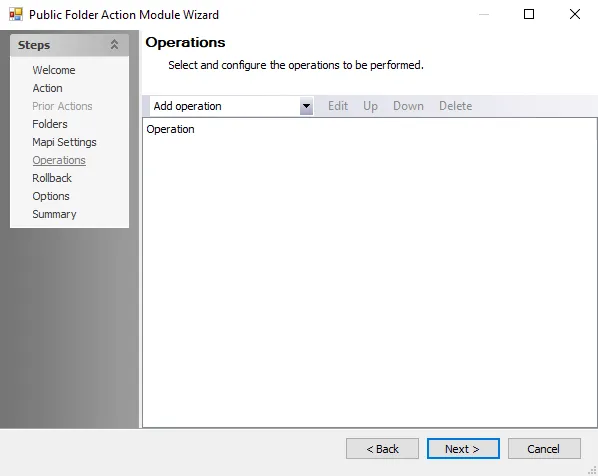
The Add operation dropdown menu lists the operations you can perform. Each operation opens a corresponding window. Operations include:
- Rename – See the Rename Folder Window topic for additional information
- Change permissions – See the Change Permissions Window topic for additional information
- Custom attributes – See the Custom Attributes Window topic for additional information
- Replicas – See the Replicas Window topic for additional information
- Limits – See the Limits Window topic for additional information
- Delete – See the Delete Folder Window topic for additional information
The buttons to the right of the dropdown control the operations in the field:
- Edit – Alters operation settings
- Add – Places selected operation one step above its current position
- Down – Places selected operation one step below its current position
- Delete – Removes a selected operation
Rename Folder Window
Use the Rename Folder window to rename selected folders. It is a wizard page for the Rename operation.

Rename folders using the following options:
-
Select a field from the dropdown menu and click Add to add it to the list below
noteThe available fields vary based on the source table.
-
New name – Enter the name to replace an existing folder name
Change Permissions Window
Use the Change Permissions window to change the permissions. It is a wizard page for the Change permissions operation.
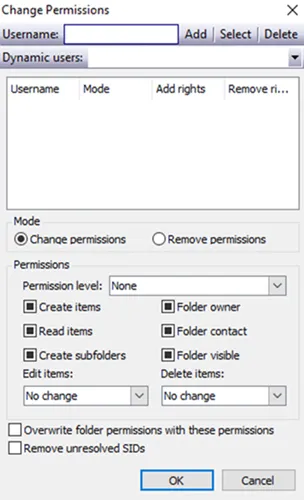
Change permissions using the following options:
-
Username – Select a user or create a list of users to edit permissions for
- To add a user, type in the field to search for a user, select it, and click Add
- Click Select to open a list with usernames to select from
- To delete a user, select an added user and click Delete
-
Dynamic users – Select a user using the dropdown menu
-
Mode – Select whether to change or remove permissions
-
Permissions – Determine Permission level and assign permissions to the user
-
Permission level – Use the dropdown menu to select a permission level from the following:
- Reviewer
- Contributor
- Nonediting Author
- Author
- Editor
- Publishing Author
- Publishing Editor
- Owner
- Custom
-
Select the checkbox to assign a permission to any of the following:
- Create items – User can create items
- Read items – User can read items
- Create Subfolders – User can create subfolders
- Folder owner – User can view and move the public folder, create subfolders, and set permissions for the folder, but can't read, edit, delete, or create items
- Folder contact – Set user as the contact for the specified public folder
- Folder visible – User can view the specified public folder but can't read or edit the items within
noteSelecting a permission level automatically selects the corresponding permissions. To override this default, select the checkbox of the unwanted permission to deselect it. If a desired checkbox is blocked by a black square, click the square to unblock the checkbox. You can then select or unselect the checkbox.
-
Edit items – Use the dropdown menu to determine user editing permissions from the following:
- No change
- None
- Allow own
- Deny any
- Own only
- All
-
Delete items – Use the dropdown menu to determine user deletion permissions from the following:
- No change
- None
- Allow own
- Deny any
- Own only
- All
-
-
Overwrite folder permissions with these conditions
-
Remove unresolved SIDs
Custom Attributes Window
Use the Custom Attributes window to select custom attributes. It is a wizard page for the Custom Attributes operation.
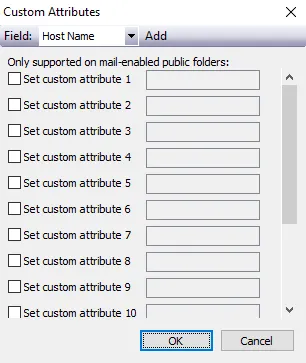
Select attributes using the following options:
-
Select a checkbox to set any custom attribute list
-
Select a Field from the dropdown list and click Add to add the field to the custom attribute
noteYou can add multiple fields to a custom attribute. You can also modify or delete added fields manually.
Replicas Window
Use the Replicas window to replicate servers. It is a wizard page for the Replicas operation.

Replicate servers using the following options:
- Select a server from the dropdown menu and click Add. The action replicates the listed servers.
- Select a server from the list and click Delete to remove it from the list of replicated servers
- Select the Remove last replica option to delete the replica created when the action was last run
Limits Window
Use the Limits window to select limits to the action. It is a wizard page for the Limits operation.
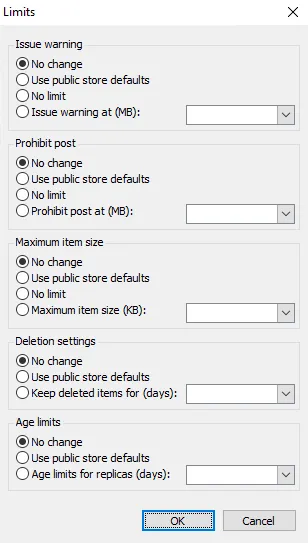
Use the options to select any changes for the categories. If applicable, use the dropdown to select desired values related to the corresponding option.
- Issue warning
- Prohibit post
- Maximum Item Size
- Deletion settings
- Age limits
Delete Folder Window
Use the Delete Folder window to select deletion settings for the action. It is a wizard page for the Delete operation.
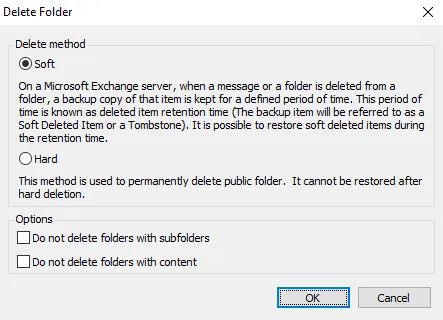
Select deletion settings using the following options:
-
Select the delete method
- Soft – Delete the folder but retain a backup copy for a defined period of time
- Hard – Delete the folder permanently, without retaining a backup
-
Optionally, select a checkbox to apply any exception
- Don't delete folders with subfolders
- Don't delete folders with content