Scoping > SP_TrusteeAccess Job
Use the SP_TrusteeAccess job to scope a list of users and audit their access across the SharePoint environment. You can also accomplish this by looking users up in the Access Information Center. However, use this job when you want to generate a report on multiple users’ effective access at once.
Trustees can be specified in the UserScoping.csv file for the SP_TrusteeAccess Job. See
the
Configure CSV File for the Query for the SP_TrusteeAccess Job
topic for additional information.

The SP_TrusteeAccess job is located in the Scoping Job Group.
Queries for the SP_TrusteeAccess Job
The SP_TrusteeAccess Job uses the TextSearch Data Collector for the following query:
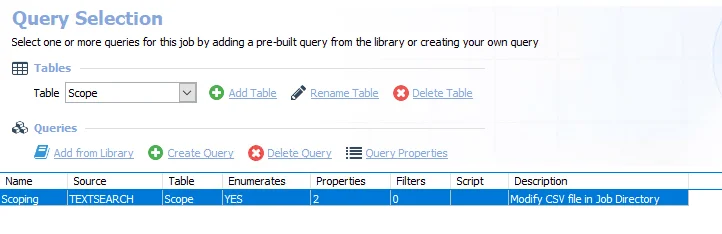
The default query is:
- Scoping – Modifies the CSV in the Job Directory. See the Configure CSV File for the Query for the SP_TrusteeAccess Job topic for additional information.
Configure CSV File for the Query for the SP_TrusteeAccess Job
To specify trustees in the UserScoping.csv file:
Step 1 – Navigate to the Jobs > SharePoint > Effective Access Audits > Scoping > SP_TrusteeAccess Job and right-click the job. Select Explore Folder and the job’s directory opens.
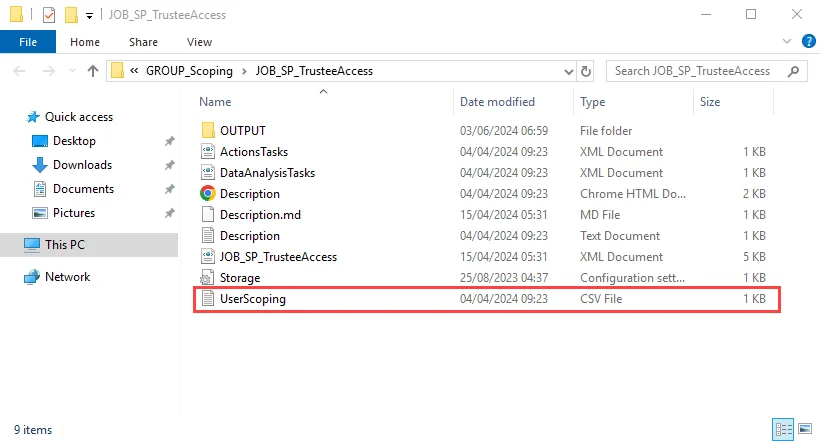
Step 2 – Open the UserScoping.csv file with a text editor, for example Notepad.

Step 3 – Enter the trustees using a Domain\UserName format. Enter one trustee per row.
Step 4 – Save and close the file.
The SP_TrusteeAccess Job is now ready to import this list of trustees to scope the Effective Access Audits Job Group. After job execution, the list of specified trustees will populate the Scope table accessible under the job’s Results node.