LDAP > AD_LDAPQueries Job
The LDAP > AD_LDAPQueries Job analyzes LDAP traffic to determine trends such as most expensive queries, most active servers and users, successful/failed and signing status. Use this data to troubleshoot performance issues, load balancing, and poorly configured services.
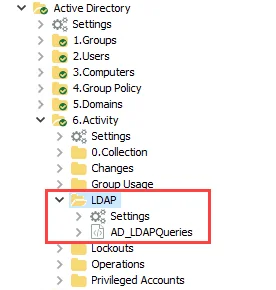
Schedule this job to run with the 0.Collection job group.
Analysis Tasks for the AD_LDAPQueries Job
Navigate to the Active Directory > 6.Activity > LDAP > AD_LDAPQueries > Configure node and select Analysis to view the analysis tasks.
Except for the Largest Queries task, don't modify or deselect the remaining selected analysis tasks. The remaining analysis tasks are preconfigured for this job.
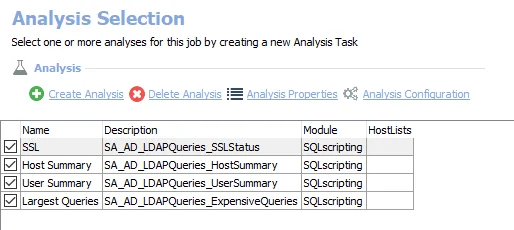
The following non-configurable analysis tasks are selected by default:
- SSL – Creates the SA_AD_LDAPQueries_SSLStatus table accessible under the job’s Results node
- Host Summary – Creates the SA_AD_LDAPQueries_HostSummary table accessible under the job’s Results node
- User Summary – Creates the SA_AD_LDAPQueries_UserSummary table accessible under the job’s Results node
You can enable the following configurable analysis task:
- Largest Queries – Creates the SA_AD_LDAPQueries_ExpensiveQueries table accessible under the job’s Results node
In addition to the tables created by the analysis tasks, the AD_LDAPQueries Job produces the follow pre-configured reports:
| Report | Description | Default Tags | Report Elements |
|---|---|---|---|
| Largest LDAP Queries | Shows LDAP queries returning the most objects, and their source. | CCPA GDPR SOX HIPPA PCI-DSS GLBA ITAR FERPA FISMA ISO27001 | This report is comprised of three elements:
|
| LDAP Overview | Overview of hosts and users performing queries, and query security. | CCPA GDPR SOX HIPPA PCI-DSS GLBA ITAR FERPA FISMA ISO27001 | This report is comprised of four elements:
|
Configure the Largest Queries Analysis Task
Use customizable parameters to set the values used to control the minimum objects returned and the days of traffic to analyze during this job’s analysis. You can customize the parameters; they're listed in a section at the bottom of the SQL Script Editor.
Step 1 – Navigate to the Active Directory > 6.Activity > LDAP > AD_LDAPQueries > Configure node and select Analysis.
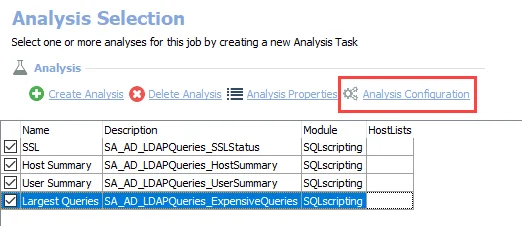
Step 2 – In the Analysis Selection view, select the Largest Queries analysis task and click Analysis Configuration. The SQL Script Editor opens.
Don't change any parameters where the Value states Created during execution.
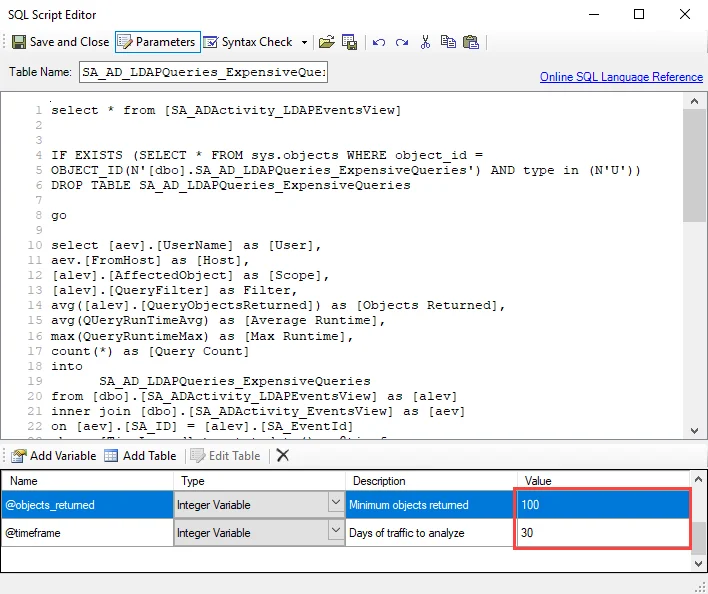
Step 3 – In the parameters section at the bottom of the editor, find the Value column. There are two integer variables you can modify. Double-click the current value and change as desired:
- @objects_returned – Controls the minimum number of objects returned for the queries to be considered large. This value is set to 100 by default.
- @timeframe – Controls the number of days to analyze traffic for. This value is set to 30 days by default.
Step 4 – Click Save and Close to finalize the customization and close the SQL Script Editor window.
The analysis task now includes custom parameters for the updated values.