File System Proxy as a Service Overview
You can enable the File System Solution to use proxy servers for scanning targeted file systems in very large or widely dispersed environments.
When you run File System scans in proxy mode as a service, two methods are available for deploying the service:
- Pre-Installed File System Proxy Service – Install the File System Proxy Service installation package on the Windows proxy servers before executing the scans. This is the recommended method.
- Ad Hoc File System Proxy Service Deployment – Enterprise Auditor installs the File System Proxy Service on the Windows proxy server when the job runs
The proxy server where the service is running conducts the data collection processing and uses a local mode-type scan to each of the target hosts. The final step in data collection is to compress and transfer the data collected in the SQLite databases, or Tier 2 databases, back to the Enterprise Auditor Console server.
Communication between the Enterprise Auditor Console Server and the proxy server is secure by default using HTTPS requests.
The version of the proxy service must match the major version of Enterprise Auditor.
See the File System Solution topic for information on the required prerequisites.
Supported Platforms
You can install the File System Proxy Service for the Enterprise Auditor File System Solution on the following Windows operating systems:
- Windows Server 2025
- Windows Server 2022
- Windows Server 2019
- Windows Server 2016
Proxy Scanning Architecture
By default, Enterprise Auditor processes data collection against ten target hosts simultaneously. When you run File System scans in local mode, ten hosts process simultaneously, and processing against the eleventh host begins after processing against the first host completes. Proxy scanning architecture supports large deployments or widely dispersed environments.
A proxy server is any server that processes data collection against target hosts.
You can't install the File System Proxy Service on the same server as Enterprise Auditor.
Two options are available for implementing the proxy scanning architecture:
- Proxy mode with applet
- Proxy mode as a service
Proxy Mode with Applet
When you run File System scans in proxy mode with applet, Enterprise Auditor deploys the File System applet to the Windows proxy server when the job runs to conduct data collection. The proxy server hosting the applet initiates the data collection processing and uses a local mode-type scan to each of the target hosts. The final step in data collection is to compress and transfer the data collected in the SQLite databases, or Tier 2 databases, back to the Enterprise Auditor Console server.
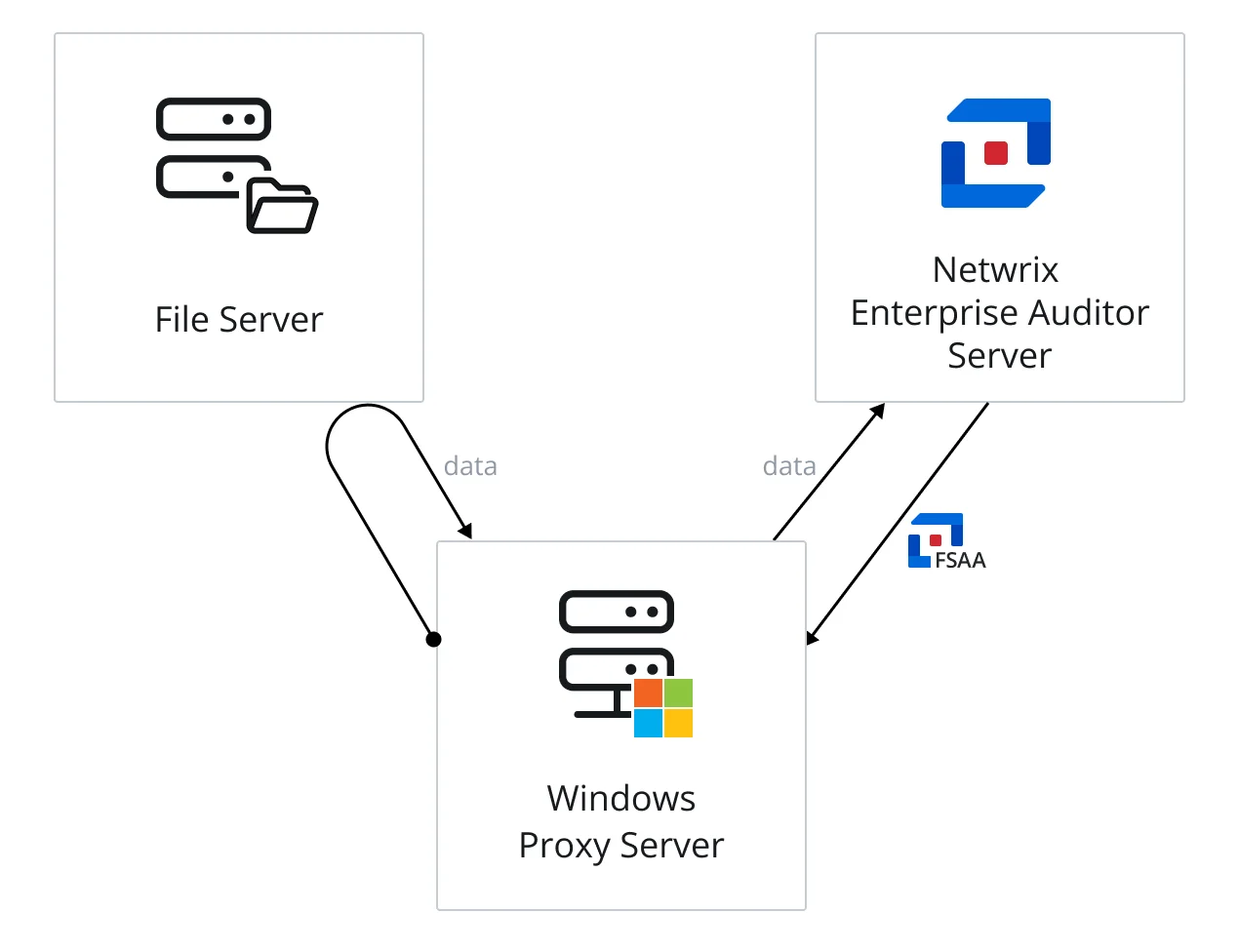
The diagram illustrates the Enterprise Auditor server sending a FileSystemAccess (FSAA) applet to a proxy server, which runs the scan against a file server, and then returns data to the Enterprise Auditor server.
Proxy Mode as a Service
When you run File System scans in proxy mode as a service, two methods are available for deploying the service:
- Pre-Installed File System Proxy Service – Install the File System Proxy Service installation package on the Windows proxy servers before executing the scans. This is the recommended method.
- Ad Hoc File System Proxy Service Deployment – Enterprise Auditor installs the File System Proxy Service on the Windows proxy server when the job runs
The proxy server where the service is running conducts the data collection processing and uses a local mode-type scan to each of the target hosts. The final step in data collection is to compress and transfer the data collected in the SQLite databases, or Tier 2 databases, back to the Enterprise Auditor Console server.
You configure the proxy communication during installation of the service on the proxy server, and you configure certificate exchange options via the Applet Settings page of the File System Access Auditing Data Collector Wizard. The installation wizard also adds the credential you provide for secure communications to the Enterprise Auditor Connection Profile assigned to the File System Solution.
See the File System Proxy Service Installation topic for additional information.
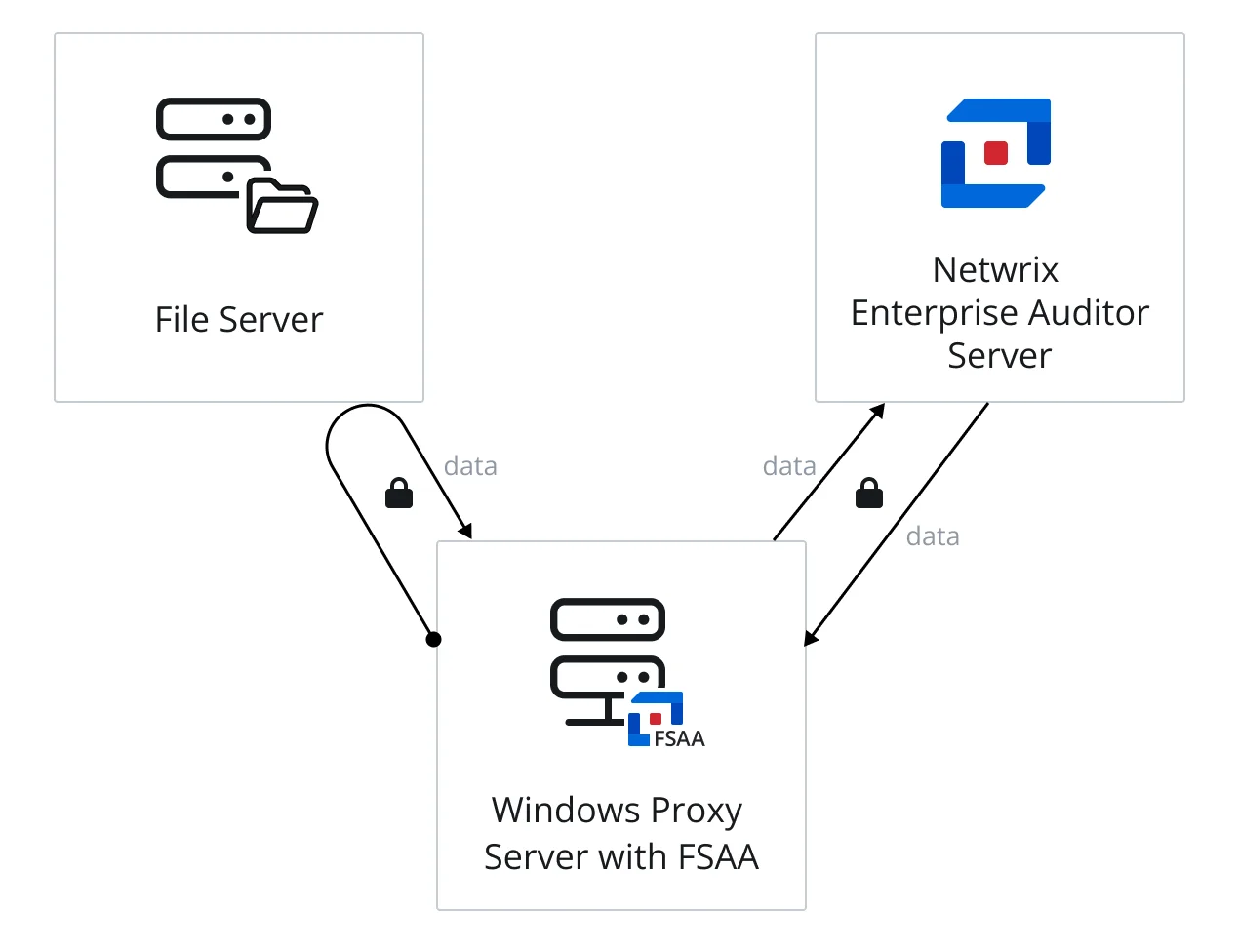
The diagram illustrates the Enterprise Auditor server communicating securely with the proxy service on a proxy server, which runs the scan against a file server, collecting the data locally and securely. Then the proxy service returns data securely to the Enterprise Auditor server.
When you initiate a proxy mode scan from the Enterprise Auditor Console, it distributes hosts for scanning across all proxy hosts. Enterprise Auditor monitors the scans from the central console. Once all proxy hosts complete scanning, they return all results and SQLite databases to the Enterprise Auditor Console server.
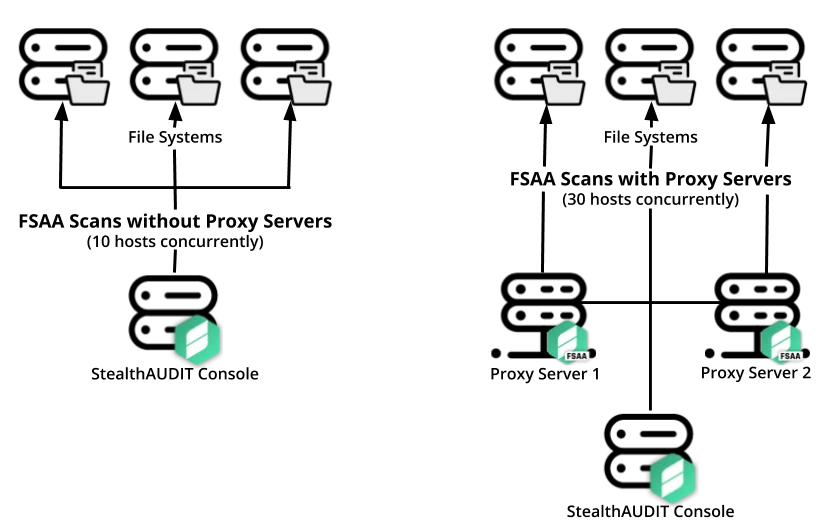
The diagram shows the difference between an implementation of Enterprise Auditor without proxy servers (on the left) and with proxy servers (on the right). On the right side of the diagram, you configured the scans to use the local host and two additional proxy servers to perform the FSAA Data Collector scans. This allows it to execute three times as many concurrent hosts than would be possible without proxy servers. This provides a clear benefit in scalability and scan times.
The proxy functionality for the FSAA Data Collector provides security and reliability.
Install the File System Proxy Service on the proxy server before running File System scans in proxy mode as a service. After installation, you must configure the FileSystemAccess (FSAA) Data Collector to use the service. See the File System Data Collection Configuration for Proxy as a Service topic for additional information.
Sensitive Data Discovery Auditing Consideration
Sensitive Data Discovery Auditing scans also require you to install the Sensitive Data Add-on – FSAA & SPAA Agentless (or x86) version of the Sensitive Data Discovery Add-On on the proxy server. This requirement is in addition to having the Sensitive Data Discovery Add-on installed on the Enterprise Auditor Console server. See the Sensitive Data Discovery Add-On Installation topic for additional information.
If you run Sensitive Data Discovery (SDD) scans, you'll need to increase the minimum amount of RAM. Each thread requires a minimum of 2 additional GB of RAM per host. By default, Enterprise Auditor configures SDD scans to run two concurrent threads. For example, if you configure the job to scan 8 hosts at a time with two concurrent SDD threads, you need an extra 32 GB of RAM (8x2x2=32).