Enterprise Auditor Core Upgrade Instructions
If you enabled Role Based Access, a user with the Administrator role must perform the upgrade. Other user roles don't have the necessary permissions to perform upgrades.
To upgrade to Enterprise Auditor 11.6 on the same server where an older version of Enterprise Auditor is installed:
If a Netwrix Engineer has made any customizations, ensure the custom work isn't lost during the upgrade process. The Upgrade Wizard archives customizations before solution upgrades. These archives are available after the solution upgrades finish. Contact Netwrix Support for additional information.
The new global Settings will overwrite any previously configured Sensitive Data criteria. Make a note of any configured Sensitive Data Criteria before upgrading Enterprise Auditor. You must reconfigure Sensitive Data Criteria after an upgrade. See the Configure Global Sensitive Data Settings topic for additional information.
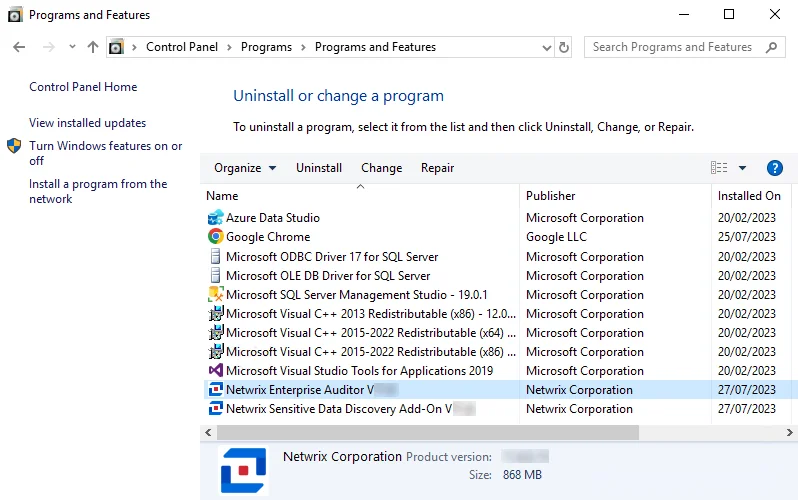
Step 1 – From Programs and Features (Control Panel > Programs > Programs and Features), uninstall the previous version of Enterprise Auditor. Jobs, application configuration files, and reports remain in the installation directory after the uninstall process.
- Enterprise Auditor automatically retains the
WebServer.exe.configfile in a Backup folder created under the Web folder of the installation directory. It keeps any custom application settings contained in this file as part of this upgrade process.
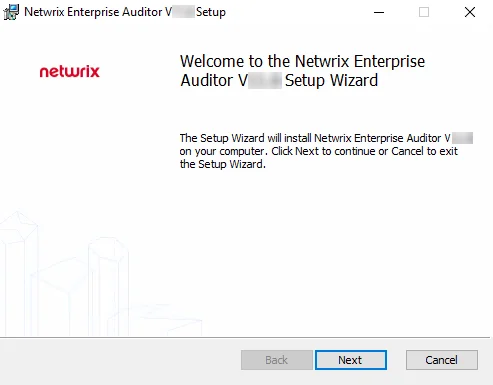
Step 2 – Install Enterprise Auditor 11.6. See the Enterprise Auditor Core Installation topic for detailed instructions.
- Before installation, ensure that you store the new
StealthAUDIT.liclicense file locally on the Enterprise Auditor Console so that the installer can reference it during the installation process - By default, the installer places Enterprise Auditor in the following directory:
…\STEALTHbits\StealthAUDIT
If you designate another installation path, be sure to leave STEALTHbits\StealthAUDIT
as the path suffix in the installation wizard.
- During the installation, Enterprise Auditor automatically restores any customizations to the
settings in the
WebServer.exe.configfile from the backup file retained when installing the previous version. It deletes the../Web/Backupfolder after restoring the settings.
After the installation finishes, the upgrade wizard launches from the Enterprise Auditor desktop icon.
Upgrade Wizard
After the Enterprise Auditor installation process finishes, go through the Upgrade Wizard. There are three Upgrade options for a solution:
- Full Upgrade – Performs a full synchronization of the directory and file structure of the solution to mirror the Instant Solution
- Upgrade in place – Performs file content updates of jobs matching the Instant Solutions but does not change the Jobs tree structure
- Don't upgrade – Performs no upgrade, leaving the previous version of the solution
The default settings configured within the Advanced Upgrade Options window align with the best practices of the Netwrix Professional Services and Support teams.
The Upgrade Wizard conducts the following actions according to the State identified and whether the Upgrade action is set to Full Upgrade or Upgrade in place:
| State | Condition | Action: Full Upgrade | Action: Upgrade in place |
|---|---|---|---|
| Normal | Job exists in Locked state and has matching ID in Instant Solutions | Upgrade | Upgrade |
| New | Job exists in Instant Solutions but not in the Jobs tree for an existing solution | Install | Install |
| Removed | Job exists in Locked state in the Jobs tree but doesn't exist in Instant Solutions | Delete | Nothing |
| Copied | Original job exists in original location, but multiple instances of the job exists | Delete | Upgrade |
| Moved | Original job exists but in a different location than in the Instant Solutions | Move & Upgrade | Upgrade |
| Renamed | Job found via ID match but was renamed | Rename & Upgrade | Upgrade |
| Conflict | Changes have been made to the job | Overwrite | Overwrite |
The Upgrade Wizard identifies conflicts when a user or a Netwrix engineer has made customizations to the job. You need to either resolve conflicts before the upgrade action or manually apply them after the upgrade finishes. You can resolve a conflict on the Changes window by undoing a customization. However, if you undo the conflict before a solution upgrade, the customization won't be archived.
If you enabled Role Based Access, a user with the Administrator role must perform the upgrade. Other user roles don't have the necessary permissions to perform upgrades.
To use the Upgrade Wizard:
Step 1 – Launch the Enterprise Auditor application. The installation wizard placed the Enterprise Auditor icon on the desktop.
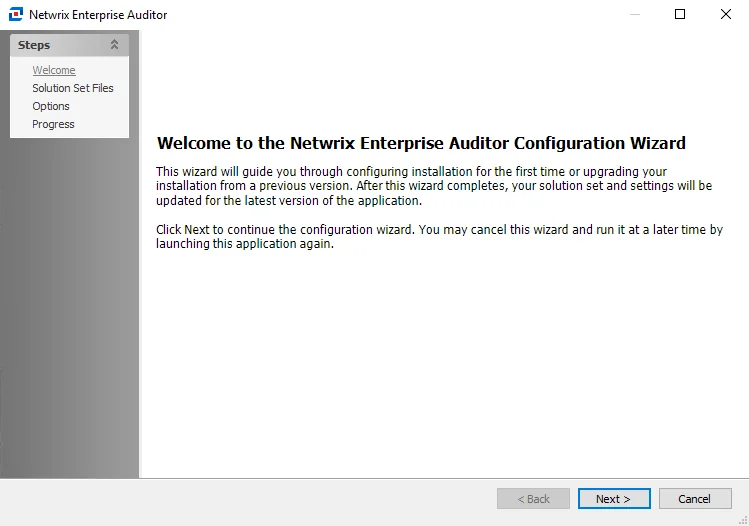
Step 2 – The Enterprise Auditor Configuration Wizard opens. Click Next to continue.
When you install Enterprise Auditor 11.6 on a server where a previous version of Enterprise Auditor was installed, the Version Selection page of the Configuration Wizard doesn't appear.
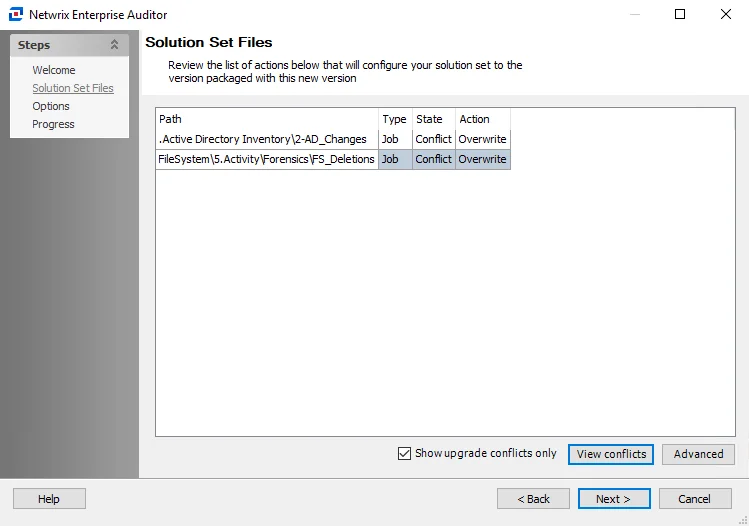
Step 3 – On the Solution Set Files page, the wizard displays only upgrade conflicts by default.
Investigate the changes where the wizard identified conflicts before proceeding.
Step 4 – (Optional) Select an item with the Conflict State and click View conflicts to open the Changes window.
Additional options include:
- Show upgrade conflicts only – Displays upgrade actions for all solutions
- Advanced – Opens the Advanced Upgrade Options window to view or modify the Upgrade option per solution

Step 5 – (Optional) You can resolve conflicts on the Changes window, which the View conflicts button opens. If you resolve the conflict before a solution upgrade, the customization won't be archived. To resolve a conflict, select it from the list and click Undo.
Step 6 – After you set the Upgrade options as desired, click Next.
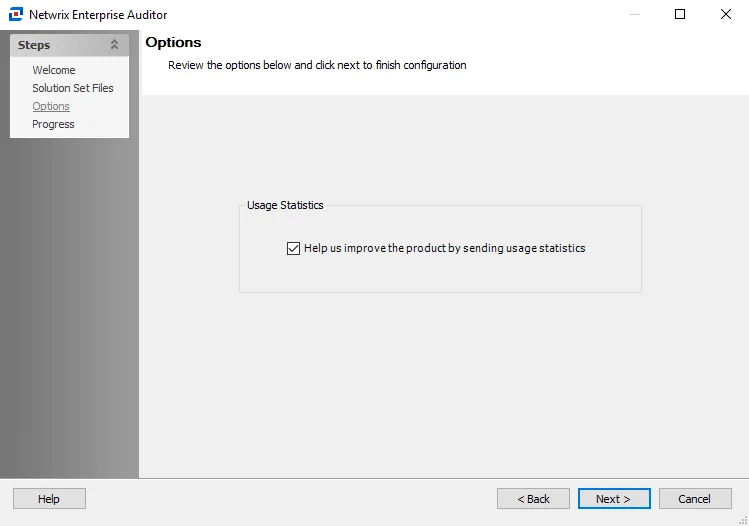
Step 7 – On the Options page, select whether to send usage statistics to Netwrix to help improve the product. After you set the Usage Statistics option as desired, click Next to continue.
-
If selected, usage statistics are collected and sent to Netwrix
- Upon startup of the Enterprise Auditor console, the system checks whether it sent usage statistics in the last 7 days. If not, stored procedures run against the Enterprise Auditor database and gather data about job runs, access times, and environmental details like resource counts, user counts, number of exceptions, and so on. Enterprise Auditor then sends this data back to Netwrix to help identify usage trends and common problem areas, which Netwrix uses to improve the product.
- Enterprise Auditor includes only anonymous statistic-level data. It doesn't collect or send private company or personal data to Netwrix.
-
If cleared, no usage statistics are collected or sent to Netwrix
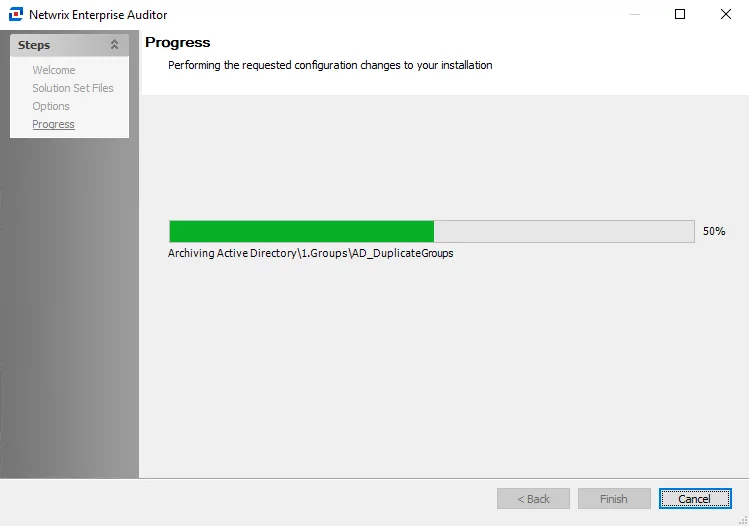
Step 8 – The Upgrade Progress page opens and displays the progress of the upgrade actions. When the action completes, click Finish.
The Upgrade Wizard closes, and Enterprise Auditor launches. The archived Jobs directory is in a ZIP
file located within the Jobs directory: …\STEALTHbits\StealthAUDIT\Jobs.
The ZIP file name reflects the date and time of the upgrade. For example, the file name for an
upgrade performed on June 4, 2023 at approximately 6 PM would be: 20230604180542.zip.