Manage Kerberos Encryption Warning for the Web Console
If a computer's Local Security Policy, or applicable Group Policy, enforces certain encryption methods for Kerberos authentication, then the service account running the Enterprise Auditor Web Server must support the same encryption methods.
If you configured encryption methods for Kerberos on the Enterprise Auditor server but not on the service account running the Enterprise Auditor Web Server service, users won't be able to log in to the Web Console and will receive the following error message.

When this occurs, Enterprise Auditor logs the following error:
ERROR - Unhandled server error: Nancy.RequestExecutionException: Oh noes! ---> System.Security.SecurityException: The encryption type requested isn't supported by the KDC.
Enterprise Auditor logs this error in the following location:
%SAINSTALLDIR%\SADatabase\Logs\Web\service.log
While you don't need to configure these settings, this section provides the locations and steps necessary to configure encryption methods in Local and Group policies to allow Kerberos for the Report Index if an error occurs.
Local Security Policies
To configure a Local Security Policy to allow Kerberos:
Step 1 – Open the Local Security Policy window.
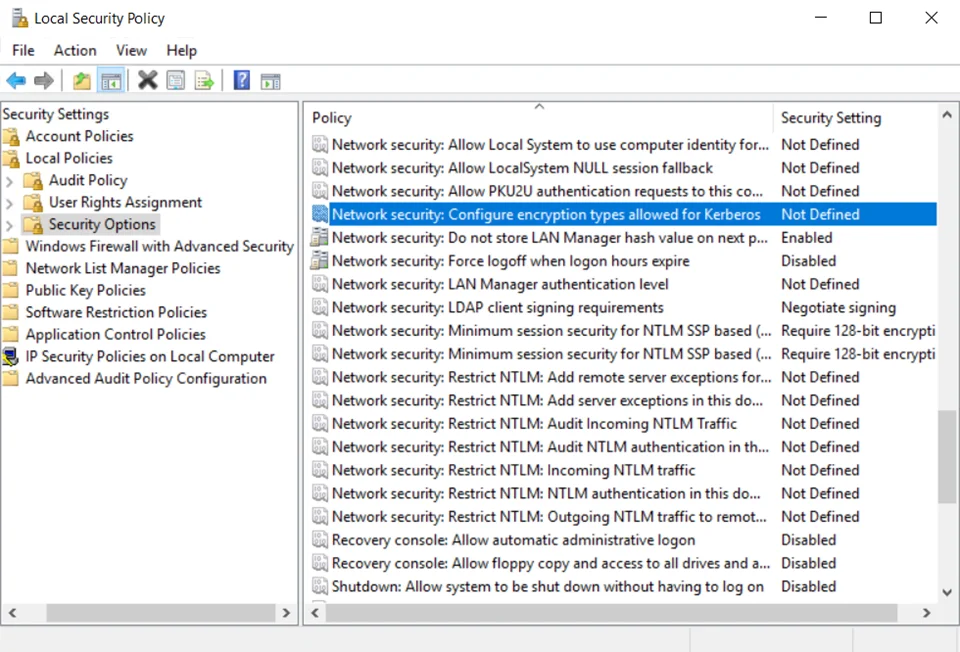
Step 2 – From the Security Settings list, navigate to Local Policies > Security Options.
Step 3 – Right-click the Network Security: Configure encryption types allows for Kerberos policy > click Properties.

Step 4 – Configure necessary settings by checking each applicable box.
Step 5 – Click Apply, then click OK.
You have now configured a Local Security Policy to allow encryption methods for Kerberos. Proceed to the Configure Active Directory Users and Computers Settings to allow Kerberos section of this topic to ensure Active Directory Users and Computer settings are configured to allow the encryption methods for Kerberos.
Group Security Policy
To configure a Local Group Security Policy to allow Kerberos:
Step 1 – Open the Local Group Policy Editor window.
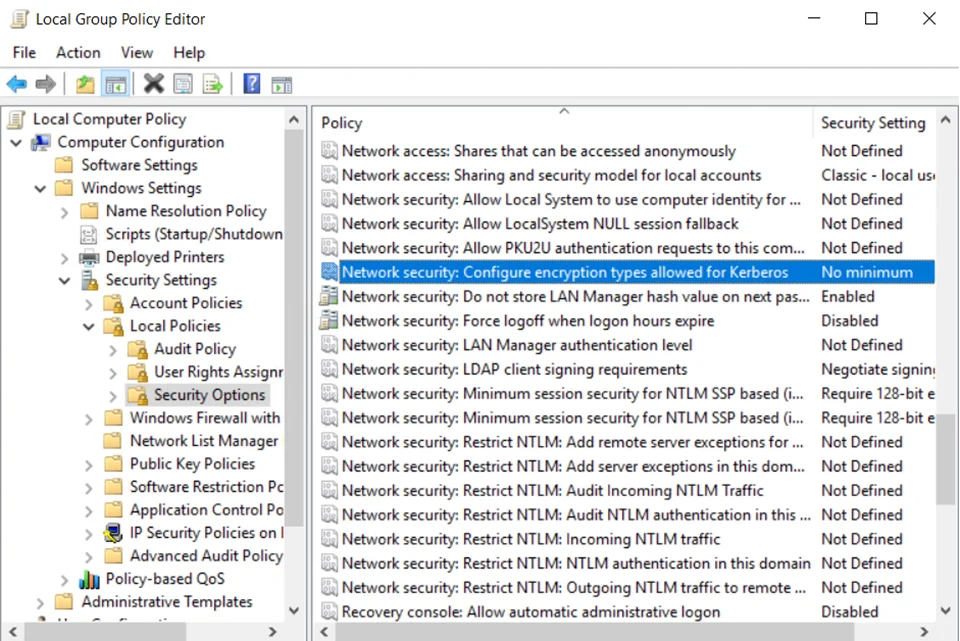
Step 2 – From the Local Computer Policy list, navigate to Computer Configuration > Windows Settings > Security Settings > Local Policies > Security Options folder .
Step 3 – Right-click the Network Security: Configure encryption types allows for Kerberos policy, then click Properties.
Step 4 – Configure necessary settings by checking each applicable box.
Step 5 – Click Apply, then click OK.
You have now configured a Local Group Security Policy to allow encryption methods for Kerberos. Proceed to the Configure Active Directory Users and Computers Settings to allow Kerberos section of this topic to ensure Active Directory Users and Computer settings are configured to allow the encryption methods for Kerberos.
Configure Active Directory Users and Computers Settings to allow Kerberos
To ensure that the settings for Active Directory Users and Computers allow the encryption methods for Kerberos, match the configuration options you select in this section to those you selected in the two preceding sections. See the Local Security Policies and Group Security Policy topics for additional information.
Step 1 – Open the Active Directory Users and Computers window.
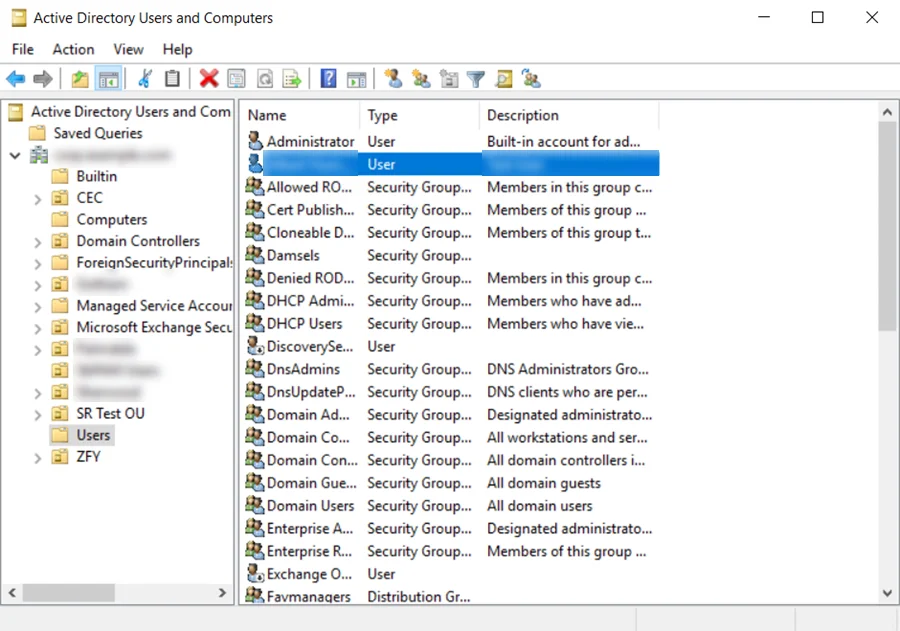
Step 2 – Click and expand the Domain from the left-hand menu and click Users.
Step 3 – Right-click a User from the list of available users, then click Properties.
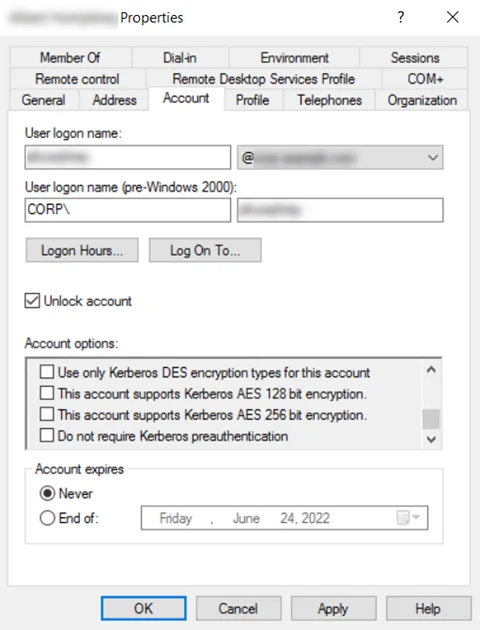
Step 4 – Click the Account tab.
Step 5 – Locate the appropriate Account options and check the corresponding boxes.
Step 6 – Click Apply, then click OK.
You have now configured Active Directory Users and Computer settings to allow the encryption methods for Kerberos. These settings should match the configuration options for Local Security Policies and Local Group Policies.