Importing False Positive Exclusion Filters
Create an import (TXT) file containing a list of file paths for the files to be excluded from Sensitive Data reports. The text file should have one file path per row. You must scope the import file to a single solution and a criteria set.
To import a list of False Positive Exclusion Filters:
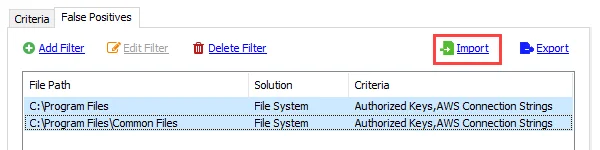
Step 1 – Click Import to open the Select False Positive Exclusion Filter file to import window.
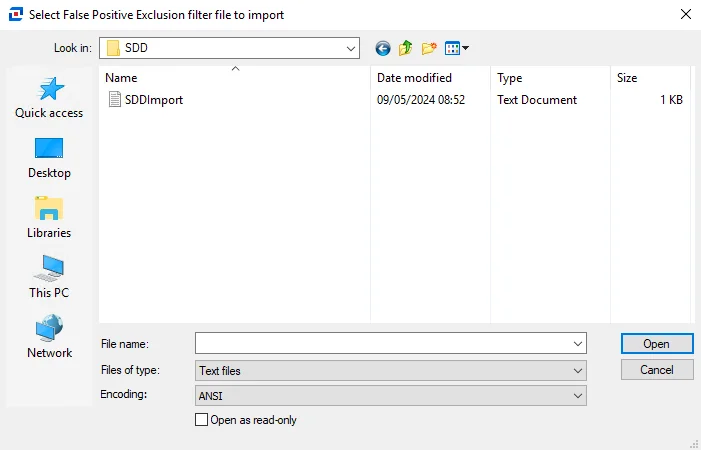
Step 2 – Navigate to the file you want to import. Select the file and click Open. The Configure Imported False Positive Exclusion Filters window opens.
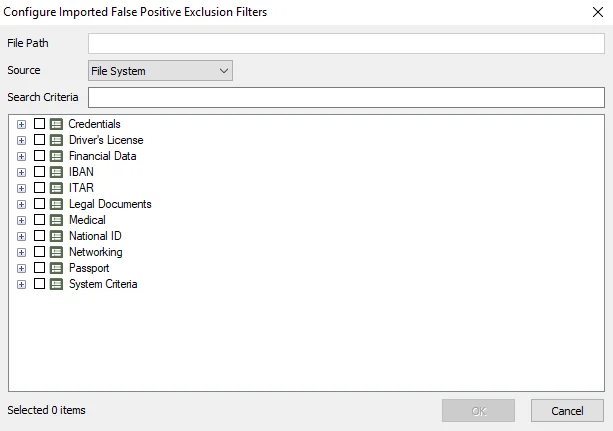
Step 3 – Select the repository type from the Source dropdown menu.
Step 4 – Select the required criteria from the list. You can use the Search Criteria textbox to filter the list by keywords.
Step 5 – Click OK to confirm configurations. The Configure Imported False Positive Exclusion Filters window closes.
Step 6 – Click Save on the Sensitive Data view to save changes.
Enterprise Auditor now applies the imported list of False Positive Exclusion Filters to Sensitive Data reports. If all of the files in the import weren't meant to have the same Source and Criteria set, see the Editing False Positive Exclusion Filters topic for additional information.