Criteria Tab
Configure the list of selected sensitive data criteria that will be used within sensitive data scan jobs using the Criteria Tab.

The options on the Criteria Tab are:
- Add – Opens the Select Criteria window to add search criteria that will be inherited by Sensitive Data scan jobs. See the Select Criteria Window topic for additional information.
- Remove – Removes the selected criteria from being inherited by Sensitive Data scan jobs
- Launch Editor – Opens the Sensitive Data Criteria Editor. See the Sensitive Data Discovery Add-On for additional information.
- Search selected criteria – Filter the criteria listed in the Criteria tab
The Cancel and Save buttons are in the lower-right corner of the Sensitive Data view. These buttons become enabled when you make modifications to the Sensitive Data global settings. Whenever you make changes at the global level, click Save and then OK to confirm the changes. Otherwise, click Cancel if you don't want to save the changes.
Select Criteria Window
To add Search Criteria for Sensitive Data scan jobs:

Step 1 – Click Add to open the Select Criteria window.
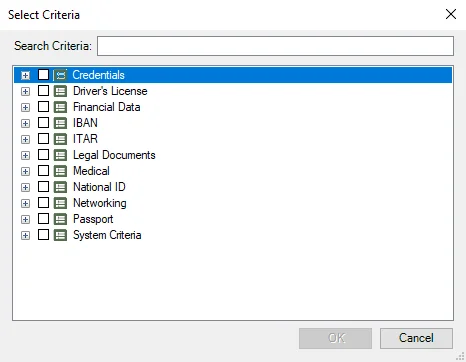
Step 2 – Select the checkbox to select the criteria. Use the Search Criteria text field to filter the list using keywords or expand each category to view and select individual Sensitive Data search criteria.
Step 3 – Click OK to confirm changes. The Select Criteria window closes.
Step 4 – Click Save on the Sensitive Data view to save changes.
Sensitive Data scan jobs that are set to use global sensitive data criteria settings now inherit the selected Search Criteria.