Exchange
The Exchange node is for configuring the settings needed to query Microsoft® Exchange Servers. These settings are exclusive to the Enterprise Auditor for Exchange Solution.
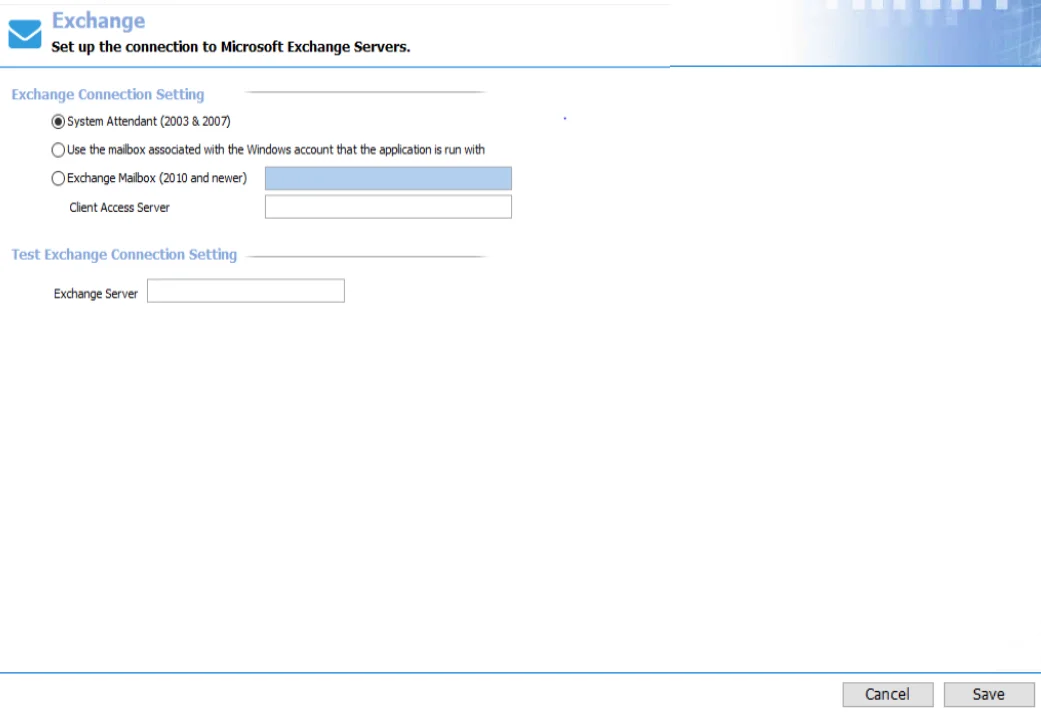
The Exchange node is grayed out by default. To enable these settings, install both Enterprise Auditor MAPI CDO and Microsoft Exchange MAPI CDO on the Enterprise Auditor Console server. See the StealthAUDIT MAPI CDO Installation topic for additional information.
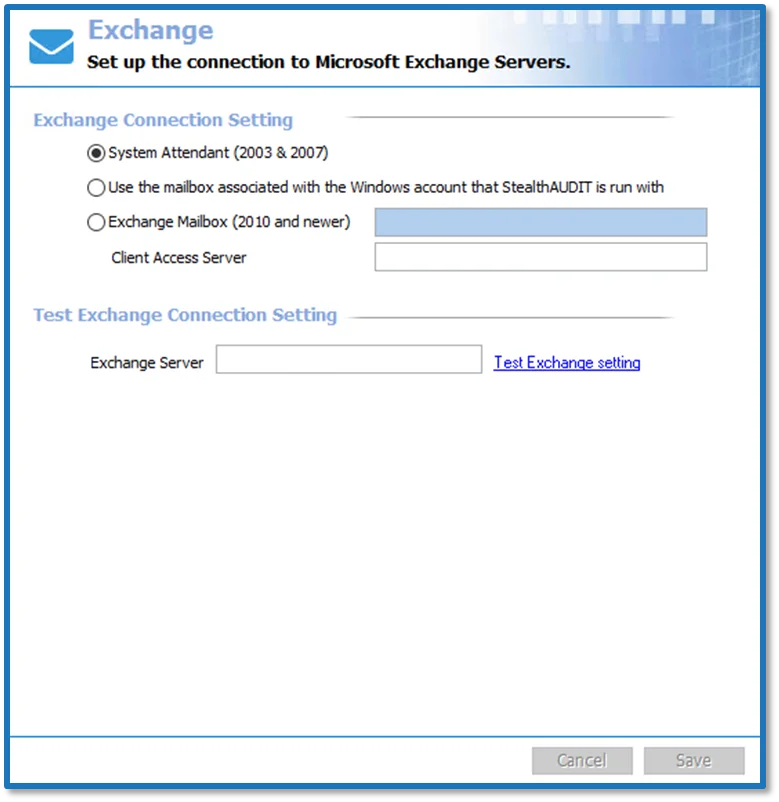
After you meet the requirements, the Exchange node is enabled for configuration. These settings are used to make MAPI connections to the Exchange Server for the Mailbox, PublicFolder, Exchange2K, and ExchangePS Data Collectors. The Client Access Server field, or CAS, is also used by the ExchangePS Data Collector to make Remote PowerShell connections for Exchange 2010 or newer. The data collectors apply these settings unless modified inside the job query.
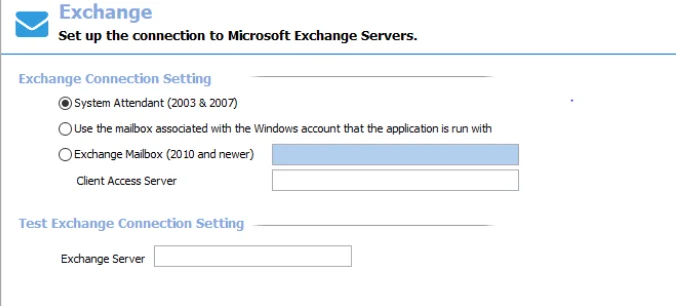
The three options in the Exchange Connection Setting section at the top of the window are dependent on which version of Exchange is audited.
-
For Auditing Microsoft Exchange 2007 or Older Versions:
- Select the radio button for System Attendant (2003 & 2007) – The System Attendant Account is built into Exchange 2007 and older versions and allows Enterprise Auditor to make the necessary MAPI connections.
-
For Auditing Microsoft Exchange 2010 or Newer Versions:
-
Select either of the other two options:
-
Use the mailbox associated with the Windows account that Enterprise Auditor is run with – This option uses either the account logged into the Enterprise Auditor Console server or the account set to run the Enterprise Auditor application.
-
Exchange Mailbox (2010 and newer) – This option allows an Exchange Mailbox Alias to be specified for MAPI connections.
- Enter the Alias name in the textbox. The Alias needs to be an Exchange 2010 or newer mailbox, not a mail-enabled service account. However, this mailbox doesn't need rights on the Exchange Organization; it only needs to reside within it.
-
Enter the name of the physical CAS in the Client Access Server textbox. This server can be part of an array, but don't enter the name of a CAS Array. This should also be the Exchange CAS where you have enabled both Remote PowerShell and Windows Authentication on the PowerShell Virtual Directory.
-
-
After you properly configure the Exchange Connection Settings for the version of Exchange you want to audit, test the settings.
In the Test Exchange Connection Settings section:
-
Enter a Mailbox Server with the mailboxes you want to audit in the Exchange Server textbox.
-
Click the Test Exchange settings link.
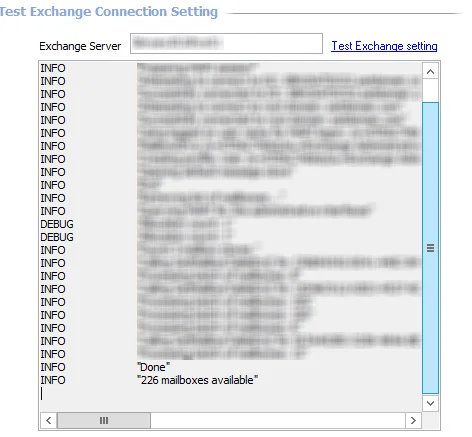
If the Exchange Connection Settings are correct, an output field opens. At the bottom of the output field, the output states a mailbox count and shows a message that reads, “You have successfully connected to this Exchange Server.” Click OK.
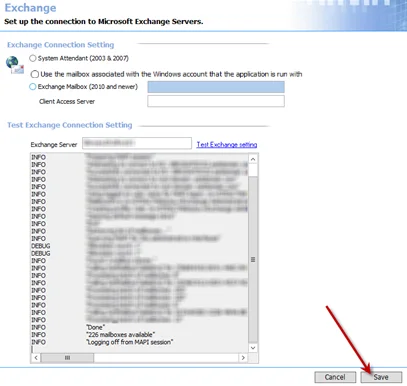
The Cancel and Save buttons are in the lower-right corner of the Exchange view. These buttons become enabled when you make modifications to the Exchange global setting. Whenever you make changes at the global level, click Save and then OK to confirm the changes. Otherwise, click Cancel if you don't want to save the changes.