Configuring Roles
To ensure a least-privilege access model, configure roles within both the Enterprise Auditor Console for folder rights and SQL Management Studio for database access rights.
This is a three-part process:
-
Configure the Enterprise Auditor Installation Account
-
Configure Roles in SQL Management Studio
- Create SQL Server Database Roles
- Assign Users to SQL Roles
-
Assign User Roles in the Enterprise Auditor Console
- Edit Role Members’ Responsibilities
- Delete Role Members
This configuration process isn't required if only using Role Based Access to secure Published Reports. See the Securing Published Reports Only topic for additional information.
Configure the Installation Account
Enterprise Auditor uses the Installation Account both to perform the initial installation of Enterprise Auditor and to change Storage Profile settings. It needs additional rights to query objects in the master database. This is only necessary so the user can enumerate the available databases to choose from when configuring the Enterprise Auditor Storage Profile.
Run the following script to give these necessary rights only to the account that performs the initial installation of Enterprise Auditor and any changes to the database where Enterprise Auditor writes data:
--Create a login for the user if one does not already exist
IF NOT EXISTS (SELECT *FROM sys.server_principals WHERE [name] = '<DOMAIN>\<USERNAME>')
BEGIN
    create login [<DOMAIN>\<USERNAME>] from windows
END
GO
--Grant that user rights to query the master database to get a list of all database objects
USE [master]
GRANT VIEW ANY DEFINITION TO [<DOMAIN>\<USERNAME>]
GRANT CREATE DATABASE TO [<DOMAIN>\<USERNAME>]
GO
Configure Roles in SQL Management Studio
Provision rights to the SQL Server database so the Enterprise Auditor application rights and database access rights are consistent and provide the minimum rights necessary to support the Enterprise Auditor roles. This approach involves creating custom database roles and assigning rights and privileges to them. Then, assign individual domain user accounts to these roles.
For any SQL Server version before 2012, you can't use Windows groups because SQL Server doesn't allow assigning default schemas to Windows groups. Enterprise Auditor requires the default schema of [dbo] to function properly.
Create SQL Server Database Roles
To create the roles within the SQL Server database, run the following script.
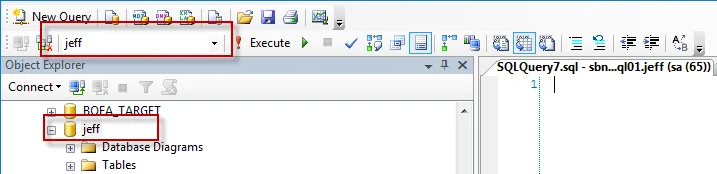
Be sure to set the context of this query to the Enterprise Auditor database by selecting the right
database from the dropdown window. Alternatively, prefix the script with a
USE [Enterprise Auditor DATABASE NAME] clause.
--create SMP Viewer role
CREATE ROLE SMP_Viewer
--grant role permissions at the schema level
GRANT SELECT
ON SCHEMA::dbo
TO SMP_Viewer
Go
--create SMP Builder role
CREATE ROLE SMP_Builder
--grant role permissions at the schema level
GRANT SELECT,INSERT,DELETE
ON SCHEMA::dbo
TO SMP_Builder
Go
--grant additional creation rights
GRANT CREATE TABLE TO [SMP_Builder]
GO
--create SMP Admin role
CREATE ROLE SMP_Admin
--grant role permissions at the schema level
GRANT ALTER,EXECUTE,INSERT,UPDATE,REFERENCES
ON SCHEMA::dbo
TO SMP_Admin
Go
--grant additional creation rights
GRANT CREATE TABLE TO [SMP_Admin]
GO
GRANT CREATE VIEW TO [SMP_Admin]
GO
GRANT CREATE PROCEDURE TO [SMP_Admin]
GO
GRANT CREATE FUNCTION TO [SMP_Admin]
GO
GRANT CREATE TYPE TO [SMP_Admin]
GO
After the script runs successfully, assign domain users to these database roles.
Assigning Users to SQL Roles
Now that you've created the SQL Server database roles, the next step is to assign domain users to those roles. You can do this interactively in SQL Management Studio. To assign users to SQL Server database roles:
Step 1 – Connect to the Enterprise Auditor database through SQL Management Studio.
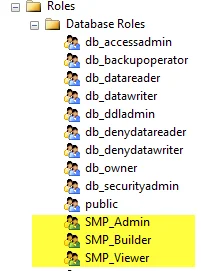
Step 2 – Navigate to Security > Roles > Database Roles to confirm the script created the three new roles. The three new roles should be visible:
- SMP_Admin
- SMP_Builder
- SMP_Viewer
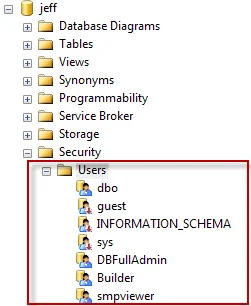 |  |
Step 3 – After you confirm the roles were created, map users to these roles by right-clicking the Security > Users node and selecting New User.
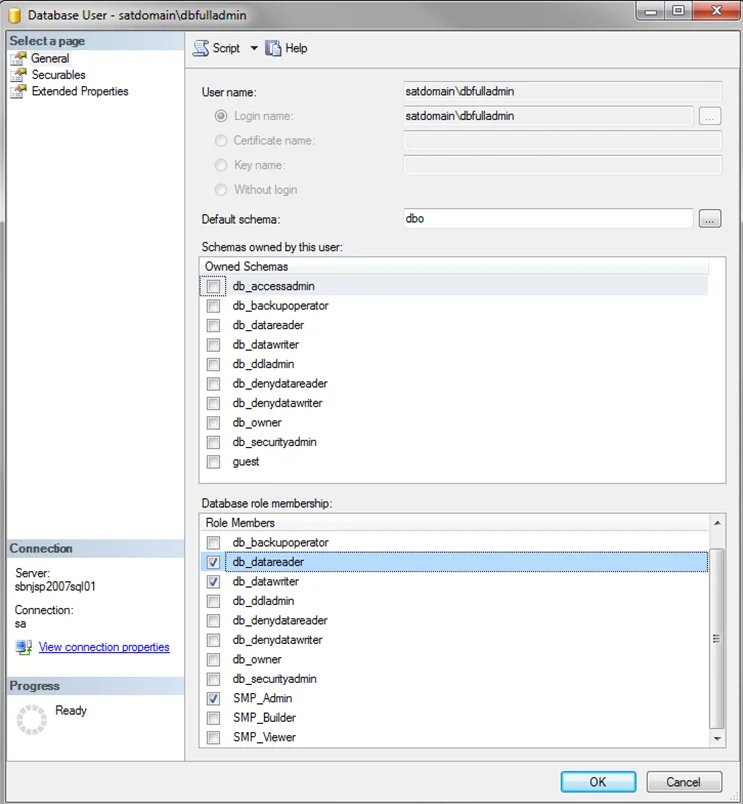
Step 4 – Enter the user information in the dialog as follows:
-
User Name – Display name given to the user which is shown under the user’s folder.
infoUse a descriptive name.
-
Login name – Qualified domain name of the user:
[DOMAIN]\[Username] -
Default Schema – Should be set to
dbo -
Database role membership – Should be set to the appropriate role for this user. See the Role Definitions topic for more information.
After you assign all users to the appropriate SQL Server database roles, complete the process by assigning users to roles within the Enterprise Auditor Console.