Assign User to Role Members
Role Based Access becomes enabled within Enterprise Auditor as soon as you assign the first role in the Access Role wizard. When you save the first role or set of roles added to the Role Membership list in the Roles view, you must include the Administrator role for at least one user, or an error message displays.
To assign roles in the Enterprise Auditor Console:
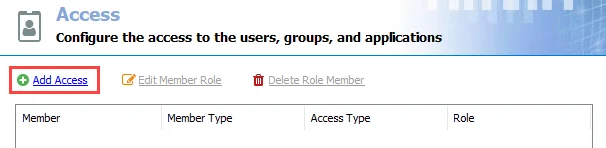
Step 1 – On the Access page, click Add Access. The Access Type wizard opens.
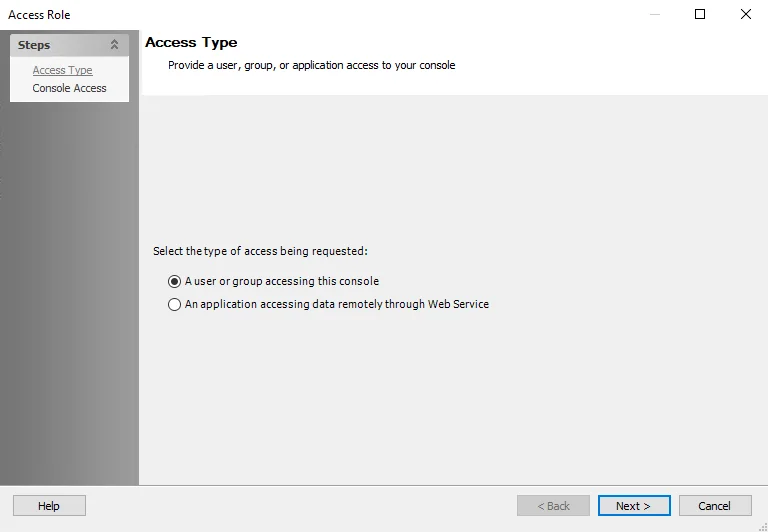
Step 2 – Select the A user or group accessing this console option. Click Next.
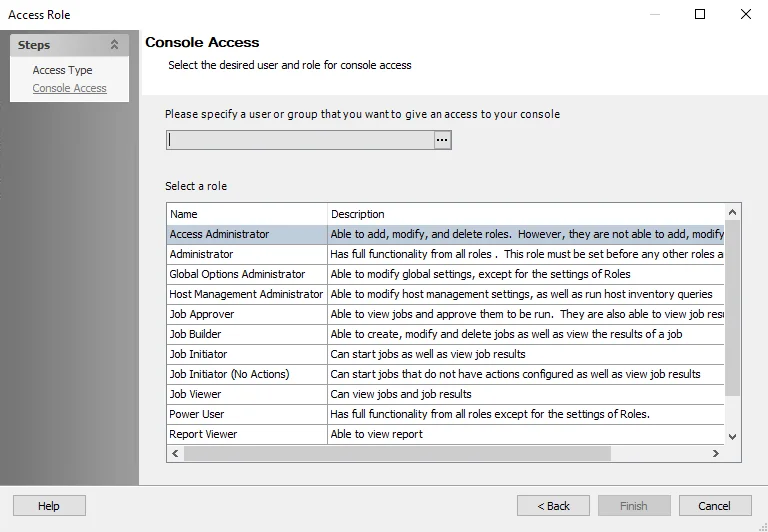
Step 3 – On the Console Access page, specify a group or user in the Name field. Use the ellipsis (…) to browse for accounts with the Select User or Group window.
-
(Optional) To use previously configured MSA and gMSAs for authentication, select the gMSA option from the Object Types list. See the Microsoft Group Managed Service Accounts article for additional information.
- Change the location to the domain you want and click Object Types, then select Service Accounts.
- Add the gMSA name (
gMSAadmin$), then click OK. - The Member Type will show as
msDS-GroupManagedServiceAccounton the Access page.
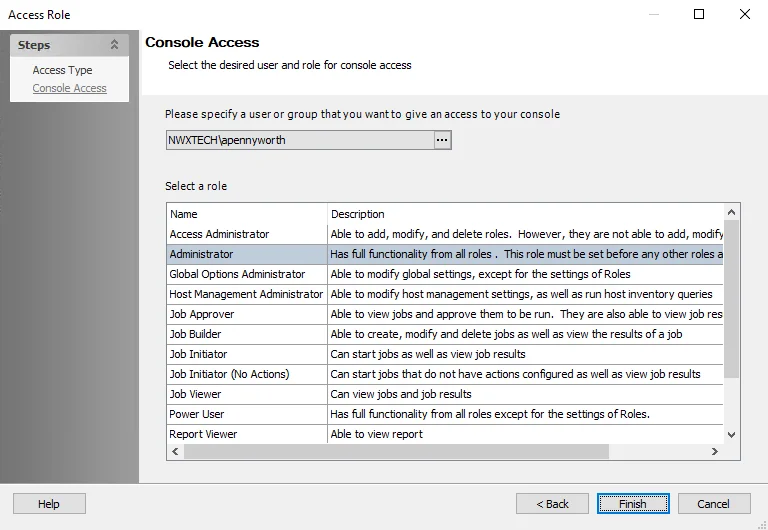
Step 4 – Select a role for the group or user from the Role list, and click Finish to add the group or user and role to the Role Membership list in the Roles view.
Step 5 – Repeat Steps 1-4 to assign roles to other groups or users.
Step 6 – Click Save and then OK to confirm the changes. If you don't save the changes, you lose all applied roles.
Role Based Access becomes enabled when you assign the first role.

The first role or set of roles saved must include the Administrator role. Clicking Save for the first role or set or roles without including the Administrator generates an error message in the Enterprise Auditor Console.
When Role Based Access is first enabled, restart the Enterprise Auditor application to ensure all roles are properly active. When you save roles for the first time, Enterprise Auditor applies permissions for the local Users group to the Enterprise Auditor directory. This lets you use roles without requiring local Administrator rights.
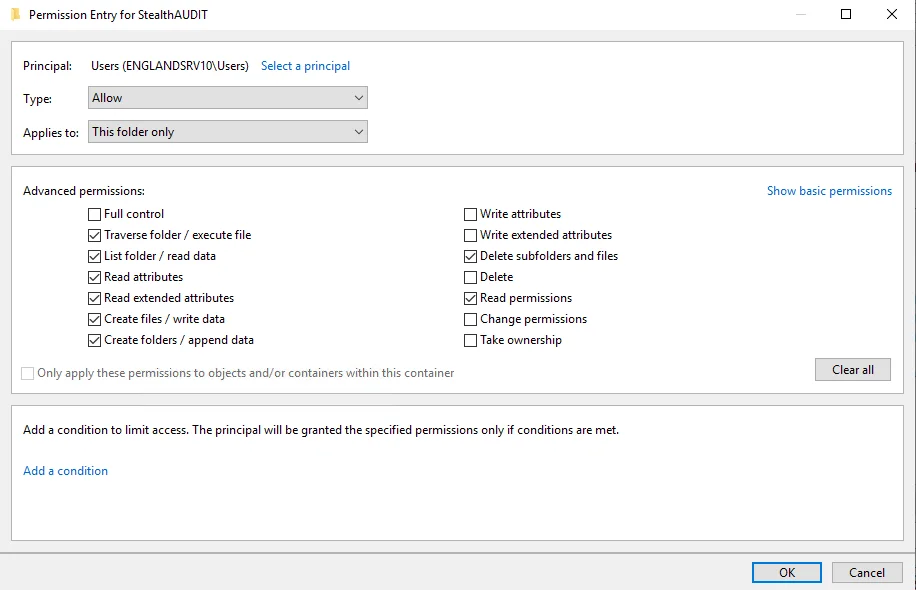 | 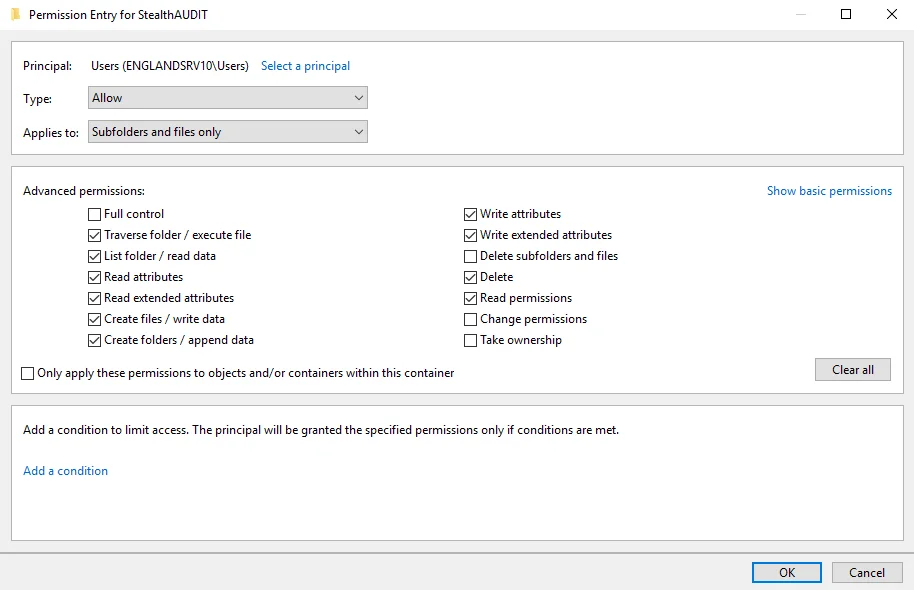 |
There are two separate sets of permissions:
- Applies to This folder only
- Applies to Subfolders and files only
Edit Role Members' Responsibilities
To edit a Enterprise Auditor user's role:
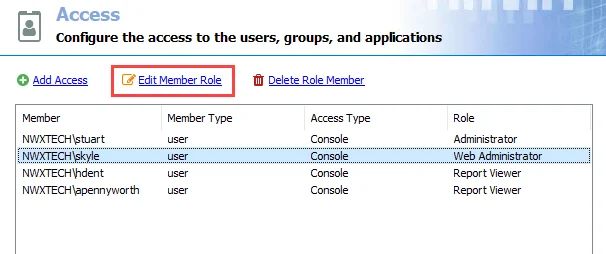
Step 1 – On the Access page, select the user you want and click Edit Member Role.
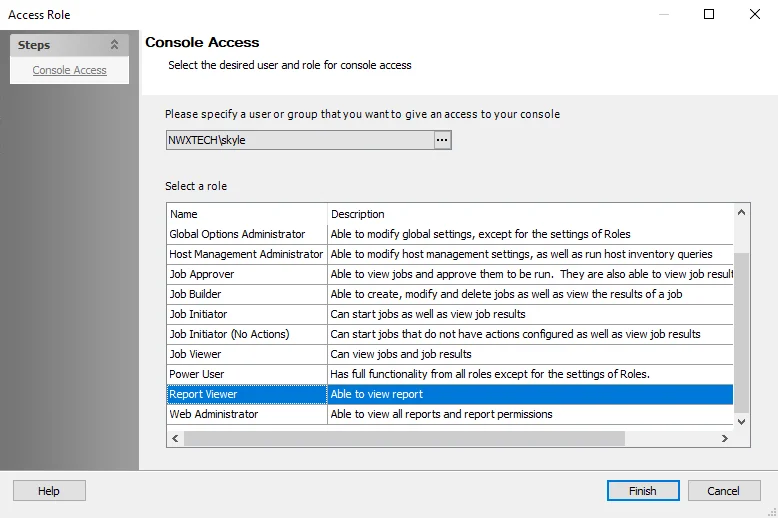
Step 2 – Select a new role for the user from the Roles list.
Step 3 – Click Finish to update the role on the Access page.
Step 4 – Repeat Steps 1-3 to edit other users’ roles.
Step 5 – Click Save and then OK to confirm the changes. If you don't save the changes, you lose all applied roles.
The changed roles take affect the next time the users logs into the Enterprise Auditor application. If a user is actively logged into Enterprise Auditor when an administrator changes that user's role, the user needs to exit and re-launch the application for the role change to take effect.
Delete Role Member
To delete a user's access to the Enterprise Auditor Console:
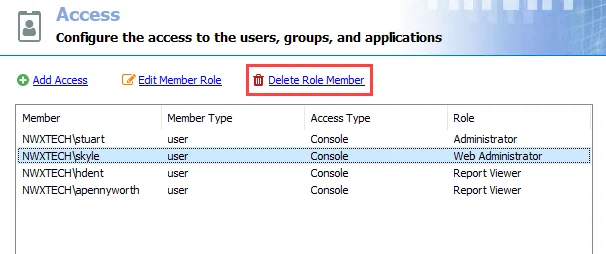
Step 1 – On the Access page, select the user you want and click Delete Role Member to remove the user from the list.
Enterprise Auditor doesn't request confirmation. However, the changes aren't final until you complete Step 3.
Step 2 – Repeat Step 1 to remove other users as desired.
Step 3 – Click Save and then OK to confirm the deletions. Enterprise Auditor doesn't delete the users unless you save the changes.
The deleted users will no longer be able to log into the Enterprise Auditor application. If a user is actively logged into Enterprise Auditor at the same time of the deletion, the user will need to exit the application for the deletion to take effect.