Report Cleanup when Deleting a Job or Job Group
When deleting a job or job group, the Delete Job and Delete Group wizards let you delete any published reports contained in the jobs you're deleting. To delete a job or job group that contains published reports:
Deleted objects can't be restored.
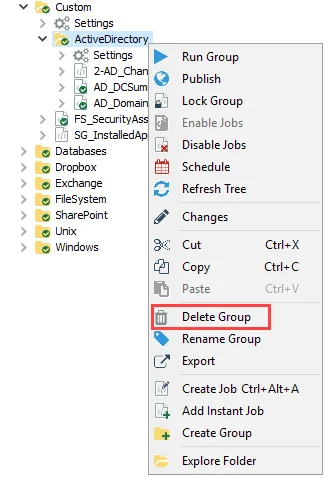
Step 1 – In the Jobs tree, right-click the job or group that you want to delete and select Delete Job/Group.
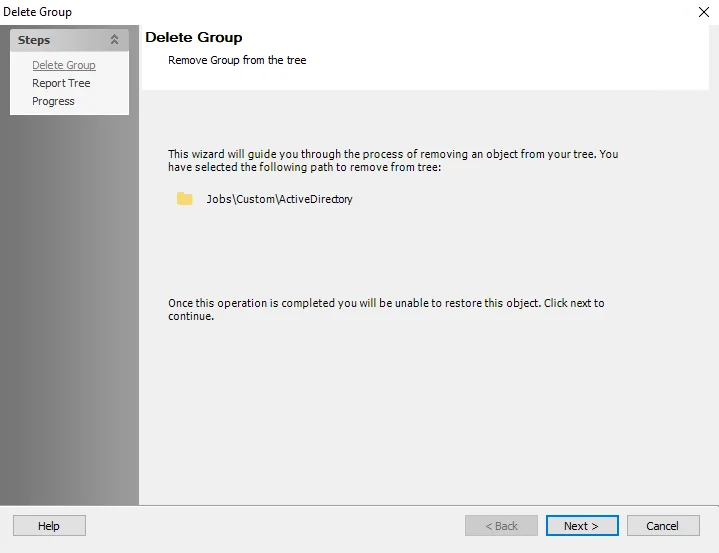
Step 2 – On the Delete Job/Group page of the wizard, confirm it shows the correct job or group that you want to delete, then click Next.
If there are no published reports, clicking Next starts the deletion (skip to step 4).
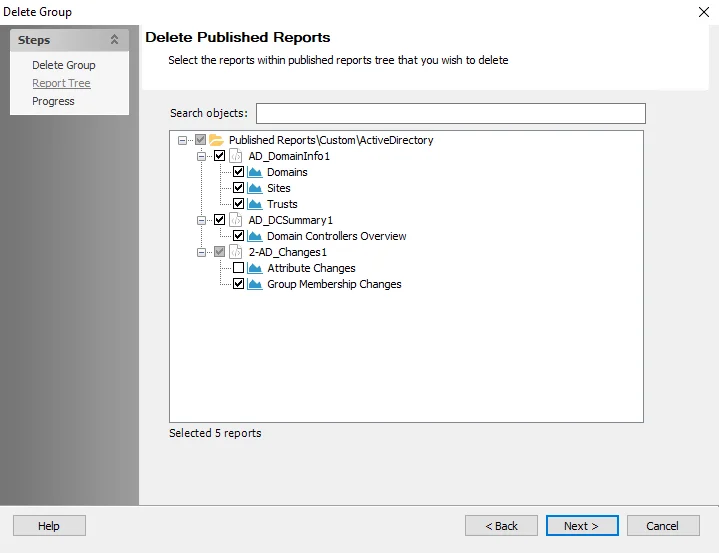
Step 3 – The Delete Published Reports page of the wizard shows the tree of published reports. Select the checkboxes next to all the reports you want to delete. You can also select reports by job group or job. Click Next to proceed with the deletion.

Step 4 – The Progress page shows you the status of the deletion process. When it has completed, click Finish to exit the wizard.
Enterprise Auditor deletes the job or job group and all of the selected published reports. If you chose not to delete any of the published reports contained in any of the deleted jobs, then you can still view those remaining reports in the Web Console, even though the parent no longer appears in the Enterprise Auditor Console.
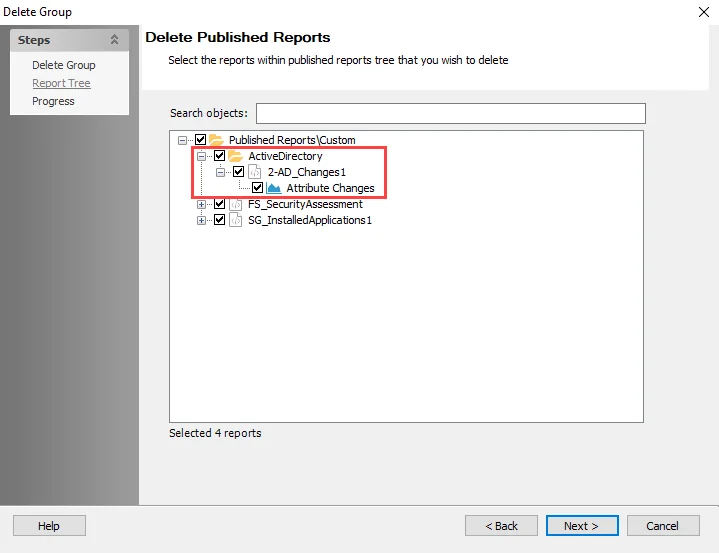
The wizard shows the remaining published reports that weren't deleted if you delete the parent group of the previously deleted job or group.