Jobs Tree
Jobs are the fundamental unit of Enterprise Auditor. All data collection queries, analysis tasks, notification tasks, action tasks, and report generation occur through jobs. Jobs are housed within the Jobs tree of the Navigation pane.
The Jobs Tree is located in the Navigation Pane on the Enterprise Auditor Console.
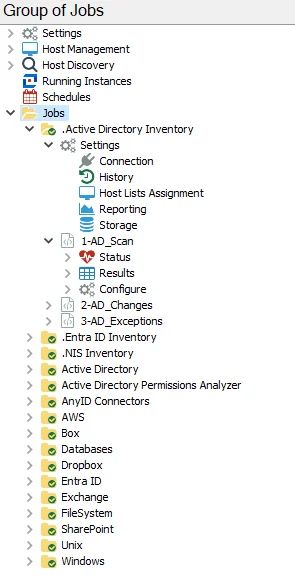
Clicking on the arrow next to the Jobs node will expand it. The Jobs tree is organized alphanumerically, first by job groups and then by any jobs that are independent of job groups.
Each component within the Jobs tree has an icon for quick reference. The icons are:
| Icon Description | Description |
|---|---|
 | Job Group |
 | Modified Job Group |
 | Settings node for a Job Group/ Configure node for a job |
 | Job |
 | Modified Job |
 | Locked Job (Only applicable to Role Based Access feature) |
 | Status node for a Job |
 | Job’s ConnectStatus Node |
 | Job Status for a Job |
 | Task Status for a Job |
 | Results node for a Job |
 | Job’s Messages table |
 | Job’s Data Table or View |
 | Job’s Report |
A green checkmark over a Job or Job Group icon indicates you made a configuration change to the job or job group. The Jobs tree inherits the global settings configured under the Settings node down to the job unless you break inheritance in a job group’s Settings node, a job’s Configure node, or a job’s Properties window. See the Navigating the Console for additional information.
Job Execution Options
Enterprise Auditor is designed to execute jobs one at a time in the order assigned. If you run a job group, the jobs execute in the order listed within the job group. Job groups are designed to run data collection jobs before running analysis and reporting jobs. If you independently trigger multiple jobs to run, the jobs execute in the order triggered.
Jobs execution options include:
- Manual or Ad Hoc
- Applies logged in user’s credentials to execute the job on the Enterprise Auditor Console server
- You can monitor job progress through the Running Instances node
- You can manipulate the order of job execution on the Running Instances node
- Closing the Enterprise Auditor Console terminates the running job and clear the jobs queue
- Schedule
- Applies Schedule Service Account credentials to execute the job through Windows Task Scheduler
- Each scheduled task independently employs the Enterprise Auditor application, allowing unrelated tasks to run simultaneously
- Runs on schedule whether a user is logged in or not
Changes Window
The Changes window is where customers or professional services engineers create jobs. You can enable custom jobs to track changes to configuration settings. When enabled, Enterprise Auditor tracks configuration changes in change logs stored within the job folder. You can also view changes within this window.
Remember, Enterprise Auditor doesn't ship custom jobs; users create them instead.
The Changes window opens from the Changes option in the right-click menu from the selected Jobs tree, job group, or job node.

Select Enabled from the dropdown menu in the upper-left corner to turn on change tracking of configuration settings. Select a modification from the table and click Undo to revert the change.
The window columns display the following information:
- Job Path – Path to the job where the configuration change occurred, only visible when viewed at the Jobs tree or job group level
- Component – Component of the job where the configuration change occurred, for example Job, Query, or Analysis
- Modification – Type of change that was made, for example Add or Update
- Task – Name of the analysis or action task modified, only populated when the change occurred to an Analysis or Action component
- Setting – A changed setting
- Value – New setting value. If the modification was an update, this displays both the old and the new setting value.
Select a modification from the table and click Undo to revert the change.
If configuration change tracking is Disabled, Enterprise Auditor only writes configuration changes directly to the job’s XML file. If you previously enabled the configuration change tracking feature and then disabled it at a later time, Enterprise Auditor provides an option to merge changes back into the job’s XML file.
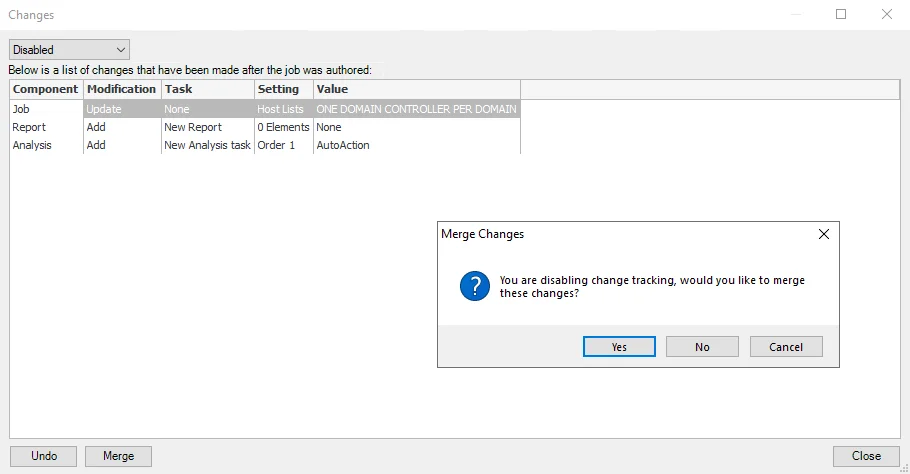
To merge the changes into the job’s XML file without disabling the configuration change tracking feature, click Merge on the bottom left corner of the Changes window and then click Yes on the Enterprise Auditor pop-up window to confirm the merge.
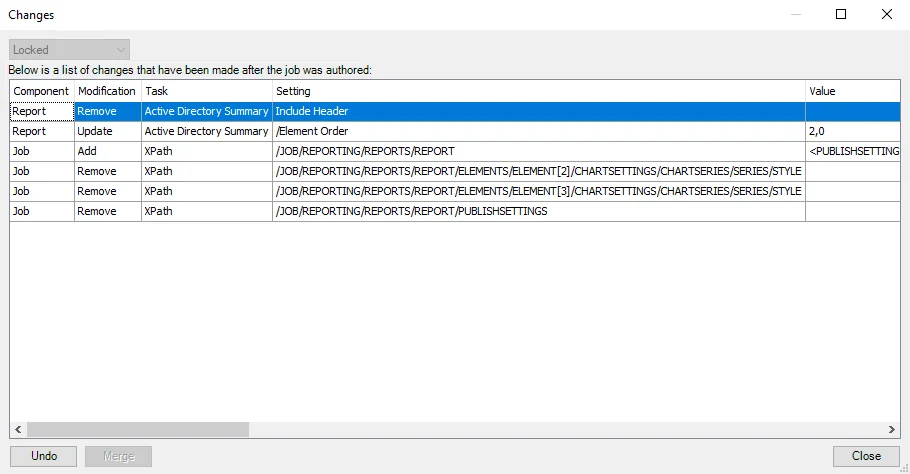
Enterprise Auditor tracks changes between releases. You can only upgrade jobs that are locked.
Jobs that are included in Enterprise Auditor are locked, and you can't make changes to those jobs.