Results Node
After you execute a job, you can view the query-populated native data tables, the analysis- and action-populated materialized tables and views, and the generated reports under the job’s Results node.
Jobs with configured queries only populate native data tables. Jobs with configured analysis or action tasks only generate materialized tables and views. Jobs with configured reports only generate reports.
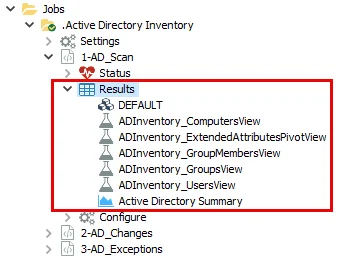
Every job generates a native data table when executed, which appears at the top of the Results node. Query execution produces the native data table, or raw data table. It contains all raw data collected by the scan. It is often named DEFAULT, but may have another name that you set during query configuration. If the job executes no query, the DEFAULT table appears as a placeholder only and remains empty (0 rows). A job can have multiple queries, though avoid using more than one when possible. These queries could write to the same native data table, or each query could write to its own native data table. If one job generates multiple native data tables, they appear in alphanumeric order at the top of the Results node list.
You can configure analysis tasks to generate materialized tables and views. Action tasks create action status tables. These appear beneath the native data tables under the Results node in alphanumeric order.
Finally, any reports generated by the job, both published and unpublished, appear beneath the materialized tables and views in alphanumeric order.